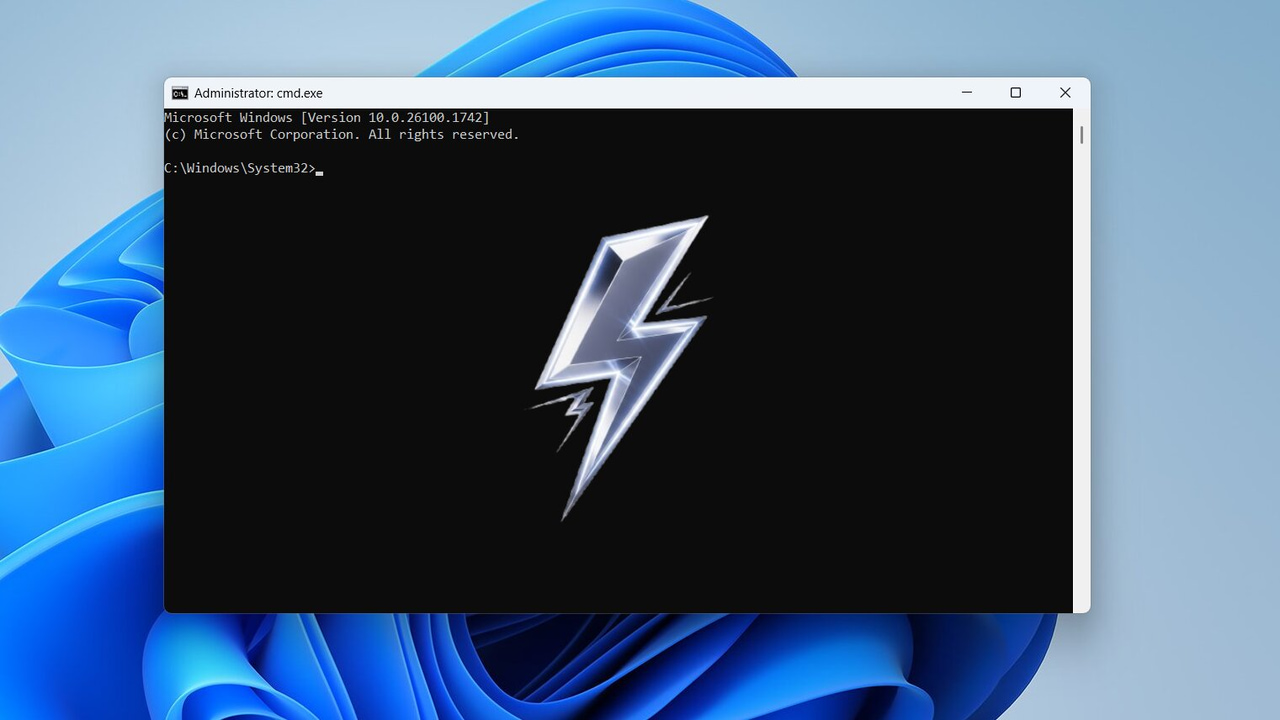
If you often make system-level changes in Windows, you’ll sometimes need to open the Command Prompt with administrator privileges. You can do this from Windows Search by right-clicking the Command Prompt icon and choosing Run as administrator, but there are faster ways that minimize disruption to your workflow. Here are 4 quick methods to open an elevated Command Prompt.
Use a Keyboard Shortcut in Windows Search
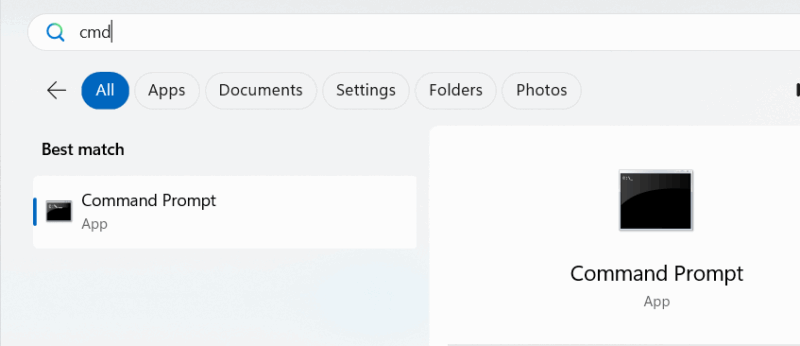
Using the Windows Search function to open the Command Prompt as administrator is one of the most common methods. But you can further speed up this process with a keyboard shortcut. Here’s what you need to do:
Open Windows Search and type “cmd” to find the Command Prompt app. Instead of right-clicking the app, hold the Ctrl + Shift keys and left-click the app icon. You will see the UAC prompt that you can confirm to open an elevated Command Prompt.
Open from the Run Dialog
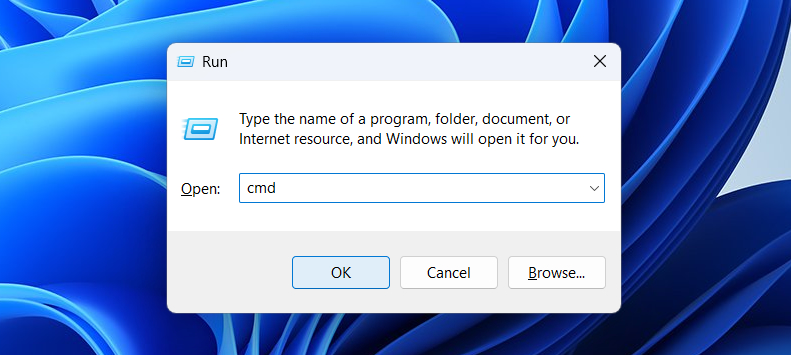
Many users prefer to open the Command Prompt using the Run command. However, it will open a regular Command Prompt window, not an elevated one. You can use the method below to directly open an elevated Command Prompt window from Run:
Press the Windows + R keys to open the Run dialog and type cmd. Press Ctrl + Shift + Enter keys and the Command Prompt will open as administrator.
Create an Elevated Command Prompt Shortcut Icon
If you want a more customizable method, creating a Command Prompt shortcut that directly opens an elevated Command Prompt will be a better solution. Not only will opening Command Prompt be faster, as you just need to open the shortcut, but you can also place it anywhere for easier access, like on the taskbar. It does require an initial setup, but it’s worth the gains.
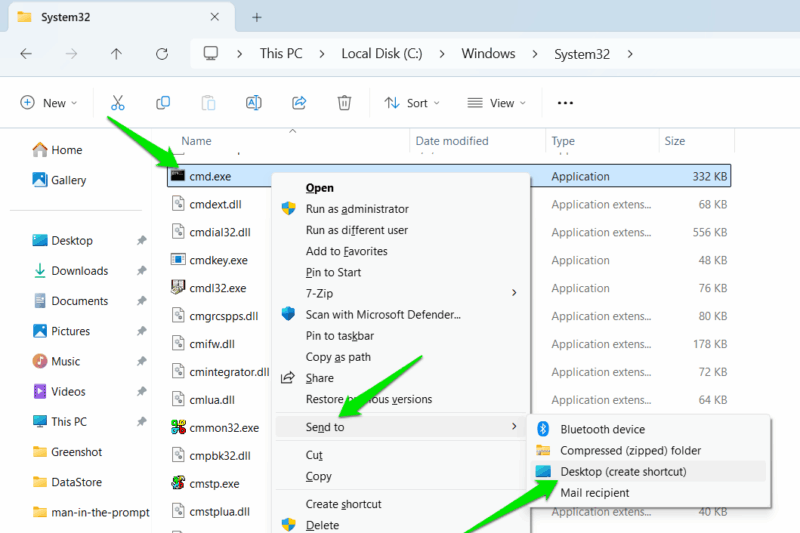
Open File Explorer, move to “C:\Windows\System32” and find the cmd.exe executable. Hold the Shift key and right-click to open the classic context menu. Here, choose Send to → Desktop (create shortcut).
Afterward, right-click on the cmd.exe shortcut you created on the desktop and select Properties. Click on the Advanced button under the Shortcut tab and check the checkbox next to the Run as administrator option.
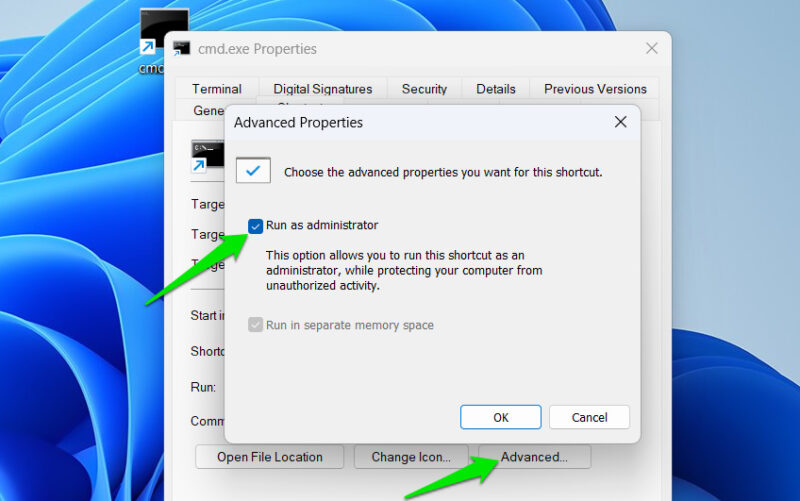
This Command Prompt shortcut will always open an elevated window, and you can place it anywhere for quick access.
Create a Dedicated Keyboard Shortcut
For fastest access, you can create a keyboard shortcut that will directly open an elevated Command Prompt window as soon as you hit the shortcut on the keyboard. For this, you’ll need a cmd.exe shortcut with Run as administrator enabled, like we created above. So, create a shortcut like we did above and follow the instructions below:
Right-click on the cmd.exe shortcut and select Properties. Under the Shortcut tab, you can add your preferred keyboard shortcut in the Shortcut key field. However, you can only assign shortcuts that start with Ctrl + Alt or Ctrl + Shift, such as Ctrl + Shift + C. To add a shortcut, click on the field to bring it to focus and press the shortcut on your keyboard.
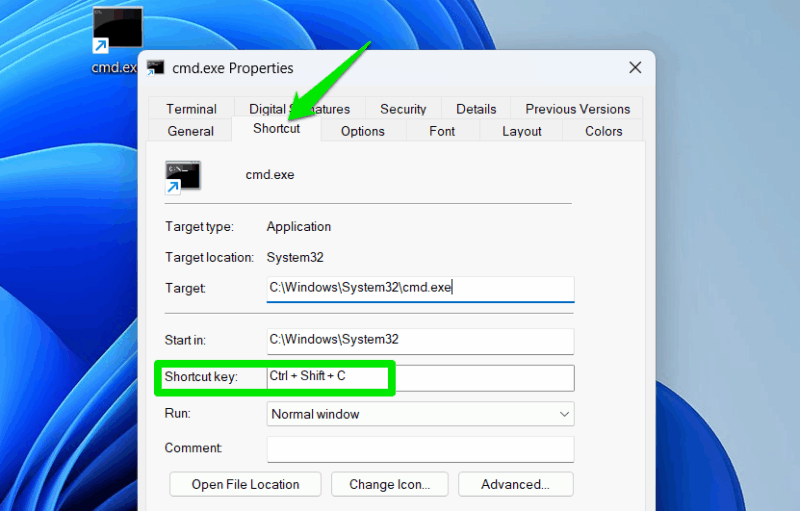
Now, whenever you hit the assigned shortcut keys on your keyboard, an elevated Command Prompt window will open. Although you’ll still have to confirm the UAC prompt, you can press the Left Arrow key and then the Enter key to quickly confirm it. We recommend keeping UAC enabled since it’s a necessary security function.
For best results, we recommend creating an elevated Command Prompt shortcut, assigning it a keyboard shortcut, and pinning it to the taskbar. That lets you open it from the taskbar with the mouse or via the keyboard while typing. If you enjoy Command Prompt, you’ll find these Command Prompt tricks useful.








