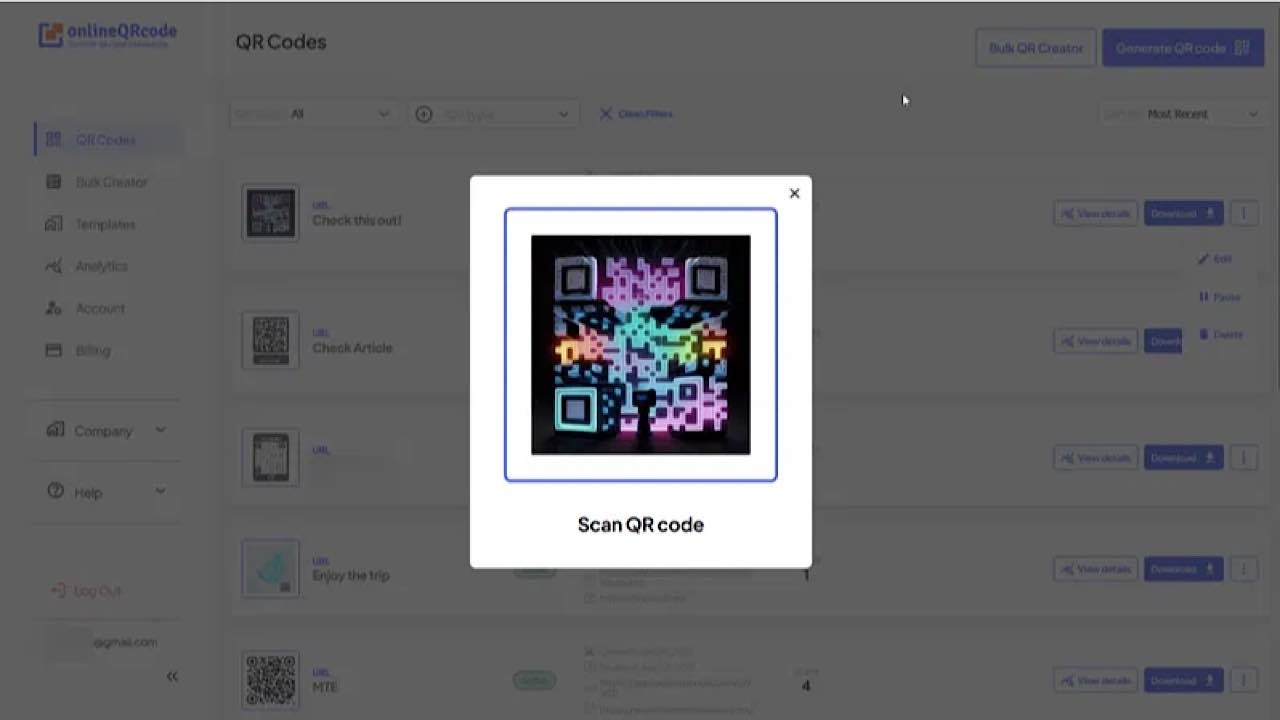
You’ve probably noticed QR codes popping up nearly everywhere: on menus, flyers, posters, you name it. They’re easy to scan, and now, even easier to create. Thanks to tools like OnlineQRCode, small businesses can whip up their own custom QR codes in no time from a browser. I explored the platform to see how it delivers on its promise for this review.
This is a sponsored article that was made possible by OnlineQRCode. The actual contents and opinions are the sole views of the author, who maintains editorial independence even when a post is sponsored.
Getting Started with OnlineQRCode
One of the biggest benefits of using a tool like OnlineQRcode is its online functionality – no installation required. Just open your browser on a PC or mobile device, and start creating QR codes instantly.
Well, sort of. You will need to sign up for an account before you can use OnlineQRcode and sign up for one of the subscriptions. It’s possible to simplify the process by using your Google account.
Using OnlineQRCode
Once you’ve logged in, you’re taken to the OnlineQRCode creation screen. Choose to craft a Dynamic or Static QR code.
If you haven’t heard of dynamic QR codes, here’s the gist: they’re like regular QR codes, but smarter. Instead of locking in one link forever, like static QR codes, they point to a flexible URL that can be updated whenever you need.
Still, opting for a static QR code may be recommended in some situations. For instance, if you’re looking to link to something permanent, such as a company’s website or a product manual, a dynamic QR code can be the right choice. This includes short-term use, such as sharing the link to a two-day event.
Depending on your business’s specific use case, select the type of information you want to include in the QR code. For instance, you can opt for PDF so that your customers can open your restaurant’s menu when they scan the code, or YouTube so that your QR code can take people to a video, etc.
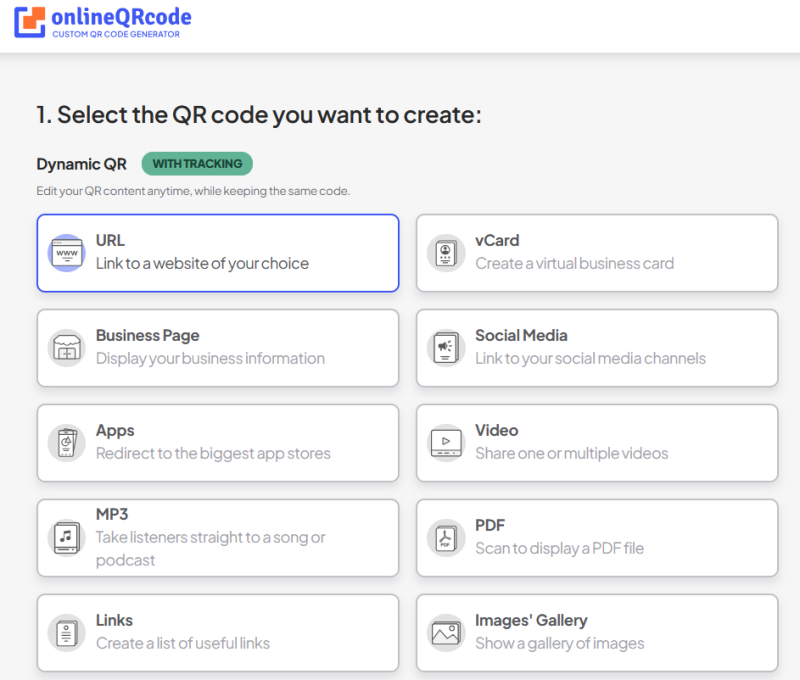
I, for example, decided to create a Social Media dynamic QR code that features links to social media pages for a mock brand.
Creating a destination page
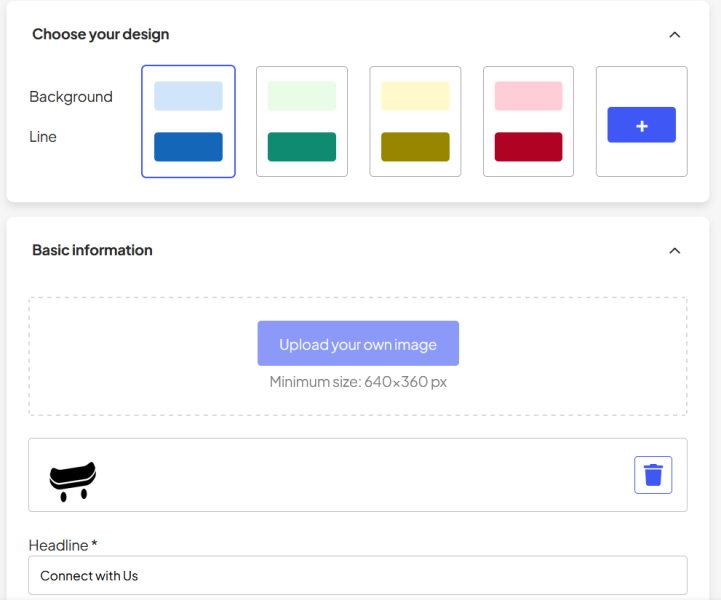
Next, start creating the page that opens when someone scans the QR code. Based on the type of code you’re creating, you can customize elements like header color, headline, logo, and description to make the page truly yours.
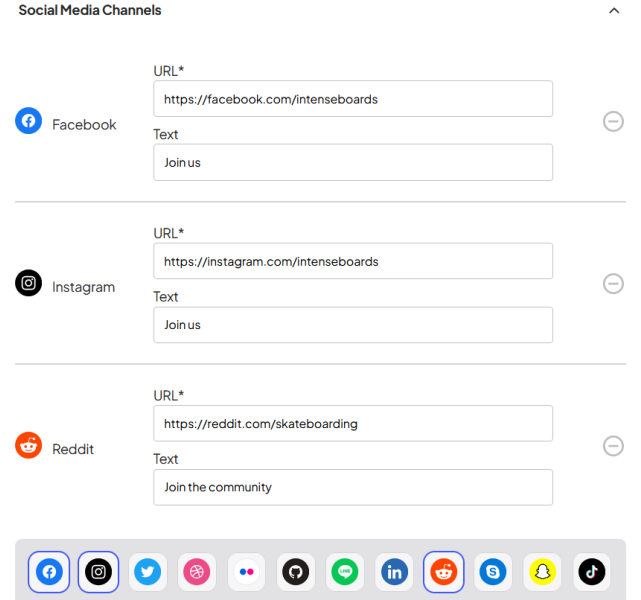
Adding information to a social media account proved to be a breeze. Just find the icons for the social app you want to add, then type in the details, such as the URL and text you want associated with it.
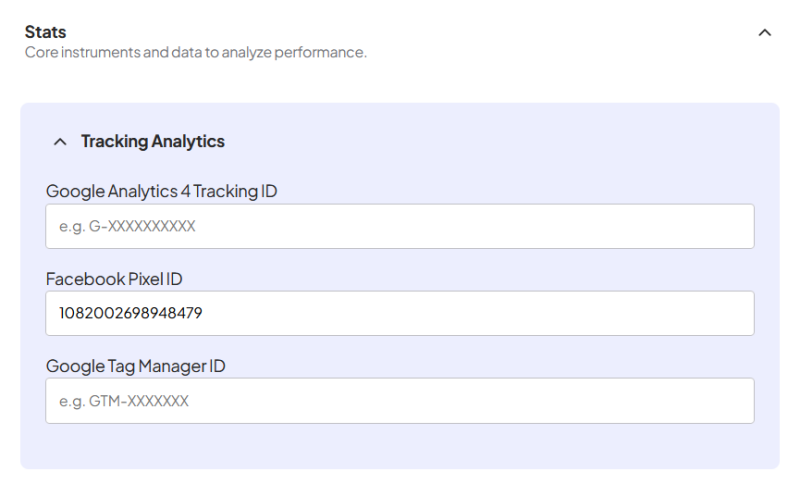
Since I’m creating a dynamic QR code, I can also add tracking links, such as to Google Analytics or Facebook Pixel.
Preview the page you created on the right.
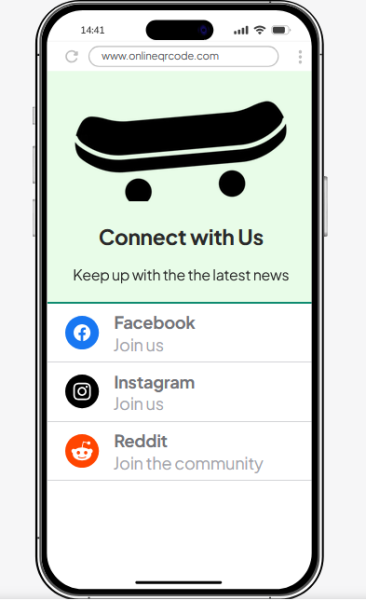
Once all the info has been added, press Next to go to the next step.
Designing your QR code
Want your QR code to stand out? Use the design page to make it pop. The Standard tool lets you manually browse and choose a design for your QR code.
Begin by choosing a QR code frame that suits the context of your business, then select a QR pattern that fits your style. Both the frame and pattern can be customized with different colors, allowing you to break away from the typical black-and-white look and create a QR code that stands out. Try to avoid bold color combinations, as they may affect scannability.
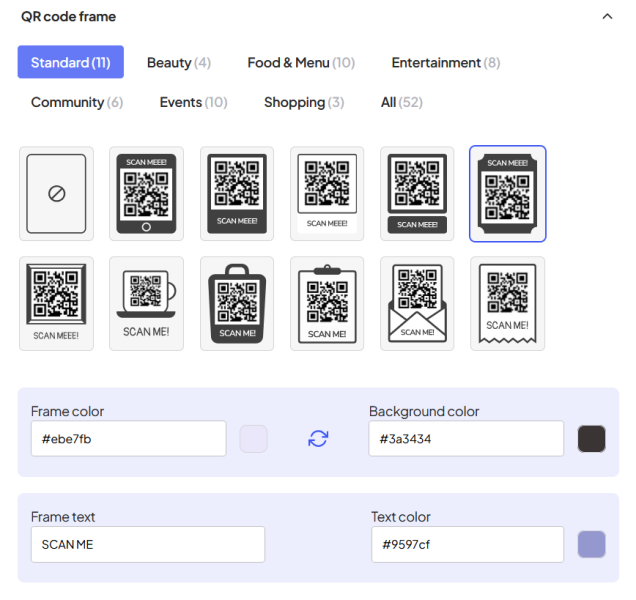
My recommendation is to use the preview on the right, and try to scan the code as it’s generated based on your input. This would give you the confirmation you need that the QR code works before you publish it. For dynamic codes, you can always return to the code and edit it, but that’s not an option for static codes.
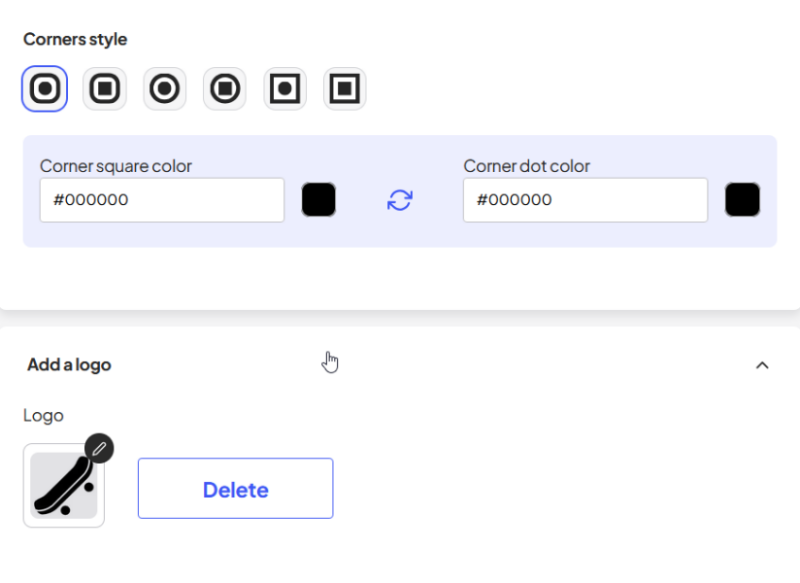
You can also play with corner style and dot pattern colors. Finally, add your logo if your brand has one (will appear at the center of the QR code), and press Finish.
Experimenting with the AI component
OnlineQRCode also offers access to an AI tool that can help you generate your QR codes. It requires a prompt that allows you to describe how you imagine the QR code will look.
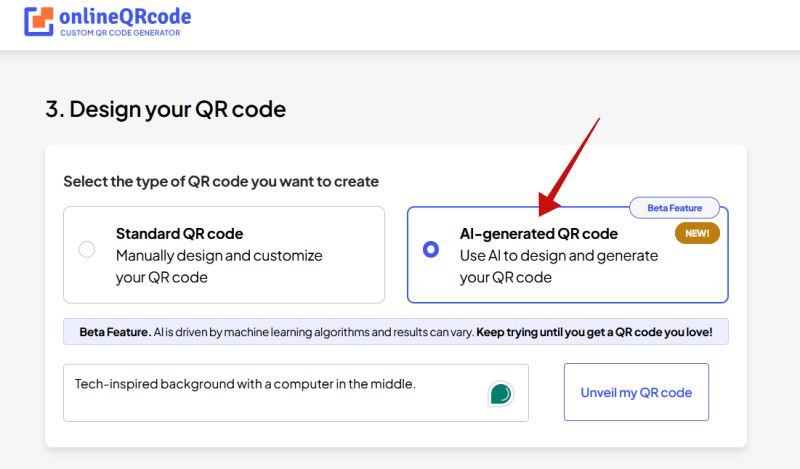
The QR code takes a minute to generate. Based on my experience, the results were a mixed bag: some QR codes have a unique and appealing look, while others were difficult, if not impossible, to scan. In some cases, the AI didn’t fully address all aspects of my request. Nevertheless, the AI component remains a fun tool to play and experiment with.
The OnlineQRCode Dashboard
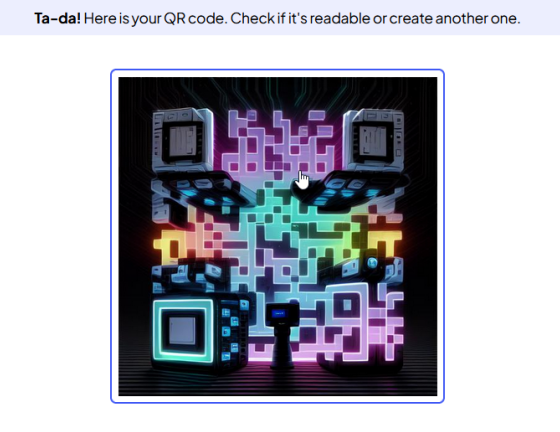
Once you create your first QR code, you can view it via OnlineQRCode’s Dashboard. You can see and modify all existing QR codes and see how many times they’ve been scanned, too.
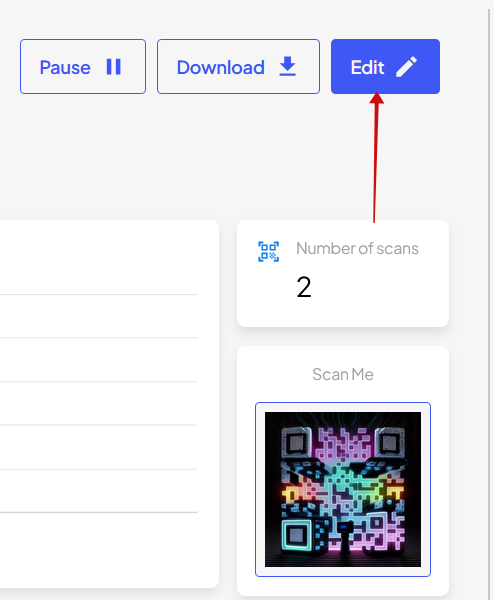
There are some additional features for added convenience, such as Bulk QR Creator to create dynamic codes with links or Vcards.
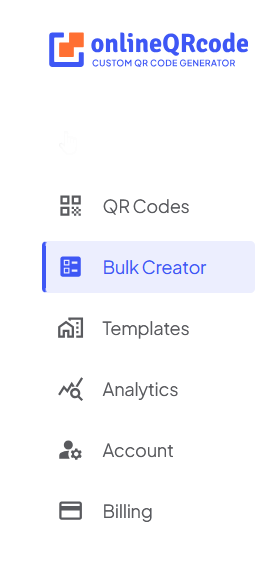
In addition, you can create templates using OnlineQRCode’s tools, so you don’t have to customize your QR codes one by one.
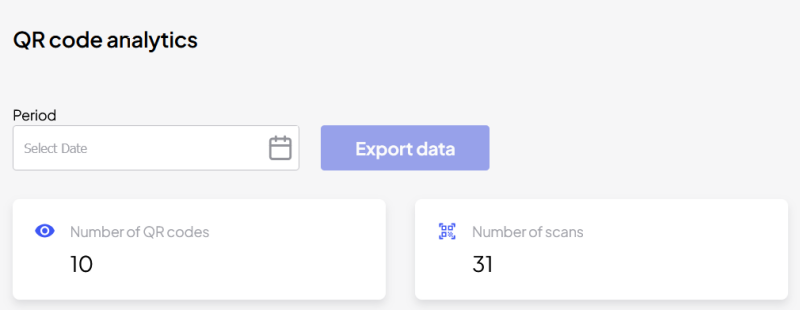
If you need to see how your QR codes are performing, the Analytics tab shows scan activity as well as data for the users who scanned your codes (including operating system used, country, and more). This info can be easily exported.
Pricing
Sign up with a paid OnlineQRCode tier to access and export the QR codes you’ve created:
- 7-day limited access for $0.79 ($29.97 per month afterward)
- 7-day full access for $0.99 ($29.97 per month afterward)
- Yearly unlimited for $143.30
Final Thoughts
During my testing, I found OnlineQRCode to be a speedy, user-friendly tool for generating QR codes in seconds. With bulk creation and a playful, creative AI feature, it can be especially useful for small business owners. The plans are rather pricey, but if you generate QR codes regularly, the investment should be worth it, especially if you avoid the AI tool.








