Windows File Explorer works well enough for navigating all the various files and folders on your system. But, sometimes, you need a more advanced feature set. This is where OneCommander comes into play. It’s a File Explorer alternative designed with power users in mind.
What is OneCommander
I’ve tried various File Explorer alternatives, but none fully did what I wanted or needed. When I stumbled upon OneCommander, I quickly discovered my search was finally over.
The free app has a more modern design that shows far more than File Explorer without feeling cluttered. It loads quicker thanks to the DirectX-powered user interface and offers numerous customizations to better match most users’ needs. So, instead of having to download extra apps to make File Explorer better, I only need OneCommander.
For home use, the app is free and doesn’t include ads. For commercial use, there is a small lifetime license fee. A handful of features are included with the commercial license, so even if you’re a home user, you can pay the $25 lifetime license fee to access these. For me, I’m happy with just the free features.
Setting Up OneCommander
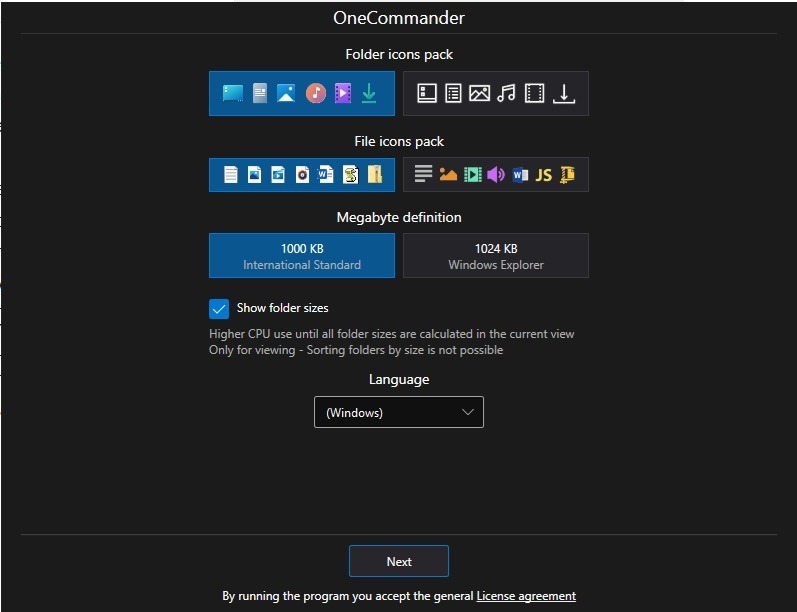
Customization starts with the installation. Immediately choose a theme layout and your icon pack. You can change this later if you want and even download additional themes and icons.
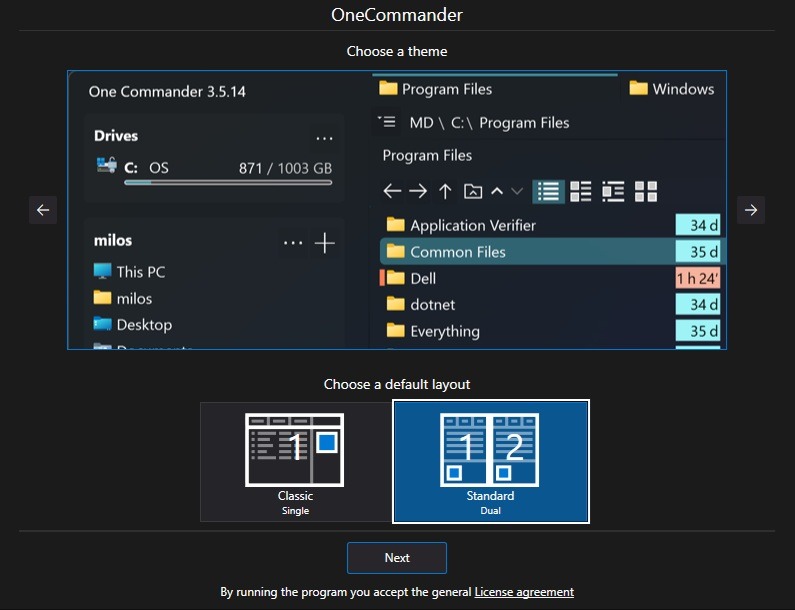
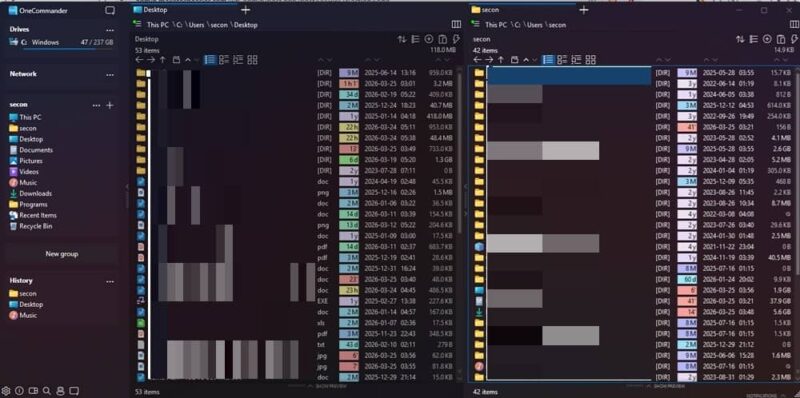
As soon as OneCommander loads, you see the difference. I opted for the default Dual Pane layout. Each pane lets you open multiple tabs within the same pane. This is ideal for comparing files or searching through multiple folders at once without as much tab switching.
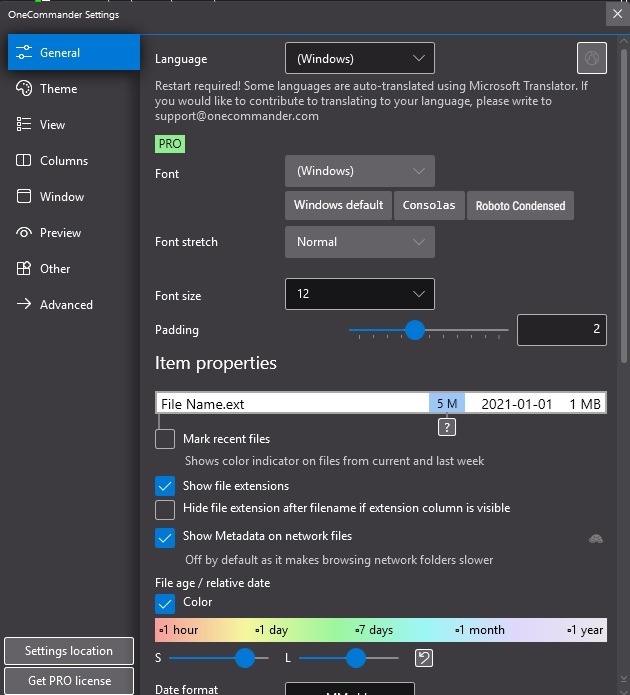
If you want to start customizing right away, click the Settings cog in the bottom left corner. From here, change the colors used for different file sizes, theme colors, column sizes, how to open OneCommander, how hidden files are treated, and much more. You don’t have to change anything if you don’t want.
Just remember one thing – the hotkey to open the app. Just like File Explorer is Win + E, open OneCommander with Win + Alt + E. Or, switch it in the settings to Win + E to replace File Explorer’s hotkey.
Understanding the Interface
At first, I didn’t realize just how much information this File Explorer alternative was giving me. For every file and folder, you see the name, file type, age, date changed, and file size. Or, change the view using the icons just above the file list. The color coding lets you quickly see the age of a file.
Just like with File Explorer, OneCommader lets you sort files in ascending and descending order by column. One extra thing is you can click the Folder icon above the file list (folder with a line over it) to sort folders separately or mix them in with the files.
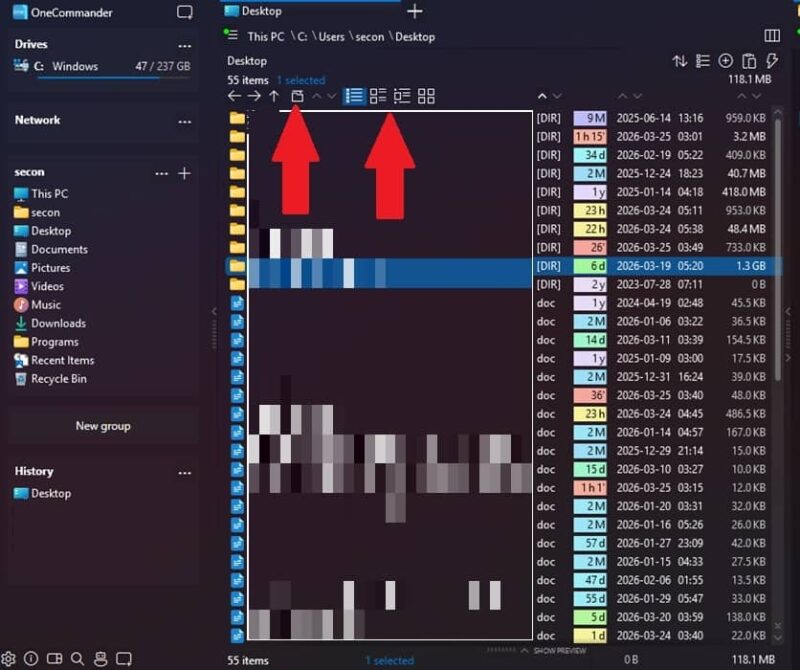
Many of the most powerful tools are tucked away in the bottom left corner. These include:
- Column layout
- Search, including using advanced operators and tags
- File Automator – Batch rename or edit file names
- New Window – Create a new window with a different name when using multiple OneCommander windows
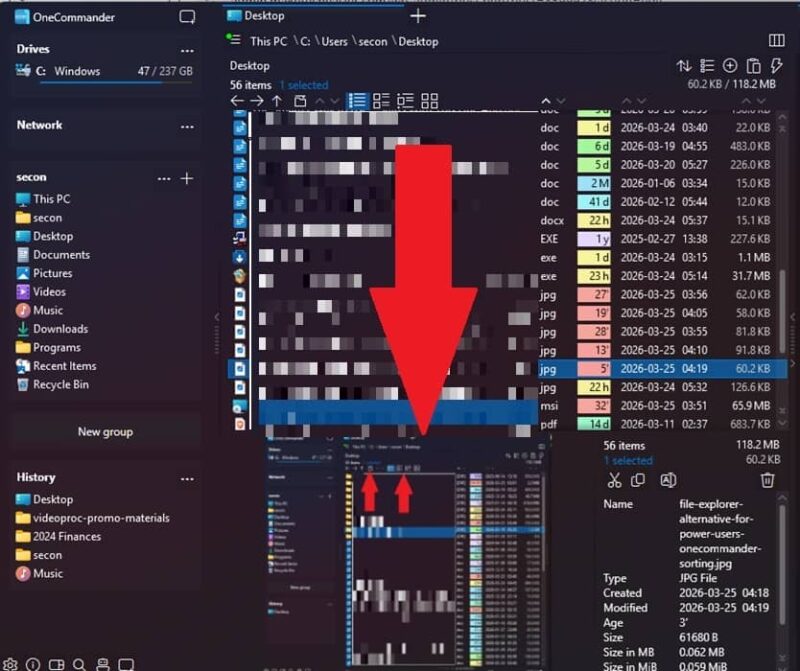
One of the other features I love is the Show Preview option. I wish it stood out more. I didn’t even notice it at first. When you click a file, a tiny Show Preview appears at the bottom of the pane. Use your mouse to expand the Show Preview pane. For PDFs, images, and more, you get a detailed preview of the file without opening it. You also see extended file details along with copy/rename/cut/delete options.
Alternately, highlight a file and press Space for a pop-up preview.
Advanced OneCommander Features
If you still think this is just a simple File Explorer alternative, take a look at the more advanced features.
Need to convert a file? Forget downloading a file conversion app. Just use the File Automator tool. Select a file, click File Automator (robot in the bottom left corner), and choose your conversion option from the Operation drop-down box.
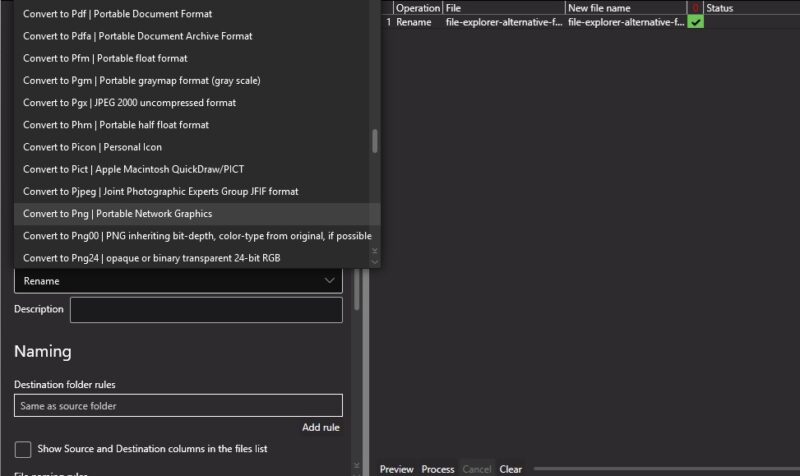
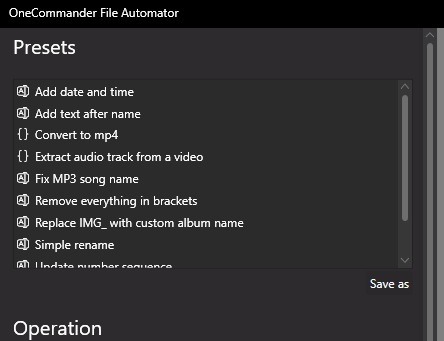
Use File Automator to batch rename files, extra audio, fix MP3 song names, add number sequences, and much more. Usually, you’d need extra apps or scripts to do these tasks in File Explorer. Now, you just use the built-in File Automator tool.
Add tags to files to make them easier to find and organize. Right-click any file, select one of the colors, and it instantly adds the tag to the file. Right-click again and choose the blank tag to remove it. In Search, use the tag colors to display all files with that tag.

Create groups for your folders. Unlike File Explorer’s default groups such as Quick Access, use the New Group option to create groups that actually benefit you. It’s a great way to group projects together.
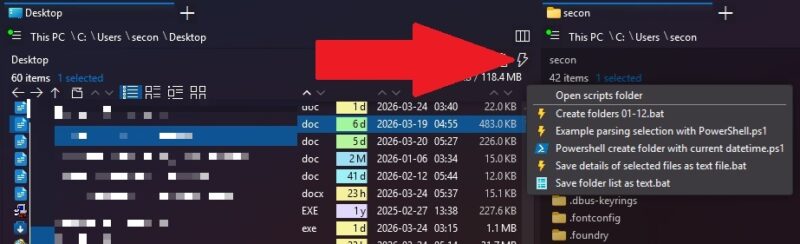
You can also create batch scripts directly in OneCommander. Click the Scripts (lightning icon) above the file list.
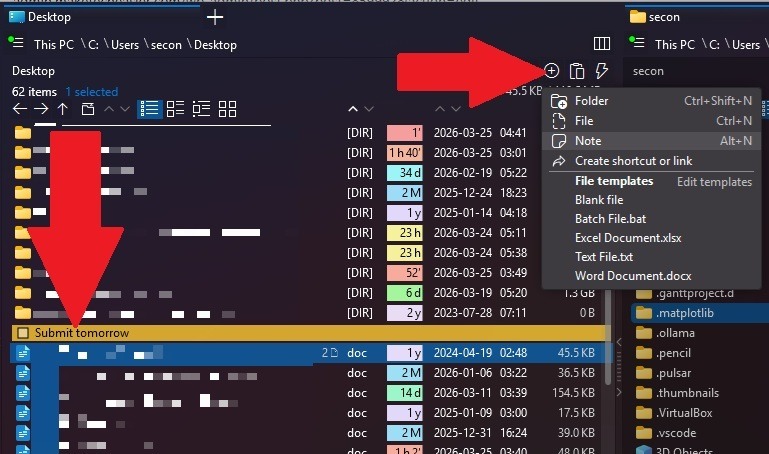
One of my absolute favorite features is the To Do list. I didn’t know I even needed it, but now I use it all the time. You can add a note or set of notes as a to-do list within any folder. You could even create a folder just for notes to serve as your daily to-do list. Click the + button just above the file list and choose Note.
You don’t have to completely replace File Explorer if you don’t want to. I still use it sometimes, though it does have occasional issues. Or, if OneCommander isn’t quite right for you, try the simpler, yet stylish Files.