Your system may house a powerful CPU, but that doesn’t mean you should use it to run every single task. There are times when it is necessary to offload some of the work to other components that are built specifically for that task. This will reduce your CPU load and make sure that when it is time to perform, it doesn’t fail. Here we show you how to move some of the tasks off the CPU.
1. Enable Hardware Accelerated GPU Scheduling in Windows
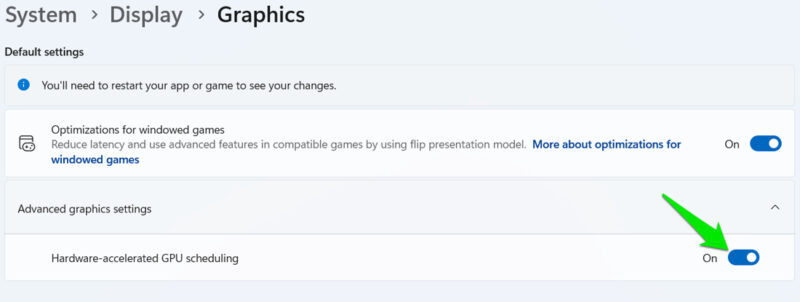
CPU handles many scheduling tasks for the GPU, like building command lists or managing queues and priorities. With Hardware Accelerated GPU Scheduling (HAGS), these tasks can be handled by the GPU itself. This will offload work from the CPU to the GPU and also improve performance as the GPU doesn’t have to receive these instructions from a separate component.
The main requirement is that your PC must have a dedicated GPU that supports this function and the latest drivers. For Nvidia cards, GTX 10-series+ support this (2016+), and AMD recently added support in 7000+ series (2023+). Here are guides to update Nvidia and AMD drivers.
To enable it, open Windows Settings and go to System → Display → Graphics. Here, enable Hardware-accelerated GPU scheduling toggle under Advanced graphics settings.
2. Move Network Tasks to Network Interface Card
The CPU handles a bunch of network jobs that can be offloaded to the Ethernet network card. It can do a better job at handling networking stuff and also provide a better network connection. The exact features supported and their default behavior depend on your PC network card, but we’ll list some common tasks that you can check to ensure your NIC handles them instead of the CPU.
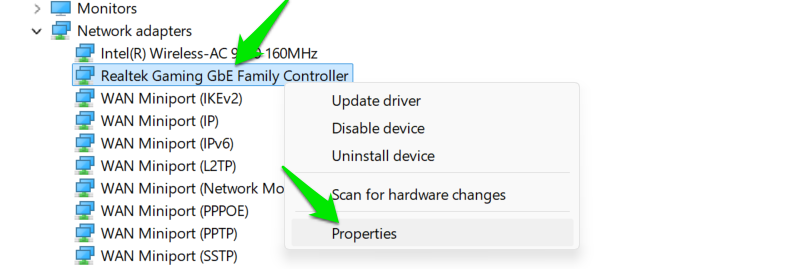
Search “device manager” in Windows Search and open the Device Manager. Here, right-click on your Ethernet driver under Network adapters and select Properties.
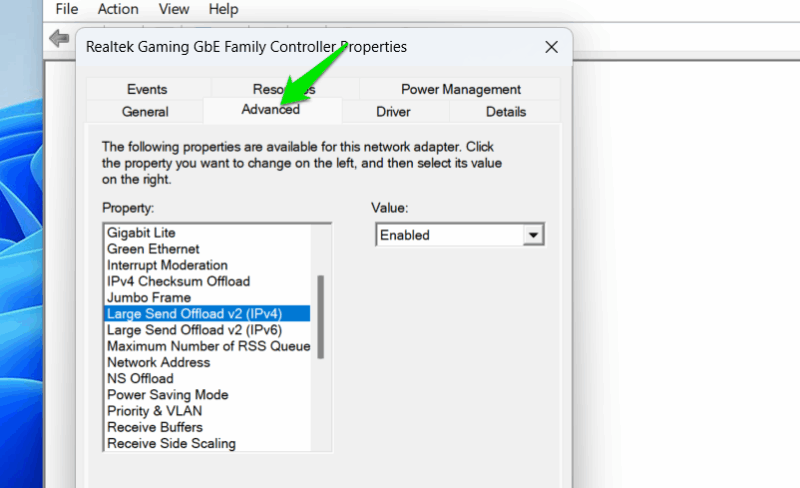
Now, under the Advanced tab, enable all the options below that are available for your card:
- Large Send Offload v2 (both IPv4 and IPv6)
- All UDP and TCP Checksum Offload settings
- Receive Side Scaling
- Interrupt Moderation
- VLAN tagging
- ARP Offload
- NS Offload
3. Use DirectStorage for Games
When reading data from storage for the GPU, the CPU does a bunch of jobs before passing it to the GPU, including decompressing assets. DirectStorage is a Microsoft API that lets storage directly talk to the GPU for some tasks, including decompressing assets on the GPU itself. This can greatly decrease CPU work in gaming and provide extremely fast load times.
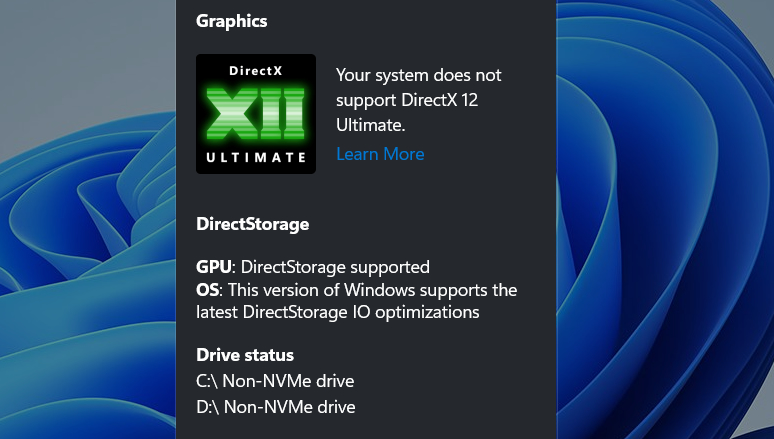
Unfortunately, for now, this feature is only supported by a handful of games (many others have confirmed plans for addition). You’ll also need an NVMe SSD (PCIe 3.0 minimum) and a GPU with DirectX 12 Support. DirectX 12 Ultimate support is recommended by Microsoft. To check DirectStorage support, press Win + G keys and go to Settings → Gaming features.
4. Enable Hardware Acceleration in All Supported Apps
CPU can handle many of the basic GPU tasks, like encoding/decoding, 2D/3D rendering, UI composition, image processing, etc. However, it’s not made for that. Hardware Acceleration is a common feature that allows apps to decide whether the CPU or the GPU should handle graphics jobs. For best results, you should always enable Hardware Acceleration in supported apps to let the GPU handle graphical work instead of the CPU.
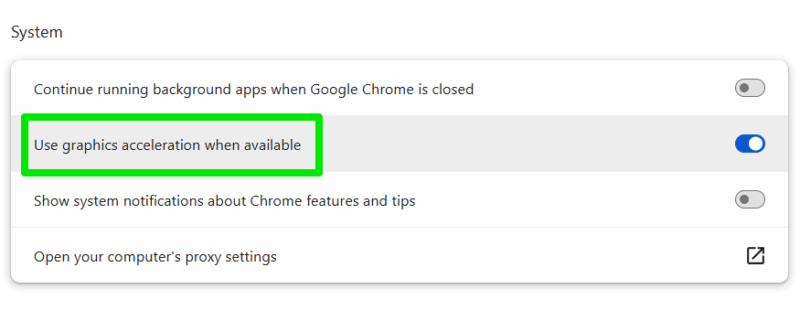
Any app that handles media or graphical content usually has this option in its settings. You’ll have to check the settings of your apps to confirm. Some of the common apps with this setting include Microsoft Office Suite, Adobe Creative Cloud, Discord, Slack, Zoom, OBS Studio, and all top web browsers.
5. Force Apps to Use Dedicated GPU Instead of iGPU in Dual GPU Setup
In a dual-GPU setup, the integrated GPU (iGPU) handles the lighter tasks and the dedicated GPU (dGPU) handles heavy applications, like games. In Windows, you can force apps to use the dGPU instead of the iGPU, so fewer CPU resources are used.
While you can do this for all apps, it’s best to enable dGPU for apps that handle graphical work. Media players, web browsers, and image/video editing tools are good examples of such apps. However, be ready to handle a bit higher GPU temperature and fan noise.
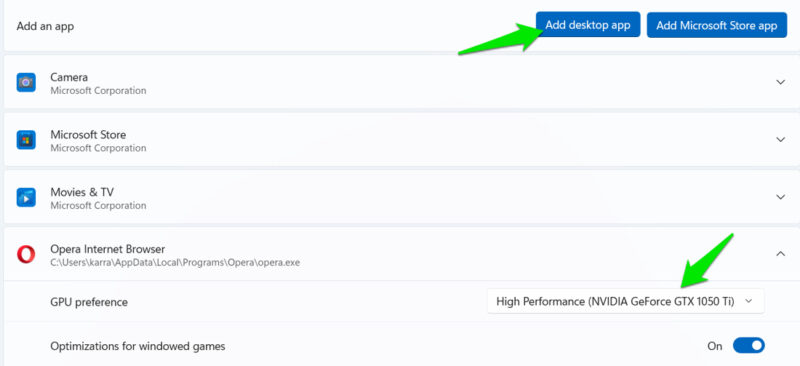
Go to System → Display → Graphics in Windows Settings. Select an app from the list or click on Add desktop app to choose an app manually. In the app’s GPU preferences, select the dedicated GPU.
All the methods above allow you to offload some of the CPU tasks to other components that can handle it more efficiently. Just be careful when selecting a dGPU for apps, as it can increase overall power draw. If your PC CPU is struggling to keep up with your workload, try to optimize it and keep it cool.








