
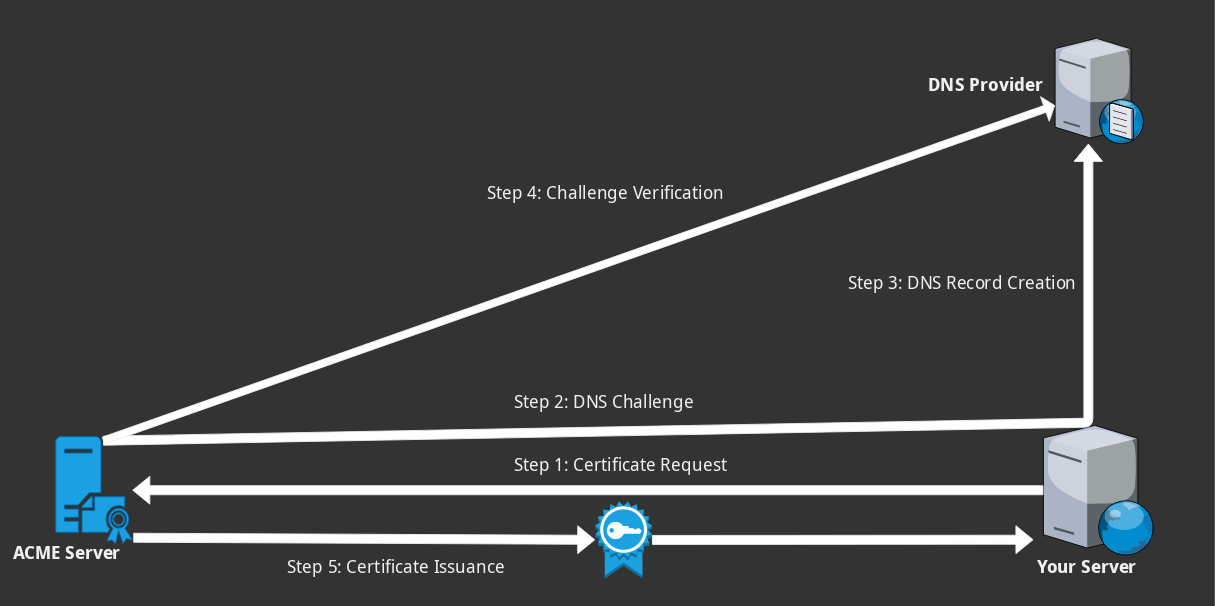

Nowadays, a large portion of Web traffic is encrypted using HTTPS. It is becoming increasingly prevalent, especially since the introduction of Let’s Encrypt, a Certificate Authority (CA) supported by major companies in the industry. Let’s Encrypt provides SSL/TLS certificates completely free of charge with 90-day validity.
Generally, certificates are tied to one or more specific domain names, so if you have a certificate for “www.example.com,” you can only use it with this exact domain name. On the other hand, wildcard certificates are issued for a parent domain name and can be used with any subdomain of the parent domain. For instance, a wildcard certificate for *.example.com can be used for “www.example.com,” “account.example.com,” “mail.example.com,” etc. Wildcard certificates, hence, bring the benefit of only having to obtain and renew a single certificate for all your present and future subdomains.
Here’s how to obtain a wildcard certificate for a registered domain name from Let’s Encrypt on Ubuntu, Debian and other Debian-based distributions.
Also read: How to Set Up “Let’s Encrypt” Free SSL Certificate in Nginx (Ubuntu)
1. Installing acme.sh
Let’s Encrypt uses the Automated Certificate Management Environment (ACME) protocol to verify that you own your domain name and to issue/renew certificates. Acme.sh is a popular ACME client implemented in shell script. To install it, you will first need to install git:
sudo apt update
sudo apt install -y git
Download the repository from github:
git clone https://github.com/Neilpang/acme.sh.git
Enter the cloned directory and start the installation script:
cd acme.sh/
./acme.sh --install
Reload your shell session to start using acme.sh:
exec bash
2. Using acme.sh to issue wildcard certificates.
In order for Let’s Encrypt to issue a wildcard certificate, you must solve a DNS-based challenge known as Domain Validation (DV). Acme.sh conveniently integrates with the APIs of many major DNS providers and completely automates this process.
Cloudflare
If you are using Cloudflare’s DNS service, log in to your account and copy your global API key. Save it as an environment variable on your system:
export CF_Key="your_cloudflare_api_key"
export CF_Email="your_cloudflare_email_address"
You can now request a wildcard certificate:
acme.sh --issue --dns dns_cf -d '*.example.org'
NameCheap
If you are using NameCheap nameservers, follow their instructions on enabling API access, then export the required variables:
export NAMECHEAP_SOURCEIP="your_server_ip"
export NAMECHEAP_USERNAME="your_namecheap_username"
export NAMECHEAP_API_KEY="your_namecheap_api_key"
Request a wildcard certificate:
acme.sh --issue --dns dns_namecheap -d '*.example.org'
DigitalOcean
If your domain uses DigitalOcean’s DNS, follow their instructions on creating a personal access token with read and write permissions. Export your API key/token:
export DO_API_KEY="your_digitalocean_api_token"
Request a wildcard certificate:
acme.sh --issue --dns dns_dgon -d '*.example.org'
GoDaddy
If your domain uses GoDaddy’s DNS, copy your API key and secret. Export them to your environment:
export GD_Key="your_godaddy_api_key"
export GD_Secret="your_godaddy_api_secret"
Request a wildcard certificate:
acme.sh --issue --dns dns_gd -d '*.example.org'
Vultr
If you are using Vultr’s DNS, you will need your personal access token or a sub-profile with “Manage DNS” privileges.
export VULTR_API_KEY="your_vultr_api_key"
Request a wildcard certificate:
acme.sh --issue --dns dns_vultr -d '*.example.org'
RackSpace
If you are using RackSpace, you will need your username and API key. Export them as shown below:
export RACKSPACE_Username="your_rackspace_username"
export RACKSPACE_Apikey="your_rackspace_api_key"
Request a wildcard certificate:
acme.sh--issue --dns dns_rackspace -d '*.example.org'
Manual Process
If you do not want or are unable to use the API provided by your DNS vendor, you can manually create a DNS record to complete the domain validation challenge, though you will also have to repeat this manual process regularly to renew your domain.
acme.sh --issue --dns --yes-I-know-dns-manual-mode-enough-go-ahead-please -d '*.example.org'
This command will display a verification token which you will have to add as a DNS TXT record.
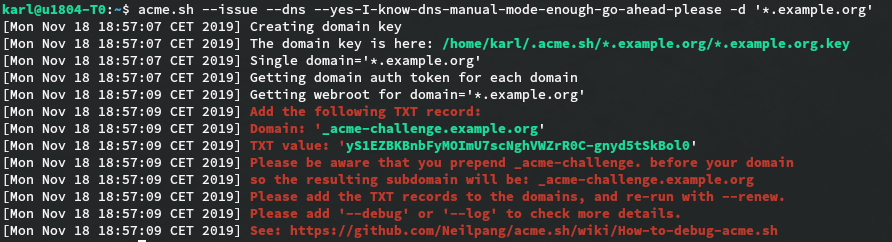
Copy the token and log in to your DNS control panel. Create a new DNS record of type TXT for the _acme-challenge subdomain and paste the token.

Wait a few minutes for the new record to become accessible, then request the certificate:
acme.sh --renew --yes-I-know-dns-manual-mode-enough-go-ahead-please -d '*.example.org'
File Locations
You will find your certificate and other relevant files in the “.acme.sh” directory in your home folder.
- The certificate itself is saved as “~/.acme.sh/*.example.org/*.example.org.cer.”
- The certificate key is saved as “~/.acme.sh/*.example.org/*.example.org.key.” This file should be kept private and never shared.
- The fullchain certificate file, which is what you will most likely use, is saved as “~/.acme.sh/*.example.org/fullchain.cer.” This file combines your certificate with that of the issuing authority (known as the intermediate certificate).
Follow the steps above, and you will be able to get a Let’s Encrypt wildcard domain certificate.