
Navigating the Linux file system in the Terminal is different from browsing folders on your file manager, as there are no graphical icons and mouse click support. You have to use the Linux cd command to switch between these directories. In this guide, we’ll show you how to make good use of the cd command to navigate Linux file directory in the terminal.
What is the cd Command in Linux?
cd stands for “change directory” and is used to jump from one directory to another in Linux environments. Using the cd command, you can navigate to a home directory, a specific directory, a parent directory, or a previous working directory. The cd command has the following basic syntax to navigate between directories:
cd [options] [directory]Here, the directory specifies the path to the folder you want to navigate to, while options are optional parameters that modify how the command works.
How to Check Your Current Directory
Before proceeding with the change directory, first, you need to check your current working directory to avoid conflicts. You can do this using the pwd command, which displays the full path of the directory you’re currently in:
pwd
The output shows that our current working directory is “/home/anees”. Now we can use the cd command to switch to any specific directory.
Let’s go through the following examples to understand how you can switch between different directories using the cd command:
Navigate to a Specific Directory
You can specify a particular path with the cd command to access a specific directory. For instance, to access the “Desktop/mte” directory, you can run the command:
cd desktop/mte
Switch to Home Directory
To switch back to your home directory from anywhere, simply use the cd command without any arguments:
cdNo matter where you are in the file system, it will bring you back to your Home directory.

Move Up to the Parent Directory
You can run the cd command with .. to move up one level in the directory structure. For example, if you are currently in “Desktop/mte” and want to move up to the “Desktop” directory, you can execute the command as follows:
cd ..
Switch to Last Visited Directory
You can use the hyphen symbol (-) with the cd command to switch back to the previous working directory. For example, if you are currently in the Desktop directory and were previously in “Desktop/mte”, running the cd - command will navigate you back to the “Desktop/mte” directory:
cd -
Change Directory to an Absolute Path
An absolute path in the Linux directory system refers to the exact location of a folder, starting from the root directory /. You can use the cd command followed by the full path to navigate directly to that location:
cd /usr/local/binFor example, this command will switch you to the “/usr/local/bin” directory:

Change Directory to Relative Path
You can use a folder name directly to move into it without typing the full path. For example, if you are currently in your home directory, you can simply specify the folder name to navigate into that particular directory. The following command will move you from your home directory to the Documents folder:
cd Documents
Switch to Root Directory
The forward slash in the Linux directory system represents the root directory. To switch to the root directory, simply type the cd command followed by a forward slash:
cd /This command will take you to the root directory, regardless of your current location in the directory structure:

Combine Linux Commands with cd
You can combine the cd command with other Linux commands to perform specific tasks. For example, the following command changes the directory to the “Desktop” and then immediately lists all its contents using the ls command:
cd Desktop && ls
Switch to a Home Directory
In Linux, the tilde symbol (~) denotes your home directory. You can execute the cd command with the tilde sign to navigate back to your home directory from anywhere:
cd ~
In addition, if you want to navigate to a folder relative to the Home directory, like the “Documents” folder in Home, you can use the ~ symbol to represent the Home path. Everything after the ~ will represent the relative path from the Home directory:
cd ~/DocumentsChanging to a Distinct User’s Home Directory
You can specify a username with the tilde sign (~) to change to another user’s home directory. For instance, to access the home directory of linuxuser, execute the command:
cd ~linuxuser
How to Handle Spaces in Folder Names
If a folder name contains spaces, you can handle it by either placing the name in quotes or using a backslash (\) before each space. If you don’t use quotes or a backslash, Linux will treat each word separated by a space as a different file or directory, and as a result, you will encounter a ‘No such file or directory’ error. To avoid this, you should tell the system to treat the entire name as one folder. For example, to navigate to a folder named “Hello World”, you can use the command like this:
cd "Hello World"
Alternatively, you can use the backslash to handle spaces in the folder name:
cd Hello\ World
Navigate to Hidden Directories
In Linux, hidden files and directories start with a dot. Therefore, to navigate to a hidden directory, you need to run the cd command followed by a dot and the directory name:
cd .directoryNameIf you want to navigate to a directory containing hidden files or directories, you can list them using ls -a, then use cd to move into the desired directory. For example:
ls -a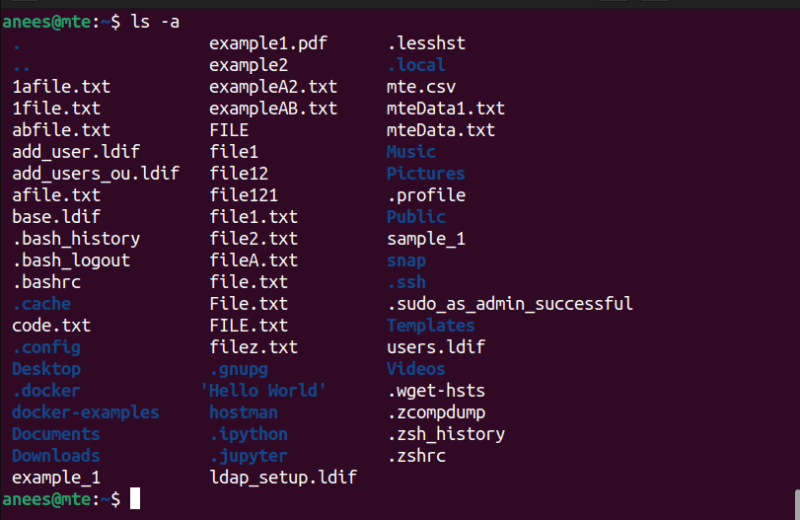
Now, select a hidden folder and use the cd command to navigate to it:
cd .cacheYou have been successfully navigated to a hidden directory named “.cache”:

Autocomplete a Directory Name in Linux
If you’re unsure of the exact name of the directory you want to navigate to, you can take advantage of the autocomplete feature in most Linux shells like Bash and Zsh. To do this, simply start typing the first few letters of the directory’s name and then press the Tab key. The system will automatically suggest matching directory names based on your input.
For example, if you know the directory starts with “D”, just type “D” and press Tab:

The shell will provide a list of possible directories that match what you’ve typed so far, making it easier to find and select the right one.
Create Shortcuts for the cd Command with Aliases
Linux allows you to create shortcuts for frequently used commands by setting up aliases. An alias is a way to create a custom, simplified command that performs a regular task quickly and efficiently. For instance, you can create an alias to quickly navigate to a specific folder or run a long command with just a short word or phrase.
For example, if you often navigate to a directory, you could create an alias like this in the “.bashrc” file:
alias deskMte="cd Desktop/mte"
Better CD Alternative: Zoxide
While the cd command is essential, it can be inefficient when navigating deep or frequently used directory paths. That’s where zoxide comes in.
Zoxide learns from your habits and maintains a score for each directory based on how frequently and recently you access it. Over time, it becomes incredibly efficient, letting you jump to your most-used directories with just a few keystrokes.
For example, if you’re working on a project located in a deeply nested folder structure. Instead of typing out the full path or navigating step-by-step through countless directories, you can simply type z directory or even z direc if it’s unique enough. Learn how to install Zoxide here.
Lastly, security is an important concern while managing files and directories in Linux, so it’s crucial to know how to password-protect folders and files in Linux to avoid any security issues.








