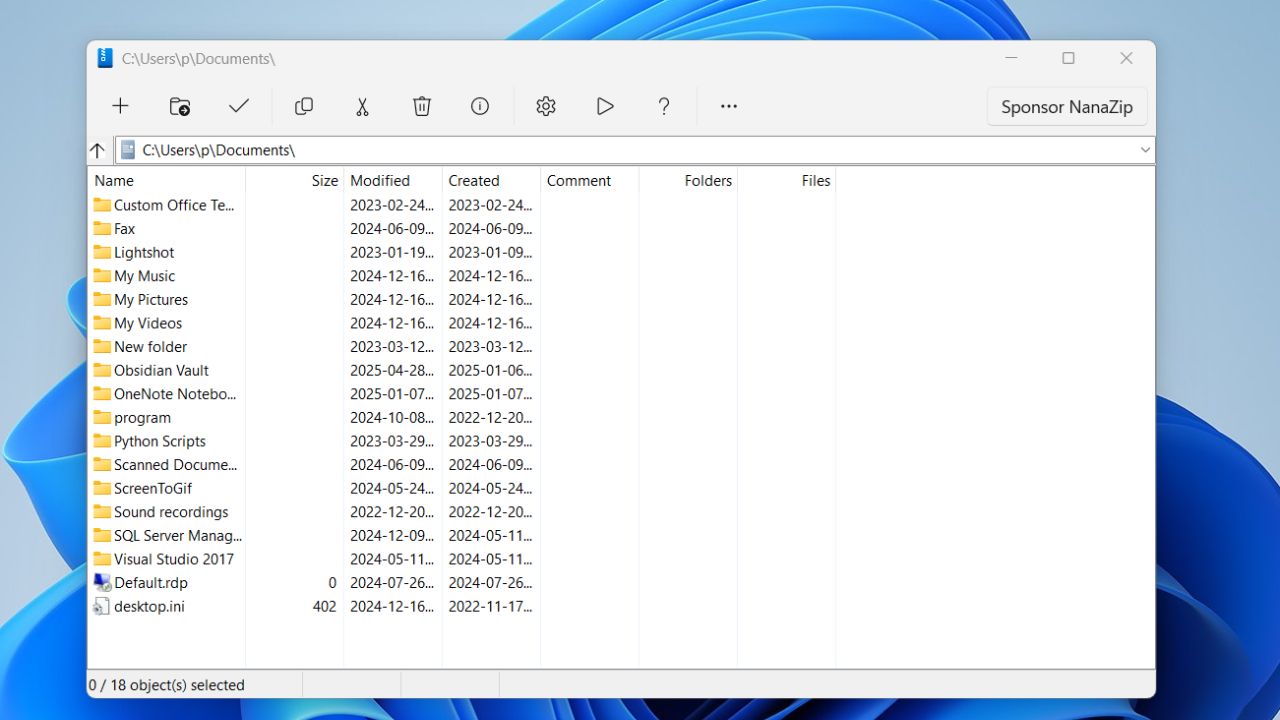
Windows’ built-in options for dealing with compressed files are basic, often lacking the power and compatibility needed. While I’ve relied on 7-Zip for years, recently I discovered NanaZip, which impressed me with its modern UI and seamless Windows integration. Let’s find out what NanaZip is and why it might be the only file manager you’ll ever need on Windows.
The Introduction to NanaZip
NanaZip is an open-source file archive manager and a modern fork of the popular 7-Zip tool. It’s fast, secure, beautifully integrated with Windows, and best of all, completely free. NanaZip greatly expands the capabilities of your built-in archive manager, supporting a vast range of formats while offering better compression ratios and enhanced security features.
Key Features
- Easily reads and writes all major archive formats.
- Packaged using MSIX for smooth installation on modern Windows systems.
- Available on the Microsoft Store for hassle-free installation and updates.
- Runs efficiently on older or low-powered PCs thanks to its minimal RAM usage.
- Context menus integrate seamlessly with File Explorer in Windows 10 and 11 — no need to open a separate program window unless desired.
- Uses the same optimized algorithms as 7-Zip for fast compression and extraction.
- Supports advanced compression formats like Brotli and Zstandard, as well as read-only formats such as .NET bundles, Electron ASAR, and WebAssembly (WASM).
- Offers enhanced security features like Control Flow Guard (CFG) and CET Shadow Stack to protect against exploits and runtime attacks.
- Allows you to set strong AES-256 encryption passwords.
- Maintains full backward compatibility with 7-Zip, including aliases (e.g., 7z.exe) for easy migration.
- Provides two distribution options: a modern 64-bit version (NanaZip) and a legacy-compatible Classic version for older Windows systems.
- Lets you make self-extracting archives that recipients can open without having NanaZip installed.
- Includes K7-style command-line aliases (like K7.exe) for quick and flexible archiving tasks.
Getting Started With NanaZip
The simplest way for most Windows users to get NanaZip is through the Microsoft Store. Open the Store, search for NanaZip, and click Get. The Store handles downloading, installation, and updates automatically for your convenience.
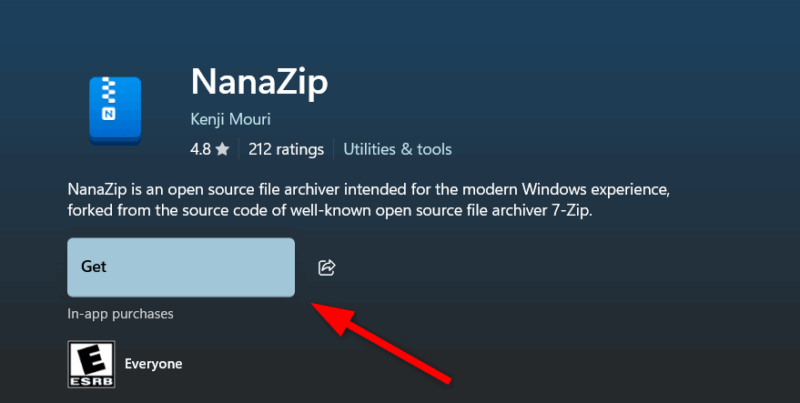
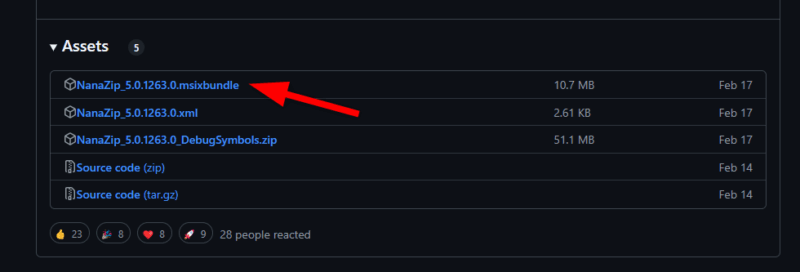
Alternatively, you can visit the official NanaZip GitHub releases page and download the latest MSI installer (.exe or .msixbundle).
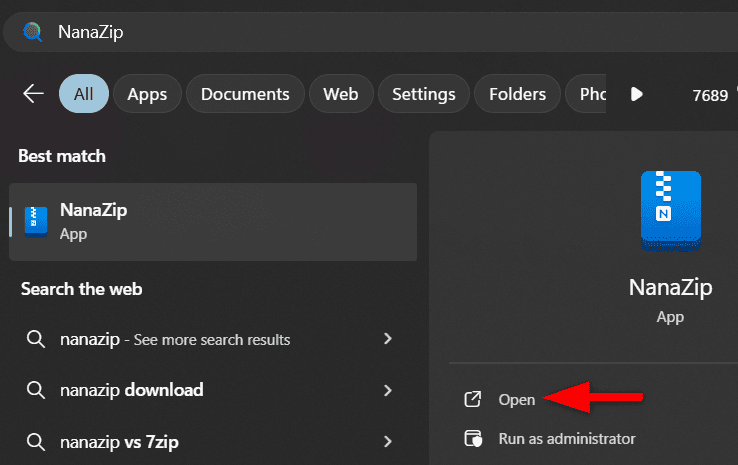
Once installed, NanaZip automatically integrates into your right-click context menu. This means you can compress or extract files directly from File Explorer — no need to open a separate app. However, if you want to launch it separately, simply open it from the Start menu.
Using NanaZip for basic tasks is intuitive. For example, to compress files, simply select the items in File Explorer, right-click, hover over the NanaZip option, and choose actions like add to archive, select an archive format (7Z or ZIP), set the compression level, and more.
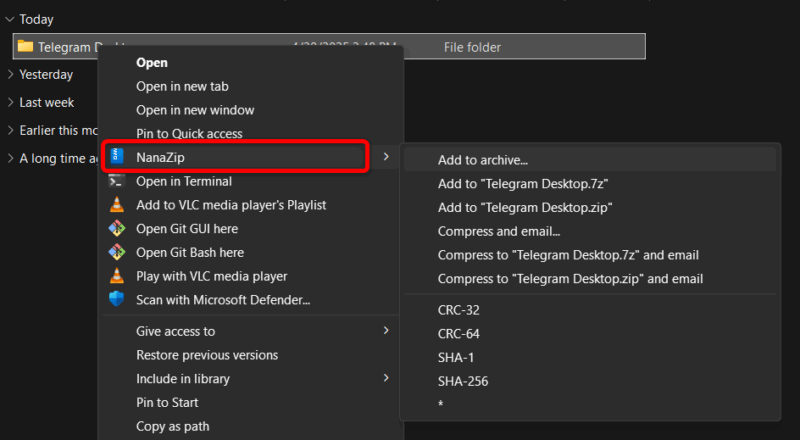
Alternatively, you can drag any files into NanaZip’s window, choose ZIP or 7Z, and click Compress.
Extracting files is just as simple. Right-click any archive and choose NanaZip. Then select Extract Here or Extract files to pick a destination. NanaZip handles decompression quickly and efficiently. You can also double-click an archive to browse its contents or drag and drop files out.
Also, NanaZip’s main window is easy to navigate, displaying archive contents similarly to File Explorer.
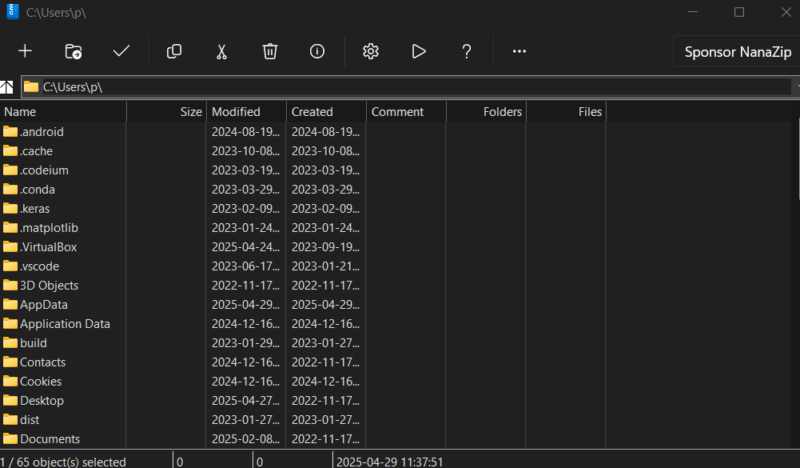
You can manage files within the archive, and the toolbar provides quick access to actions like adding, extracting, and testing. Plus, the settings menu allows you to customize default behaviors and context menu options.
NanaZip vs. Other Alternatives
NanaZip isn’t the only file archiving manager on Windows; other popular options include 7-Zip, WinRAR, and Windows’ built-in archive manager. Since NanaZip is a fork of 7-Zip, the two share much of the same foundation. Both are free, open-source, and support a wide range of formats. However, NanaZip stands out with its modern interface and integration with Windows 11. NanaZip also includes additional codecs like Brotli and Zstandard, giving it a slight edge in compression efficiency. For longtime 7-Zip users, NanaZip feels like an upgrade you didn’t know you needed.
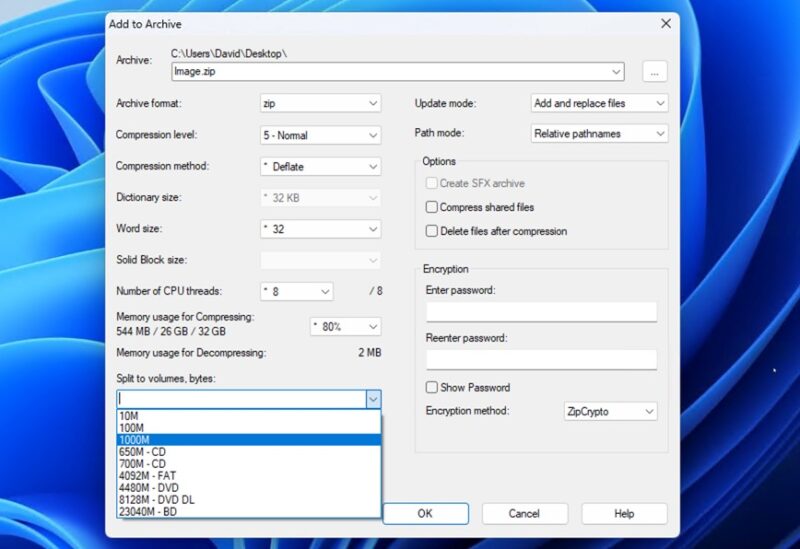
Unlike WinRAR, NanaZip is free to use and still matches WinRAR’s format support, including RAR extraction.
Also, Windows 11’s File Explorer now supports RAR and 7Z formats, which is a significant improvement over ZIP-only support. However, it does not provide other advanced tools and remains clunky while extracting a 7Z file. On the other hand, NanaZip is faster, more versatile, and allows users to create archives in multiple formats, not just ZIP. For normal users, the built-in Windows tool might be sufficient, but those needing power and flexibility will find NanaZip far superior.
Final Thoughts
NanaZip isn’t just another file archive manager; its clean UI and native context menu support make it feel like a natural part of your operating system. It also supports multiple archive formats, offers a high compression ratio, and includes encryption and password protection features – making it a top choice for both personal and professional use.








