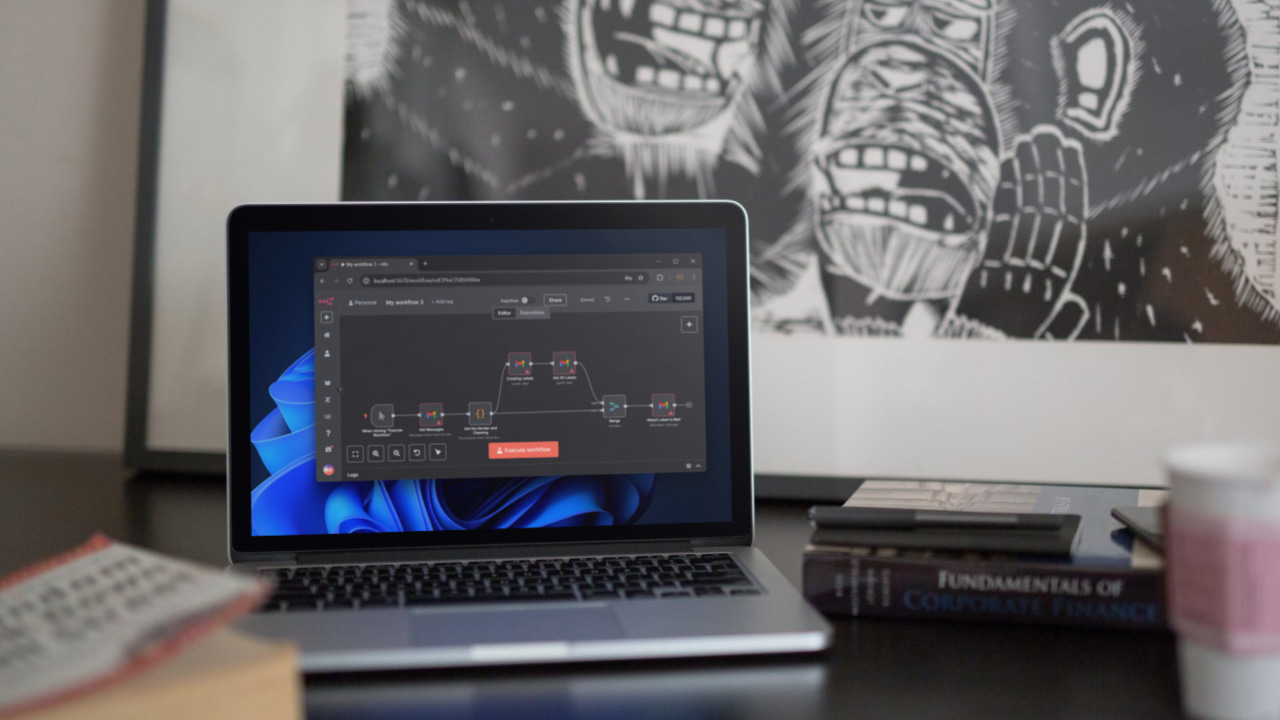
Automation tools are nothing new, and chances are you’ve already used something like IFTTT or the Shortcuts app on your iPhone to handle repetitive tasks. The problem is that most of these tools are either too complicated to use or don’t support advanced workflows. That’s where I came across a relatively new tool called n8n. It lets you seamlessly connect all your favorite apps, from email and CRM to social media and databases. It’s a no-code platform (with the option to add custom code if you want), free, open source, and can even be self-hosted on an old laptop.
Good to know: 7 Automations to Increase Your Daily Productivity
Note: We first stated that n8n is an open-source software, but in fact, it is not. We have make the correction in the article.
What Is n8n?
n8n (pronounced “en-eight-en”) is a free workflow automation tool that you can run on your own server. Think of it as a digital assistant for your apps. It connects different services and handles repetitive tasks for you.
n8n lets you create custom automated workflows by visually linking various apps and actions together, so data moves between apps without you writing heavy code. It’s a bit like Zapier or Power Automate, but with one big twist. n8n is self-hostable, meaning you have full control since you can run it on your own machine or cloud for free.
Under the hood, n8n uses an event-driven, low-code approach. You build workflows in a visual editor by dragging and dropping “nodes” (each node is an action or trigger). These nodes are like puzzle pieces. One might be “when I receive an email,” another might be “post a message in Slack,” etc.
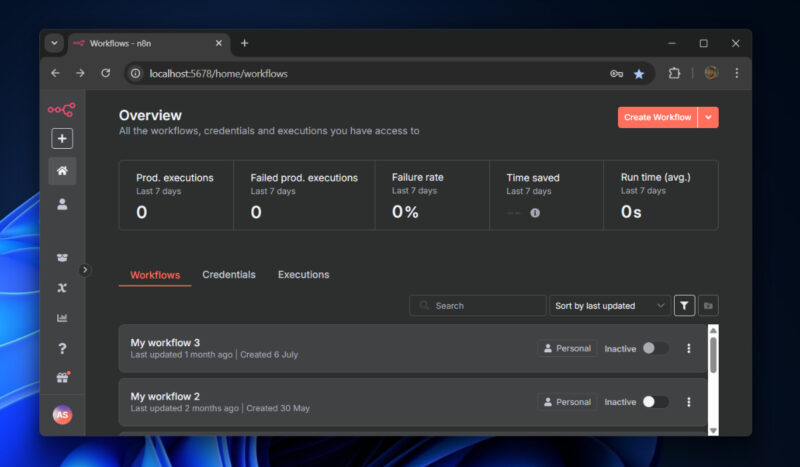
When you connect the pieces, n8n executes the chain of actions step by step whenever the trigger event happens. Because everything is configured through an intuitive interface, you don’t need to write scripts for most tasks.
Installing and Using n8n
Docker is one of the easiest ways to get n8n running on your PC. It keeps everything contained in a lightweight environment and avoids the usual dependency issues that come with local installations. Start off by installing Docker on your PC. If you are on Windows or macOS, you can try Docker Desktop.
Once Docker is up and running, open your terminal and launch n8n in a container:
docker run -it --rm \
  -p 5678:5678 \
  -v ~/.n8n:/home/node/.n8n \
  n8nio/n8n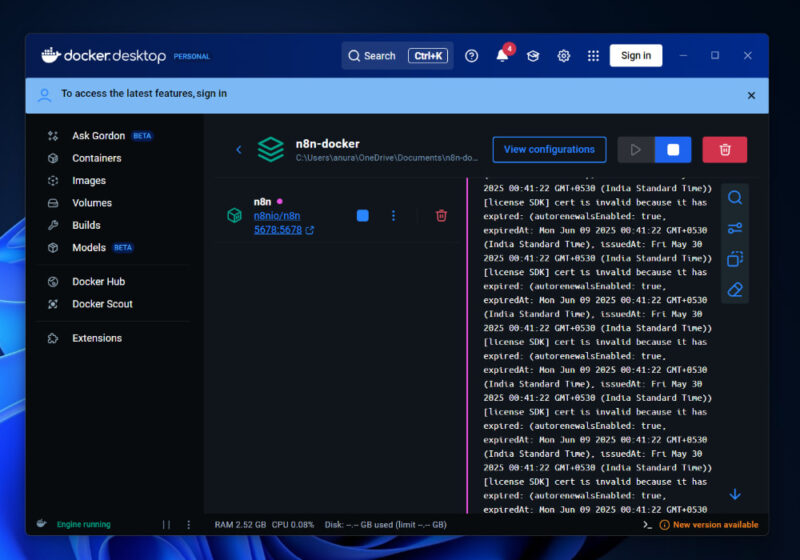
This command maps n8n to port 5678 on your laptop, so you can access it through your browser. It also mounts a local folder (~/.n8n) to the container, which makes sure your workflows and credentials are saved even after you stop or restart the container.
Once the container is up, head to http://localhost:5678 in your browser, and you’ll see the n8n editor interface.
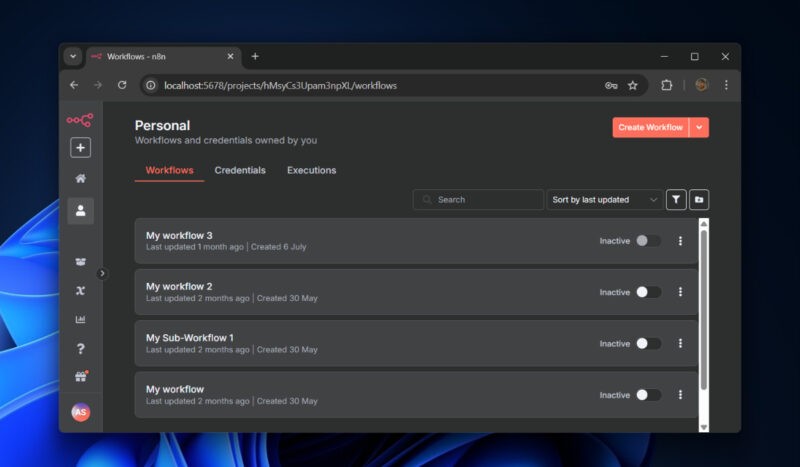
Other than Docker, you can also install it globally using npm or run it directly with Node.js. There’s also an official desktop app for local use, along with a fully hosted version on n8n.io for those who don’t want to manage infrastructure at all.
Usage
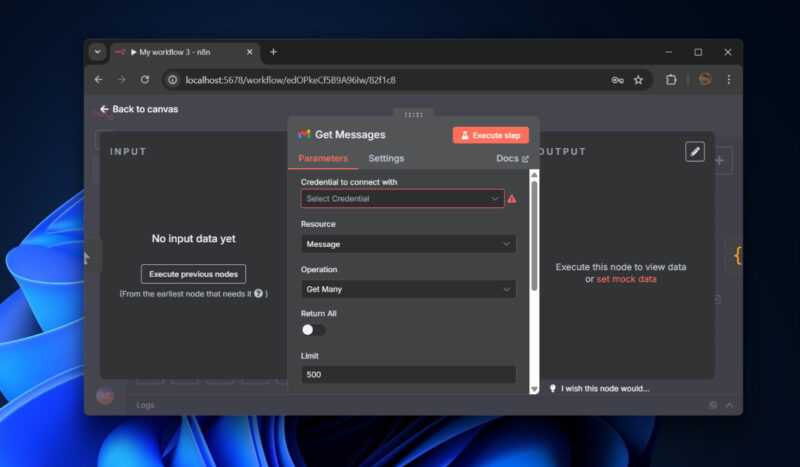
Using n8n’s editor is very straightforward. Once n8n is running, you open its workflow editor in a browser. Here you can create a new workflow and start adding nodes. Typically, you begin with a trigger node (the event that starts the workflow, like “new email received” or a schedule timer). Then you add action nodes. Each action node might do something like read data, send an email, update a spreadsheet, or call an API. You connect these nodes by drawing lines between them, defining the flow of data.
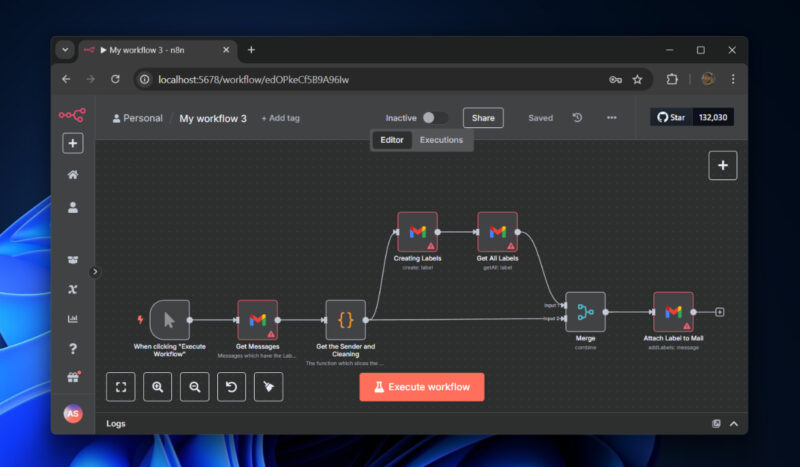
After you’ve arranged your nodes, you simply activate the workflow. From then on, whenever the trigger event occurs, n8n will automatically execute each step in sequence.
Five Things You Can Automate Using n8n
When you open the n8n website, you’ll see the phrase “There’s nothing you can’t automate with n8n” written in big, bold letters, and it’s true. You can automate almost any task with n8n. I’ve listed a few examples below.
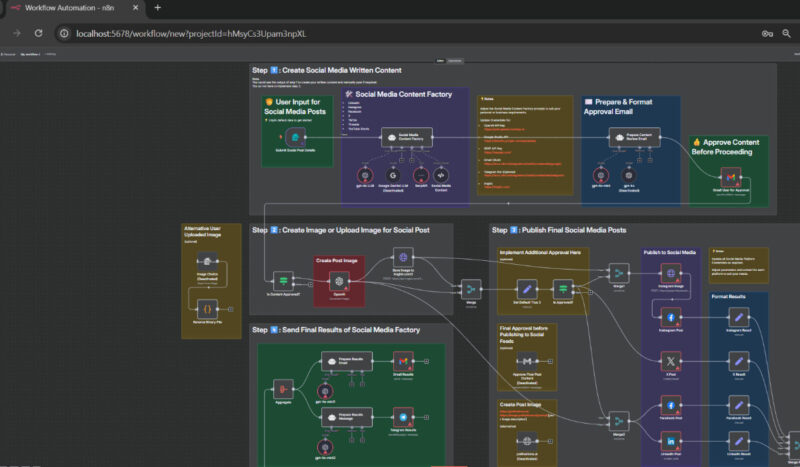
1. Automate Social Media Posts
Instead of manually posting updates, you can let n8n handle it. For example, pull new articles from your blog’s RSS feed and have n8n post them to Twitter, LinkedIn, or Reddit. Or keep a Google Sheet with planned posts and let n8n schedule them automatically. With AI services plugged in, n8n can even generate captions or images before publishing.
2. Sync Data Between Google Sheets and Notion
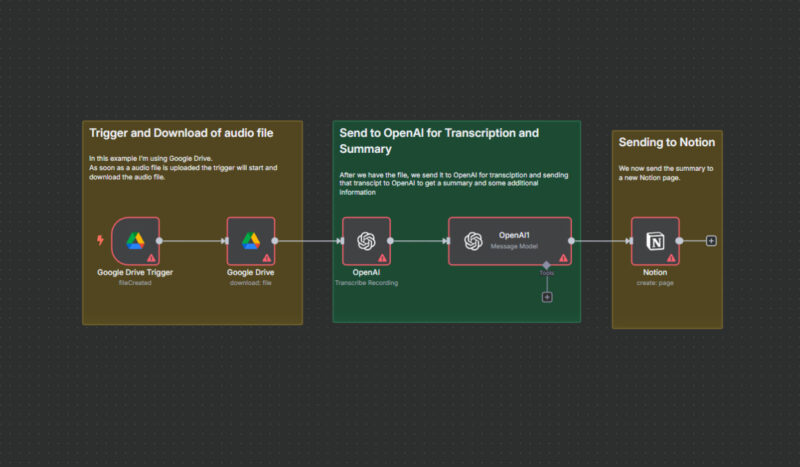
If you track tasks in Notion but report in Google Sheets, you don’t have to copy things over. n8n can sync the two, so updates in one app instantly reflect in the other. The same approach works for contacts between your CRM and mailing list, or product data between a database and a spreadsheet.
3. Build Your Own RSS Feed
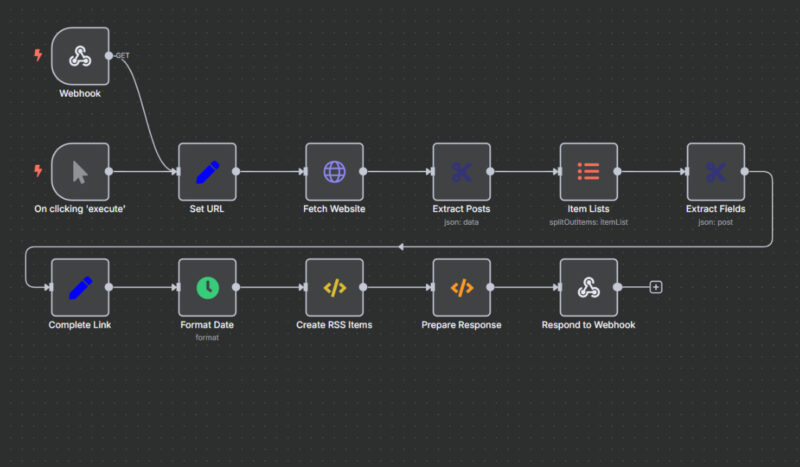
One clever use of n8n is creating a custom RSS feed for content that doesn’t provide one. Many websites, apps, or services either don’t offer feeds or limit what you can track. You can set up a workflow that pulls data from a source, maybe a website you scrape, an API you query, or even a Google Sheet you maintain. n8n then formats that data into the standard XML structure that RSS readers understand.
4. Backup and File Management
Routine backups are easy to forget. n8n can run them on schedule, whether that means copying files from Google Drive to Dropbox, saving email attachments automatically, or exporting a database every night and uploading it to storage. Once set up, these workflows quietly protect your data without manual effort.
5. Custom Alerts and Notifications
With webhook support, n8n can catch events from almost any service. A website form submission can trigger a Slack or SMS alert. An IoT sensor can notify you when it detects motion or logs temperature changes. You can even set up uptime monitoring and get a message when a site goes down. If a service can send a simple HTTP request, n8n can use it as a trigger and route notifications wherever you want.
Automating redundant tasks is easier than you think. If you don’t know where to start, check out these 8 Chrome extensions that can help you automate boring browsing tasks. Or these useful tasks that you can schedule with Task Scheduler.








