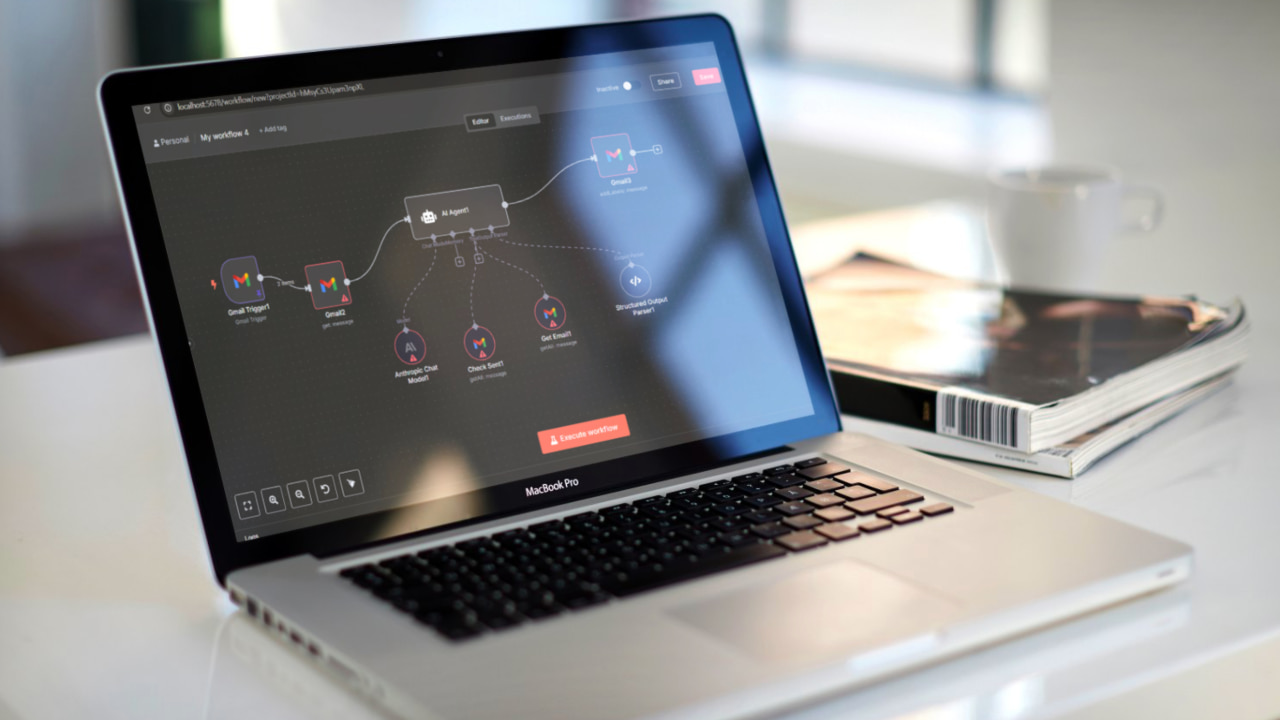
Like most people, I receive a chaotic mix of messages every day. Some are urgent client requests, others are ongoing project discussions, and then there’s the endless stream of newsletters, promotional blasts, and automated notifications. Even Gmail’s default categories struggle to separate signal from noise. So I decided to take control and built a workflow in n8n that automatically monitors incoming Gmail messages, analyzes their content and context using AI, and intelligently classifies them with appropriate labels for better organization and prioritization.
What Is n8n
n8n is a free workflow automation tool that you can host on your own server. Think of it as a digital assistant that connects your apps and takes care of repetitive work in the background. However, do note that n8n uses a Fair-code license, which is not strictly defined as open-source by the Open Source Initiative (OSI). While the software’s source code is available, the Fair-code license has some limitations compared to traditional OSI-approved licenses, particularly regarding commercial use and the ability to resell services related to the software.
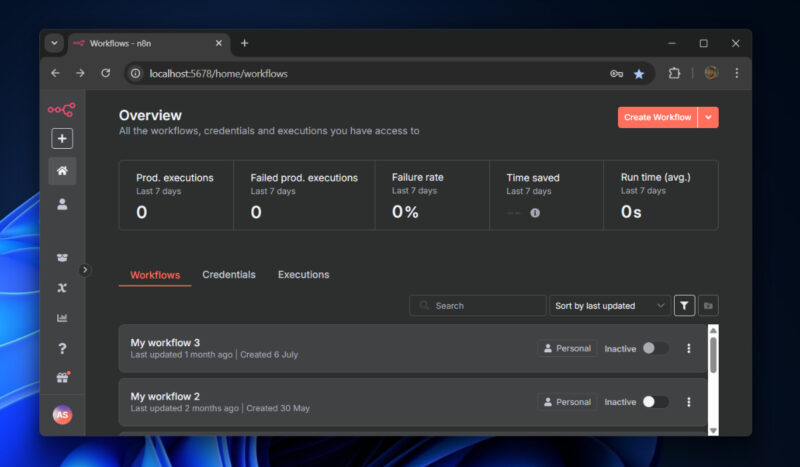
For personal use, it’s a no-brainer. The tool lets you build custom workflows by visually linking together different apps and actions, so information flows automatically without the need for complex coding. It is similar to platforms like Zapier or Power Automate, but with one important difference. n8n is self-hosted, which means you are not locked into a subscription plan or someone else’s servers. You have complete control over whether you want to run it on your laptop, a cloud instance, or even a Raspberry Pi.
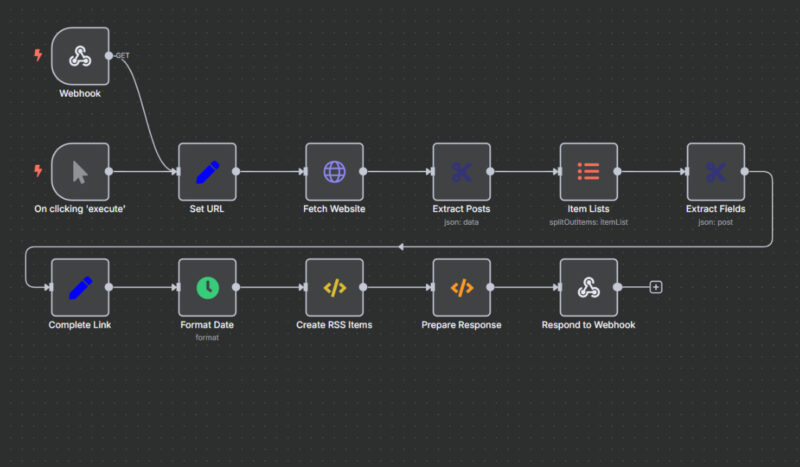
Workflows are designed in a drag-and-drop editor where each “node” represents a specific action or trigger. For example, one node could be “new row added in Google Sheets,” and another could be “send a message in Microsoft Teams.” When you chain these nodes together, you create a fully automated process that quietly handles tasks on your behalf.
Setting Up the n8n Automation Workflow
Before starting to build the automation, you need to get n8n running, and the simplest way is with Docker. Start by installing Docker on your PC. If you are on Windows or macOS, you can use Docker Desktop. Once Docker is ready, pull the official n8n image from Docker Hub and start a container.
docker run -it --rm \
  -p 5678:5678 \
  -v ~/.n8n:/home/node/.n8n \
  n8nio/n8n
This command maps a local volume so your workflows are saved even if the container stops. When the container is running, open http://localhost:5678 in your browser to access the n8n editor. From there, click “Create new workflow,” and you are ready to build.
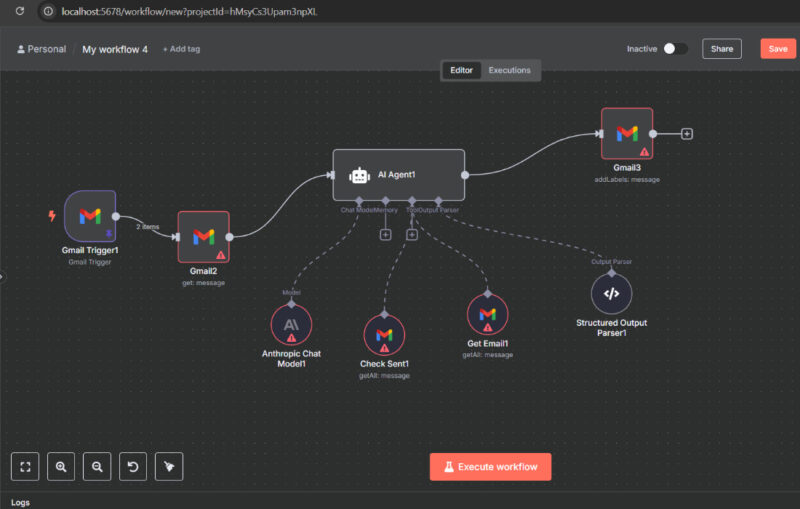
The workflow I created begins with Gmail. A Gmail Trigger node continuously monitors for new messages and passes them into the automation. Those messages are then enriched with full content, headers, and metadata through a Gmail node.
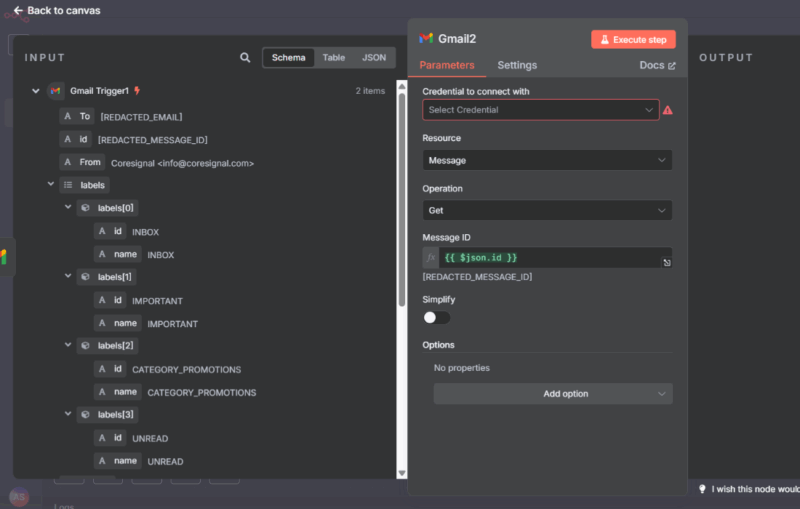
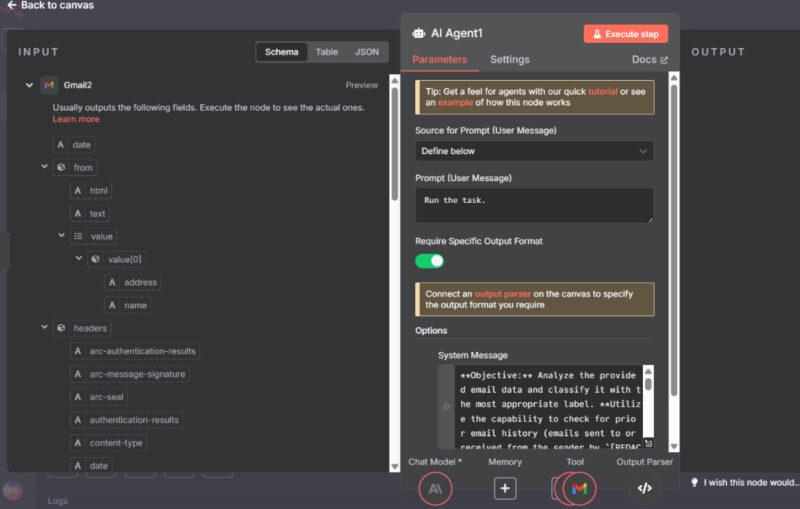
Next, you set up a node for an AI model, which requires an API key to enable automation. Once that is in place, the data flows into the AI, which analyzes the email and checks the context against past conversations.
I used Anthropic’s model, but you can also connect other AI models such as ChatGPT, Gemini, or Grok, depending on your preference. Additional Gmail nodes fetch history from both the inbox and sent folder, while a structured output parser ensures the AI produces consistent responses. Finally, the workflow loops back to Gmail to automatically apply the right labels, which means every email is sorted the moment it arrives.
How the Automation Works
Once running, n8n continuously watches my inbox and captures new messages as soon as they land. Each email triggers the workflow, which collects the full details, including the body, headers, sender information, subject line, and thread history. This way, the automation always has complete context before acting.
The next step is analysis. The system checks whether I’ve interacted with the sender before, whether the message belongs to an ongoing thread, or if it is a first-time contact. These checks give the AI relationship context, which is crucial for understanding priority and intent. The AI step runs on Claude Sonnet 4, a model that can analyze tone, content, and urgency. Unlike basic keyword filters, it can tell the difference between an important client request, an automated alert, or a marketing blast.
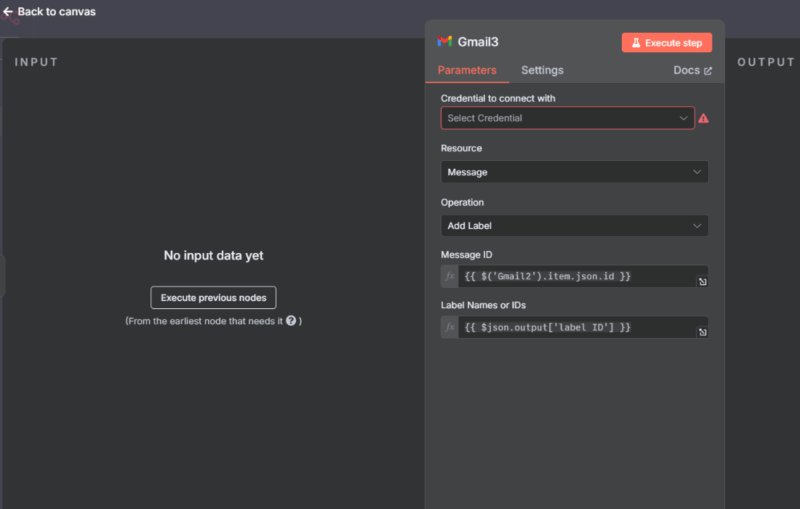
Once classification is complete, n8n applies the appropriate Gmail label. Over time, I have tuned these categories to match how I naturally process messages. Emails that require a reply go into “To Respond,” updates for awareness land in “FYI,” automated alerts are marked as “Notification,” promotions are grouped under “Marketing,” scheduling messages fall under “Meeting Update,” and collaborative notes or feedback are tagged as “Comment.”
What makes this workflow so effective is its combination of real-time monitoring, context-aware AI, and structured label application. As soon as an email arrives, the workflow captures every relevant detail, evaluates its history, analyzes its content, and applies the correct label without any manual intervention.
n8n is a great app to start automating redundant tasks, but if self-hosting seems too much of a job, you might want to try these 8 Chrome extensions that automate boring browsing tasks. While you’re at it, check out these 7 automations to increase your daily productivity.








