Unlike Windows, Linux is mostly fast and efficient, even if you are running it on older hardware like I am. It is built that way on purpose. The system quietly takes care of many things in the background. The kernel manages memory automatically, keeps frequently used files cached so they open faster next time, and clears temporary data when needed. Because of this, I started wondering why are there plenty of optimization tools for Linux? Honestly, that confused me at first. Let’s talk about that.
The Myth of Linux Optimization Tools
Linux optimization tools often promise to speed up your system, clean junk files, and make everything run smoother. But most of the time Linux is already doing those things on its own. In many cases, these tools are simply placing a fancy button on top of tasks your system already handles automatically.
A good example is RAM usage. When you open your system monitor and see memory usage sitting at 80–90%, it might look alarming at first. But in Linux, unused RAM is basically wasted RAM. The kernel intentionally uses available memory to cache files, libraries, and application data so programs launch faster the next time you open them.
When you run a memory cleaner to bring that number down, you’re often doing the opposite of optimization. You force the system to drop useful cached data, which means it has to fetch the same information again from the much slower disk later.
And it can get worse. Some optimization apps run their own background services that constantly monitor your system or scan for issues. Those processes end up using CPU and memory themselves. I actually ran into this early on. I installed a few optimizer apps on my laptop, and instead of things getting faster, my computer started taking longer to boot and used slightly more memory than before.
The truth is Linux has a strong reputation for running light and smooth for a good reason. It almost never needs that kind of help. Real improvements usually come from simple things like closing extra browser tabs, managing heavy applications, or keeping your system updated.
Linux Optimization Apps That Are Not Useful
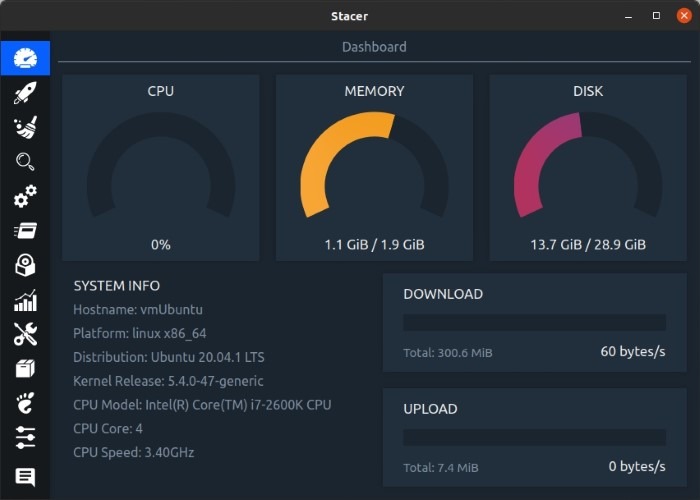
Let me get specific about what I was running, because some of these names might sound familiar. Stacer was my favorite for a long time. I loved its clean dashboard showing CPU usage, memory, disk activity, and startup services. I also ran BleachBit every week to wipe caches, browser data, and thumbnail files while watching the freed space counter go up. Then there was Preload, which promised to analyze my habits and launch apps faster by preloading them into RAM.
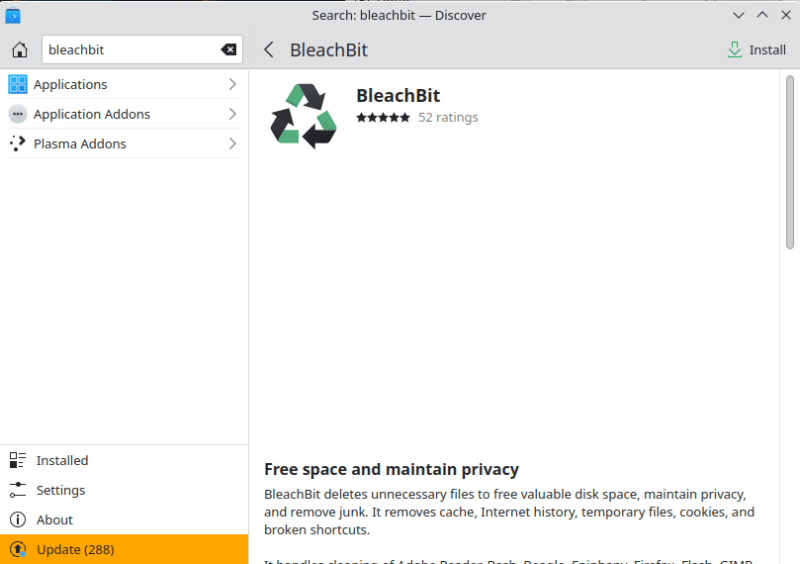
At the time it all felt useful, but most of it didn’t actually help. For example, clearing caches forced my system to rebuild them later, background tools added extra services, and some tweaks solved problems my hardware didn’t even have anymore.
Simple Maintenance Routine to Optimize my Linux System
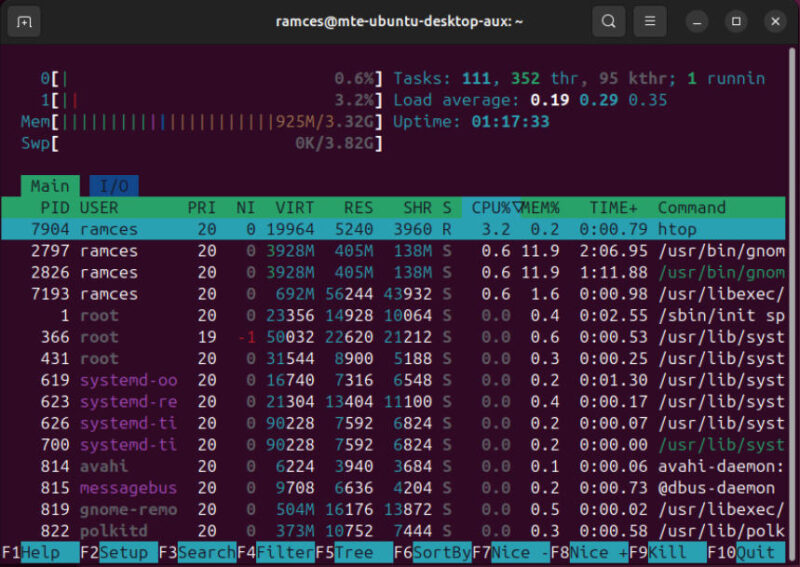
These days my maintenance routine is very simple and mostly relies on tools that already come with my Linux distribution. If I want to see what’s happening on my system, I usually open the built-in System Monitor from my desktop environment. It shows CPU usage, memory, and running applications, and I can easily close anything that’s using too many resources. If I’m in the terminal, I sometimes use htop for a quick overview of the same information.
For occasional cleanup, I simply remove unused applications through the Software Manager, which also takes care of unnecessary dependencies. Sometimes I run a quick command like sudo apt autoremove to clean leftover packages.
In addition, when I want to check disk usage, graphical disk analyzers work great. But a simple commands like df -h or du can show the same information instantly. The only extra tool I still use on laptops is TLP for power management. As, it focuses on one specific job and runs quietly in the background.
When Optimization Tools Actually Help
There are real situations where Linux optimization tools actually make sense. For example, if you’re reviving an old laptop with 4GB of RAM and a spinning hard drive, the built-in defaults that work great on modern machines may genuinely fall short. In that situation, something like a zram-generator tool can make a meaningful difference. It creates a compressed swap device inside your RAM, effectively giving you more usable space without swapping out to the slow drive.

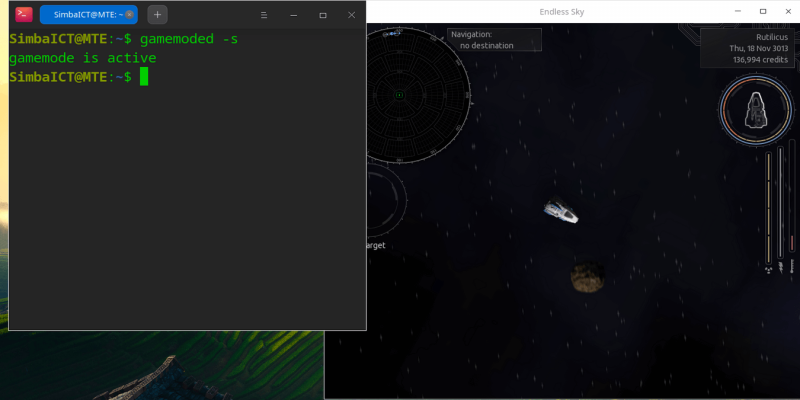
Gaming is another legitimate exception. If you’re running Steam games through Proton and you want every frame you can get, tools like gamemode are genuinely useful. It adjusts your CPU governor and I/O priority the moment a game launches, and returns everything to normal the second you close it. Also, it doesn’t scan your entire system or add a permanent background service. It does one focused job and stays out of the way otherwise.
Laptop users with specific battery issues sometimes benefit from tools like TLP or auto-cpufreq when the kernel’s default power management doesn’t play nicely with their particular hardware.
The distinction that matters is this: a tool that solves one clearly defined problem and stays out of the way is fine. A tool that promises to optimize everything, clean everything, and boost everything with a single button is almost certainly adding more overhead than it removes. Install the specific thing for the specific problem, test whether it actually helps, and remove it when you no longer need it.