
Dev Drive is a Windows 11 feature that creates a drive formatted with Microsoft’s Resilient File System (ReFS) instead of the usual NTFS. ReFS is a filesystem designed for large datasets and has been tuned by Microsoft for developer workloads, but that design can also have benefits for gamers. Let’s find out how a Dev Drive might improve your gaming – and what to watch out for.
How ReFS Works
Before learning how games will work on a Dev Drive, it’s important to understand the purpose of ReFS. ReFS uses various on-disk techniques, such as block cloning and checksums for metadata, to make data management more stable and faster. Its main goal is to reduce the chances of data corruption and improve disk I/O performance, especially for large datasets.
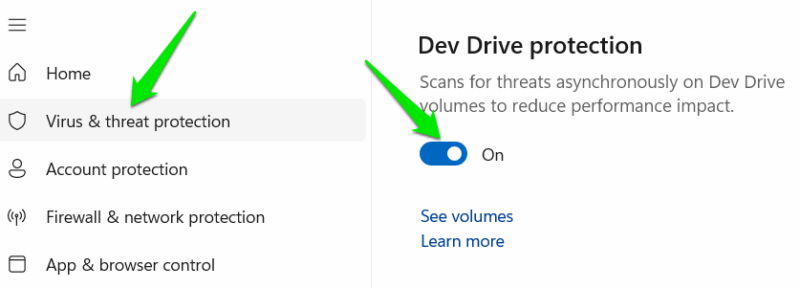
Dev Drive also includes a special Microsoft Defender feature that scans files on the ReFS volume asynchronously. This means a file is allowed to open immediately when accessed, while the security scan runs in the background. This approach slightly reduces security – since files are allowed to run by default – but eliminates the loading delays caused by real-time scanning, improving overall disk I/O speed.
ReFS also doesn’t offer some consumer-grade features, such as file compression, NTFS encryption, or disk quotas. Overall, a Dev Drive provides faster disk I/O and better resilience to data corruption in exchange for reduced security and fewer convenience features.
Benefits of Playing Games on a Dev Drive
NTFS is still considered the go-to choice for gaming and general use, and ReFS isn’t intended to replace that. However, depending on your setup and needs, an ReFS-formatted drive is worth considering for gaming.
A Dev Drive will mainly impact game performance when it comes to game loading times, whether it’s initial loading or asset loading during gameplay. This means its benefits will be more pronounced on SATA SSDs or HDDs. On NVMe, the benefits to performance will be negligible in real-world use. Below are some main benefits:
- Faster large file processing: ReFS supports block-cloning / copy-on-write tricks that will speed up large file processing like game installs and patches.
- Optimized handling of small files: it’s also optimized to handle workloads with lots of small files, which can benefit games that depend on lots of smaller files. In certain games, it can decrease initial load times and even help stabalize frametime if a slow storage drive was the cause.
- No latency from Microsoft Defender: since real-time security scans are deferred, it can further boost disk I/O speed.
- Less chance of games file corruption: while less concering for games, file corruption can happen, especially to game save files. ReFS is resistant to file corruption.
Overall, it will be most beneficial for games with large data files, like open world games. We tested multiple games on a PC with SATA SSD with 530MB read/write (benchmarked), including Red Dead Redemption 2, ARK, Albion Online, COD, and more. For initial loading times after a PC restart, there was a 5-16% average improvement in game loading times on a Dev Drive.
Drawbacks of Playing Games on a Dev Drive
ReFS is stable for regular use, so you won’t face direct problems while using it. However, you’ll be sacrificing some important security and convenience features to use it. Below are some noticeable downsides:
- Less secure real-time scanning: Windows treats Dev Drive as trusted and runs asynchronous scans. This means you need to be extra careful if you use untrustworthy third-party mods or any other unofficial tweaks. This behavior can be disabled in the Windows Security app by going to Virus & threat protection → Manage settings → Dev Drive protection.
- Compatibility issues: while very rare, there is a chance some games and modding tools that depend on some NTFS features, like compression or hardlinks, may not work properly. Some game anti-cheat tools have also been reported to cause problems with games on a Dev Drive.
Lack of consumer features like compression or encryption may not affect games too much, but it’s still a downside worth considering.
Creating a Dev Drive in Windows
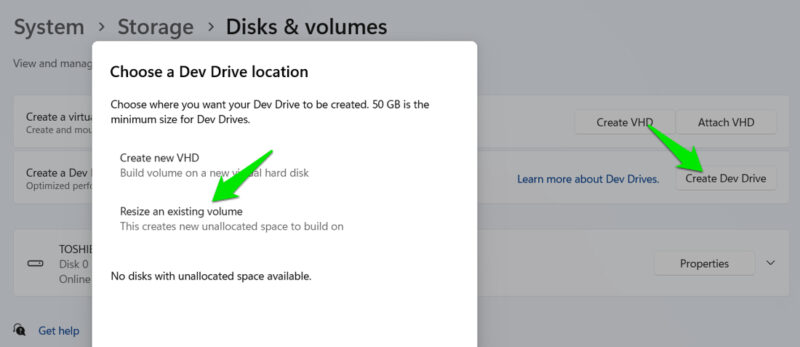
You don’t have to switch from NTFS; you can just create a separate Dev Drive and put your games there to test it out. If you face any issues, you can just delete the drive. It requires 50 GB minimum space to create a Dev Drive, so you must have this much free space in a drive to reallocate it. Here’s how:
In Windows Settings, go to System → Storage → Advanced storage settings → Disk & volumes. Click on Create Dev Drive and then choose Resize an existing volume.
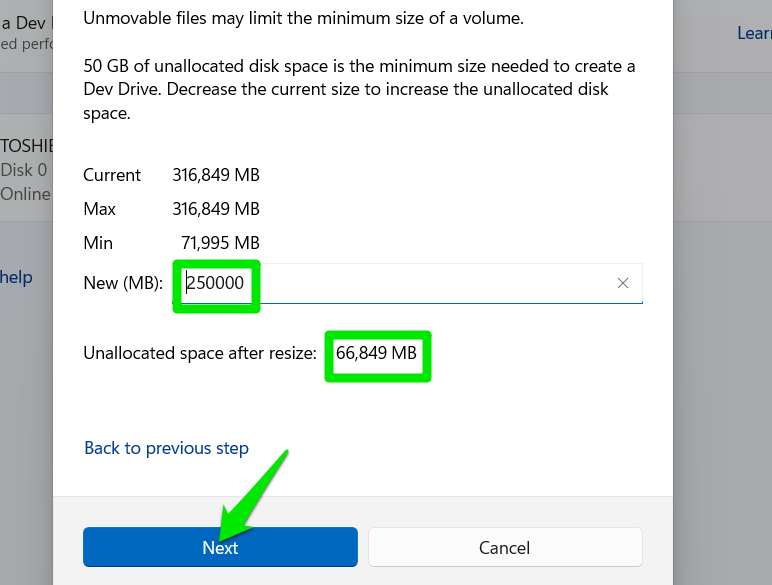
Now, provide the amount of disk you want to keep on the drive and ensure unallocated space is above 50,000 MB (below the field). Once resized, you’ll be prompted to provide the Dev Drive name and size to create it. You can delete a Dev Drive from the same Disk & volumes section.
Creating or deleting a Dev Drive is easy, so you can just allocate the required space for your games and easily test to see if it brings any improvements. You can also try these tips to further improve gaming performance on Windows.








