If you’re a Windows 10 user, Microsoft won’t stop nagging you to upgrade, even if your PC isn’t compatible. With support ending in October 2025, Microsoft is offering a way to let you continue receiving Windows 10 updates for an additional year. But, you’ll have to do one of three things first.
Microsoft Knows Windows 10 Isn’t Going Away
Despite how much Microsoft has pushed to get everyone upgraded to Windows 11, many users aren’t interested. For many, they can’t upgrade without buying a new PC. Even though Microsoft ceased annoying ads, the pressure is on to upgrade by October or lose access to vital security updates.
Originally, Microsoft announced the Extended Security Updates (ESU) program last October. Pay a fee and get an extra year of updates. A small fee is definitely cheaper than a new computer.
Now, Microsoft’s changing the rules and offering a few free ways to enroll in the ESU program.
Watch for the ESU Notification
Currently, only Windows Insiders will see the ESU notification to continue receiving Windows 10 updates. All other Windows 10 users get access to enroll in the ESU program throughout July and August 2025.
You’ll see a notification in your notification tray when you’re eligible. Or, go to Settings -> Windows Update to find the enrollment wizard. Remember, the option is rolling out over the next few months, so be patient if you don’t see it just yet.
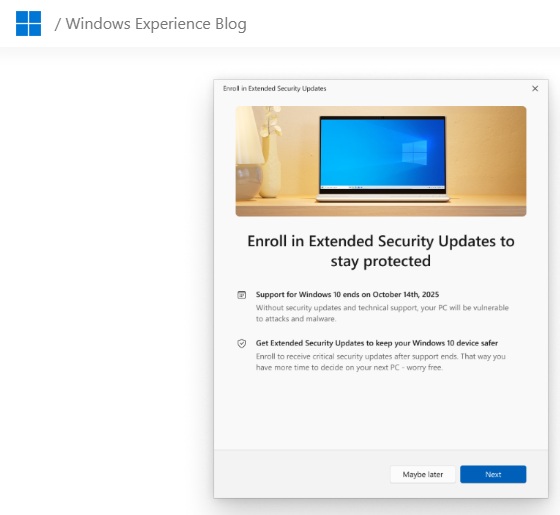
Simply follow the enrollment wizard prompts to choose how you want to get updates.
Enroll in Windows Backup
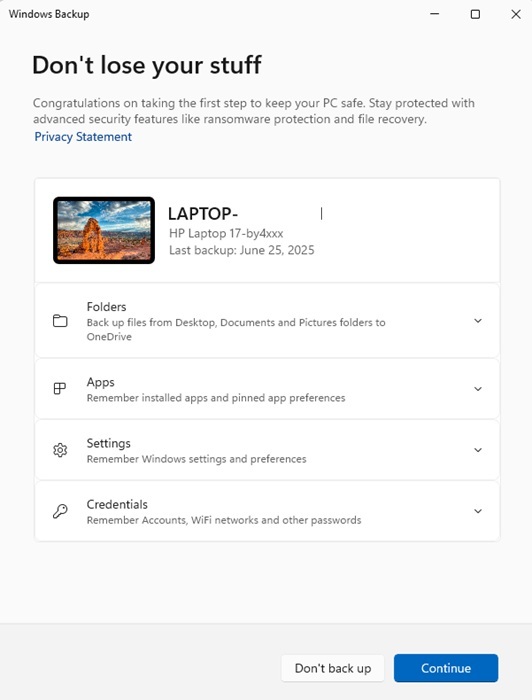
The first free option is enrolling in Windows Backup. This is completely free. You just need a Microsoft account. The downside is free storage is limited to just 5 GB. If you’re like me, your PC is filled with far more than 5 GB of files.
For Microsoft, this is a win-win. The company believes you’ll upgrade your free OneDrive account to get more storage. Instead of a one-time fee for a year of Windows 10 updates, Microsoft gets a monthly fee.
But, if you already have a Microsoft 365 account, you may already have Windows Backup turned on. If so, you’ll qualify immediately for the year of updates.
If you’re not interested in Microsoft 365, you can still use Windows Backup without upgrading your storage. Just make sure to limit what Windows backs up to just a few folders with limited files. You could even just add a handful of blank Word docs and a few free images from popular free image sites to your Documents and Photos folders. Move all your actual files to different folders and don’t back those up to OneDrive.
Please note, I still want you to back up all your files. You just don’t have to use OneDrive to do it.
Check your Windows Backup settings by going to Start, searching for Windows Backup, and clicking the result. Then, choose what you want to back up. You must be logged into your OneDrive account to make changes.
Spend Microsoft Reward Points
If you don’t want to bother with OneDrive and Windows Backup, there’s another free way to continue Windows 10 updates after the October deadline. Just spend 1,000 Microsoft Reward points. This is roughly the equivalent of $1. Points are free to accumulate by doing simple tasks while logged into your Microsoft account, such as:
- Search using Bing (works on all platforms)
- Search online using your taskbar’s search box
- Check in daily on Microsoft Edge
- Play daily trivia games
- Take quizzes
- Buy items from the Microsoft Store
- Complete quests or play select games on Xbox One
- Complete random tasks, such as translating text or checking the weather
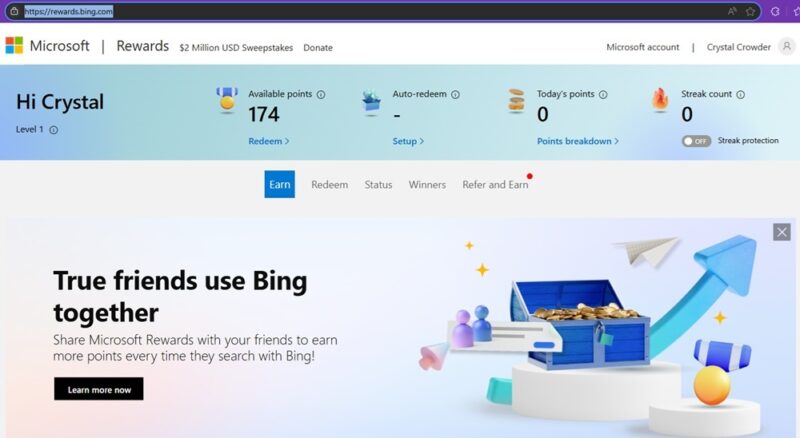
Visit Microsoft Rewards to view your progress and check out extra tasks beyond searching.
You won’t earn 1,000 points overnight, so if you want to use this method, start now. If you’re starting from scratch, it should take 2-6 months to earn enough points.
Pay a One-Time Fee
If you don’t want to do anything extra, you can pay a one-time $30 fee to continue receiving Windows 10 updates for a year. Considering a new Windows 11 PC typically ranges from $200 to over $1,000, the fee is still better than upgrading to a new device.
Personally, I’d opt for one of the free options as they’re easy to do. Plus, if your PC dies or you decide to upgrade to a new device before the year is out, you won’t get your money back.
If your PC is compatible with Windows 11, but you just don’t have enough storage space, try creating a slimmed down installation. Of course, you could always take another approach and switch to Linux, which offers versions that look and feel similar to Windows.








