
Microsoft added a scareware blocker to Edge in early 2025, but it was off by default. The latest Edge build now enables the feature for everyone with an eligible device, whether you want it or not. While extra protection is welcome, it also raises questions about privacy and performance. Here is how the feature works and how to manage it.
What is Microsoft Edge Scareware Blocker
You must have stumbled upon those unexpected pop-ups (often full screen) asking you to download a program to fix a problem, like a virus in your PC or illegal activity detected. These are called scareware and are created to scare you into downloading a malicious program or completing a dangerous action.
Microsoft scareware blocker automatically detects the scareware attack using different factors and blocks access to the website. You can then decide to close the website or continue. This feature is enabled now on all devices with at least 2GB of RAM and a 4-core CPU (most PCs made in the last 10 years).
How the Scareware Blocker Detects Attacks
Microsoft Edge uses an on-device machine learning model to watch for behavior and visual cues that look like scareware. This includes full-screen pop-ups, forced audio play, visual cues, and preventing the user from closing the tab. It then compares the clues with thousands of known scareware attacks to match behaviors and visuals to give a score to the attack. If the score exceeds a specific limit, Edge will close all interactive elements and prevent access to the page.
The whole process happens locally, and no information is shared with Microsoft. However, the user has the option to share the information with Microsoft Defender SmartScreen. If you share, the website URL and attack data will be shared to protect others from the same threat.
Should You Disable Edge Scareware Blocker?
In most cases, you will want this feature enabled, as the downsides are minimal. Even if you are really good at detecting scareware yourself and won’t fall for it, this feature still helps stop annoying behaviors that accompany scareware, like loud noises or preventing the user from closing the tab.
The default function isn’t a privacy concern as it functions locally; it only shares information when allowed by the user. The main downside is the performance impact. The feature is only enabled on computers with specific minimum specs; this means it has some performance impact. For someone trying to optimize a PC for performance – like for gaming – this can slightly increase resource usage.
While rare, this feature may also interfere with some full-screen apps, like kiosk apps, remote-support pages, admin consoles, or video players. While you can whitelist them, if it happens too often, you may want to disable it.
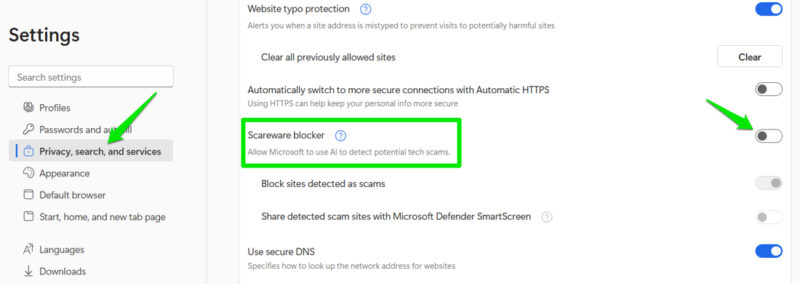
If you do want to disable it, open Microsoft Edge’s Settings from the main menu in the top right corner (three dots). Move to Privacy, search, and services → Security, and disable the Scareware blocker toggle.
How to Report Attacks and Manage False Positives
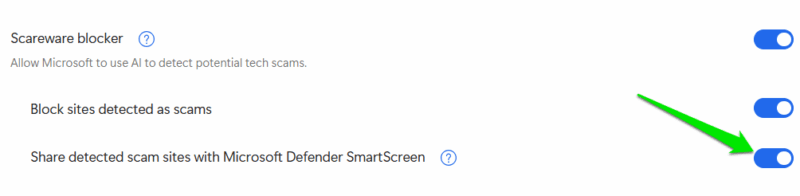
Even though the scareware blocker is enabled by default, its ability to share data with Microsoft Defender is still disabled. If you want to help strengthen this security feature for everyone, you can allow Edge to share the scam site with Microsoft Defender. It will only share the specific website that it found the scareware on.
To do so, open Privacy, search, and services → Security again in Edge’s Settings and enable the option Share detected scam sites with Microsoft Defender SmartScreen. Now, whenever a scareware attack is detected, it will automatically share the website URL and attack data.
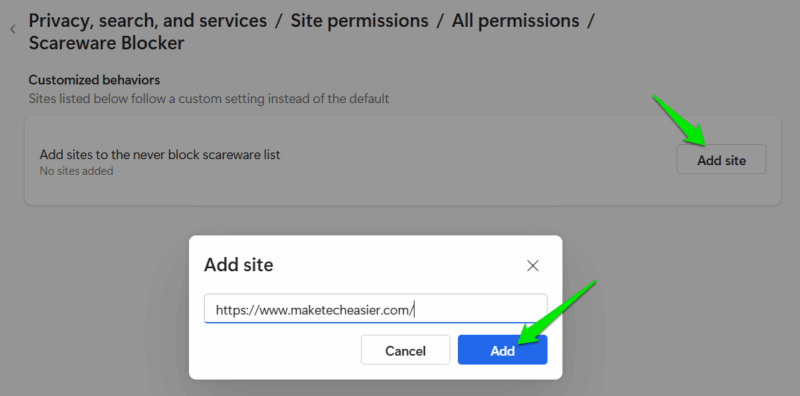
For false positives, you can click the Continue button on the prompt to access the website. However, if you need to access the same website often, you should whitelist it so Microsoft Edge doesn’t block you again. Go to Privacy, search, and services → Site permissions → All permissions → Scareware Blocker and click on Add site to add the website URL.
It’s worth mentioning that the scareware warning page also has a button to report it. You can use it to both report a scam or a false positive with additional details, like a screenshot of the webpage. Other than scareware, you should also be careful about other tricks hackers use to compromise your device.








