


Every time you go online, you give information about yourself and your computer to the sites you visit. Tracker scripts are loaded in websites to gain information on you to target you with relevant advertising. If you want to protect yourself from having this data collected, Microsoft Edge has a tracking prevention feature that blocks these trackers from working. It uses a database of known privacy trackers and prevents them from gathering information from your browsing sessions.
Levels of tracking protection in Edge
There are three different levels of tracking protection you can use against trackers in the new Microsoft Edge. This protection is available on both the mobile (Android and iOS) and desktop browsers.
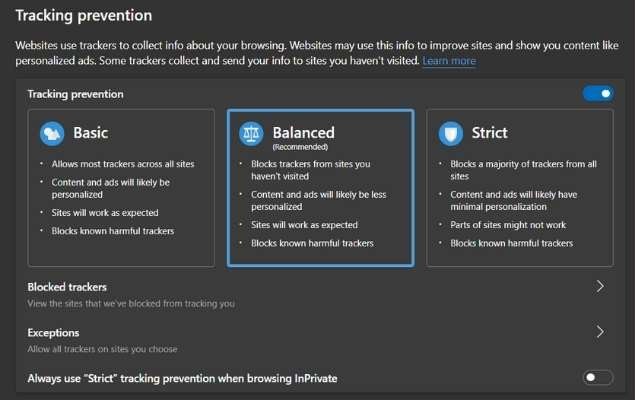
Basic
If you don’t mind targeted ads but want to avoid any harmful attacks on your computer, basic may work for you. Basic Tracking Protection doesn’t block ads, analytics, or social trackers.
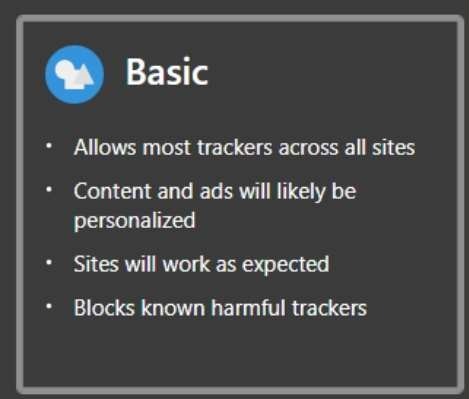
This setting allows for personalized ads while stopping harmful scripts that run malicious code and slow down your browser and hurt battery life. Basic also blocks cryptomining and fingerprinting scripts that use device-specific information to track you.
Balanced
Balance Tracker Protection is the default setting when you use Microsoft Edge. It eliminates personalized ads by blocking most advertising trackers, but there could still be some ads targeted to you. This setting blocks everything the basic level does, as well as trackers that attempt to gather local data from your computer.
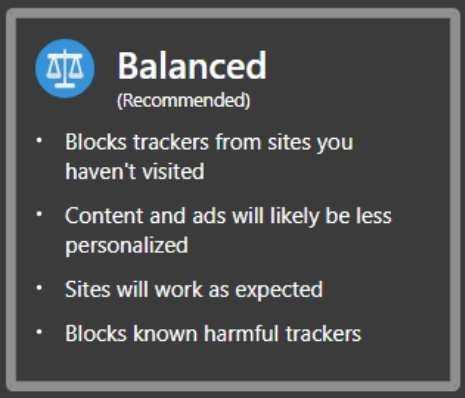
This setting will not affect browser performance. Since it won’t block ads or stop trackers that make the site run correctly, the websites you visit should still work fine.
Strict
If you are determined to block every tracker from gathering any information whatsoever about your activities online, you can use the Strict setting. This level blocks everything that can be blocked. It stops all kinds of ad-personalization trackers – even those on sites you have visited before. You will probably even see fewer ads on most pages you visit.
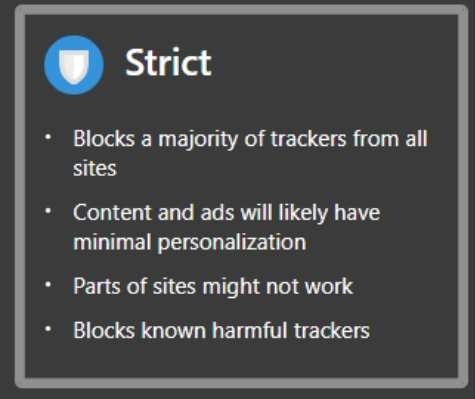
Another extra benefit of using the Strict level of tracking is improved site performance. Since the browser doesn’t permit anything extra to load, the sites will load more quickly.
However, using this setting will often “break” websites because it blocks some onscreen elements that could collect data. Sometimes it will stop videos or social media plugins from loading.
Which tracking prevention level should you choose?
Which tracking prevention level you should use depends on your personal preferences. If you don’t mind personalized ads but want to keep harmful scripts from doing any damage, Basic may be sufficient for you. If you are extremely privacy conscious, the Strict setting may be best.
You will definitely want to have one of the tracking preventions enabled, no matter how much you worry about privacy.
How to change the tracking protection settings
Windows and macOS
1. Click on the three dots in the upper-right corner of the screen.
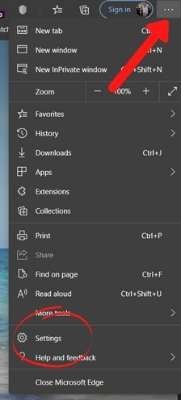
2. Choose Settings.
3. Click on the “Privacy and Services” tab.
4. Select your preferred level of protection: Basic, Balanced, or Strict.
Android and iOS
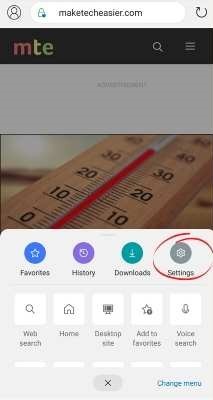
1. Load the Edge menu by clicking on the three dots.
2. Tap Settings.
3. Click on “Privacy and Security.”
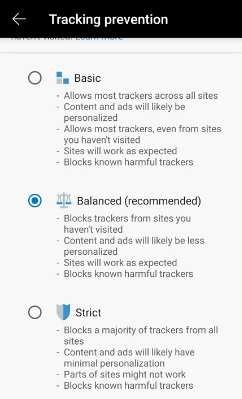
4. Tap “Tracking protection.”
5. Choose the level of protection you want.
If you are using Microsoft Edge, make sure you have the tracking prevention feature enabled. If you’re interested in going to another level with your Internet privacy, you should use NextDNS for more secure and private browsing.