
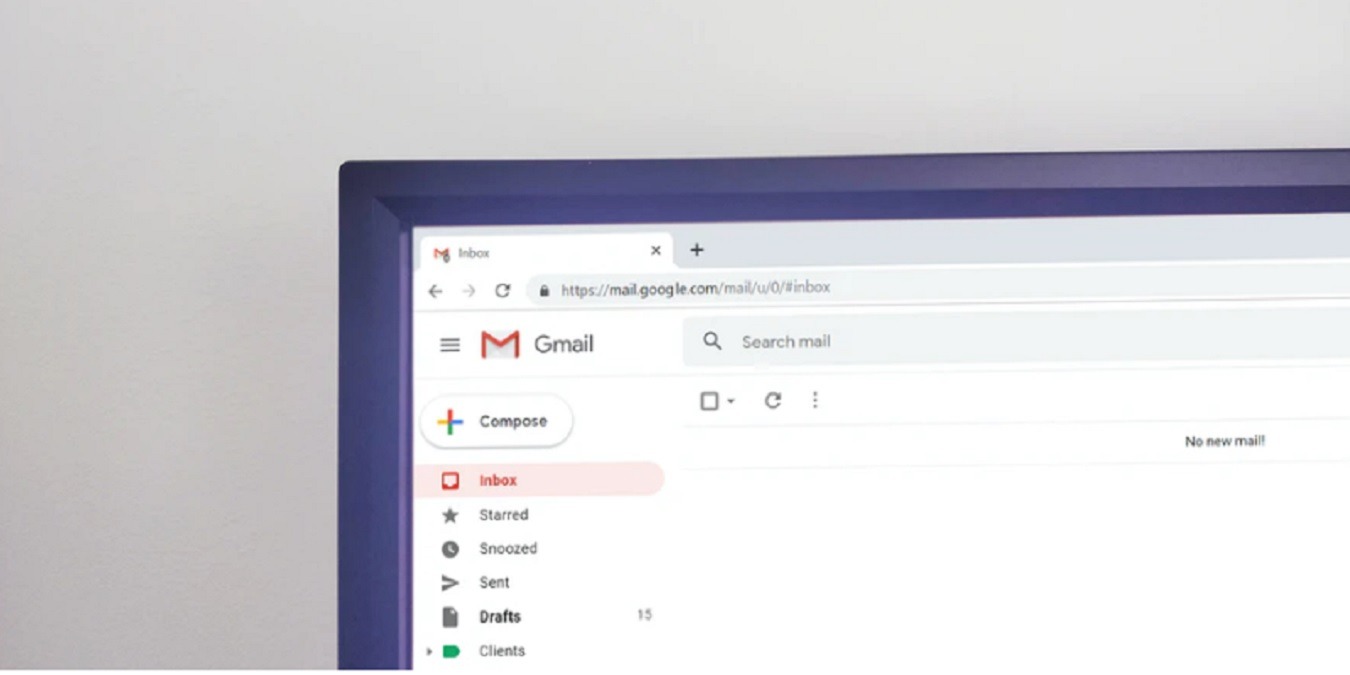

Cleaning out a crowded inbox is a hassle when you have to do it one by one. If you see a bunch of unread emails in Gmail that you want to mark as read, do it all at once. Not only can you mark all unread emails as read in Gmail, you can also delete them all at the same time. Then, you can get back to going through the emails you actually want and need to deal with.
Small Amount
If you only have a small amount of unread messages that fit on the first page of messages, it’s easy to mark these off as read.
1. Log in to your Gmail account in your favorite browser.
2. Click the three-dot menu just above your messages and select “Mark all as read.”
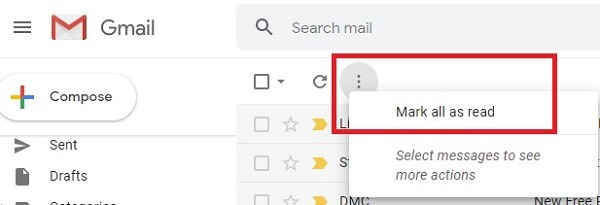
This method allows you to mark all unread emails in Gmail as read.
Multiple Pages of Unread Messages
The above method has to be done on every page if you have multiple pages of unread messages. Skip the hassle by marking all of them as read at once.
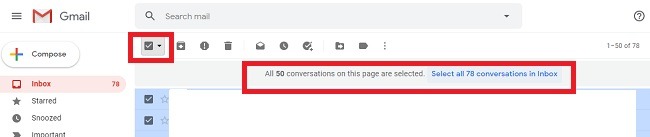
1. Click the checkbox above your message and choose “Unread.” Then, right above the messages, click the “Select all conversations” link.
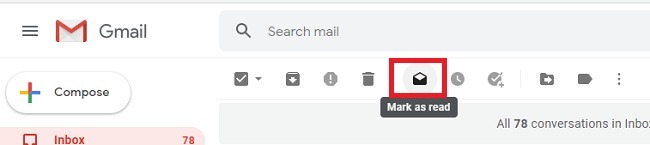
2. Click the “Mark as read” icon/button to mark all the messages as read.
Unread in Multiple Labels
If your messages are automatically sorted into different labels, you’d need to repeat the above process for every label. You don’t need to do this. There is a much easier way.
1. In the search box above your messages, type in:unread. You can also use label:unread. This searches your entire Gmail account for messages.
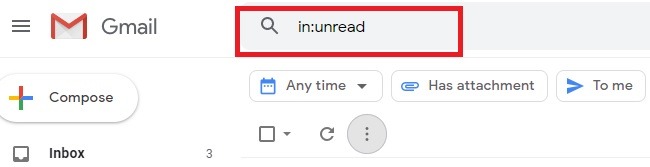
2. Click the checkbox above your messages to select everything. Then, click the “Select all conversations that match this search” link above the message list.

3. Click the “Mark as read” icon/button to mark all unread emails in Gmail as read.
Struggling to find emails? We help you recover lost emails in Gmail.
Delete All Unread Emails
Don’t need all those unread emails? Instead of marking them as read, delete them.
1. Perform a search using label:unread or in:unread if you want to delete all unread messages in your account. If you only want to deal with your Inbox, click “Inbox” instead of using the search box.
2. Click the check box above your message list to select everything. Click “Select all conversations that match this search.” Then, click the Trash icon/button.

3. If you don’t want a bunch of unread messages in your trash, open your Trash label. If you don’t see it, in the left pane with your other labels, click “More” to see more labels.
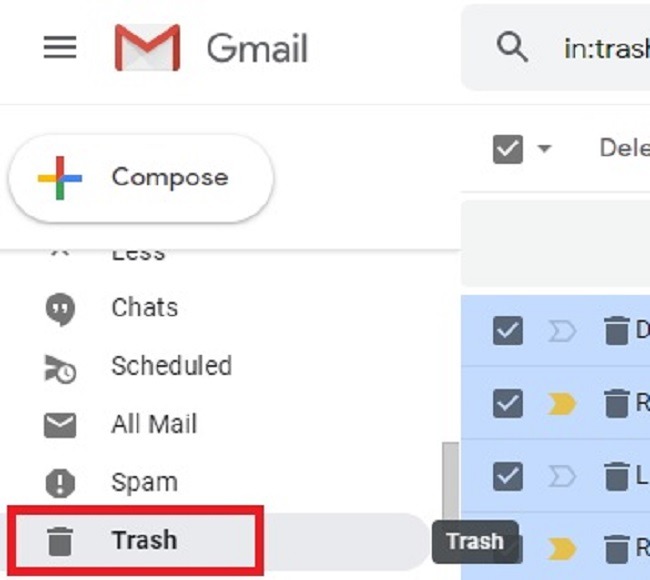
4. Click the drop-down arrow beside the checkbox above your messages and choose “Unread.” Choose “Select all conversations” (if there are multiple pages) and click the “Mark as read” icon/button.
If you’re planning to delete all your unread messages, don’t bother marking them as read first. Move them straight to the trash. You can empty the trash manually or let Gmail take care of it in thirty days automatically.
If you are tired of always have to open your browser and log in to your Gmail, learn how you can access Gmail from your Desktop.