We all get busy and often put off tasks like tidying up our computers. I’m guilty myself, which is why I created a simple weekly routine that only takes 10-15 minutes. Just pick a day and start enjoying a cleaner, faster Windows PC.
The First Week Takes the Longest
The first cleanup will likely take much longer, especially if you’ve never tidied things up or it’s been months since your last cleanup. For example, I got busy, life got in the way, and I suddenly had nearly six months of clutter to take care of. Several hours later, I had everything back on track.
The same weekly cleanup routine works even for a first deep clean. It just takes longer. Trust me when I say it’s much easier to do this weekly than letting things get out of control.
1. Clean the Desktop
I have all my current files on my desktop for quick access. But, at the end of the week, I clean the desktop, removing any files I’ve finished with and sorting remaining files into neat columns.
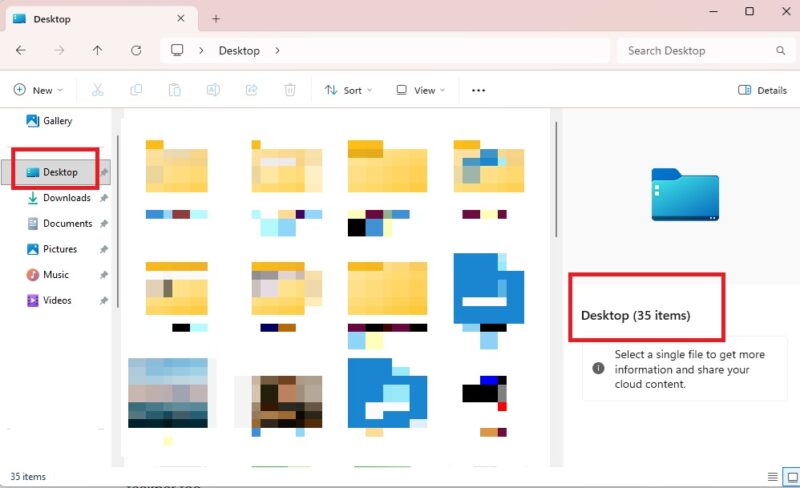
Typically, it should take less than five minutes to fully clean your desktop. Keep the following in mind:
- Move files you’re not currently using to their proper folders off the desktop
- Organize groups of files you still want on the desktop into columns, rows, or desktop folders
- Delete any shortcuts you no longer need – Consider adding shortcuts to the Windows Start menu or taskbar instead. As long as you install the page as a web app from your browser, you can add website shortcuts to your Start menu or taskbar too.
- Trash any files you no longer need. If you get the “File is open in another program” error, try this.
To keep my desktop cleaner during the week, I have a single folder called To Sort on Friday on the desktop. I dump everything in it. Then, I sort out the files on Friday.
2. Clear the Downloads Folder
You download a file, use it, and forget about it. It then lives in your Downloads folder, never to be seen again.
Take a few minutes to delete any old installers, PDFs, images, etc. that you’ve downloaded throughout the week, but have no interest in keeping. For instance, I often download spec sheets to refer to when testing a product. Once I’m finished, I delete them during my weekly Windows PC cleanup.
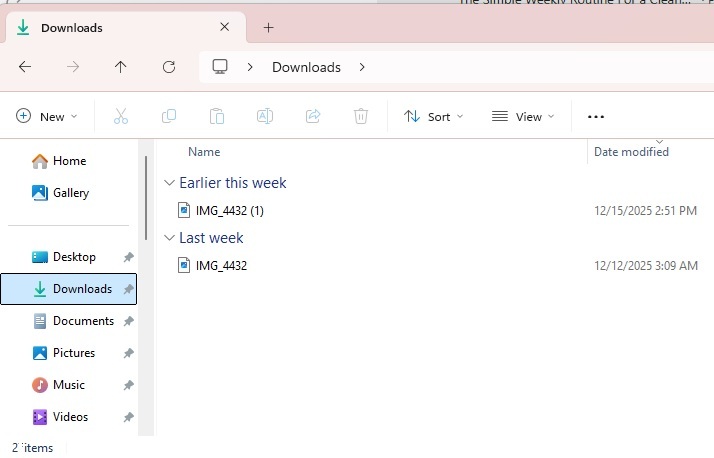
Move anything you want to keep to its proper folder. If that folder doesn’t exist, create one.
I recommend sorting the Downloads folder by most recent to quickly spot the latest downloads. Ideally, you’ll clear this folder out completely every week.
3. Quickly Glance Through Common Folders
This is the most time-consuming part for me. I have to stop myself from going through every file. But, the idea is to quickly glance through files in your most commonly used folders, such as Documents, Photos, Videos, etc. and delete anything you don’t need anymore or move files that got dropped in the wrong folder.
I sort my files by date, pick a random month/year, and go through those each week. It’s a good way to sort through old files quickly without spending hours. You can also condense folders or create new ones for improved organization if that helps.
Over the course of a year, you’ll be surprised at how many files you delete. It’s one of the easier ways to get a faster Windows PC in minutes with no hassle.
4. Check Disk Usage to Ditch or Compress Large Files
Odds are, you probably have some large files you no longer need, such as an old PDF manual or a video you downloaded but couldn’t care less about now.
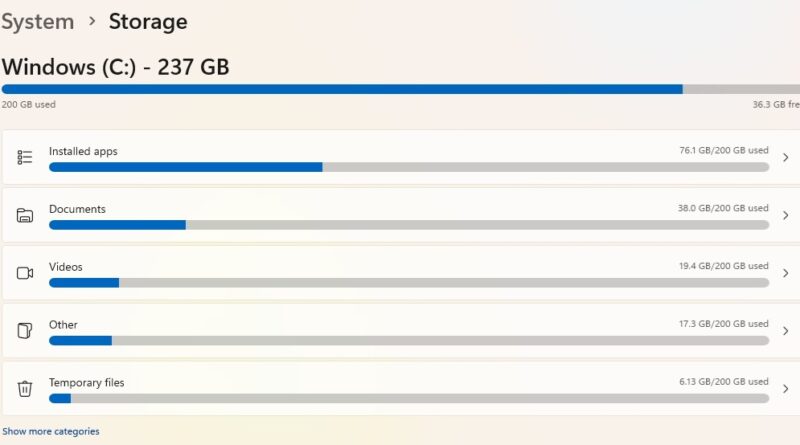
You could sort files by file size, or check your disk usage to see what’s hogging your space. Go to Settings -> System -> Storage. This shows which folders are taking up the most space.
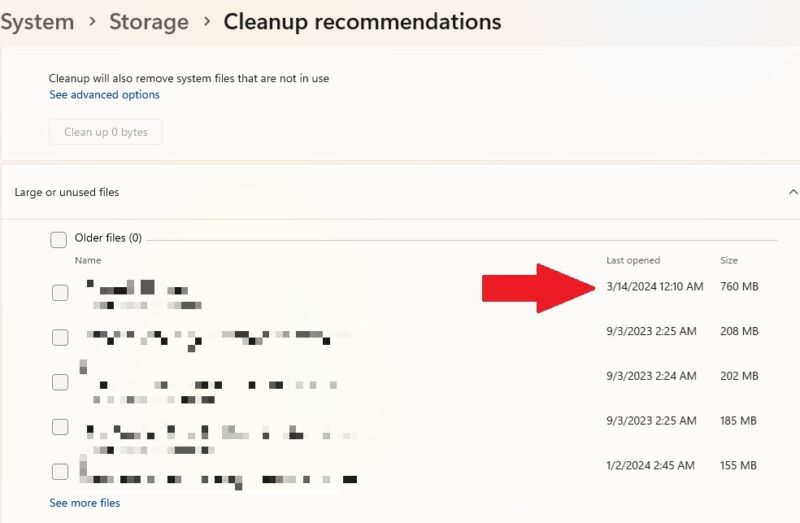
Select Cleanup recommendations and expand Large or unused files. I discovered an old backup over 700MB I no longer needed.
If you do need to keep a large file, consider compressing it until you need it again. Right-click the file and select Compress to.
5. Uninstall Apps
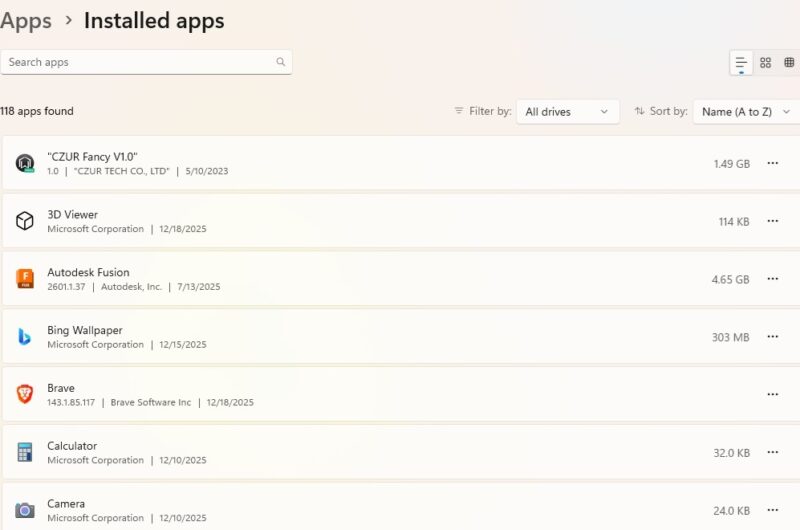
Do you use every app on your PC? Or, maybe you’ve tried out apps, didn’t like them, but never uninstalled them. Go to Settings-> Apps -> Installed Apps. Uninstall anything you don’t need. Only delete apps if you know for sure what they are.
6. Clean Your Browser(s)
If you’re guilty of keeping multiple tabs open at all times and never deleting your browsing history, I’m sorry to say your PC doesn’t like you very much. Mine definitely doesn’t.
Take just a minute or two in each browser you use to close any unneeded tabs. Then, delete your browsing history and cookies. Consider using a privacy browser that auto-deletes your history and reduces the number of trackers and cookies sites store on your device.
After my six-month hiatus from PC cleaning, I had nearly eight gigabytes of browsing history and temp files to remove.
7. Run Disk Cleanup to Clean Recycle Bin and More
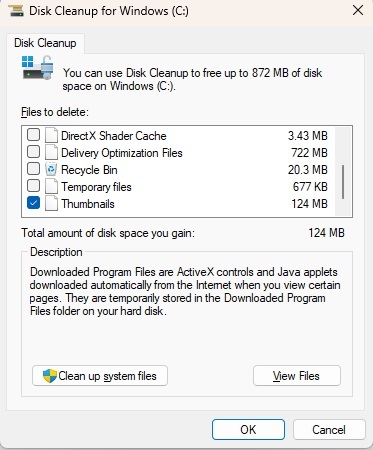
Use Disk Cleanup in Windows to remove excess files. This empties the Recycle Bin, temporary Internet files, temporary system files, and more. Of course, you can manually clean the Recycle Bin by right-clicking and selecting Empty Recycle Bin.
8. Perform a Quick Backup
Regular backups also get forgotten. So, each Friday, I do a quick backup of my most important files. After all, I’ve just cleaned out the clutter and reorganized the week’s files. It’s the perfect time to back it all up.
Use any backup source you want, whether it’s an external drive or cloud service. I recommend always having two backups, just in case one fails. I have two external drives that I alternate each week, along with a cloud backup of non-sensitive files.
Instead of a full system backup, just back up any folders you changed. The manual copy and paste method works fine, or use a backup software to back up just what’s changed. Either way, your files are safely backed up in case something goes wrong during the next week.
After the first week, just 10-15 minutes each week gives you a cleaner, faster Windows PC.








