Private browsing just got more private. Firefox has introduced a new feature on Android that allows you to lock your Incognito tabs behind your fingerprint or other biometric authentication for an even more confidential experience. Here’s how you can enable the feature in just a few steps.
Good to know: here’s how to easily customize your Firefox new tab with a background image.
Lock Private Tabs in Firefox on Android
Since this a relatively new feature, make sure you have the latest version of Firefox installed on your phone. Check the Google Play Store, search for Firefox and if you see there’s an Update button available, tap it to download the new version.
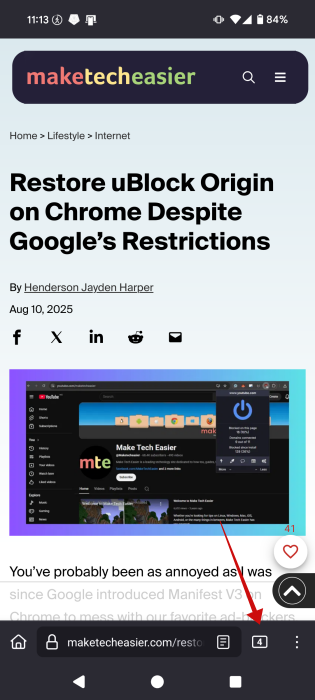
Once you’ve taken care of this aspect, open Firefox on your Android device and tap on the tab group icon next to the address bar.
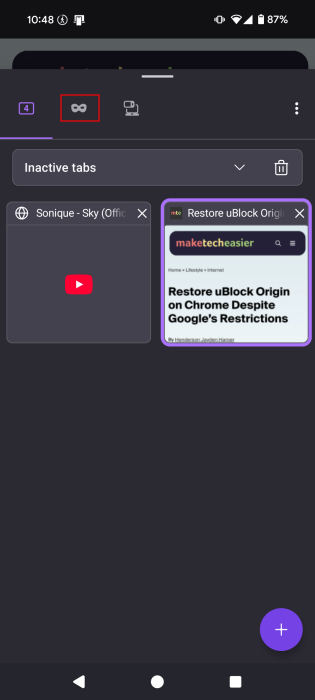
Switch to the Private tab.
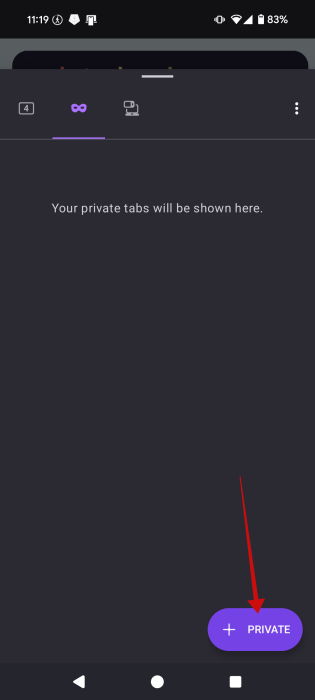
Tap the + Private button to open a new private tab. Type in your address.
Next, tap once again on the tab group icon again to bring up an overview of your private tabs.
At the top you should see the option to “Use screen lock to hide private tabs?” Press Lock Tabs.
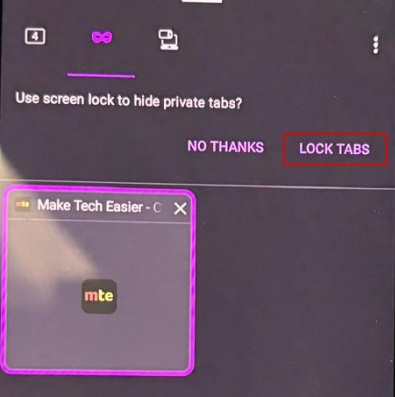
You will be prompted to use your biometric authentication method. You also have the variant to Use PIN if you want to.
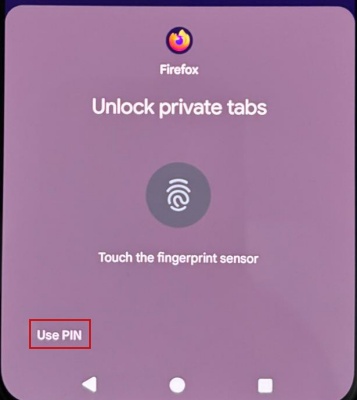
Once this is set up, every time you want to access your private tabs in Firefox on Android, you’ll have to use biometric authentication to unlock them.
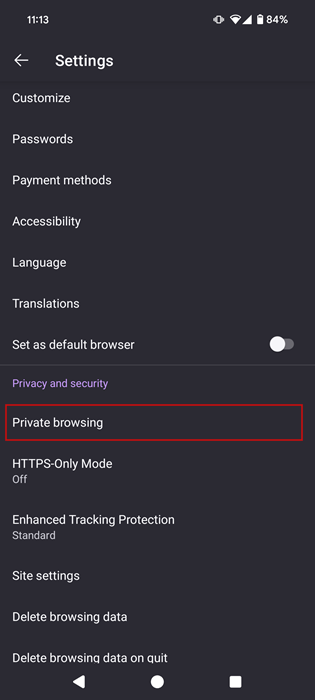
If you can’t see the option to lock tabs, no problem. Tap on the three dots in the lower/upper right corner (depending on your address bar position).
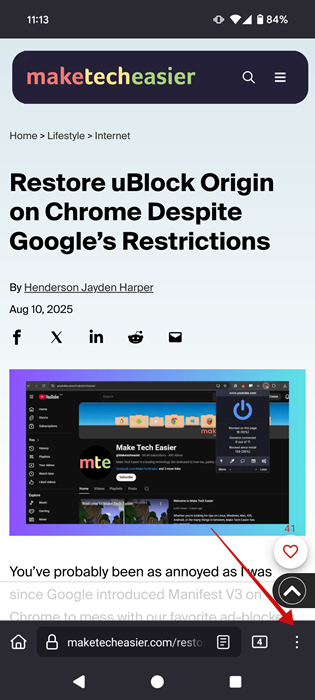
Select Settings.
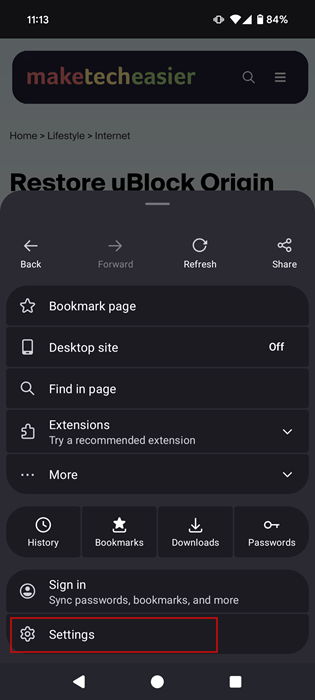
Tap Private browsing under Privacy and security.
Enable the Use screen lock to hide tabs in private browsing option.
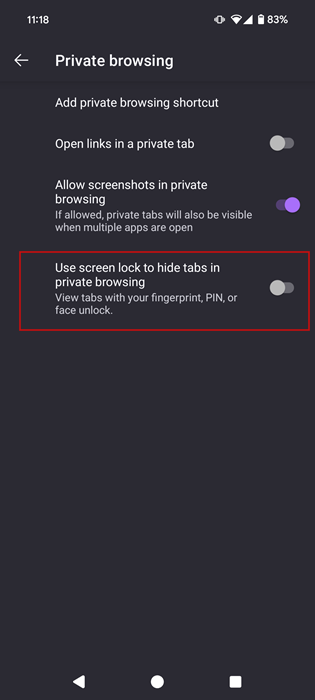
Now your private tabs will be protected in case you have to hand over your phone to someone and you forget to close the Firefox app.
FYI: learn how to reduce Firefox memory or CPU usage on your device.
Lock All Tabs in Firefox on Android
Do you prefer to lock all tabs in your Firefox browser? This way, you can be sure that no unauthorized individuals will have access to the information you’re searching online.
This basically entails that you lock the entire Firefox app under a biometric authentication method or a PIN, so anyone wanting to open the app will be required to go through this security measure.
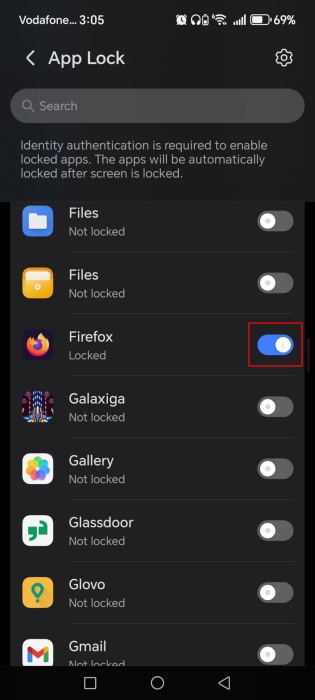
If you’re on Android, this can be done in various ways. For instance, some Android phone models have a App Lock feature. On my Honor phone, I can find this feature by navigating to Settings -> Security & privacy -> Device & data protection.
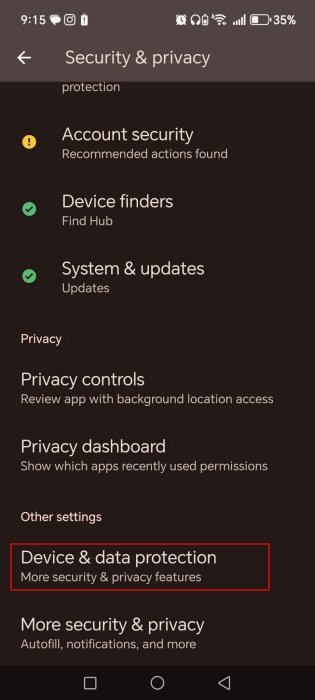
Tap on App Lock.
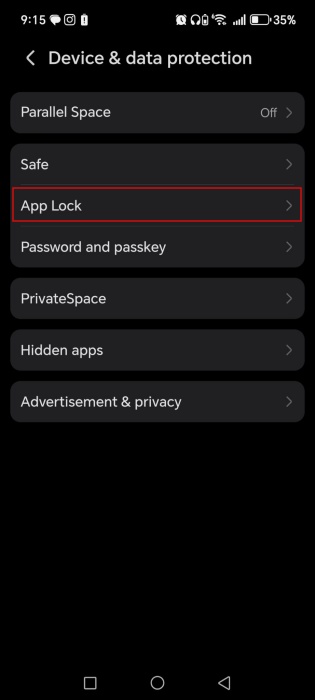
Toggle on the lock for any apps you want, including Firefox. The authentication method you’ve already have set on your device will pop up once someone tries accessing Firefox.
If your phone doesn’t have this option, don’t worry. There are other alternatives you can try. For instance, you can install the a third-party app like AppLock by SpSoft.
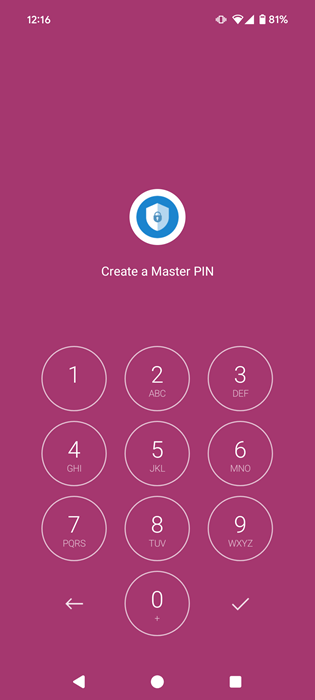
When you launch the app, it will ask you to set a master PIN for accessing the app. If you have any other biometric authentication set up, the app will use that as well.
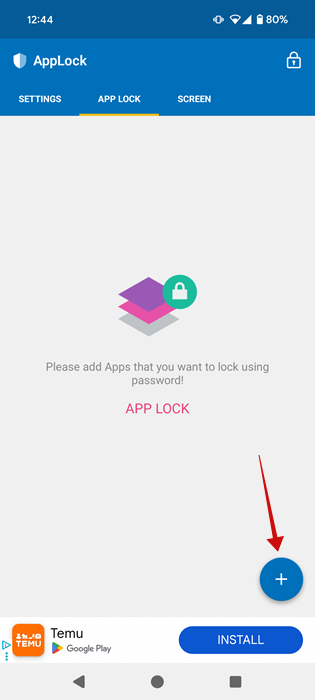
Open the app and press on the + button to add a new app to the lock folder.
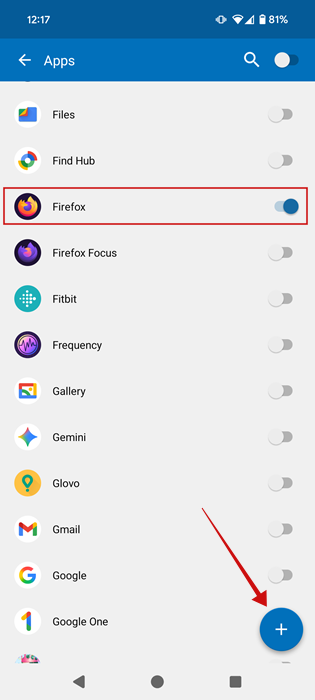
Search for Firefox and turn on the toggle next to it. Then press the + button that appears underneath to add it.
You’ll need to grant some permissions. Do so by following the instructions on the screen.
Now, when you try to access Firefox, you’ll have to either use biometric authentication or input the master PIN sequence.
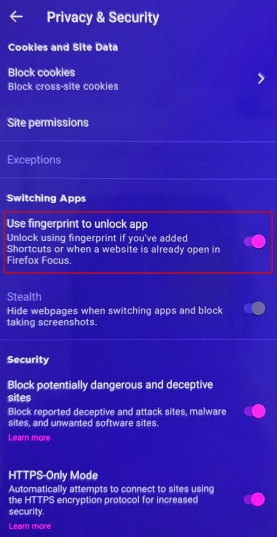
Finally, if you want to hide your Firefox tabs, the alternative way is to switch to the privacy-focused Firefox Focus browser on Android. It has a built-in lock.
You can set it by pressing on the three dots in the upper right corner. Select Settings from the drop-down menu.
Go to Privacy & Security. Here turn on the option to Use fingerprint to unlock app.
Firefox is constantly adding new features and improvements. If you want to keep up with developments, check our post on how to use Firefox’s new AI Link Preview to simplify browsing. Alternatively, you might want to check out this list of Firefox add-ons that can improve your YouTube experience.








