
Learning how to leave a Slack workspace will make it very easy to organize your app interface. And if you own a Slack workspace, you can also manage your members much more effectively. Here’s everything you need to know about leaving a Slack workspace.
Leave a Slack Workspace
Whether you’re switching to one of the many Slack alternatives or you simply don’t need a workspace anymore, it’s very easy to leave a Slack workspace. First, you’ll have to in the workspace you no longer want to be a part of.
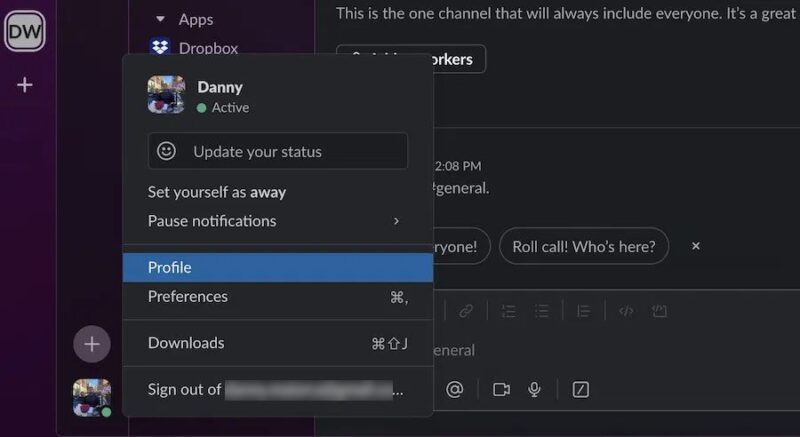
Once you’re there, select your profile icon and tap Profile.
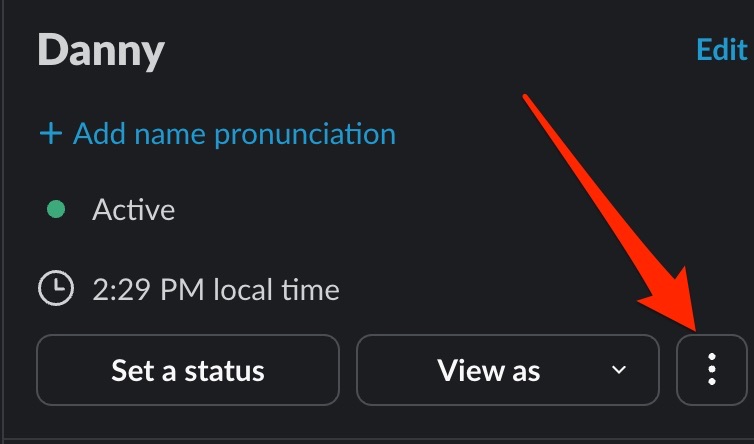
When the Profile window opens on the right-hand side, select the icon with three vertical circles.
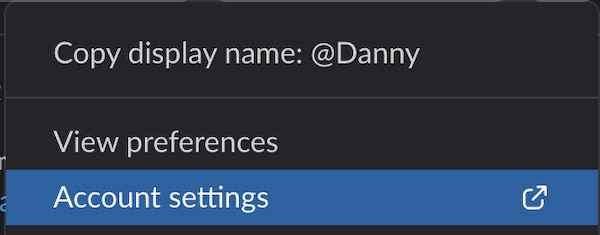
Tap Account settings. You’ll then be redirected to the Slack website.
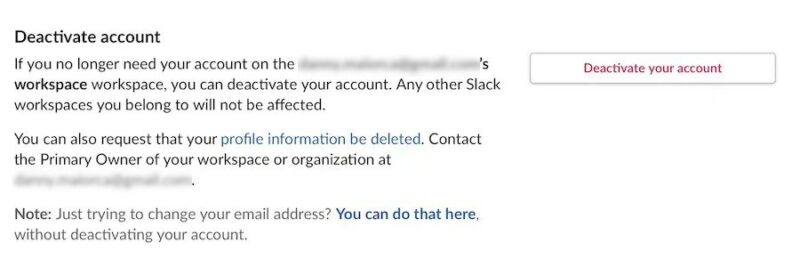
Scroll down and select Deactivate your account.
Before your account is deactivated, Slack will ask you if you want to confirm your choice. When this option appears, select Yes, deactivate my account.
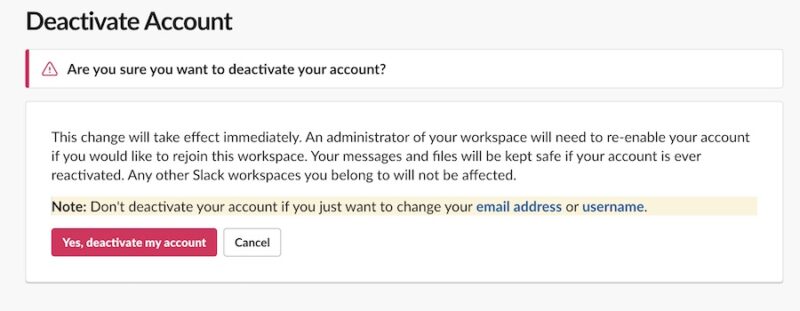
It’s worth noting that you can only delete your Slack account if you don’t own the workspace.
Remove Someone From a Slack Workspace
As part of creating and managing a Slack workspace, you might occasionally have to remove members when they’re no longer part of your organization. This process is straightforward, and I’ll show you how to do that now.
First, select your Slack workspace icon or initials. When the dropdown menu appears, navigate to Tools & settings and expand the dropdown menu.
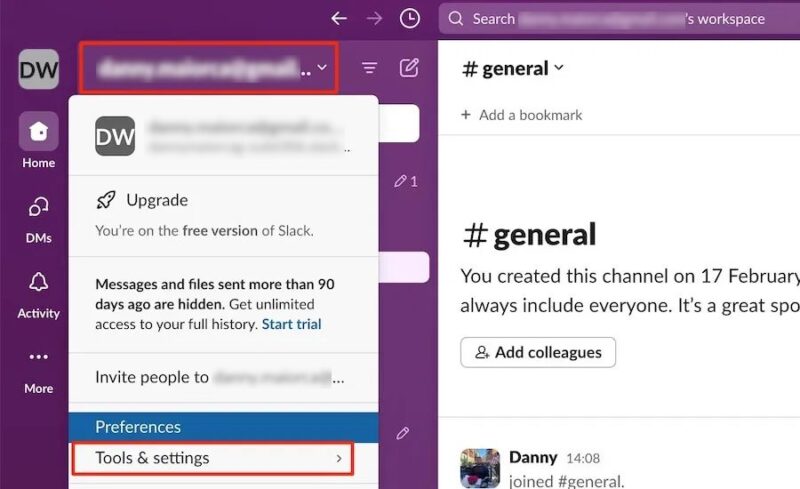
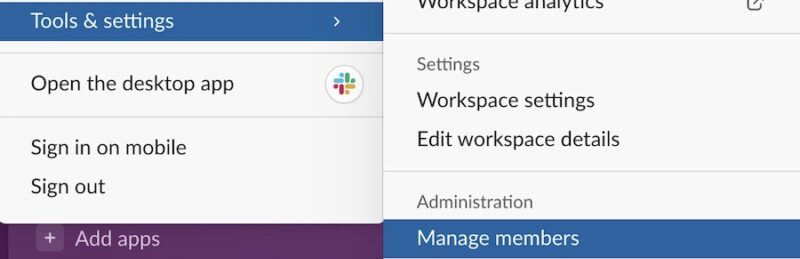
Choose Manage members.
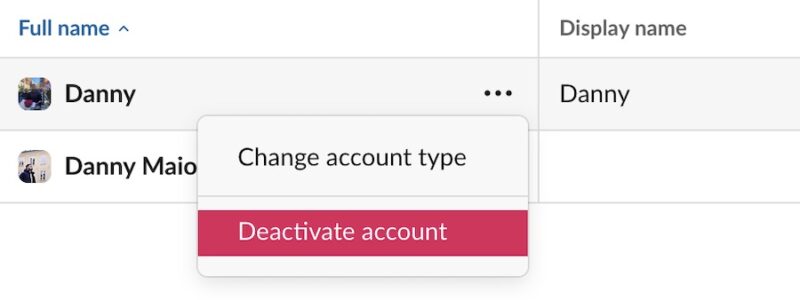
Press the horizontal three-dot icon next to the account you want to remove from your workspace. Then, select Deactivate account.
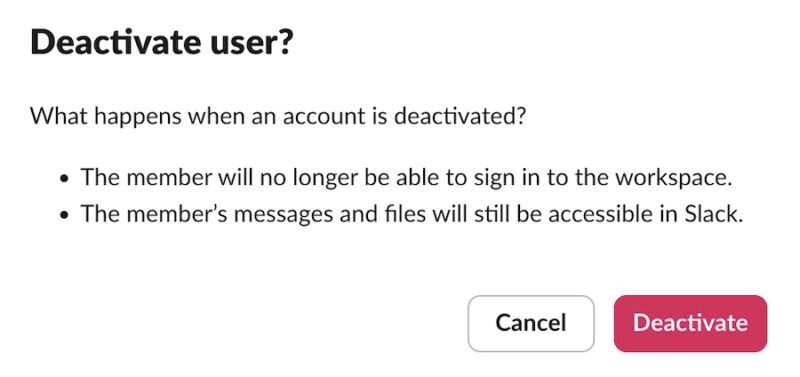
A pop-up window will ask you to confirm your choice; tap Deactivate to do this.
Leave a Slack Group Within a Workspace
I’ve left multiple Slack groups in the past, mainly because I like keeping things streamlined and they didn’t serve my needs anymore. To leave a Slack group, you’ll first need to go to whichever one you’d like to depart.
When you’re there, right-click (Windows) or press Ctrl + trackpad (Mac) while hovering your cursor over the group’s name. Then, select Leave channel.
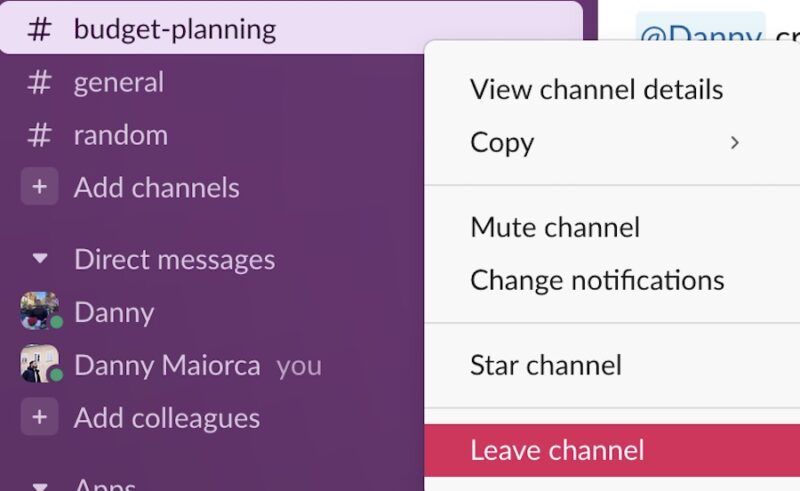
Unlike when deactivating an account in Slack, you won’t be asked for confirmation if you want to remove yourself from a group.
What Happens When You Leave a Slack Workspace
When you leave a Slack workspace, your account is deactivated. However, it isn’t permanently deleted unless an administrator does this. Your files and messages will still be available, so if you rejoin the workspace, you can start where you left off.
Regardless of whether you left a workspace or were removed from one, you can’t rejoin unless someone with the right permissions reactivates your account. This is usually a very easy fix, and it won’t take long after you’ve contacted the administrator. This is the case if you join a free Slack workspace for networking or as a part of your job.
If you’re a member of other Slack workspaces, it’s important to know that your account won’t be deactivated within those (unless an admin does this). As a freelancer who uses Slack frequently, this was previously one of my biggest concerns; if you’re like me in this respect, you don’t need to worry.
Regardless of whether you want to leave a Slack workspace or remove someone from yours, the process is very simple. Even better, you can reactivate their account later – meaning that you can pick up where you started. Besides managing your workspace, it’s also worth learning about different Slack commands for better productivity.
Image credit: Unsplash. All screenshots by Danny Maiorca.








