Windows 10 and Windows 11 have had their share of problems. According to the Microsoft Security Response Center (MSRC), the operating system experienced 11791 security vulnerabilities throughout 2025 (Jan-December 2025), a record 845% increase compared to the previous year. 2024.
Microsoft quickly moves in to fix many of these security holes in the system, so it’s essential to stay up to date. Yet, Windows updates can bring their own problems. This guide shows what to do when an update does more harm than good.
Note: if a problem here is marked as “FIXED,” it means Microsoft has rolled out an update that fixes the problem, and the solution is simply to make sure your system is fully updated. If a problem is not yet “FIXED,” then either read that entry for workarounds to that specific problem or scroll down the page for advice on how to roll back updates.
[Not Fixed] March 26, 2026, Windows 11, KB5079391 (Builds 26200.8116 and 26100.8116) Non-Security Update
Problems: Installation failures with 0x errors | Wi-Fi breaking | Multiple reboots
KB5079391, released on March 26, 2026, serves as a testing ground for non-security features and bug fixes that will be bundled into the April 2026 Patch Tuesday release. The update focuses on small improvements such as Smart App Control (SAC) flexibility, support for monitors with high refresh rates (1000 Hz and more), File Explorer fixes, and enhanced HDR reliability.
Minor problems include some users experiencing Wi-Fi breaking down completely after the update. This means all network functionality is lost. If your Wi-Fi access is not working, follow one of these troubleshooting solutions.
Users have encountered errors like 0x800f0983, 0x800f081f, and 0x80073712 during the update process. In the past, Windows users have experienced installation failures with other 0x800 error codes such as 0x800F0991, 0x800F0922, 0x80071A2D, and 0x800F081F. For all such errors, there are many solutions which you can find on Microsoft website. For example, with 0x80070570, you can do Startup Repair and empty the SoftwareDistribution folder.
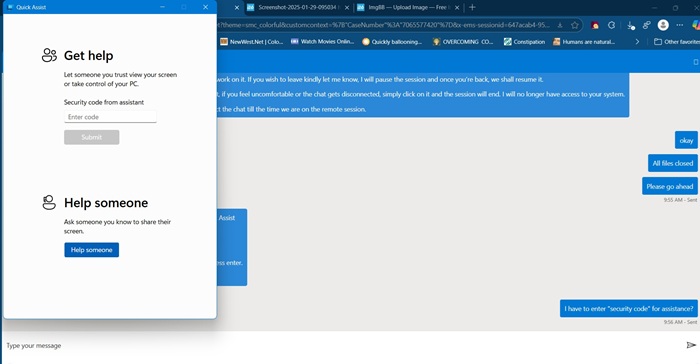
If you’ve been struggling with multiple reboots or persistent update installation problems in Windows, try using Quick Assist to reach Microsoft Support. They will use this app to create a restore point, and fix the bugs to restart your update process. It’s an amazing way to troubleshoot any Windows update problems, as you just have to sit back and let an official Microsoft support agent solve your problem.
To deal with update failures, you may want to pause the update for a few weeks until next month when the issues are no longer a concern. Opting for a cloud-based device reset (while keeping your files) is the best way to deal with any installation errors, but it consumes a lot of time.
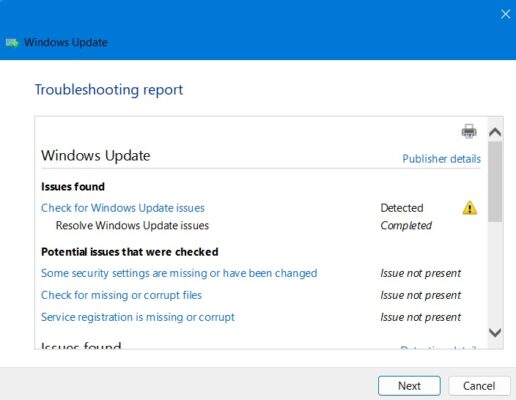
Apart from Quick Assist, it’s also a good idea to run the Windows 11 Update Troubleshooter from System → Troubleshoot → Other troubleshooters. It will fix any issues that were preventing installation, but mostly security settings, missing or corrupt files, or problems with Service Registration. Other issues could be connected to Windows Network Diagnostics, IsPostback_RC_PendingUpdates, WaaSMedicService, and BITS service.
If you can’t install an update on your PC on your normal schedule, it’s always easier to do it from the Microsoft Update Catalog. Remember to choose the correct download version (x64 or ARM) in the pop-up menu. The download files are usually more than a gigabyte. To run them, you just have to double-click once. In case you’re dealing with a frozen or stuck update in Windows, we have many solutions.
Note: if you’ve missed many updates, we recommend reinstalling Windows 11 from the cloud via Windows installation assistant, ISO, media creation, or another tool. Gong for a cloud download reset does the same job, but in much less time.
While Windows 11 is supporting 23H2 updates simultaneously, it is currently force installing 24H2 on the users in the previous version. 22H2 updates are no longer supported. You will need to have the Get the latest updates as soon as they’re available option active. If your PC is facing a “compatibility hold” while migrating from 23H2 to 24H2 or 25H2, follow one of our fixes to ensure a smooth migration.
Note: Migrating from 24H2 to 25H2 would require an enablement package which you can keep track of on the official Windows blog.
The biggest problem with latest Windows 11 updates is that they may not be supported on 23H2 or 22H2 devices. If you have not yet migrated to 24H2, we recommend you to do so. A clean install could yield better results. Do note that some Microsoft devices have transitioned to a new Administrator Protection feature.
Additionally, you can try resetting Windows update components using commands like net stop wuauserv. If the update keeps reinstalling, apply the same fixes as you would for a Windows infinite reboot loop problem.
For the first time ever, Windows 11 users can access a new disaster recovery feature, Quick Machine Recovery from Settings → System → Recovery. It is quite helpful as it sends your PC to the Windows Recovery Environment any moment it fails to boot properly. You can say goodbye to boot failures with this detailed guide on QMR.
[Not Fixed] March 21, 2026, Windows 11, KB5085516 (Builds 26200.8039 and 26100.8039) Out-of-Band (OOB) Update
Problems: Failure to install/rollback errors | Failure to find the boot drive | Corrupted WinSxS component
KB5085516 is an out-of-band (emergency) update released to take care of a lot of bugs from previous updates including the “no Internet” error during a Microsoft account sign-in. So, if you couldn’t join a Microsoft Teams meeting on your free account or faced authentication failures in Microsoft 365 Copilot, they have been covered adequately.
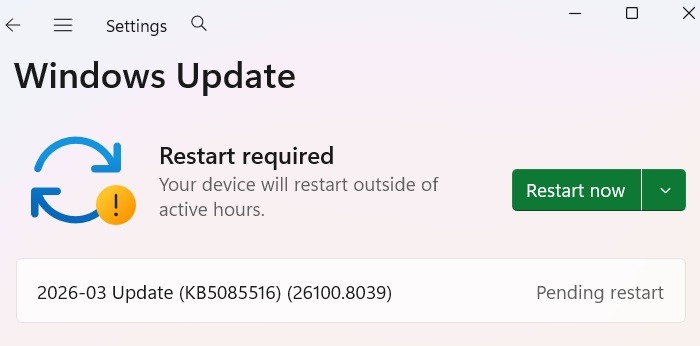
The biggest issue with KB5085516 is its own spate of failures in installation due to different reasons. Some users reported error code 0x800f0922 which indicates insufficient space in the System Reserved Partition (EFI partition).
A few extra reports indicate this new update has caused certain systems to fail to find the boot drive, forcing the PC into the BIOS menu.
We have some advanced tips which suggest how to fix both categories of errors. Some users have reported errors like 0x800f081f & 0x80070005 which indicate a corrupted WinSxS component store. There is only one right way to clear the WinSxS folder, and we have it covered in detail.
[Partially Fixed] March 10, 2026, Windows 11, KB5079473 (Builds 26200.8037 and 26100.8037) Security Update
Problems: Microsoft account sign-in errors | Inaccessible C drive | Activation issues with 0xC004F211 error
This cumulative update for Windows 11, version 25H2 and 24H2 (KB5079473), includes the best security fixes and improvements for February. This has mainly aimed to fix the Secure boot certificates problem, improve File Explorer search reliability, improve Windows Defender’s ability to handle COM objects and improved the Windows System Image Manager.
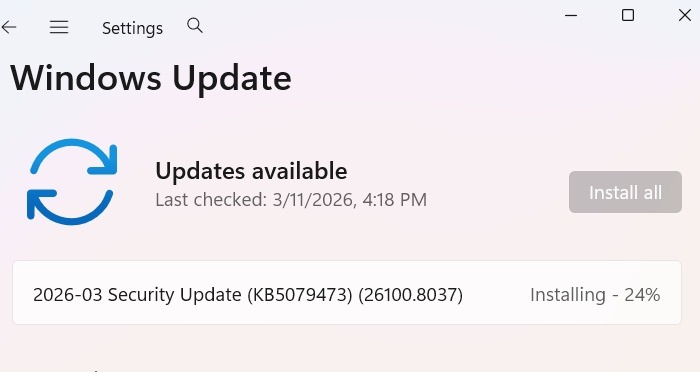
The most widespread error reported in KB5079473 is Microsoft account sign-in failures. The error message reads something like: “You’ll need the Internet for this. It doesn’t look like you’re connected to the Internet,” even if you are online. From Microsoft 365 to OneDrive and Copilot, all apps are affected. Fortunately, the fixes for this problem were released in the subsequent OOB update within March 2026.
Some users have reported a “denied access” error for the C drive after the security update. Follow our detailed guide to fix any inaccessible drive errors. If you’re facing the “yellow triangle” warning on C drive, we have the fixes. Finally, some users have reported activation failure with 0xC004F211 error. To resolve it, reenter your Microsoft product key at Settings → Update & Security → Activation → Change Product Key.
[Fixed] February 24, 2026, Windows 11, KB5077241 (Builds 26200.7922 and 26100.7922) Non-Security Update
Problems: Install errors | NVIDIA GPU bugs | Incorrect task manager reports
The non-security update KB5077241 provides minor improvements such as updated battery icons and a newly redesigned Start menu. The “Sysmon” functionality was introduced with the “Turn Windows feature on/off capability.” It will give instant threat visibility.
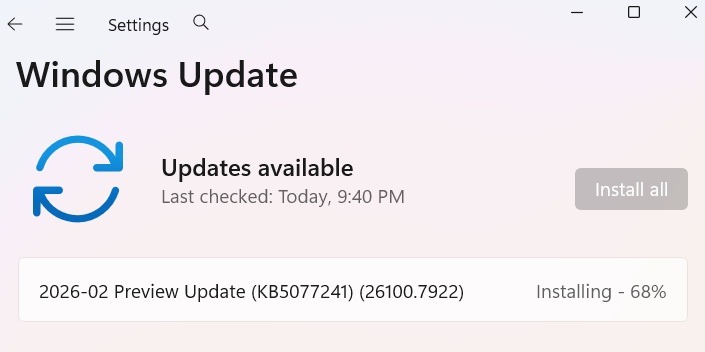
Users with NVIDIA graphics cards have reported that the KB5077241 update has driver conflicts causing game stuttering and screen flickering. This affects NVIDIA 900 Series (Maxwell) and NVIDIA 1000 Series (Pascal). Till a stable patch is released in March, users must defer or ignore this update. If you know the affected drivers involved, you can get around the error by downloading and installing them.
KB5077241 has also demonstrated a rare kind of Task Manager error in which incorrect 0 percent CPU usage is displayed. Some users have also reported install errors 0x800F0983 and 0x80070306 which mainly indicate a failure with Windows update cache. Clearing it is the best way to remove the install error source.
[Fixed] February 10, 2026, Windows 11, KB5077181 (Builds 26200.7840 and 26100.7840) Security Update
Problems: Download and install errors | Network connectivity problems | Bluetooth failures | Audio glitches | Graphics driver issues
The KB5077181 update was meant to patch the errors in January. Many Windows 11 devices that are eligible have started receiving the latest Secure Boot certificates. While for most users, the update should happen smoothly, some are running into download and installation errors.
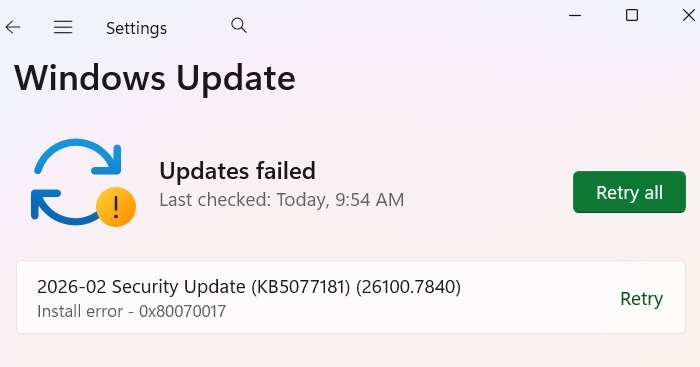
I experienced the installation error 0x80070017, and the download error 0x80070005. My solution was to finish all the other pending downloads and installations first, and gradually restart the device.
[Fixed] January 29, 2026, Windows 11, KB5074105 (Builds 26200.7705 and 26100.7705) Non-Security Update
Problems: Installation failures | Black screens
KB5074105 was a January-end non-security update which mainly introduces simplified Windows update titles, Secure boot certificate expiration warnings, and fixing system instability. If you did not receive this error, skip ahead as your system may have bypassed it to directly download February updates. For those who downloaded this, some have reported installation failures as well as black screen issues.
We have many tutorials to deal with black screen problems which can sometimes be due to screen brightness or graphic drivers. For blue screen of death issues (BSoD), several straightforward solutions are available. If your taskbar icons are missing, follow these simple tips to fix the issue.
Tip: also, follow our detailed guide to identify and resolve the most common Windows errors. Other ways to deal with frozen updates are the Memory Diagnostic tool. The problem is also connected to your RAM performance. In many cases, dual-channel RAM boosts a PC’s performance,
Note: Microsoft has recently announced that it will officially stop sending free software updates to all Windows 10 devices. However, there are certain conditions and exceptions such as ESU notifications which you should keep track of.
[Not Fixed] March 10, 2026, Windows 10 Version 22H2, KB5078885 Security Update (ESU)
Problems: 0x800 installation failures | Phone Link errors | Potential secure boot problems
KB5078885 is Windows 10’s ESU update for March 2026. It adds new features in Windows 10’s System Image Manager, File History in Control Panel, and automatically receiving new Secure boot certificates. It addresses game stability through GPU fixes while including fixes for multiple zero-day vulnerabilities and a .NET framework.
Some users have reported challenges with 0x800f0831 and other errors during installation. The Phone Link may not connect properly after the update is done, so you may need to uninstall and reinstall the software to make it work again. There were also reports with potential Secure boot certification, for NinjaOne game.
Enrolling into the ESU program: if you’ve enrolled into the Windows ESU program, you will receive the latest security updates detailing security fixes and improvements for Windows 10. To migrate to ESU successfully, ensure your Windows 10 device is not in kiosk mode, joined to an Active Directory domain or Microsoft Entra and isn’t a Microsoft child account.
Once you complete this update successfully, you will see a message that says “Your version of Windows has reached the end of support” displayed correctly in the Windows Update Settings page.
[Fixed] February 10, 2026, Windows 10 Version 22H2, KB5075912 Security Update (ESU)
Problems: Task Manager not working | Unresponsive desktop apps | Failed restarts and shutdown loops | Start menu errors
KB5075912 was a security update for Windows 10 under the ESU program. It addresses all the security issues previously outlined in January 2026 including and up to KB5078129. The most important development is the issue of new secure boot certificates, and if you’re behind on this remember that Microsoft has set a June 2026 deadline. Follow the steps in this guide to get you up to speed.
Some users recorded an a frozen Task Manager after installing KB5075912. Some desktop applications like Brave browser and Epic Games Launcher may fail to work properly. Startup and shutdown bugs were also reported in this update with an infinite loop of such errors. A few users also reported Start menu glitches.
Fix and Avoid Broken Windows Updates
If the problem you’ve encountered with a new Windows update is that the install stops at a certain percentage, or more generally, that it’s failing to install altogether, try installing the update from PowerShell.
Open PowerShell as administrator by typing it into the Start menu search. In PowerShell, use this command:
Install-Module PSWindowsUpdateIt may ask you to install and import the NuGet provider. Press Y for Yes, and let it install the package.
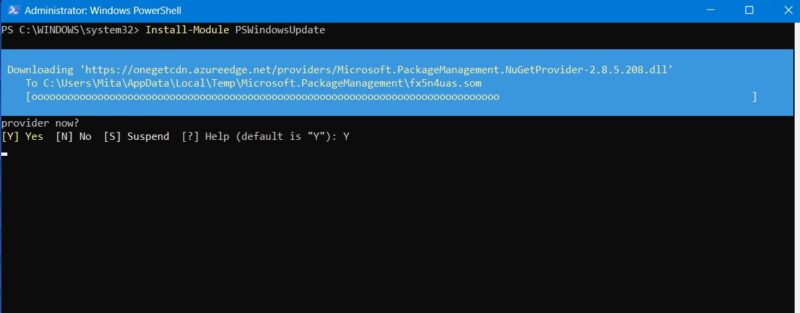
You may get a warning that you are installing the modules from an untrusted repository. Type A to allow all the changes.
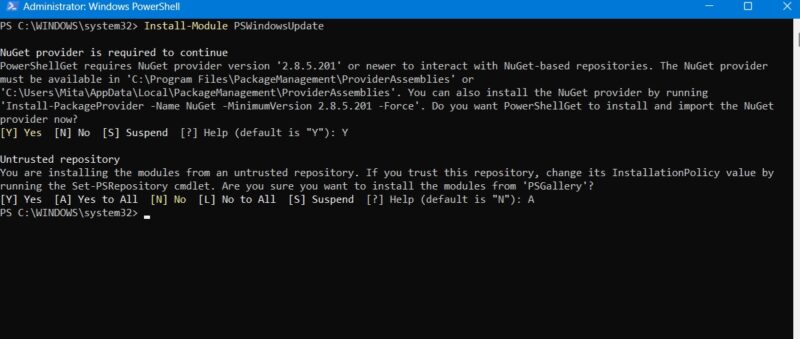
Check for the latest Windows updates by typing the following into PowerShell:
Get-WindowsUpdate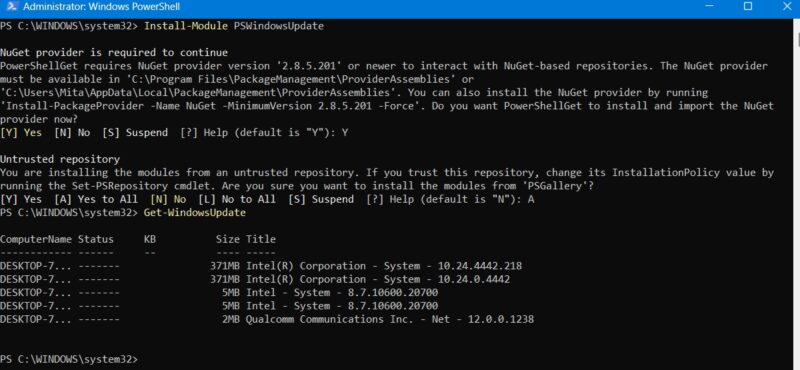
Once you’ve confirmed that there are updates to install, type the following command. You may further be asked if you want to perform this action, to which you must type A to finalize.
Install-WindowsUpdate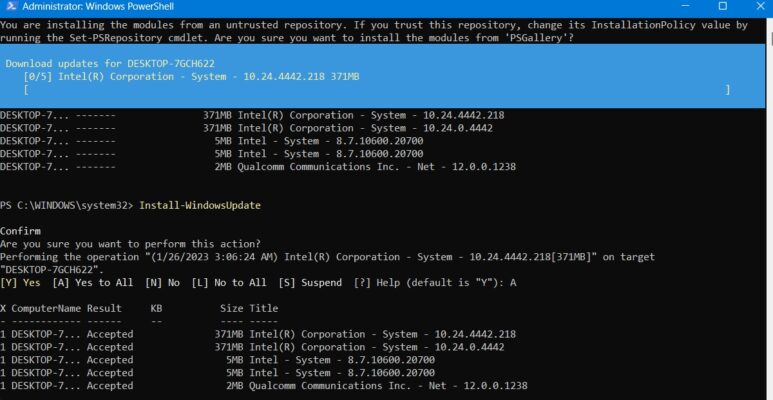
Wait for the broken Windows updates to heal themselves. They will automatically execute in the PowerShell window.
Tip: how does PowerShell differ from Command Prompt? Read on to find out.
Install Optional Updates
If you access the Windows update screen by going to Settings → Windows Update → Advanced Options → Additional Options, you will find the Optional Updates menu.
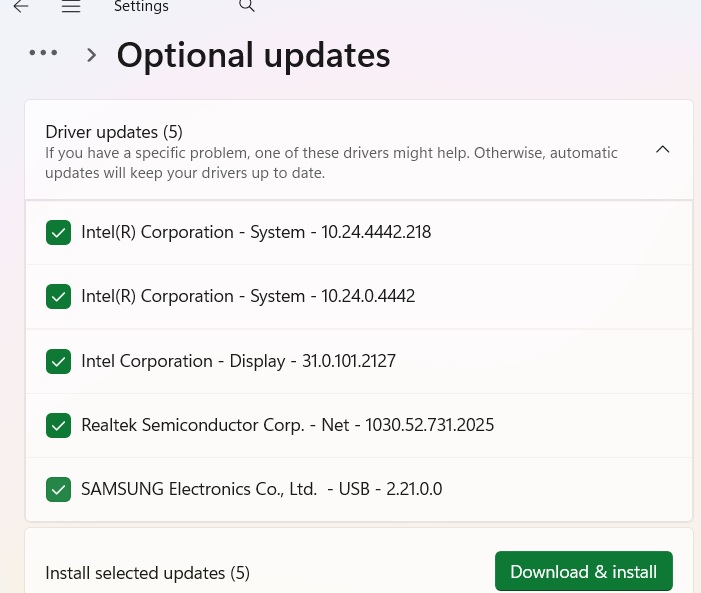
These updates are designed specifically to address features, quality, and driver issues for recent Windows updates. They become “proper” updates a few weeks later, once they’ve been thoroughly tested.
These updates are still pretty stable, though, and may be worth a shot if a recent update has broken something in Windows.
Uninstall Windows Updates
You can uninstall smaller Windows updates (to roll back builds, see the next section) if needed.
In Windows 10, go to Control Panel → Programs → Programs and Features → Installed updates.
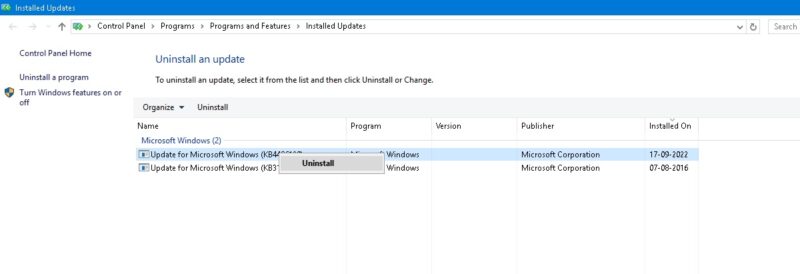
Scroll down in the main pane to the Microsoft Windows heading, and you’ll see all of the KB and security updates for Windows 10, along with the install dates. Right-click the one you want to uninstall, and reboot your PC.
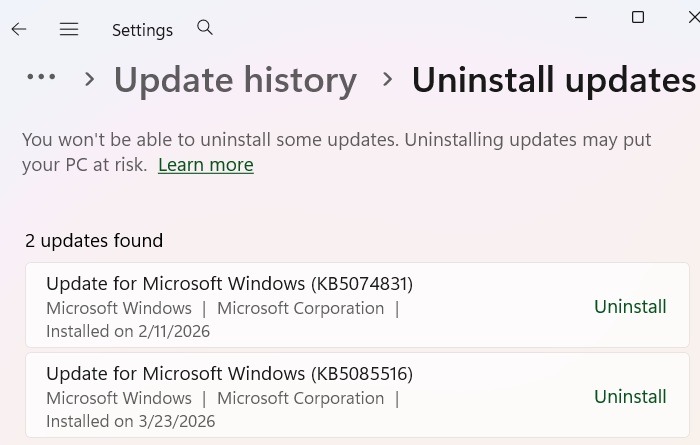
Windows 11 also has the option to uninstall recent updates. Visit Settings → Windows Update → Update History → Uninstall updates, and click the Uninstall button next to the update you want to eliminate. In this example, we are uninstalling an update for the month of May 2024.
How to Roll Back Windows Builds
After every major update, Windows gives you a 10-day window to roll back to a previous version. It’s a useful feature and should give you enough time to judge whether you have a problematic update on your hands. Of course, this won’t recover your files if Windows deletes them, but at least you’ll be on a more stable version of the OS.
Go to Settings → Update & security → Recovery in Windows 10 or Settings → System → Recovery in Windows 11.
Below Reset this PC is the option to Go back to the previous version of Windows.
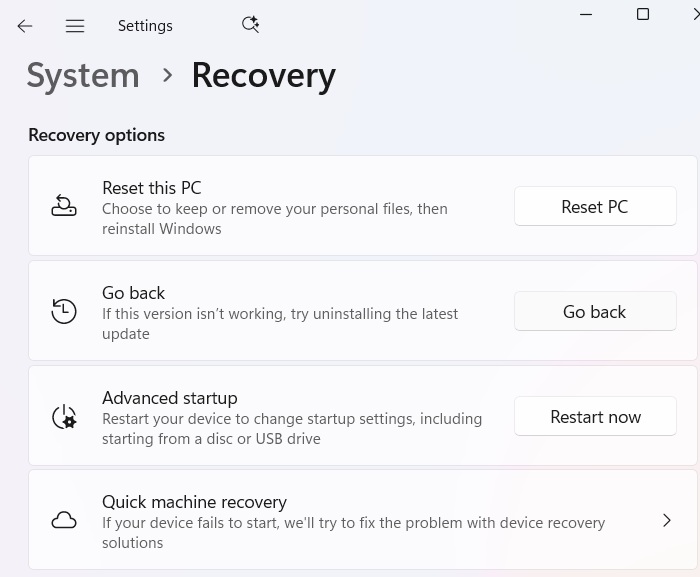
Click Get started, then follow the steps to roll back Windows. Again, this option is only available for 10 days after a Windows build update.
Check Your Windows Build
Before looking into rolling back and fixing broken Windows updates, check the build of Windows you’re currently using to confirm which issues are affecting you.
Go to Settings → Windows Update → Update history (in Windows 11) or Settings → Update & Security → Windows Update → View Update history (in Windows 10).
In the new window, click the arrow next to Feature Updates to see the version of Windows you’re currently using, and click Quality Updates to see all of the smaller KB updates you have installed.
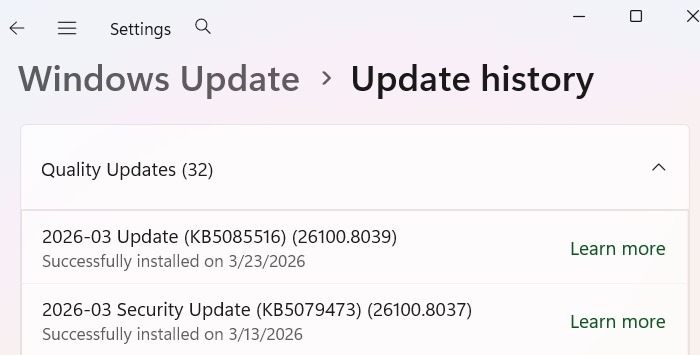
You will also find Definition Updates, which are security intelligence updates related to Microsoft Defender.
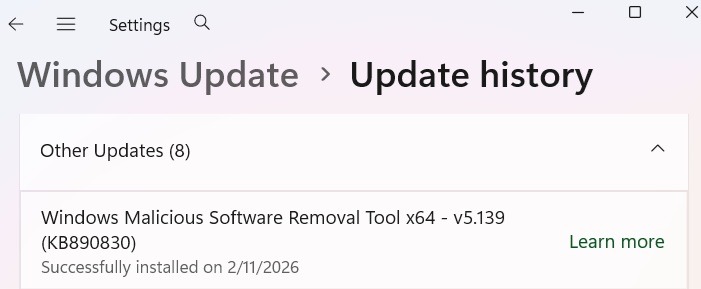
At the bottom of the list, you may find Other Updates concerning programs such as the Windows Malicious Software Removal tool, Intelligence updates, and security patches.
Pause Windows Updates
To avoid getting the above update problems and more, take over control when Windows updates. This way, you can hold off getting updates the moment Microsoft rolls them out, monitor the news for a bit to see if any significant errors crop up, then manually do the update yourself.
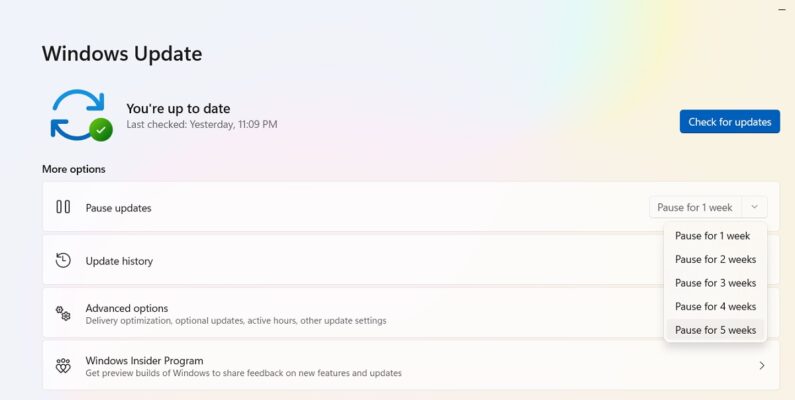
If you’re running Windows 11, go to Settings → Windows Update → More options → Pause updates, and choose the number of weeks you wish to defer updates in the future (from the default of one week to up to five weeks).
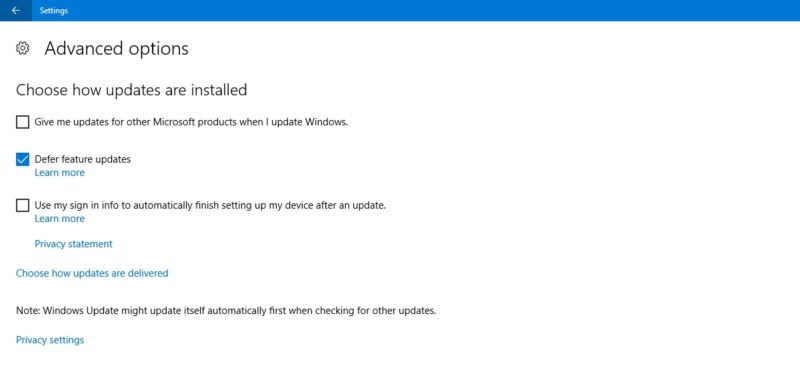
In Windows 10 Home, Pro, Enterprise, Education, or S, postpone updates by checking the same option under Settings → Update & Security → Windows Update. On some Windows 10 versions, it may be referred to as Defer instead of Pause and under a different heading.
Tip: did you know that Windows comes with a Super Administrator account? Learn how to activate it.
Completely Block Windows Updates
If you want to completely block Windows updates indefinitely, disable the main Windows Update service through the Registry Editor.
Click Start, type regedit, open the Registry Editor, and navigate to the following path:
Computer\HKEY_LOCAL_MACHINE\SYSTEM\CurrentControlSet\Services\WaaSMedicSvc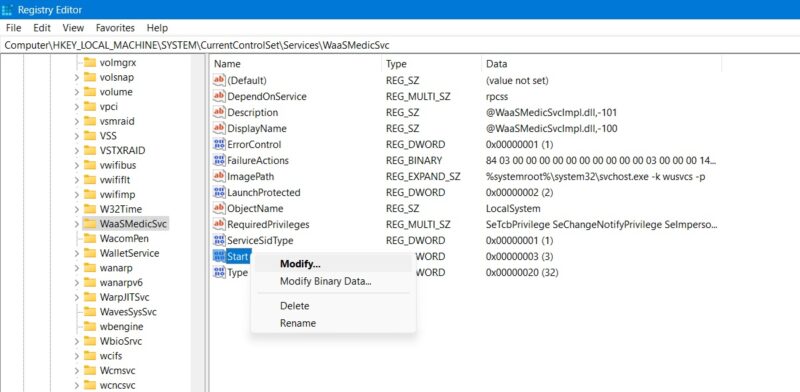
Right-click on Start to modify it, then change its Value data to 4.
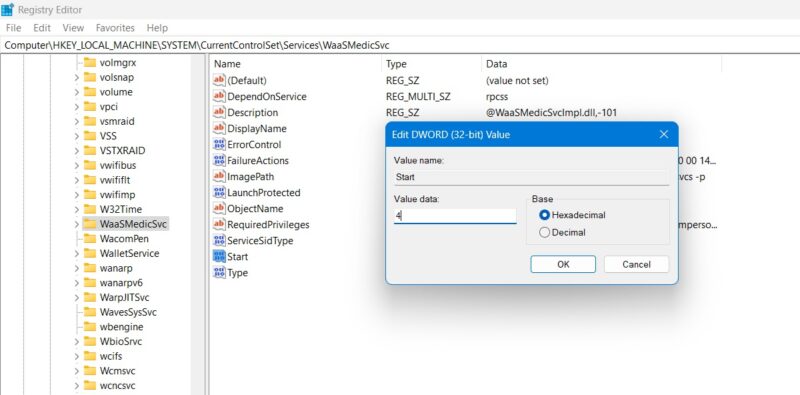
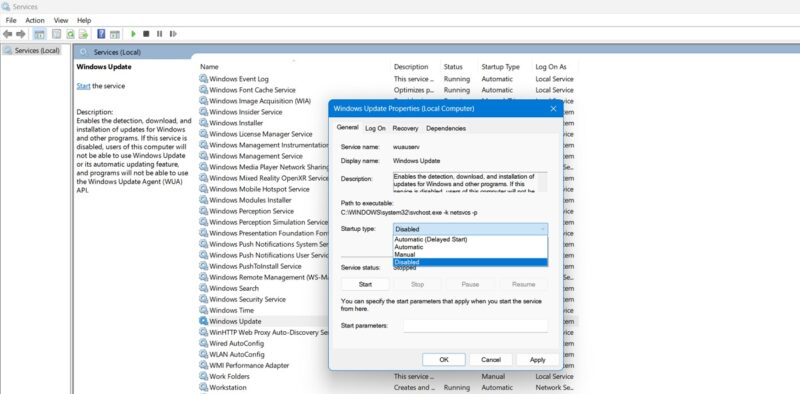
Reboot your PC, then go to the Services window by using the Search function in Windows. Disable the Windows Update service in the same window by setting its startup type as Disabled.
Few things on PC are more frustrating than an update – ostensibly to improve performance – borking your system. Unfortunately, Microsoft still has work to do in this respect. Other issues with Windows include the Microsoft Store not working and a malfunctioning microphone. We can help with these, too!