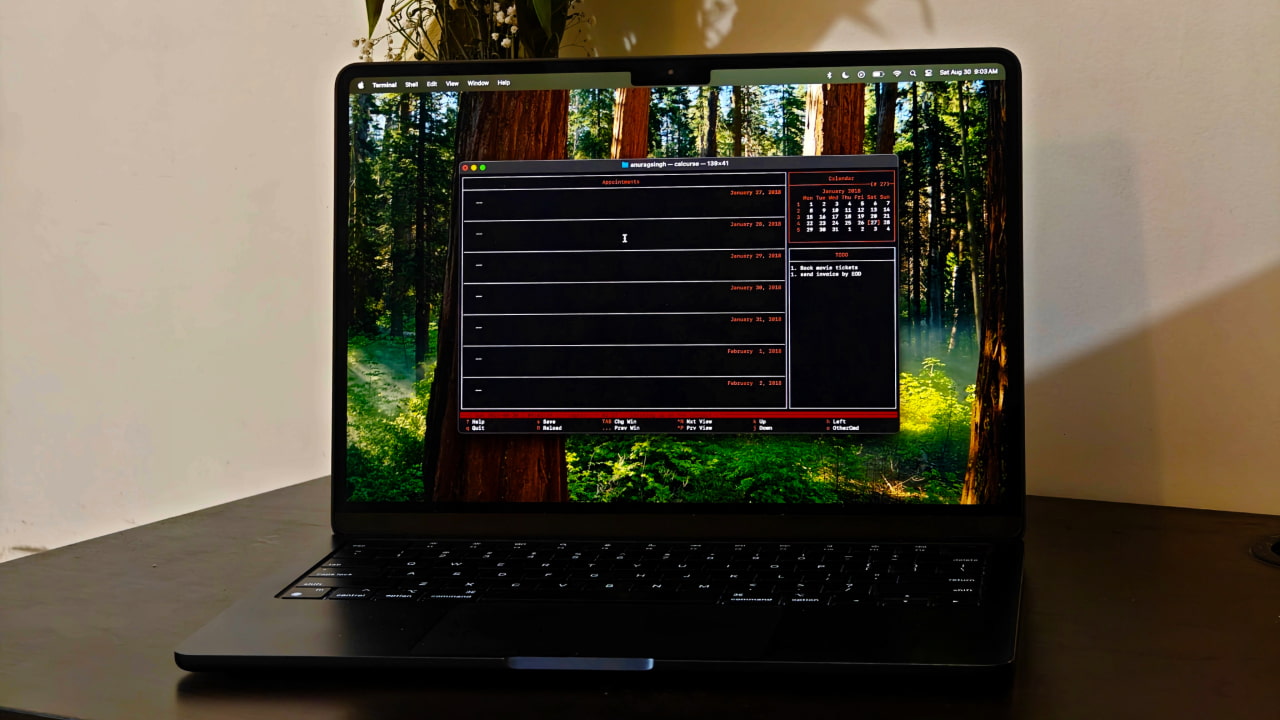
I’ve been on a spree to ditch GUI apps lately and make the terminal my best friend. I recently replaced my regular file manager with a terminal-based one called Yazi, and the experience has been great so far. That motivated me to take the experiment further and ditch Google Calendar for something built for the terminal, Calcurse. I won’t say the experience has been perfect, but it’s been better than I expected.
Good to know: Top Microsoft Outlook Add-Ins to Enhance Your Email Experience
What Is Calcurse
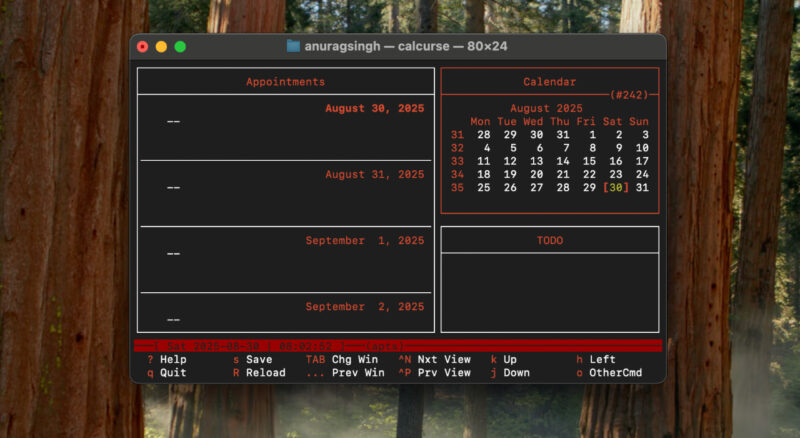
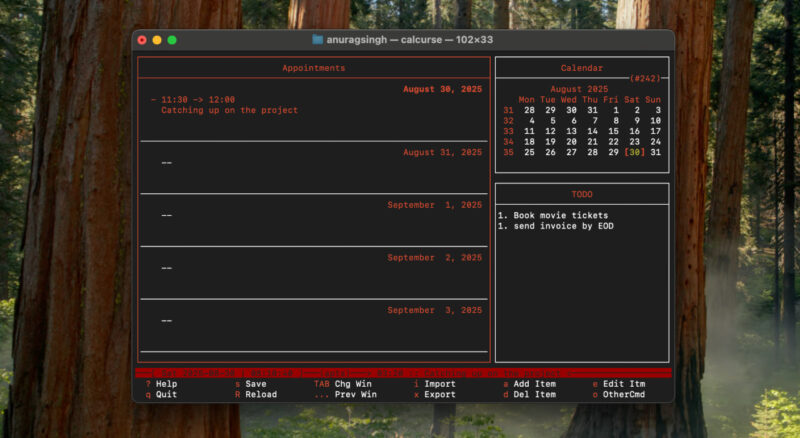
Calcurse is an open-source, text-based calendar and scheduling application for the command line. It helps you keep track of events, appointments, and everyday tasks directly in a terminal window. By default, Calcurse displays three panes. Appointments on the left, a monthly Calendar in the top-right, and a To-Do list in the bottom-right. This split-pane layout is entirely keyboard-driven.
Under the hood, Calcurse stores all data in plain text files. It supports useful features such as recurring appointments, all-day events, and importing or exporting in the standard iCalendar (ICS) format. You can even attach notes to events, set custom reminders, and run scripts on save or load via “hooks”, for example, to keep your calendar under version control.
Setting Up and Using Calcurse
Getting started with Calcurse is quick. On most Linux distributions, it’s available in the package manager. For example, on Debian or Ubuntu, run:
sudo apt install calcurseOn Mac, you can install it through Homebrew by running:
brew install calcurse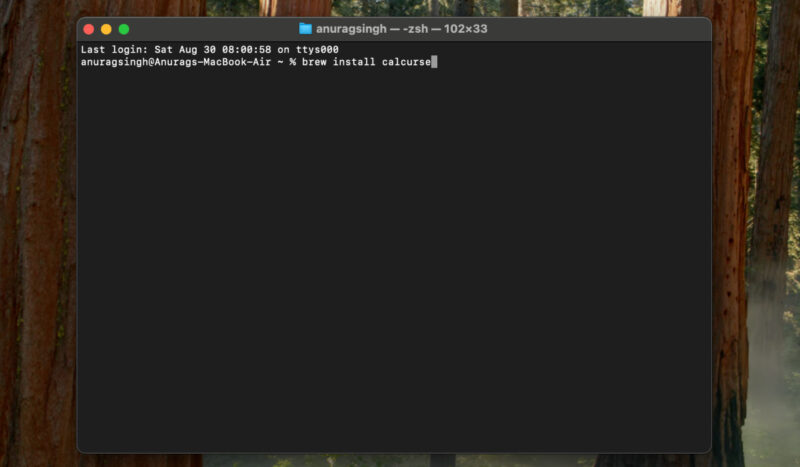
Once installed, open a terminal and run calcurse. The first time you launch it, Calcurse creates the “~/.calcurse/” directory and its data files.
You’ll be greeted by the three-panel interface. Use Tab to switch between the Appointments, Calendar, and To-Do panes. Within a pane, navigate with the arrow keys or h/j/k/l (like in Vim). The on-screen help lists all available commands.
You can add an appointment by placing your cursor in the Appointments pane and press a. Calcurse will prompt you for a start time and an end time. If you leave both fields blank and press Enter, the event will be saved as an all-day entry.
You can then type in a description, such as “project meeting” or “doctor’s visit.” If the event is meant to repeat, Calcurse will let you set a recurrence pattern like daily, weekly, or monthly. You can also add reminders, which may trigger alerts inside Calcurse or even run external commands, like sending an email or desktop notification.
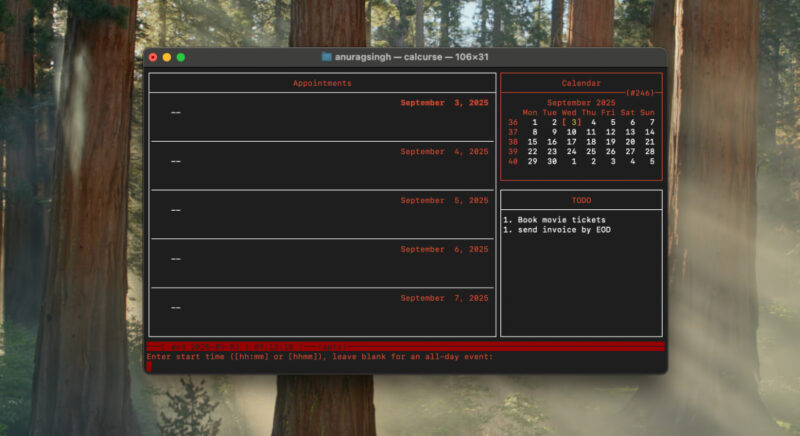
Deleting entries is just as straightforward. You move the cursor to the event or task you want to remove and press d. Calcurse will always ask for confirmation before deleting anything. In the case of recurring appointments, you can choose whether to remove only the instance you selected or the entire series.
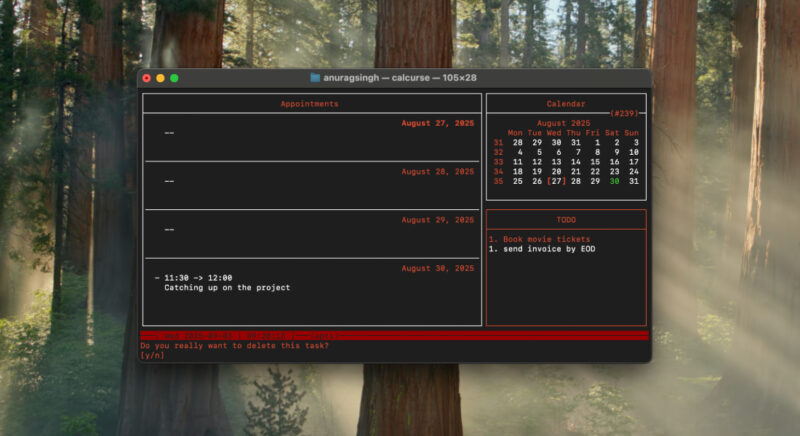
Editing works in much the same way. Highlight the entry you want to change and press e. For appointments, you can re-enter the start time, end time, description, recurrence, or reminders, while tasks allow you to change the text or adjust the priority. Leaving a field blank will keep the current value, which makes small adjustments quick and easy. Once you confirm the changes, the entry is updated right in place without having to delete and recreate it.
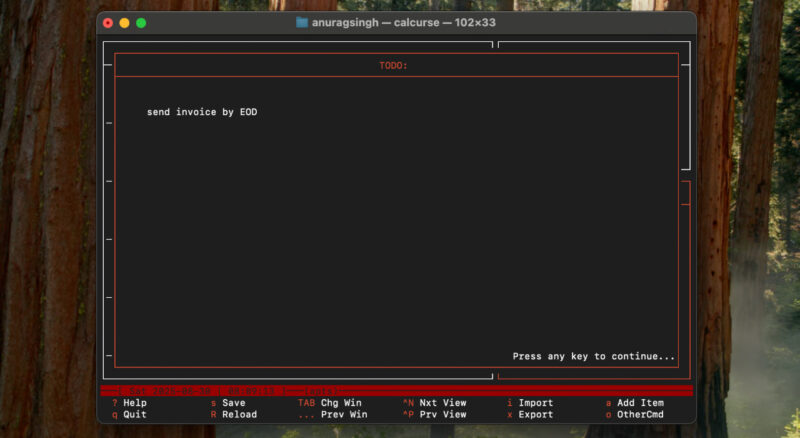
Your events and tasks are stored as plain text files, which you can easily back up or put under version control. You can also customize colors, keybindings, and notification behavior through the Settings menu or by editing the config files directly.
Calcurse even offers an experimental CalDAV sync mode via the separate calcurse-caldav script. This can integrate with services like Google Calendar using OAuth2 credentials, though setup involves creating a Google API project and installing extra Python libraries.
Calcurse vs Google Calendar
Switching from Google Calendar to Calcurse comes with some trade-offs, but it also brings surprising advantages. Google Calendar is a feature-rich web app with color-coded events, drag-and-drop support, maps integration, and multiple views like agenda, week, and month.
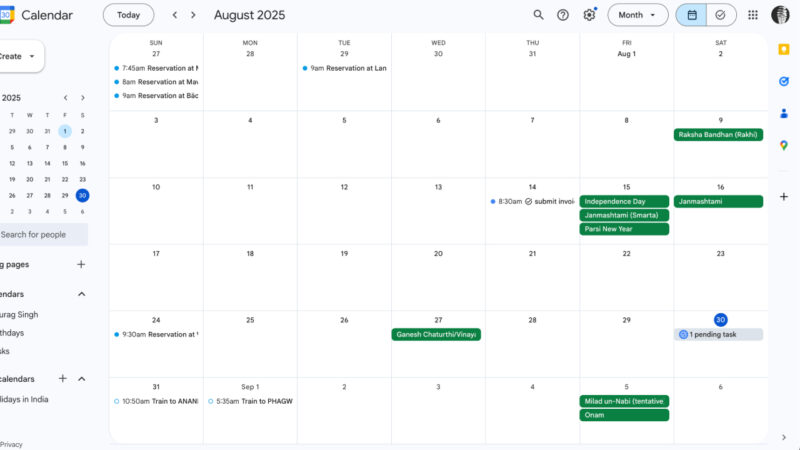
Calcurse, by contrast, is text-based and lightweight. It launches instantly in the terminal, consumes almost no resources, and is entirely keyboard-driven. Its layout is limited to three panes and a status bar, but the focus on speed and content makes it extremely efficient for daily scheduling.
When it comes to features, Google Calendar offers real-time collaboration, guest invitations, attachments, Gmail integration, and public holiday calendars. Calcurse doesn’t include these extras, but it covers all the essentials. Appointments are simple text entries, supporting recurring events, all-day events, and customizable reminders that can trigger commands or emails. It also supports iCalendar import and export.
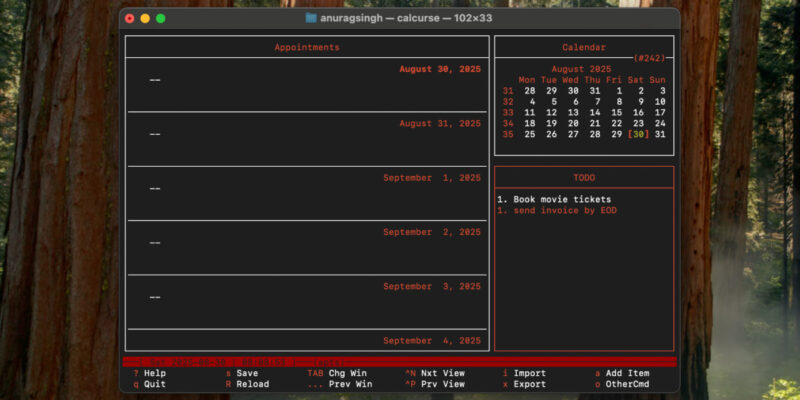
Where Calcurse really shines is customization. Everything can be scripted or automated, from keybindings to hooks that run shell commands on save or load. This makes it easy to integrate with other tools, keep your calendar under version control, or even sync with CalDAV servers using external scripts.
As mentioned, Calcurse stores your calendar locally by default, but syncing is possible with the CalDAV script.
The script keeps a database under “~/.calcurse/caldav/sync.db” to track event states, compare local entries with the server, download new items from Google Calendar, upload local additions, and remove deleted events.
What I Miss From Google Calendar
No switch is perfect, and moving away from Google Calendar made me realize a few things I still miss. The biggest one is mobile notifications and sync. With Google Calendar, I used to get reminders pushed to my phone and could check my schedule anywhere. Calcurse doesn’t do that. Unless I set up syncing manually, I have to remember to check it on my laptop.
Another gap is invites and sharing. In Google Calendar, I could send event invites or share an entire calendar with colleagues or family. Calcurse has no built-in sharing, so if I want someone to know about an event, I need to copy the details manually. Google’s integrations with Gmail and Maps were also handy.
While Calcurse is great, Google Calendar is so deeply embedded in most workflows that it can be hard to ditch. However, you can easily supercharge it using useful Chrome extensions. You might also want to explore features that help you use Google Calendar effectively for business.








