Meta and privacy aren’t terms that go together well. For many users, they learned the hard way that their conversations with Meta AI were publicly displayed in the Discover Feed. If you don’t want everyone seeing your chats, change your settings to make Meta AI chats private.
Purpose of the Discover Feed
Most chatbots keep things simple – you chat, you get answers, and you move on. Meta AI tries to incorporate a more social element, which makes sense considering Meta owns the most popular social networks.
What most users don’t know is the Discover Feed isn’t limited to just your friends. Instead, it’s publicly available to all Meta AI users. What you share is visible to everyone. Depending on what kind of chats you’re having, you might not want the world knowing quite that much about you.
Personally, I like the idea of the Discover Feed. It’s great for seeing what Meta AI is capable of and how others are using it. This doesn’t mean I want to share everything with other users.
Avoid Sharing Your Meta AI Chats
While Meta still sees your chats and stores them to better personalize your experience, you’re not required to share anything with others. Sometimes, the Meta AI app prompts you to share your posts, and it’s easy enough to just tap Share without thinking.
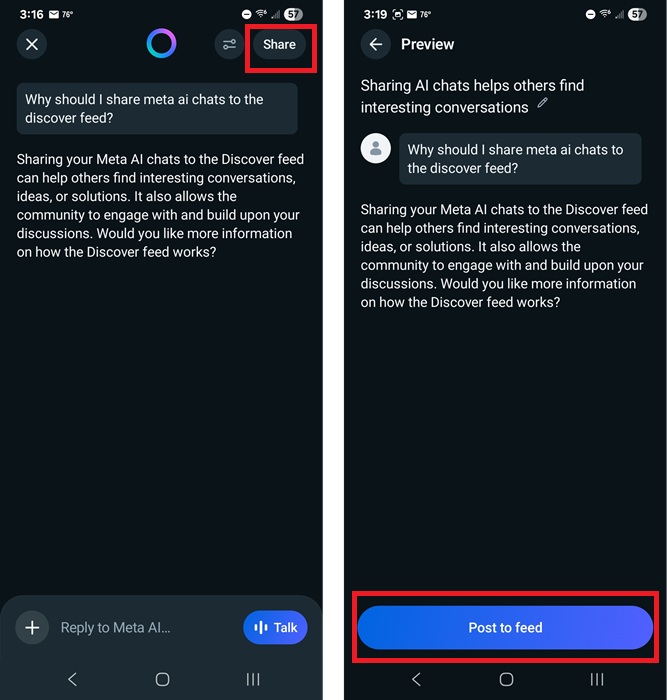
To keep your Meta AI chats private, never tap the Share button. Exit the share pop-up, if it appears. If it doesn’t appear, just avoid tapping Share in the top right corner.
A warning message is supposed to appear before you share anything to let you know what you share is public. But, in my tests, this message only appears sometimes. As you can see in the below screenshot, there isn’t a message above the Post to feed button, and no pop-up warning appears either.
Opt Out of Sharing Your Chats to the Discover Feed
Afraid you’ll accidentally tap the Share or Post to feed buttons? I’ve done it myself. Currently, there isn’t a way to opt out of sharing by default, while still being able to share some chats. It’s an all or nothing deal.
Tap your profile icon at the top right of the Meta AI app. Tap Data & privacy -> Manage your information -> Make all public prompts visible to only you. Tap Apply to all.
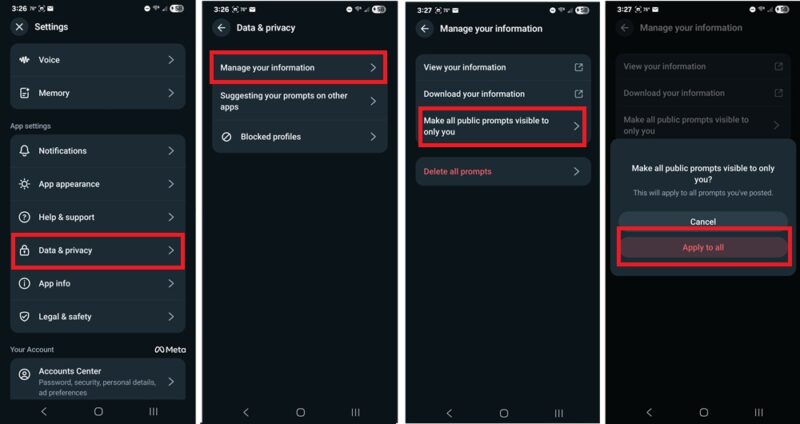
Now, all prompts you’ve shared become private. You’re still able to see them in your chat history, but they’re not available in the Discover Feed.
If you want to delete all your prompts versus just making them private, tap Delete all prompts.
Delete or Unshare Public Chats
If you still want to share some chats, but need to make some previous Meta AI chats private, you don’t have to opt out completely. Instead, just delete or unshare specific chats.
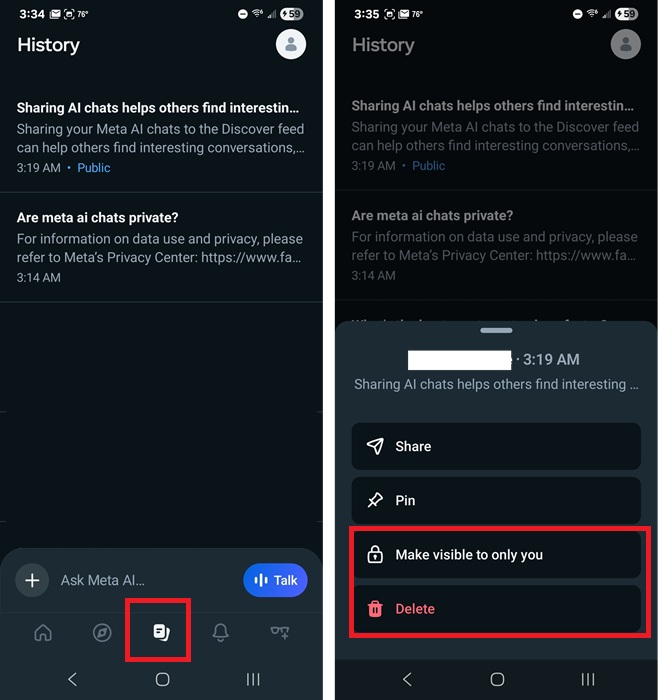
Tap the History tab at the bottom center of the Meta AI app. Look for a blue Public tag at the bottom of the listed chats. These are the ones shared in the Discover feed.
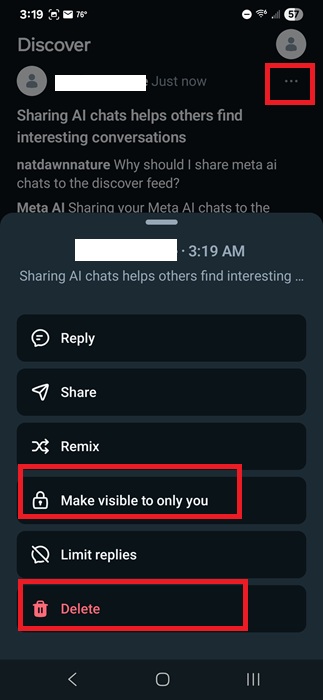
Long-tap on any publicly shared chat and choose Make visible only to you to keep the chat, but unshare it. Or, tap Delete to get rid of it entirely.
Delete Chats from Discover Feed Directly
If you just accidentally shared a chat, jump to the Discover Feed to remove it quickly. Tap the Discover Feed tab near the bottom left and tap the three dots at the top of your post. Tap either Make visible only to you or Delete.
Sharing Chats With Just Your Friends
The only way to share chats with your friends is to first share your chat to the Discover Feed. Then, long-tap the chat in your history or tap the three dots next to your post in the Discover Feed. Tap Share and choose how and where to share it to.
Keep in mind that this keeps your post public. If you remove it from the Discover Feed, anyone you’ve shared the chat with won’t be able to see it any longer.
I don’t know why the Meta AI app doesn’t offer a direct way to share chats with your friends on other Meta apps like Facebook or Instagram. Maybe that feature will come soon.
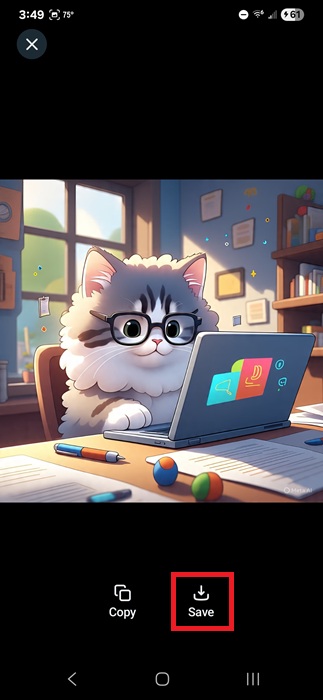
For now, the only workaround is to copy or download your content and upload it to the platform of your choice. For example, if you’ve created images, open each image and tap Save. For text, either long-tap and select the text you want, tap Copy, and then paste it into another app. Or, just screenshot your chat and share it as an image on the platform of your choice.
It’s not quite as easy as tapping Share from the Meta AI app, but it’s still better than sharing an embarrassing chat with the world versus just a close friend.
If you enjoy using Meta AI, see how to use it more effectively in WhatsApp. Or, use Perplexity AI in WhatsApp instead.








