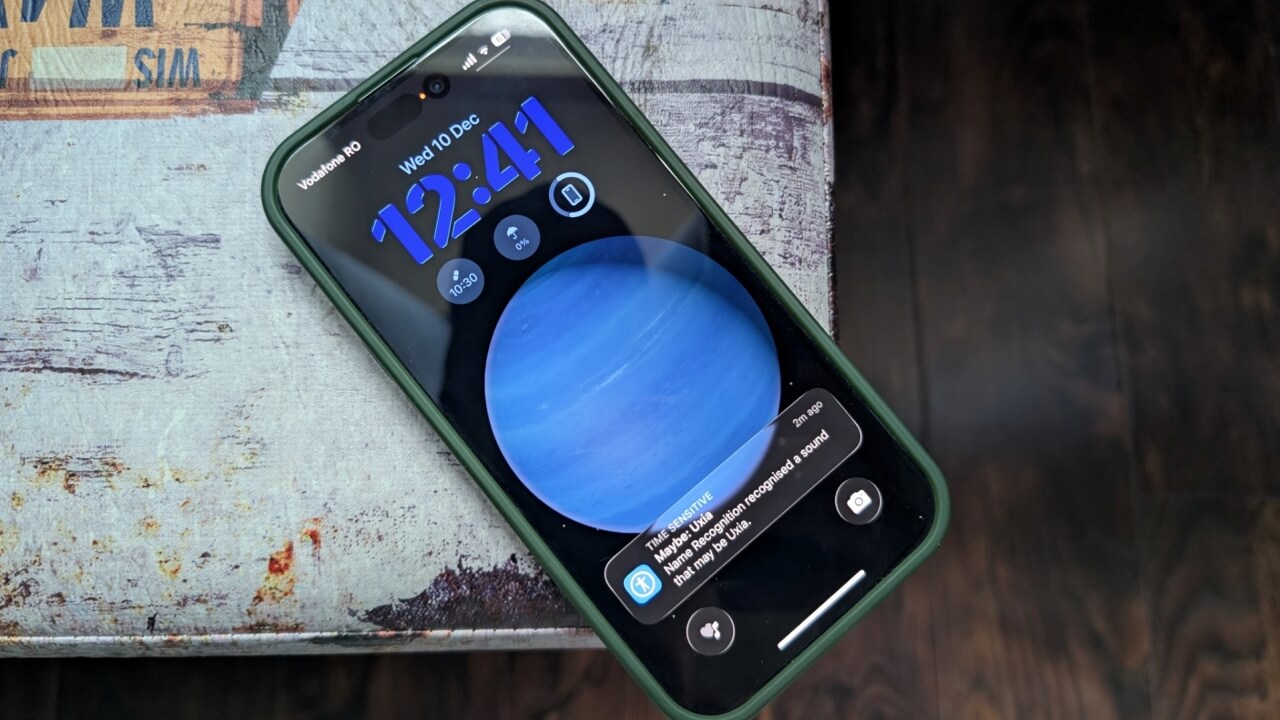
Constantly wearing headphones can create a small bubble around you. It’s great for focus, but not great when someone nearby needs you. Enter Name Recognition, a feature added in iOS 26, which enables your iPhone to be your ears in a room, making sure you stay connected to what’s happening around you. Here’s how it can help you stay present without pausing your favorite music or podcast.
Good to know: tired of iPhone apps asking for ratings or reviews? Here’s how to disable these pop-ups permanently.
A Small Feature that Makes Working in Shared Spaces Easier
Name Recognition is a new Accessibility feature Apple added in iOS 26. It debuts alongside many other useful upgrades, such as the ability to set call back reminders, which make it easier to remember to return missed calls.
Simply put, Name Recognition allows your iPhone to listen and detect when someone says your name. It notifies you, making it easy to respond when you’re being called.

Although Name Recognition was designed primarily as an Accessibility tool for people who are deaf or hard of hearing, it’s just as useful for anyone who, for example, wants to remain aware while wearing headphones or finds themselves in a noisy space where they can’t hear very well.
In my case, wearing AirPods at the office has become a habit. With conversations constantly happening around me, it’s hard for me to focus, so I rely on music to keep me in the zone while working.
I tend to turn the volume up high enough to drown out the background conversations, but this cuts me off from what the others are saying. So, when someone tries to get my attention, I usually miss it. As a result, I tend to feel a bit tense and hyper-aware that someone might be calling my name any second.
With Name Recognition on, I can finally relax and concentrate on my tasks. If I’m listening to music, the alert briefly lowers the volume so I know I have a new notification. If your iPhone is paired with a smartwatch, even better, you can see the alert without even glancing at your phone.
Staying Aware in Loud Environments: Let Your iPhone Do the Listening
To take advantage of Name Recognition, you will have to make sure your phone is running iOS 26 or above. Go to Settings -> General -> Software update to check the version on your device and see if there are any new updates available.
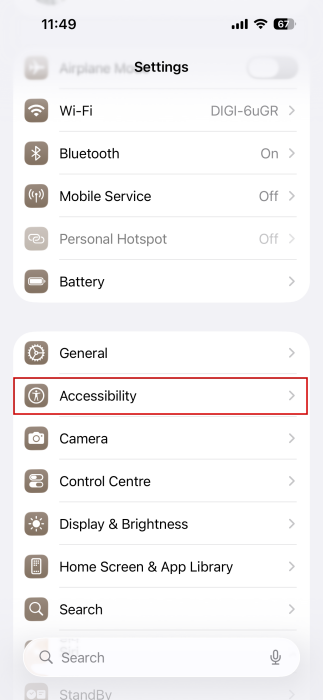
Now, to enable the feature, go to Settings -> Accessibility.
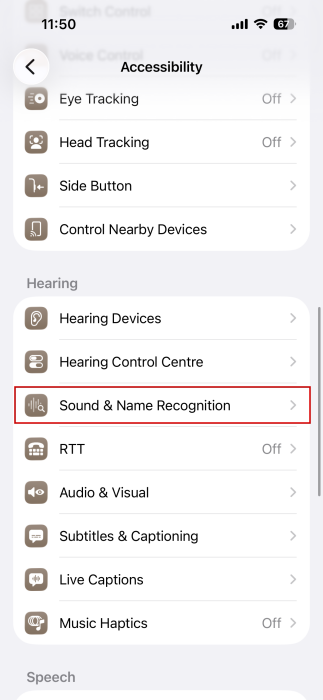
Select Sound & Name Recognition in the Hearing section.
Go for the second option.
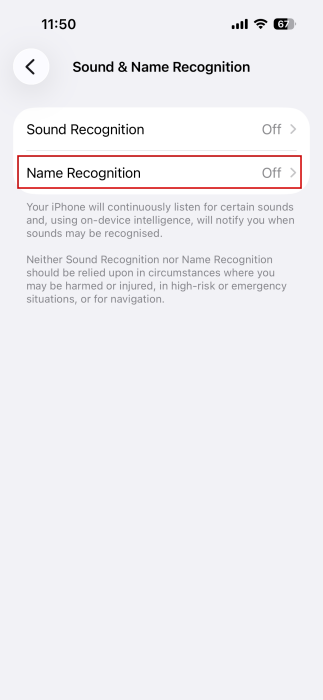
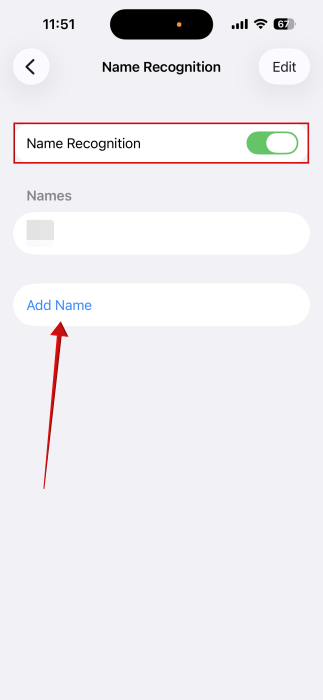
Toggle on the Name Recognition option at the top. Next up, select the option to Add Name.
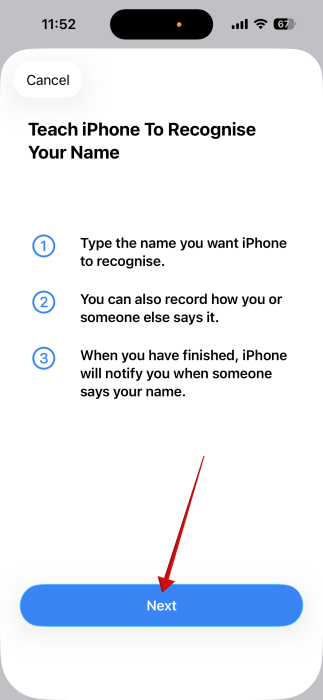
Press Next in the pop-up screen that appears, describing the feature.
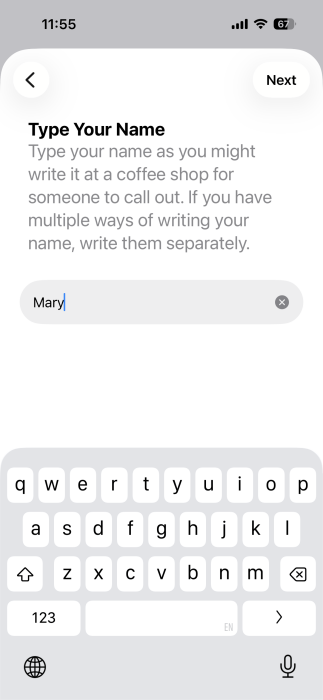
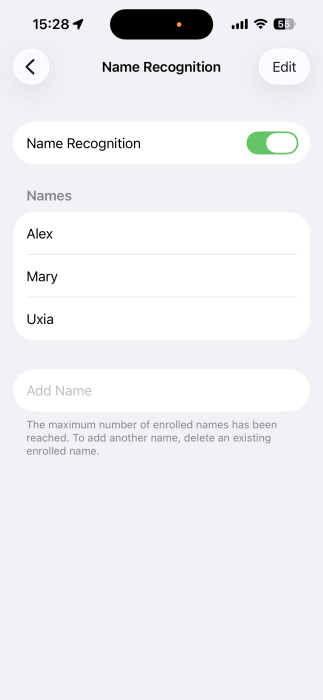
Type your name. If there are multiple ways of writing the name, write them separately. If you mainly want to use this feature in an office environment, maybe use your full first name, not your nickname. On the other hand, if you’re at home studying, you’ll probably want to use your aliases. To cover all scenarios, you can have up to 3 names and nicknames at the same time.
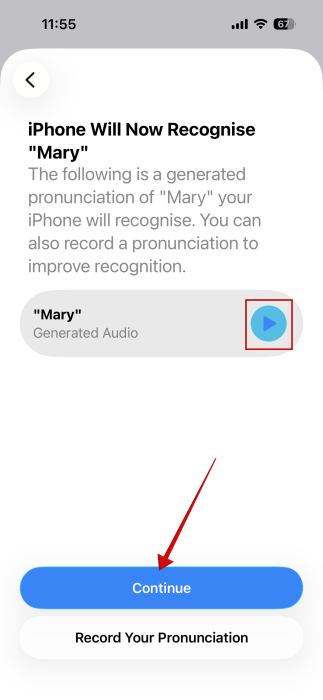
On the next screen, your iPhone will generate the pronunciation for your name. Tap on the Play button to hear it. If you’re satisfied with it, press Continue. Tap Done on the next screen.
Complicated name? You’re still covered
Have a more complicated or exotic name your iPhone can’t pronounce? It’s no problem. Name Recognition is only available in English, yet you can still put the feature to good use. You will have to record the pronunciation yourself.
Start by typing a new name, and when you get to the pronunciation page, press the Record Your Pronunciation button at the bottom.
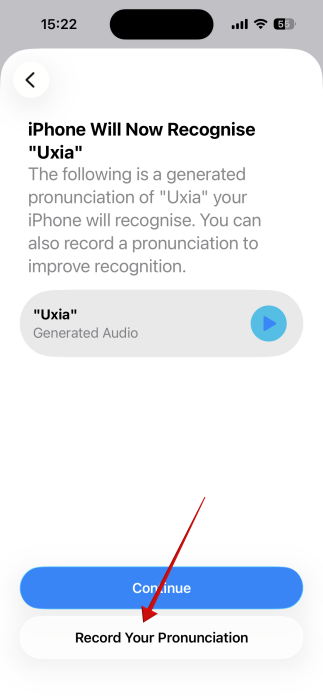
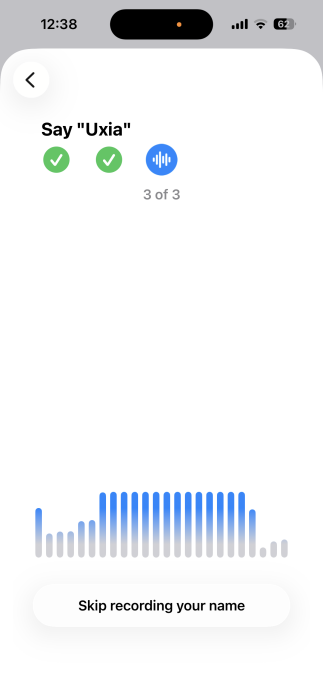
Record yourself saying the name three times.
Your iPhone will then add it to the list of names.
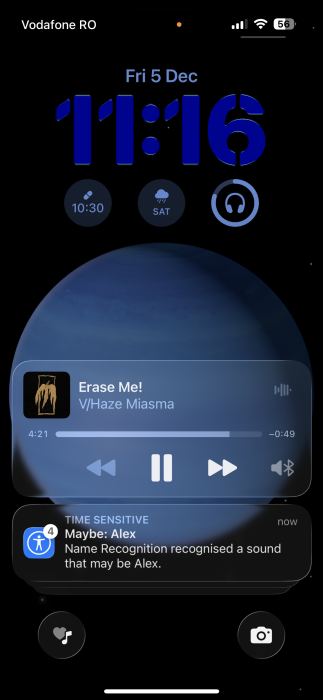
Now, whenever someone says your name in your vicinity, your iPhone should recognize it and send you an alert that is visible from your lock screen.
One thing you will want to keep in mind is to turn off Name Recognition when you’re not using it. Since the feature needs to activate the microphone in order to work, it will lead to your phone’s battery drain faster than usual. For more suggestions on how to expand battery life on iPhone, check our guide.
You might also want to check out Sound Recognition, which is available on older iOS versions. This feature notifies you when it detects various sounds coming from alarms (fire, siren etc.), pets, household items (doorbell, kettle, etc.) and more.
Instantly Identify the Name Recognition Alert by Sound
Your phone probably receives a lot of notifications throughout the day. It would be great if you can set a different notification tone for Name Recognition alert.
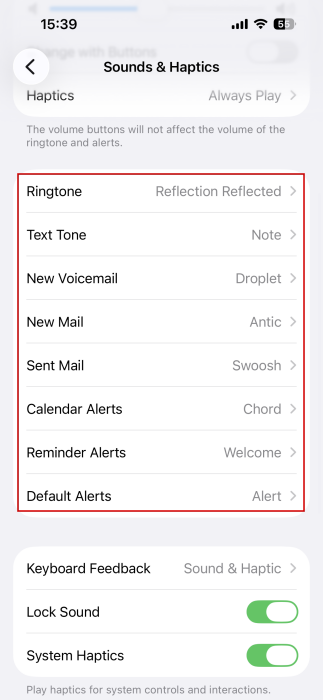
iOS has limited controls when it comes to setting custom notifications sounds, allowing it only select built-in apps such as Messages or Calendar. You can view all the options available by going to Settings -> Sounds & Haptics.
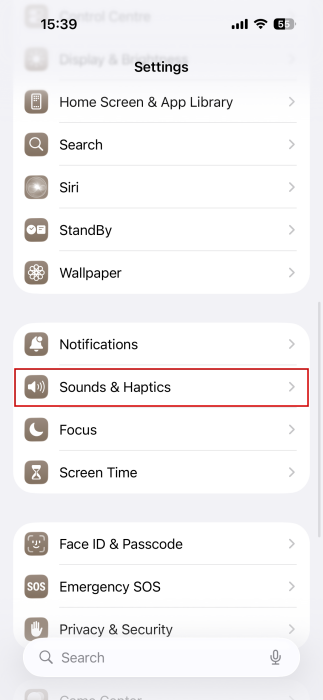
Here I suggest that you change all the sounds to anything but Rebound. This is the default notification sound for Name Recognition alerts. However, it doesn’t appear you can change this sound via Settings. That said, the easiest workaround is to change all notification sounds to something different. This way, whenever you hear the Rebound tone, you’ll know it’s a Name Recognition alert.
If you’d like to check more iPhone Accessibility tricks, find out how to make your iPhone speak for you during calls with live speech.








