If you tend to stay up late, chances are you’ve already set your iPhone’s brightness to the minimum. But once the lights are off, even the lowest setting can still feel uncomfortably bright. Thankfully, there’s a clever trick that lets you dim your display past the standard limit, making late-night use much more comfortable.
Good to know: have a hard time waking up in the morning? Alarmy will get you out of bed.
Plenty of iPhone users keep their brightness dialed down even in broad daylight. I typically set mine between 30 and 50%, which is more than sufficient.
That said, even at its lowest setting, the iPhone’s display can still feel surprisingly bright in some scenarios. In a pitch-black room, the screen can quickly become uncomfortable for your eyes.
To be able to go beyond your iPhone’s minimum brightness level, you can choose between two options or use them together, depending on your preferences.
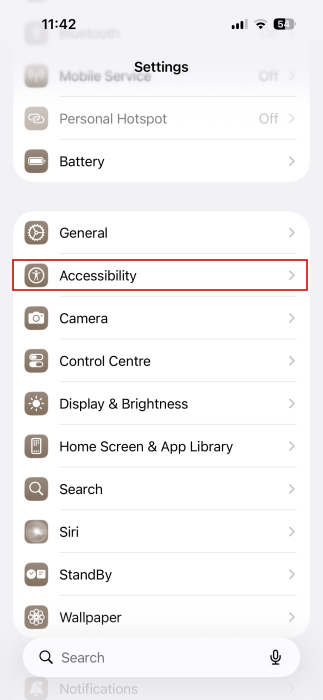
First off, open the Settings app on your device and navigate to Accessibility.
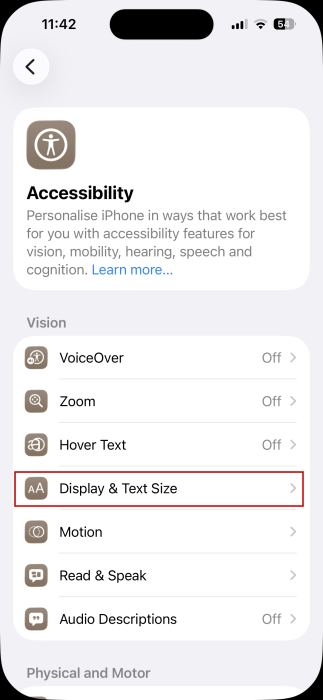
Select Display & Text.
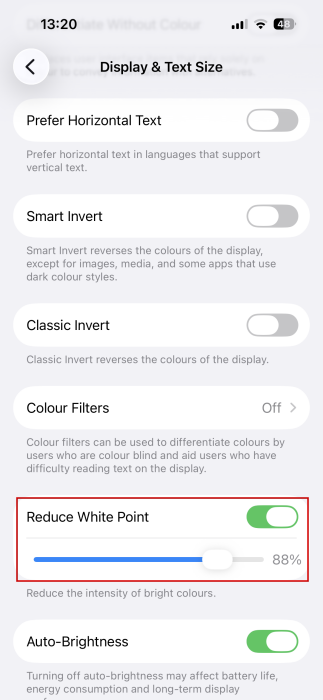
Toggle on the Reduce White Point option. Then use your finger to move the slider towards 100% to further decrease brightness. Even at your screen’s lowest setting, this option lets you go further and control exactly how dim you want it to be.
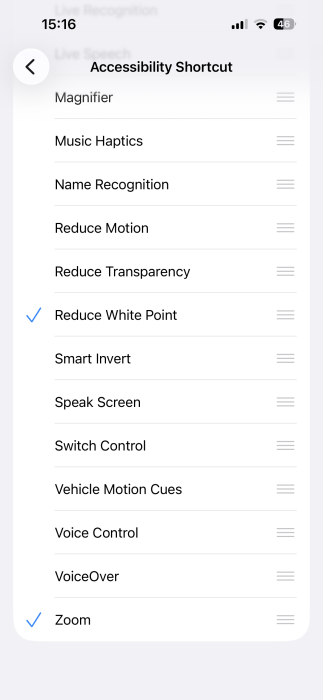
Another thing you can do is go back to Accessibility -> Accessibility Shortcut.
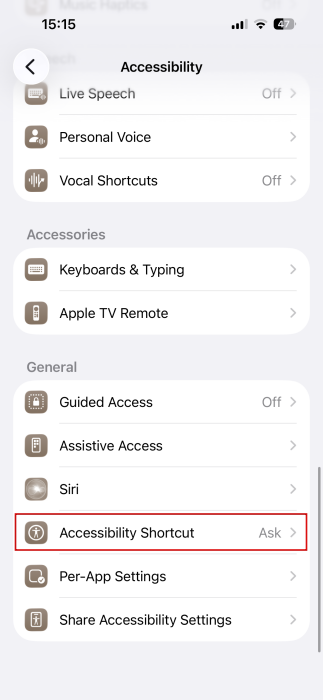
Select Reduce White Point.
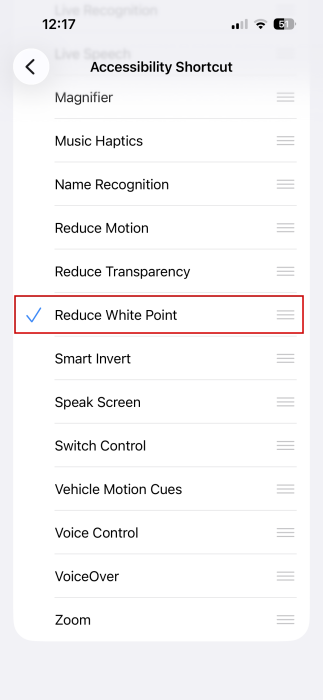
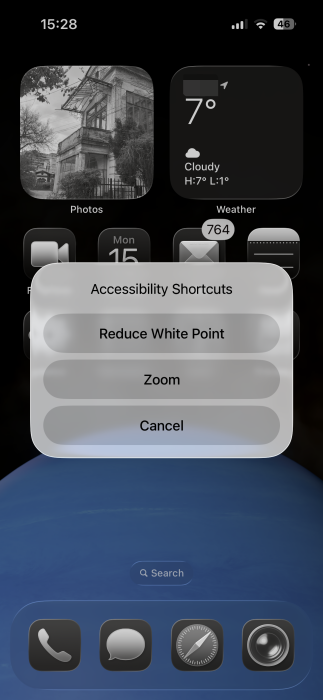
Now, try pressing the power button three times in quick succession. Your screen brightness should go lower even if you have it set at minimum. Note that this won’t work unless you remember to set the Accessibility Shortcut as we showed you above. This will go through even if you haven’t enabled the Reduce White Point in accessibility. You should keep in mind that the transition to a darker view will be automatic, meaning that you won’t get a slider to manually control the brightness.
Alternatively, go back to Accessibility and select Zoom.
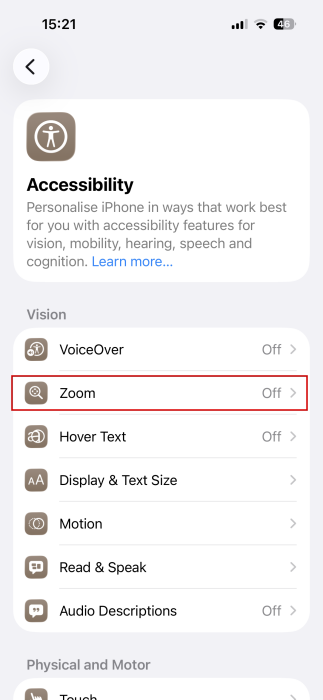
Make sure that the Zoom Region is set to Full Screen Zoom. Then, set the Zoom Filter to Low Light.
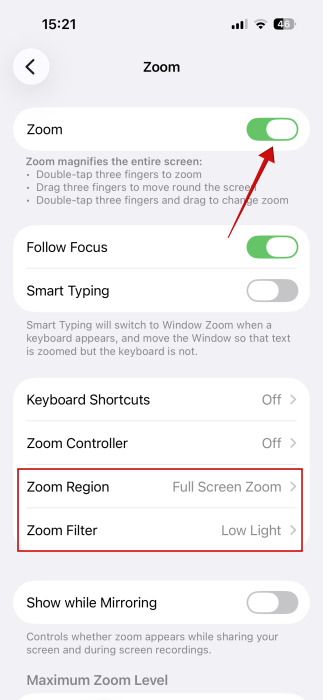
At the top, toggle on the Zoom option. The screen will dim, and if you already have your device set to the lowest setting, it will go lower than that. Your iPhone will also automatically zoom in the display. To make it go back to normal, double-tap the screen with three fingers.
You can also activate this option through the power button. Go back to Accessibility -> Accessibility Shortcut. Select Zoom. And yes, you can have both shortcuts assigned to the power button.
The cool thing is that you can use these options together. Triple-press the Power button and first enable Reduce White Point from the menu that appears on the screen (or vice-versa.) Then triple-press again and select Zoom. You will get the lowest brightness effect on your screen.
FYI: forgot your iPhone passcode? Here’s how to unlock your device.
Alternative: Turn on Night Shift
If you’re just trying to do some late-night reading, the easiest solution might be just to turn on your iPhone’s Night Shift mode.
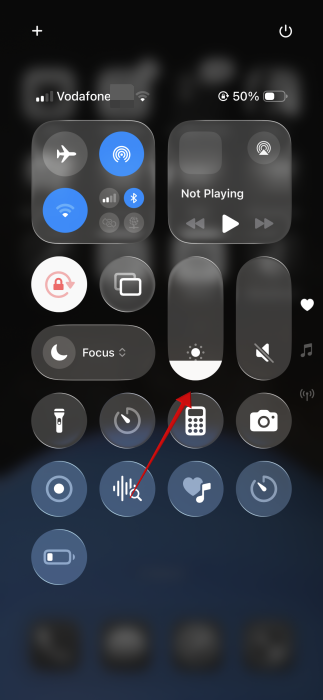
You can do so from Control Center (swipe down from the top of the right corner.) Tap the brightness bar to open
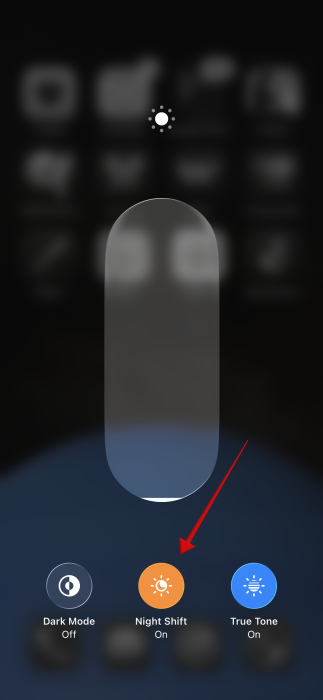
Press Night Shift Off at the bottom.
Night Shift shifts your screen to warmer tones, making it easier on the eyes at night. By reducing blue light, it might be enough on its own.
Your iPhone hides even more cool secrets. Did you know you can animate text and emoji in Messages? Learn how by checking our post.








