If your iPhone is your go-to editing tool, here’s something you should know: you can edit multiple photos or videos at once by applying the same adjustments, all without installing any third-party app. It’s a simple trick that saves time, and it’s already built into your iPhone.
When this Editing Trick Comes in Handy
Most mobile apps that offer batch editing expect you to pay for the feature, while professional image editing software like Photoshop can be quite complex to navigate. But if you’re a casual user looking to edit multiple photos (or videos) at once, look no further than your iPhone.
You should use this trick on your smartphone if your photos were captured in similar conditions, such as during an event or a casual photoshoot, and you want them all to share the same unified look. By the way, if you want to attract more people to your event, create and send them a beautiful invite directly from your iPhone.
Every now and then, you might even nail the perfect edit. When that happens, you may wish to apply the same aesthetic to other photos, without the hassle of trying to remember each individual adjustment you previously made.
By the way, if you ever wish to clean up your Photos library, check here on how to delete duplicate and burst photos.
If you have a small business, batch editing can also prove especially useful when, for instance, you need to remove the background from multiple images, such as a series of product shots you’re prepping to upload to your online shop.
You Only Have to Edit One Photo to Perfection, the Rest Will Follow
The advantage of batch editing lies in its simplicity: you only fine tune one image to your liking, the rest will take care of themselves.
I prefer to first group the photos that I want to bulk edit in a separate album, but this takes a few extra steps, so you don’t necessarily have to do this if you’re in a hurry. Open the Photos app and select the images. Next, tap the three dots in the upper right and select Add to Album.
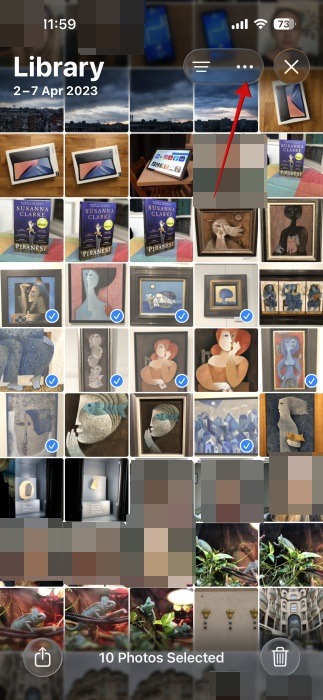
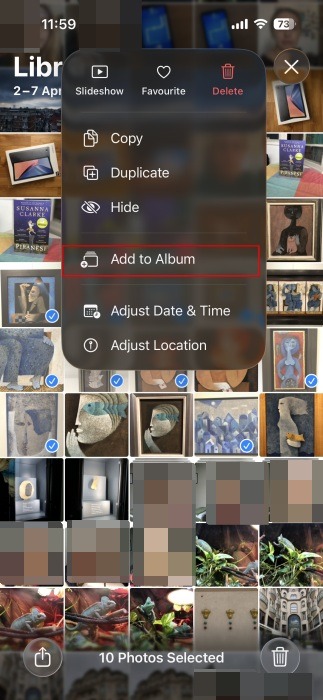
To create a new album, press the + button.
Now you can start editing. Tap on a photo to open it in full screen. Here, press on the editing icon in the bottom menu. Go ahead and edit your photo by tweaking things like Exposure, Brightness, Saturation, and more. You can also add filters and crop the image. I usually take my time with this step, since this is where I define the look I want to carry through the rest of your images.
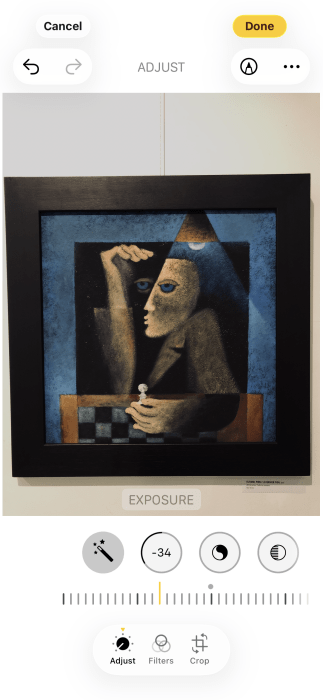
Once you’re all done, tap the three dots in the upper right corner and select Copy Edits. A pop-up will appear from the app, allowing you to select which edits you wish to copy over, including Crop.
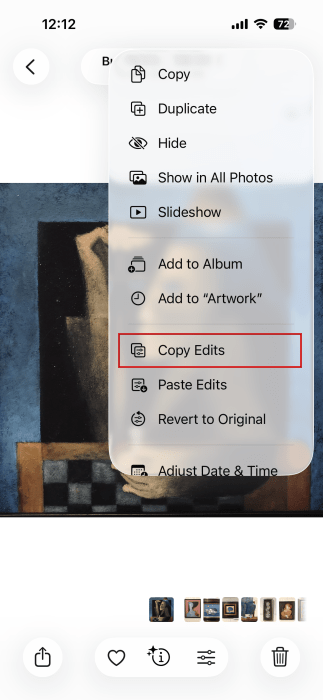
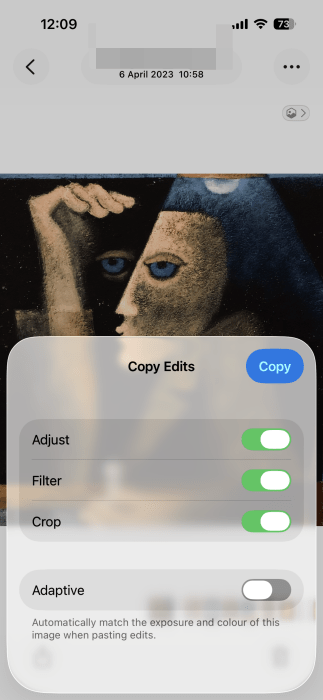
Then, return to the album and select all other images. Tap the three dots at the top and select Paste Edits.
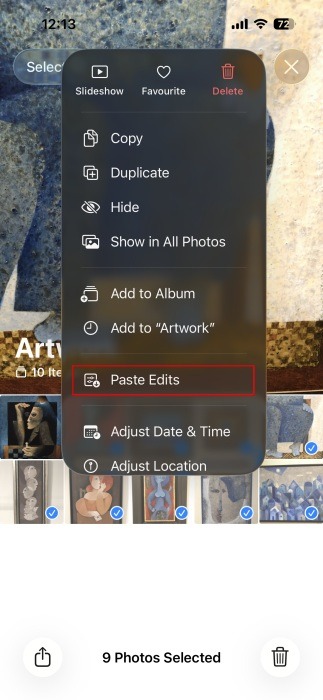
Note that changes aren’t final. You can revoke them (even for the original image, and it won’t affect the other edits) by pressing the three dots and selecting Revert to Original.
Your workflow might also require you to remove the background from these images. To do so, select all the images in your album and tap the Share icon at the bottom. Press on Save to Files.
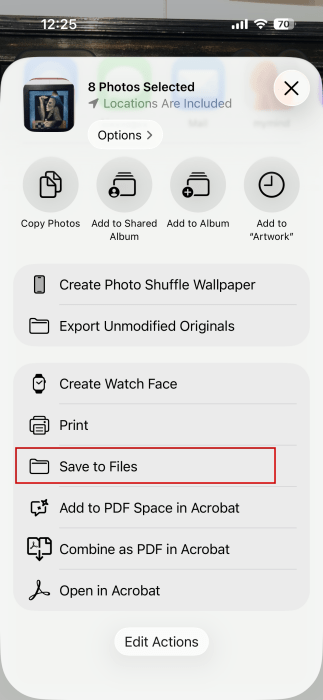
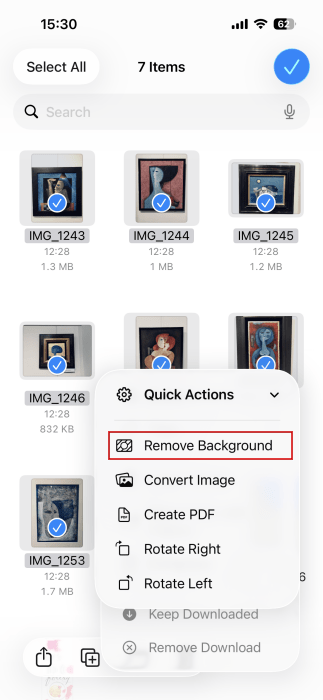
Next, open Files. Select all the images you’ve copied and press the dot icon at the bottom. Go for Quick Actions → Remove Background. That’s it.
Some Limitations and What You Can Do About It
While editing multiple photos directly on iPhone is incredibly useful, I noticed some limitations. For instance, resizing isn’t supported, and adjustments like straightening or perspective correction won’t carry over.
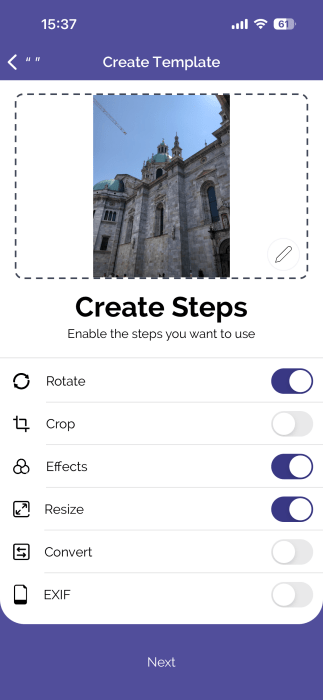
If you really need these options, you can download an app like eZy Edit. It includes several free-to-use batch editing options, including Resize as well as Rotate, which allows you to tweak the perspective. Since it’s free, eZy Edit does include some ads.
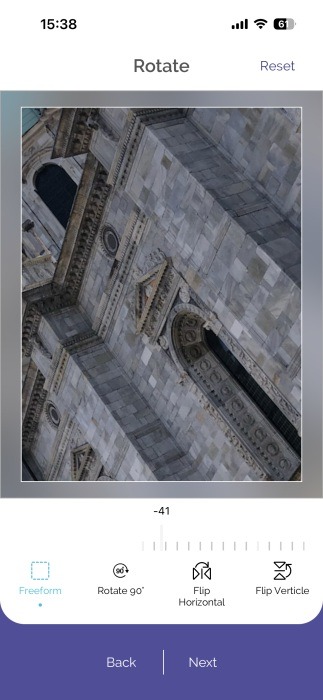
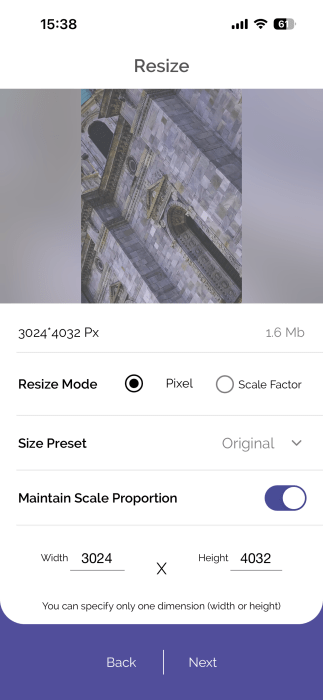
How this works is you create a template starting from your initial image and adding the desired edits. Then you use it to apply those same adjustments across your remaining photos. Resulting photos will appear in the Saved Today album in the Photos app.
While editing can significantly improve your photos, it’s just an important to understand how to take better shots on your iPhone from the beginning, which ultimately makes the editing process quicker and easier.