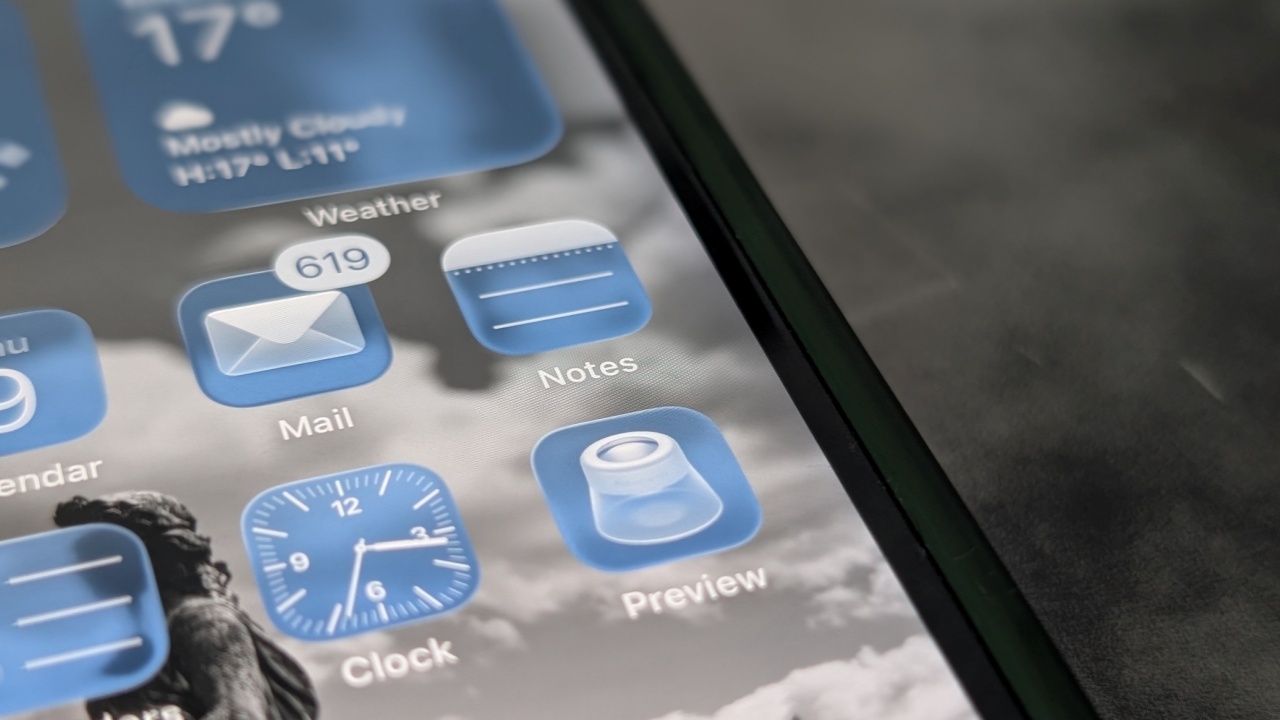
There’s more to iOS 26 than just the design overhaul. One of the quieter additions is the Preview app, a utility Mac users have had for years. Now on iPhone, it gives you a quick way to edit PDFs and images without jumping between multiple apps. In this post, we explore the capabilities of Preview and explain why it can make your life a lot easier.
Good to know: give your iPhone lock screen a new look with these new iOS 26 additions.
The Preview App is now on Your iPhone
Once you update your iPhone to iOS 26, you should notice a new app called Preview on your home screen.
Tip: if, for some reason, it’s not there, try searching for it using the Spotlight search bar.
Preview has been a built-in tool on macOS for years, and now it’s finally available on iPhone. It brings along many of the same features, from basic image and PDF editing to exporting files in various formats and adding digital signatures.
Although tools like the ability to annotate files, scan documents, add signatures were already available in the Files app, the goal with Preview is to offer a more streamlined, editing-focused experience for PDFs and images, separate from file management. It’s also a result of Apple’s ongoing efforts of unification of its Mac, iPhone and iPadOS platforms.
That said, Preview is now the default app when opening images and PDFs (but not doc/docx files) from Files on iPhone.
What You Can Do with the Preview App on iPhone
As mentioned above, the Preview app is interconnected with Files. The Files app shows PDFs, documents, photos, and other files from your iPhone’s local storage (including downloaded files), iCloud Drive, and other cloud services. It will, however, not show images from your Photos gallery. Still, it’s possible to import them to Files.
To do so, open an image in the Photos app and tap the Share button in the lower left corner.
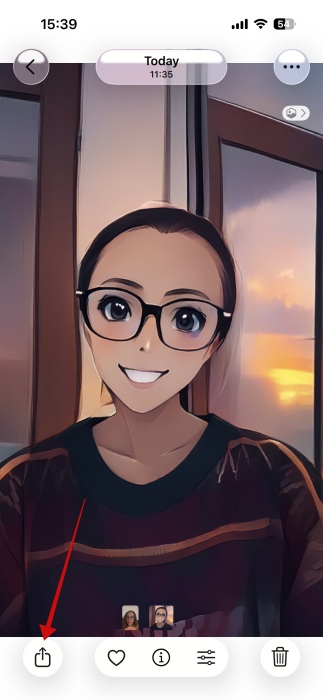
Swipe up with your finger to bring up the entire menu of options and select Save to Files.
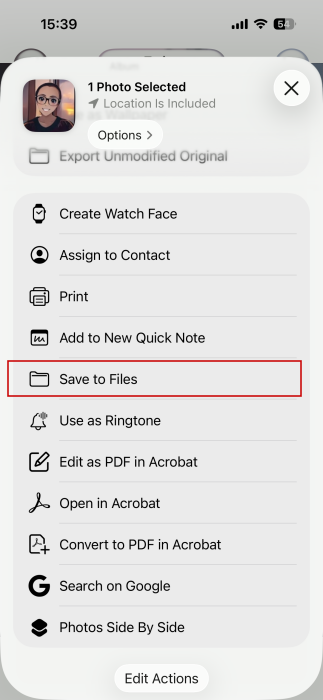
You can now open these photo(s) from Files with Preview. Alternatively, you can launch the Preview app directly, as the main screen lets you browse through the Files library.
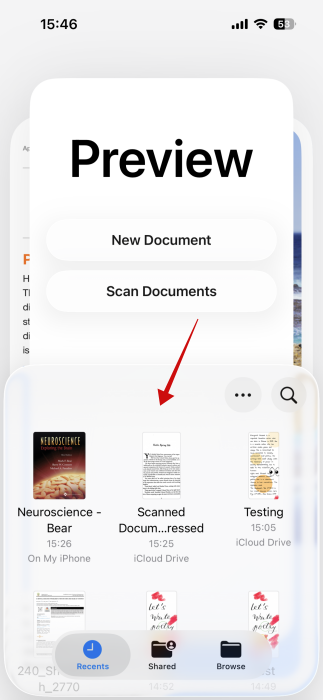
Once you load up an image or a PDF, you can start editing it. There are some significant options which aren’t available in Files.
Tip: learn how to do a reverse image search on your iPhone or iPad.
Crop images
Preview allows you to crop images in three easy steps. Tap on the rectangle button at the bottom. Proceed to make your selection.
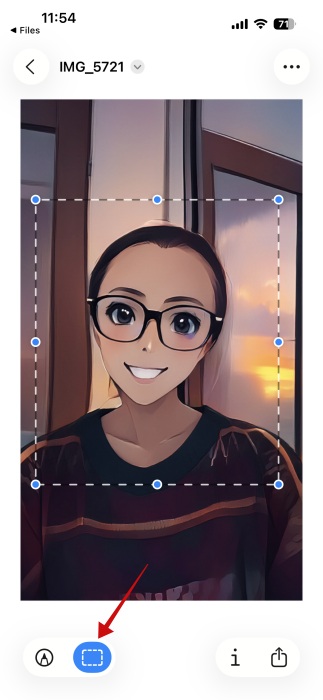
Long-press the selection and select Crop.
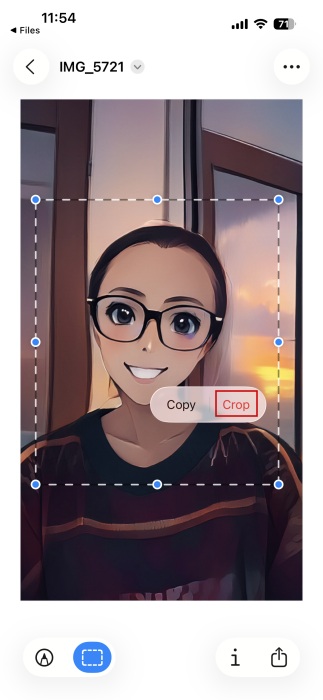
Note that the Crop option is also available for PDFs.
Remove background
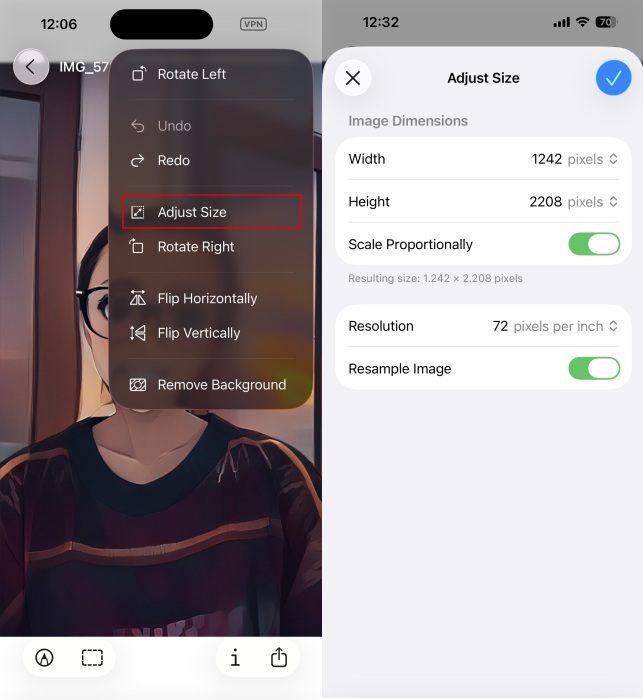
With Preview, you can also remove the background from your images. Load up the picture and then press the three dots in the upper right corner. Select Remove background.
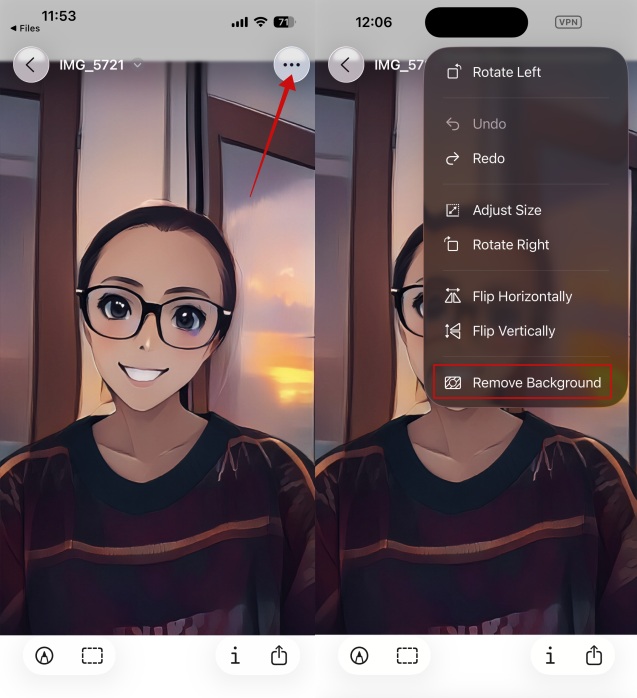
Resize and rotate images
You can further modify your images by pressing the three dots in the upper right corner and selecting one of the options available, such as Rotate Left/Right or Flip Horizontally/Vertically.
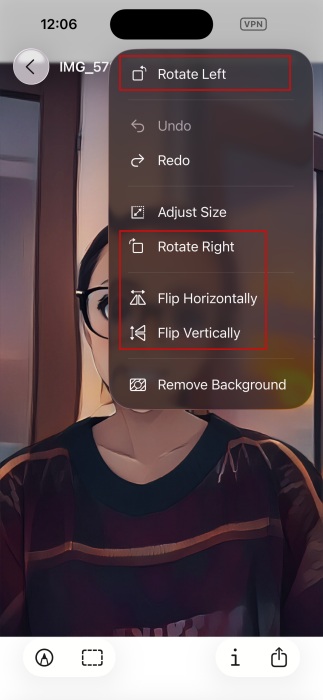
To resize the image, select the Adjust Size option.
Add Text Boxes
While the option to add signatures to PDFs has been long available in the Files app, Preview lets you add text boxes to your document.
Press the second icon again at the bottom. Then tap the blue + button in the lower right.
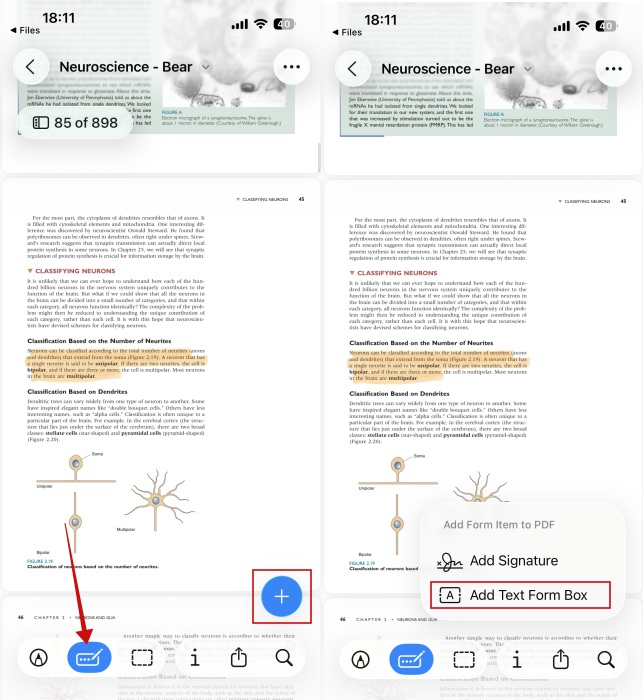
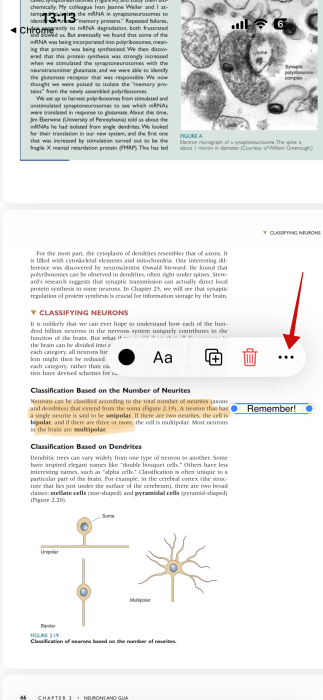
You can use this as an alternative for adding notes. Write your text. A cool thing is that you can turn your text in handwriting. Tap on the text to select it and press the three dots
Select Convert to Handwriting from the options.
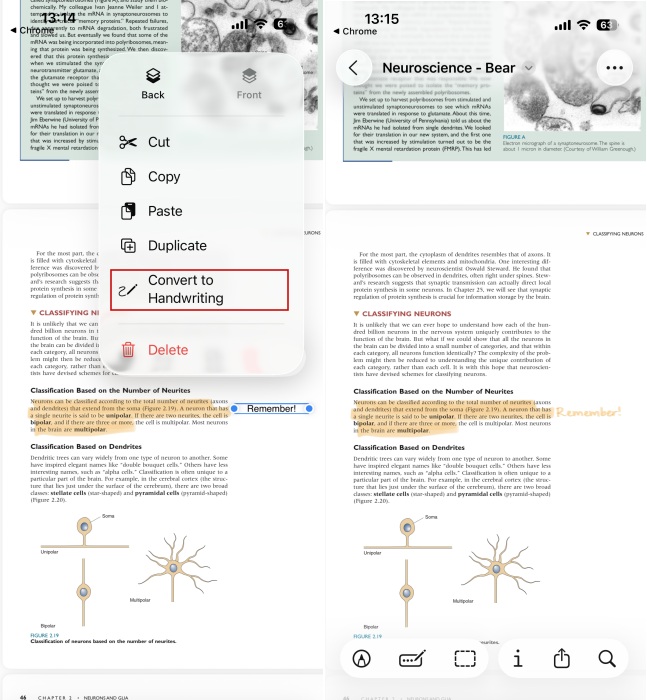
The text will appear in the pen you’ve selected when annotating.
Export files & reduce file size
Preview comes with the option to export PDFs and images in various formats. Open the file and then tap on the tiny arrow at the top, next to its name.
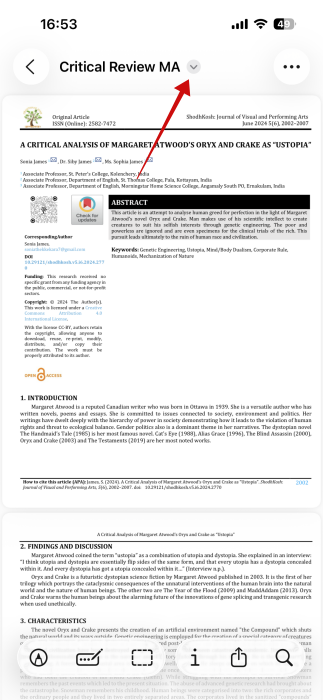
Select Export from the drop-down menu.
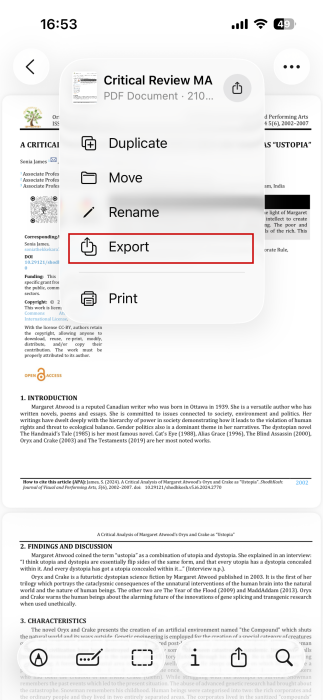
You can opt to save in HEIC, JPEG, PDF, PNG or TIFF format.
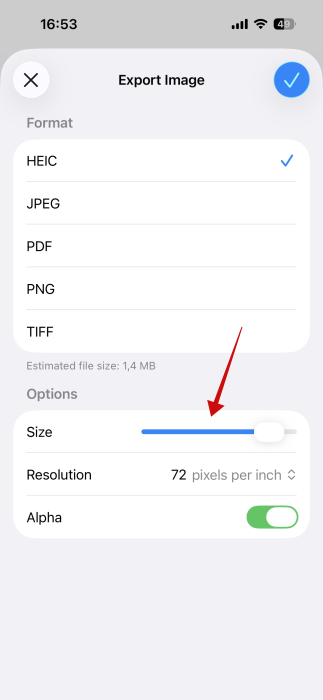
For some formats, such as JPEG, you can also use the Size slider to reduce (or increase) the file’s size. In addition, you can tweak additional settings such as resolution.
Note: there’s also the option to Optimize File Size. You can find this by long-pressing on the file in Preview and accessing the Quick Actions menu.
Create new documents from scratch
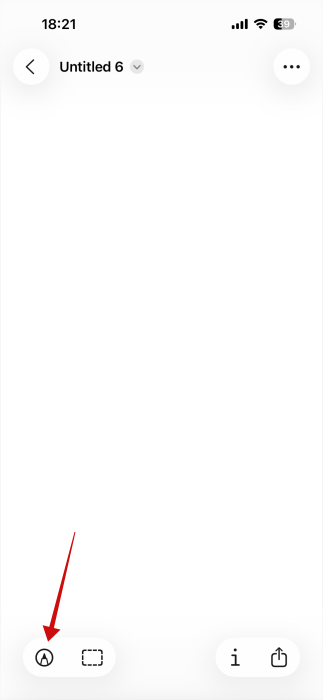
With Preview, you can create new documents from scratch by selecting the New Document option. That said, it only allows you to add the annotation tools, so the results will be more like pages from a scrapbook project.
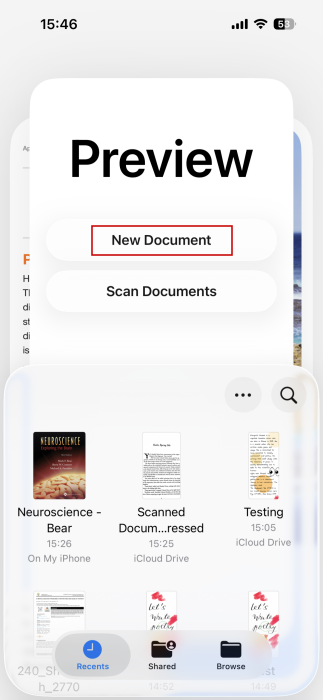
On the empty page, select the pen tip icon at the bottom of the display.
Next, select your pen tool and opt for the color you wish to use. To get out of annotation mode, press the pen tip icon in blue in the top right corner.
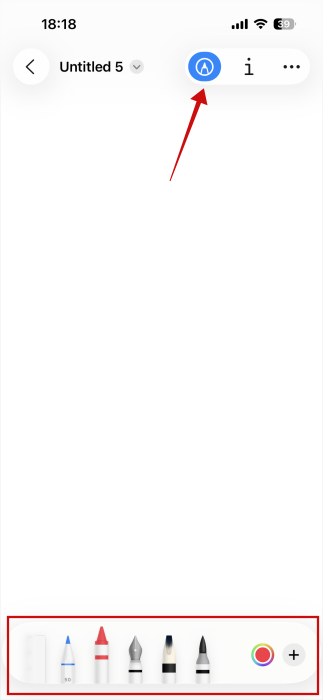
You can get quite creative, especially since you can tap into some additional options by pressing the + button in the menu at the bottom.
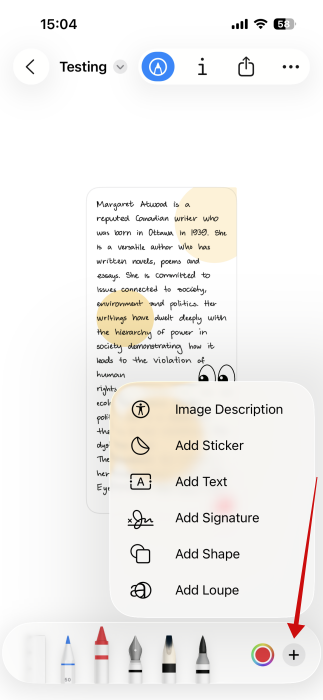
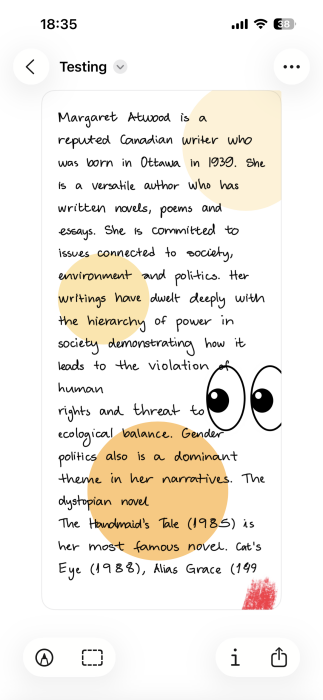
For example, I copied text from a website and activated the Add Text option in Preview. I pasted the text and then turned it into handwriting using the opinion referenced above. I then added a couple of more elements using the Add Sticker and Add Shape options.
While some Preview features that are available on Mac such as combining documents or removing/adding pages to PDFs aren’t live in the iPhone app, these options might be added in the near future. Over time, the app could evolve into a more complete solution for file management.
In addition, users have been complaining that Preview doesn’t let you easily switch between files like the Files app does, which isn’t entirely true. On an open document, you can press the Back button and easily go back to the Files library view. This gives you quick access to your other items.
Well, there’s a workaround if you really dislike Preview’s solution. Either you delete the Preview app (yes, you can do that), which reverts files opening with the Files app. Or when in Files, long press on a file and then select Quick Look.
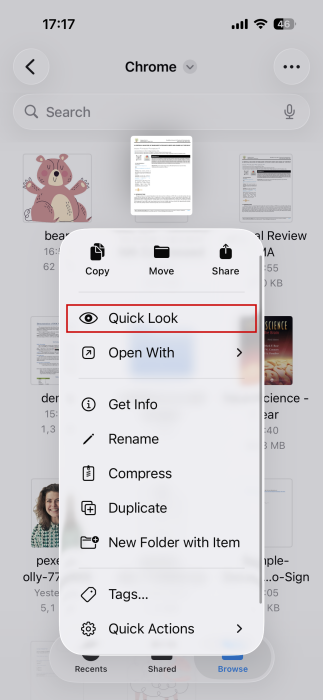
This will open the file with the Files app once again. Then you can switch between items by tapping the menu button in the upper right corner.
Preview may have its gaps, but in my opinion, it does simplify things by uniting useful editing features in a single app.
Of course, iOS 26 brings a host of other features. If you’re curious, check out how to set up a callback reminder on your iPhone running iOS 26.








