
If you’ve lost your iPhone, a message saying that it’s been found would feel like a huge relief, wouldn’t it? Think again. The Swiss National Cyber Security Center (NCSC) has flagged a new phishing scam involving fake SMS or iMessages that claim to want to help locate your device, but actually try to steal your Apple ID. Here’s what you need to know to avoid becoming the next victim.
Good to know: learn how to set back callback reminders on your iPhone and never forget to return calls ever again.
How this Phishing Scheme Plays Out
You might be wondering: how do the hackers know you’ve lost your phone? If you lose your device or someone steals it, your first instinct might be to set a custom message on the lock screen using the Find My app. This often means sharing your phone number or email address, in the hopes that a good Samaritan will find the device and get in touch to return it.
Unfortunately, scammers are now exploiting this feature, using your contact info to send you messages claiming your lost phone surfaced abroad and inviting you to view its location by tapping a link. To appear more credible, they might include information regarding your phone’s specific model, color, or other details. In addition, Apple’s Find My Support Team signs the message.
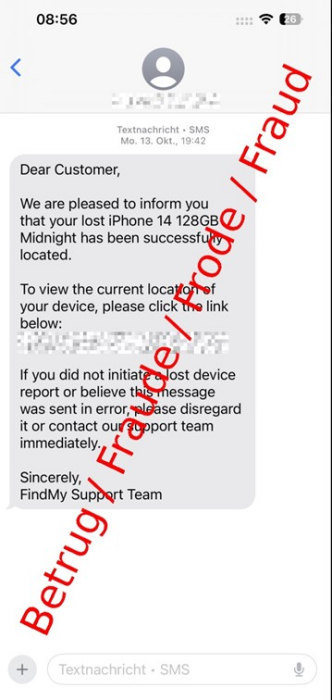
If you tap the link, you’ll land on a fake site masquerading as Apple’s Find My page. Once there, you’ll be prompted to enter your Apple ID and password. The hackers’ endgame, by gaining access to your credentials, is to bypass Apple’s Activation Lock, a security feature that links the device to your Apple ID and effectively prevents thieves from fully accessing your device.
Another possible that scammers can find your phone number is through the SIM card, provided it hasn’t been blocked already.
Tip: check our tips on how to recognize and avoid deepfake live videos.
Now that you know about the threat, let’s look at some tips on how to safeguard yourself against similar phishing attempts.
1. Abstain from Clicking Any Links
In cases where you received a “found” message, proceed with extreme caution. Consider that messages from a genuine, well-meaning person who has found your device will most likely never contain a link. The presence of a link in itself should be considered suspicious.
If the sender claims to be Apple, again, it’s a huge red flag. As the tech company notes, Apple will never contact you to say that your iPhone or iPad has been found. Moreover, the Cupertino tech giant will never ask for your Apple ID information or other credentials.
Bottom line, links are favorite tools for scammers, so the best defense is to avoid clicking on any links from unknown parties.
2. Don’t Engage with the Sender
If you received one such message, don’t reply to the sender asking for more details. They might try to get you to share personal details or rush you into action by creating a sense of urgency. Your safest response is to delete the message and forget about it.
3. Turn Lost Mode On
If you lost your device, then immediately turn on Lost Mode from Find My. You’ll need to access it from another trusted device, such as your computer or another phone, via the app.
Select the lost device from the menu on the top left.
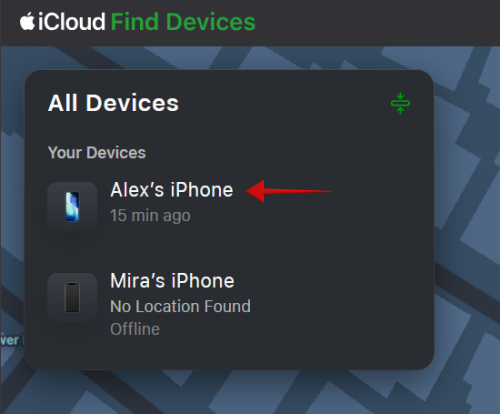
Tap the Lost Device button. This will lock your device immediately and also suspend your Apple Pay payments and credentials.
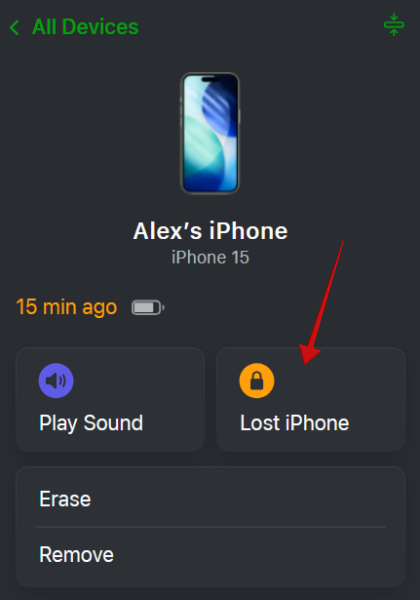
Once Lost Mode is on, you will be able to set the custom message that will show up on your lost iPhone lock screen, featuring your information and instructions for return. If you opt to set such a message, make sure you use a different email address from your main one to limit any further social engineering risk.
4. Don’t Remove the Device from Apple Account
If you think your chances of retrieving your lost device are pretty slim, you might decide to remove your device from your Apple account. However, doing this too soon might remove Activation Lock protection. This feature is turned on when you activate Find My and works by registering the device ID on Apple’s activation servers.
If you wish to verify that the lost device is still linked to your Apple account, you will need another Apple device to do so.
On an iPhone or iPad, open Settings and tap on your name at the top.
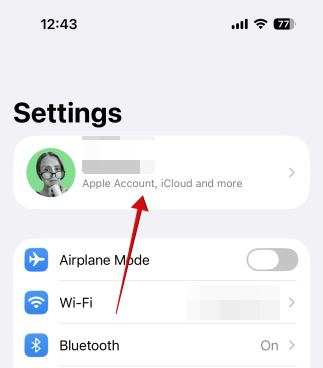
Swipe to the bottom, and you should see a list of linked devices. Check to see if your lost iPhone is among them.
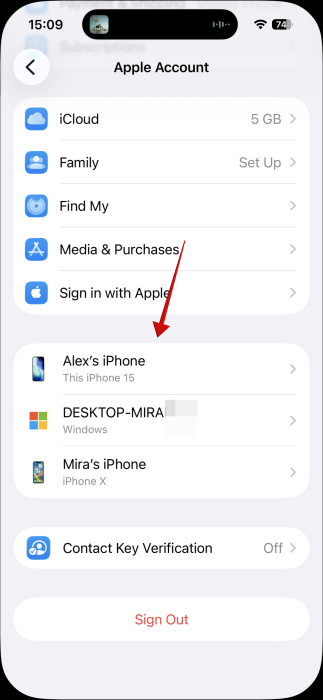
On a Mac, click the Apple menu, then go to System Preferences or System Settings. Click your Apple account and continue as above.
In addition, keep in mind that you shouldn’t remove your lost device from Find My either.
5. Use Two-Factor Authentication on your Apple ID
We continue our list with some measures you can apply preemptively. Strength protection for your Apple ID by turning on 2FA. In the unlikely case that someone can guess your password (and email address), they’ll still need a second verification code to get in.
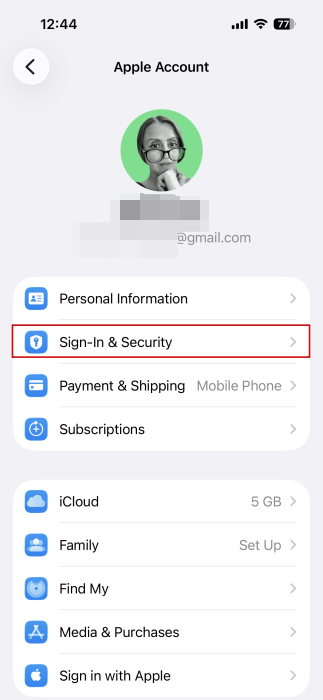
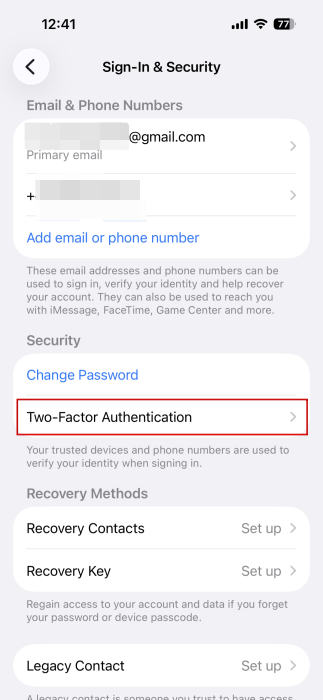
Go to Settings and press on your Apple ID at the top. Select Sign-in and Security.
Tap Two-Factor Authentication.
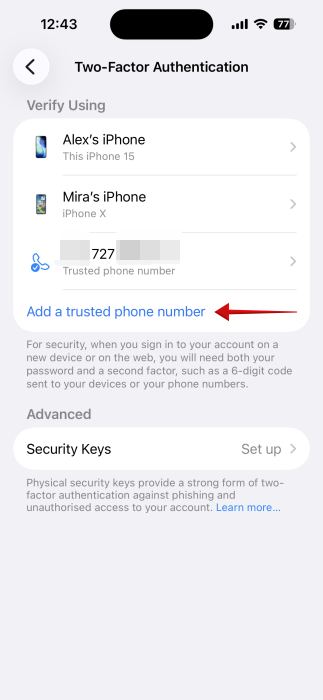
Select another phone number as your verification method. If you have a physical Security Key, you can also use that.
6. Turn on Apple’s Stolen Device Protection
You might have turned Stolen Device Protection off to avoid delays in accessing sensitive settings and information, but if you know you’re going to be in a crowded or busy area, it’s best to enable it. Check our guide to see how to turn it on.
7. Change your SIM PIN
Most SIM cards have a default PIN number. In most cases, it’s either 0000 or 1234, but if you want to hinder hackers’ attempts to possibly access your calls, messages, and other sensitive data, including your phone number, you should change it to something harder to guess. Check here to see how to change your SIM PIN on iPhone.
With phishing schemes getting increasingly complex, scammers are putting everyone at risk. The best defense is knowledge, so take time to learn about the latest scam techniques. For instance, you can start by reading up on the types of phishing attacks that gamers should know about.








