For the longest time, I used full desktop environments like GNOME on Ubuntu. They look polished, they’re beginner-friendly, and everything works out of the box. But as someone who spends most of the day inside a terminal, I realized I was spending more time moving windows around than actually getting work done. That’s when I switched to the i3 Window Manager (a program that controls how windows are arranged on your screen), and my productivity skyrocketed. I haven’t looked back since.
Why I Prefer Using i3 Window Manager
Unlike a full desktop environment, i3 is just a window manager. There’s no heavy graphical layer, no background services you didn’t ask for, and no visual clutter. Instead, you get a clean screen, logical window tiling, full keyboard control, and a plain text configuration file. For example, when I open two terminals, they automatically split the screen and arrange my windows in smart, non-overlapping tiles so nothing ever hides or wastes space.
While desktop environments like GNOME are excellent for their ease of use and visual appeal, I found myself wanting something that would allow me to work faster and with fewer distractions. Here are some of the key reasons why I’ve come to prefer i3wm:
Everything is keyboard-driven
If you are comfortable with keyboard shortcuts (especially if you use Vim), i3 feels like home. You rarely need a mouse. This means that once you learn the keybindings, you can navigate your desktop, open and close applications, and manage your windows without ever taking your hands off the keyboard.
Furthermore, everything such as keybindings, colors, startup programs, the status bar, and more is configured using a highly readable, plain text configuration file.
Fast switching between workspaces
i3wm workspace management is another standout feature for me. Using it, I can create multiple workspaces (10 by default) and switch between them almost instantaneously with a simple key combination such as Mod + 1, Mod + 2, or Mod + 3. There is no animation delay, no compositor induced lag, just immediate context switching.
i3wm is extremely lightweight
i3wm is incredibly lightweight and consumes very few system resources. While modern computers have plenty of RAM, using a lightweight window manager can still make a noticeable difference in performance, especially on older hardware or when running resource intensive applications.
It is difficult to give an exact number because memory usage depends on your configuration and the applications you run. The i3 window manager itself uses very little memory, but a typical minimal session with Xorg and basic utilities usually consumes around 100 to 300 MB of RAM. This is still far less than many modern desktop environments, which can easily use over a gigabyte of memory at idle.
Tiling of i3wm Just Makes Sense
Instead of windows floating on top of each other, i3wm automatically arranges them in a grid, ensuring that no screen space is wasted. With this, I can have multiple windows visible and accessible at all times without needing to manually resize or rearrange them.
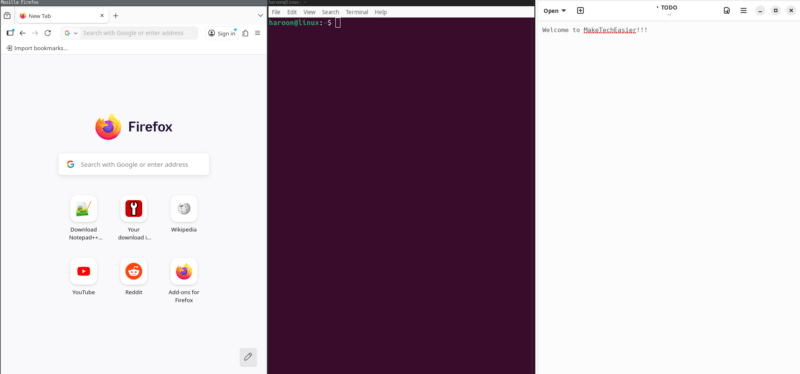
As someone who usually has a text editor, a terminal, and a browser open simultaneously, this is invaluable. I can see all three at once without using Alt Tab to cycle blindly through a stack of windows.
Note: While i3wm is a tiling window manager, it is worth noting that there are many other excellent tiling window managers available for Linux, each with its own unique features and configuration options.
Installation and Setup of i3wm
Installing i3wm on Ubuntu is a straightforward process, as it is available directly from the official repositories. For other distributions, you should be able to find i3wm in your respective package manager or software center.
First, update your package lists:
sudo apt updateThen, install i3:
sudo apt install i3You can also search for i3 in the Software Center.
During the installation, you might be prompted to choose a display manager. If you are unsure, sticking with the default (often GDM for Ubuntu based systems) is usually a safe choice. This process will install i3, along with i3status (for the status bar) and i3lock (for screen locking), providing a complete basic setup.
Further, you can also install the extended package manually with this:
sudo apt install i3-wm i3status i3lock dmenuAfter the installation finishes, log out of your current Ubuntu session. On the login screen, click the small gear icon (usually located in the bottom right corner or next to the password box). Select i3 from the desktop options and log in as you normally would.
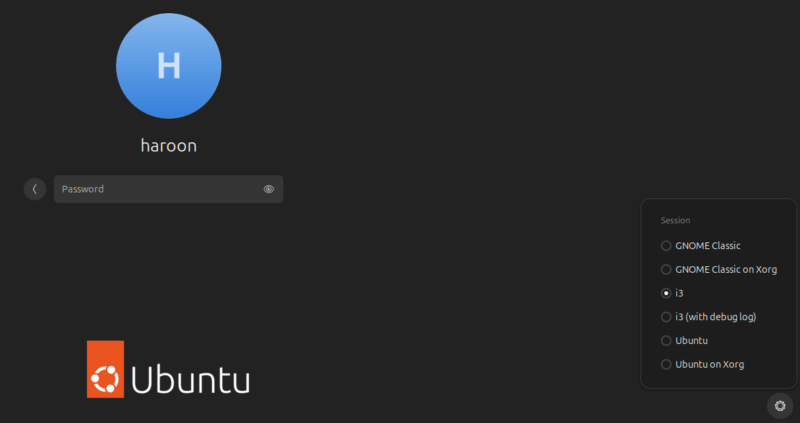
The first time you launch i3, it will ask if you want to generate a default config file. Accept it. It will then ask you to choose your Mod key, either the Windows key or Alt. The Mod key is what separates regular typing from i3 commands, so choose whichever feels more natural. I use the Windows key to avoid conflicts with terminal shortcuts.
Usage of i3wm
Once i3wm is installed and running, let’s cover the basic tasks that we can perform when using i3:
Navigating with hotkeys
Almost everything in i3wm is handled with hotkeys. There are plenty of predefined ones, but you can also change those and make your own. Before you do anything, though, you need to familiarize yourself with the basic ones.
You’re probably going to be working with terminals a lot. Go ahead and open one with Mod key + Enter. If you keep pressing Mod key + Enter, you’ll see the default pattern that i3 uses for dividing up your screen.
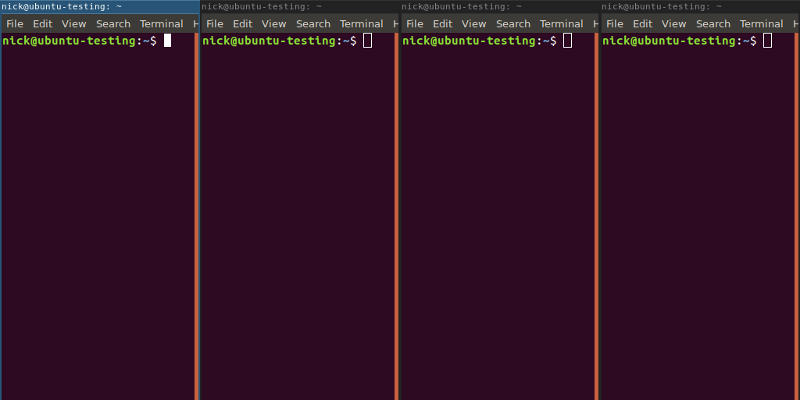
It’s not all that useful when you have a bunch of them. Try re-positioning them. By default, you can navigate using Mod + h to move left, Mod + j to move down, Mod + k to move up, and Mod + l to move right. This should be sort of familiar to Vim users but slightly off. You can change it to the actual Vim bindings.
If you want to move the windows, you can add Shift to any of the directional hotkeys, and the window will move in that direction. So to move a window down, use Mod + Shift + j.
To open new windows split the way you want, you can target the window you want to split and use Mod + h to split the window horizontally and Mod + v to split it vertically. When you want to close a window, there’s a hotkey for that too, Mod + Shift + q.
Manipulating windows of i3wm
i3wm does allow you to use floating windows. Some windows, like the GIMP toolbars, will automatically open floating, but you can make any window float. Mod + Shift + Space will move back and forth between floating and tiled mode for the selected window.
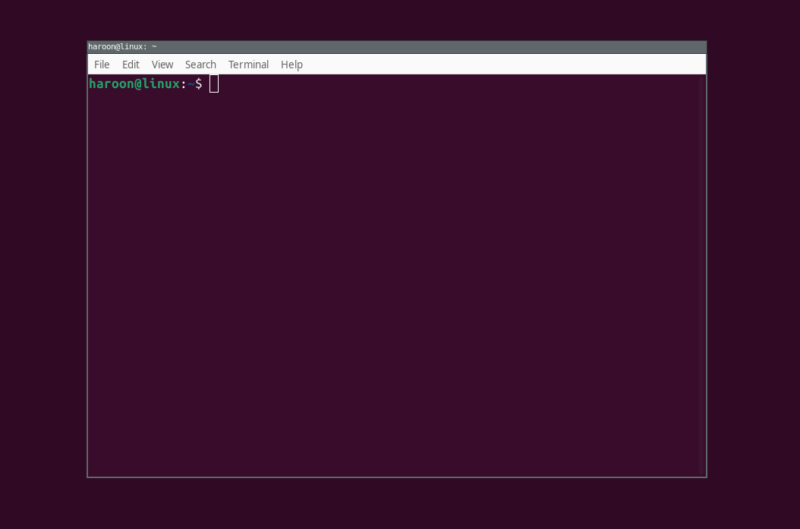
You can also force a window to go full screen with Mod + f. Pressing it again will return it.
Opening programs in i3wm
Use a launcher to open programs in i3wm. The default launcher is dmenu, but you can substitute others like rofi in its place.

These launchers act like a search for your programs. Punch in the program that you want and hit Enter. The program will launch. The launcher will keep track of your most commonly used programs and display them in a list when it’s opened. You can select them there without typing.
The launcher hotkey is Mod + d.
Basic Configuration of i3wm
There’s an absolutely insane amount of configuration that you can do with i3wm, so it’s only possible to cover the basics here. These are some of the more common things that you’d want to do.
After creating the default configuration on your first run, it is placed in the “~/.config/i3/” directory.
mkdir -p ~/.config/i3
cp /etc/i3/config ~/.config/i3/config
Further, changing the colors is easy. i3wm uses hex values for colors like CSS. There are a couple of different classes that each have a border, background, text, and indicator value. You can lay them out in a table and plug in the color values that you want.
class border backgr. text indicator
client.focused #1e1e1e #1e1e1e #151515 #AA0000
client.focused_inactive
client.unfocused
client.urgent
client.placeholder

client.background #454545
In the i3wm configuration, bindsym creates a new hotkey. exec launches programs. You can put them together to make your own hotkeys to launch the programs that you use most without using the launcher. For example:
bindsym $mod+Shift+w exec firefoxYou can run applications at startup, too. Just use exec for those.
exec firefoxCustomizing your status bar
The status bar is one of the most important parts of your desktop. It displays your workspaces as well as loads of other vital information. With i3wm there are a ton of options for your status bar.
Near the bottom of the configuration file you’ll find a block called bar. Everything for the status bar will go in there.
First, you’ll find the status_command. It lets you select the status bar to use. The default is i3status, but you can use a load of others like i3blocks, lemonbar, and polybar. They are all different and have their own unique benefits and drawbacks.
You can change the position of the bar here, too.
position topYou can create a separate colors block here that you can use just like the other color configuration to customize i3’s color scheme.
colors {
        #class             #border   #bg        #txt
        focused_workspace  #454565   #252525    #1E1E1E
        active_workspace
        inactive_workspace
        urgent_workspace
        binding_mode
        background         #151515
}
Is i3 Right for You?
i3 is powerful, but it isn’t perfect. If you are used to traditional point-and-click desktop environments, the experience can feel overwhelming at first. There is no graphical settings panel, and most configuration is done manually through a plain text file. i3 also does not include features many users expect, such as desktop icons, drag-and-drop window placement, or a built-in graphical settings manager. For users who rely heavily on visual organization, this minimalist approach can feel restrictive.
Another important limitation is that i3 works only with X11 and does not support Wayland.
For gamers, i3 can work, but it may require some additional setup. For example, fullscreen games generally run fine under X11, but i3 lacks a built-in compositor, which can lead to screen tearing unless you configure one manually. Therefore, if you prioritize gaming, you might find a full desktop environment with built-in display management and Wayland support more convenient in the long run.