
While popular distributions like Ubuntu, Debian, and Fedora have been available on Windows Subsystem for Linux (WSL) for a while, you can now officially install and use Arch Linux as well. Arch Linux is renowned for its basic design, rolling-release model, and user-centric concept. Running it inside WSL on Windows gives you the best of both worlds: a minimal, bleeding-edge Linux distro alongside your Windows tools. This guide provides a brief overview of WSL and explains how to install Arch Linux on it.
What Is Windows Subsystem for Linux (WSL)
Windows Subsystem for Linux (WSL) is a feature in Windows 10 and 11 that enables you to install and run Linux distributions natively without requiring a dual-boot setup or virtual machine. Think of it as a translator between Windows and Linux, enabling you to use Linux tools, run scripts, and even launch GUI apps – all without leaving your Windows desktop.
There are two standard versions of Windows Subsystem for Linux: WSL 1 and WSL 2. WSL 1 was the initial version. It translated Linux system calls into Windows NT kernel calls. While innovative, it had performance limitations, particularly with file system operations and lacked full system call compatibility, including no support for certain Linux kernel features.
WSL 2 represents a major architectural shift. It uses a real Linux kernel running inside a lightweight utility virtual machine based on Hyper-V. This design dramatically improves file system performance and offers full system call compatibility. It makes it possible to run Linux applications and tools that were previously incompatible with WSL 1. For a distribution like Arch Linux, which often relies on newer kernel features and expects standard Linux behavior, WSL 2 is the recommended platform.
Setting Up Arch Linux on WSL2
Getting Arch Linux running on WSL 2 is now straightforward thanks to the availability of an official image. However, ensure that WSL is installed first. If you’re unsure whether WSL is installed, the easiest way to confirm and install it is via PowerShell.
Open PowerShell and run this:
wsl --install --no-distribution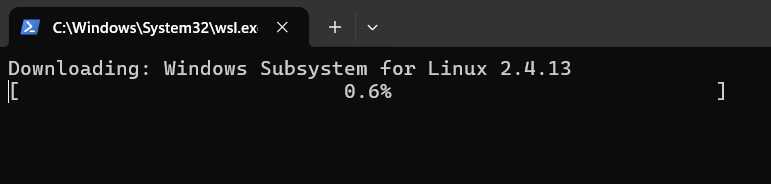
This command installs the necessary WSL features and components required for GUI applications. Also, you may need to restart a system once the installation completes.
After a reboot, open your PowerShell again and install Arch Linux using this:
wsl --install archlinux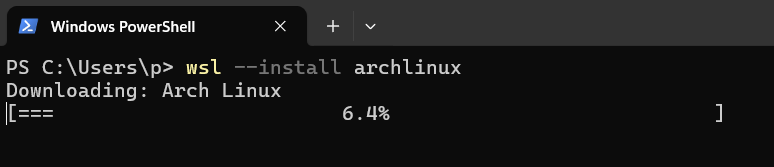
This command downloads the official Arch Linux WSL image and sets it up as a new distribution instance in your WSL environment.
Once the installation is complete, you can launch your Arch Linux with this:
wsl -d archlinux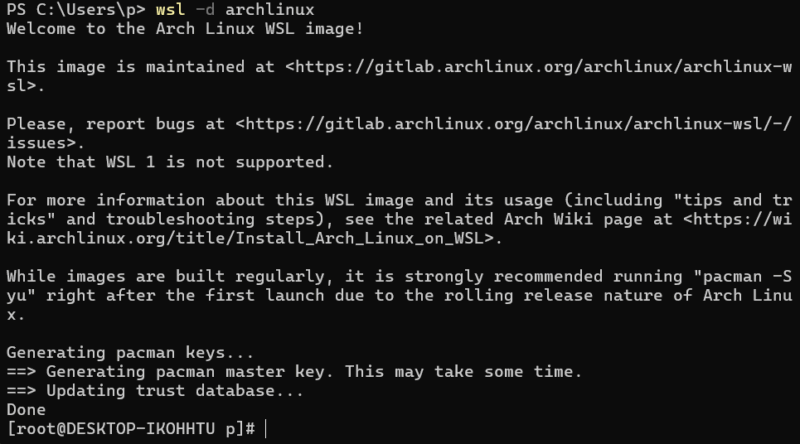
When you first launch the Arch Linux WSL instance, you need to update your package lists and upgrade all installed packages with this to their newest versions using this:
sudo pacman -SyuConfirm any prompts to proceed with the synchronization and upgrade. You can now proceed to install additional software and customize your environment using Pacman.
Limitation of Arch Linux WSL
While running Arch Linux on WSL 2 provides a robust environment for many tasks, it’s important to note that this setup is not identical to a native Arch Linux installation. Numerous limitations arise due to the nature of running within the Windows ecosystem.
One notable limitation is the support for ARM-based Windows PCs. As of now, the official Arch Linux WSL image is primarily available for the amd64 architecture. This means users with ARM-powered Windows devices (such as some Surface Pro or Dell XPS models with Snapdragon processors) may not be able to install and use the official Arch image. However, other Linux distributions are available for ARM on WSL. The absence of an official ARM build mirrors the standalone Arch Linux operating system’s focus on amd64.
Additional general limitations of WSL compared to a native installation include lack of direct hardware access, limited kernel module support, nuances in systemd integration, and cross-filesystem performance issues. Nevertheless, for typical development workflows, command-line utility usage, and general Linux exploration, Arch Linux on WSL 2 offers significant functionality.
Final Thoughts
The addition of an official Arch Linux image to the WSL lineup is a welcome development for any Linux users who appreciate Arch’s philosophy and package management. Also, it’s not a full replacement for a native install due to limited hardware access and no systemd support.
However, if Arch Linux feels too advanced, you can also consider trying Ubuntu or Debian on WSL as they’re more beginner-friendly.








