What’s the fun of having a calling feature if you aren’t notified about incoming calls? Users sometimes face the problem where incoming WhatsApp calls are not showing on the screen, but the phone is ringing. Basically, WhatsApp calls show a black screen while ringing. This tutorial shows several ways to fix the issue of incoming WhatsApp calls showing a black screen on Android and iPhone.
Good to know: learn how to stop getting spam calls on your Android.
Things to Do First
The first thing to try when troubleshooting why your WhatsApp calls are appearing on a dark screen is restarting your phone, whether it’s an Android or iPhone. Sometimes, a simple bug could be causing this inconvenience, and a restart would fix that.
Alternatively, the problem could be caused by the WhatsApp app itself. As a result, you should try to update the app to fix this issue. Open the Play Store (Android) or App Store (iPhone) and search for WhatsApp. Tap on the Update button if available for WhatsApp. Relaunch the app to see if the problem continues to manifest.
1. Enable WhatsApp Notifications
WhatsApp notifications being turned off is one of the major reasons why WhatsApp may not be displaying incoming calls. Here’s how to turn them back on.
On an Android phone, go to Settings -> Notifications.
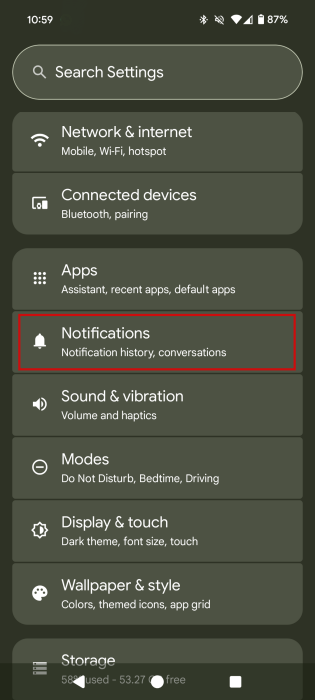
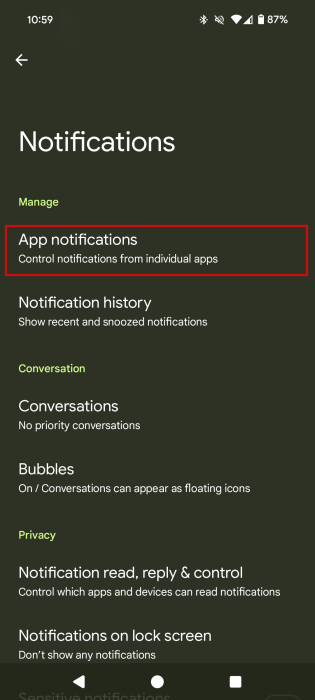
Select App notifications.
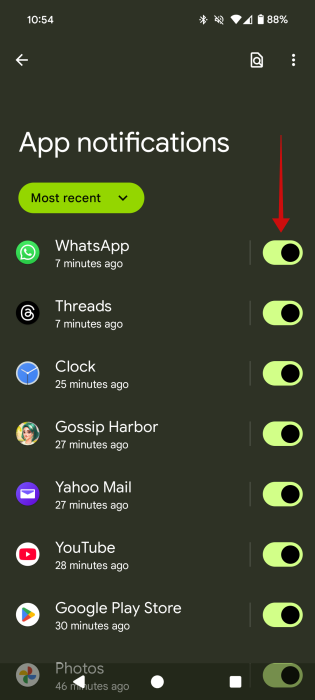
Check whether the toggle next to WhatsApp is on. If not, enable it. Then tap on WhatsApp.
Ensure the toggle next to All WhatsApp notifications is enabled.
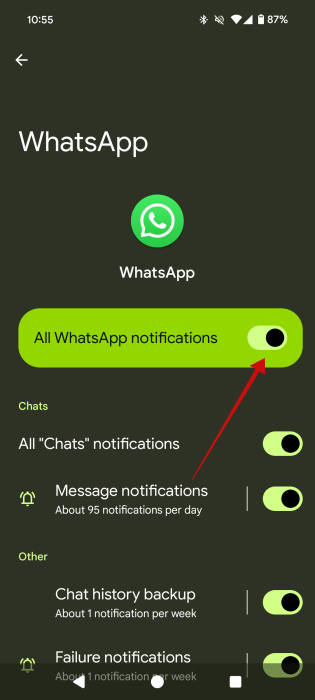
Scroll down and tap on the Call notifications option.
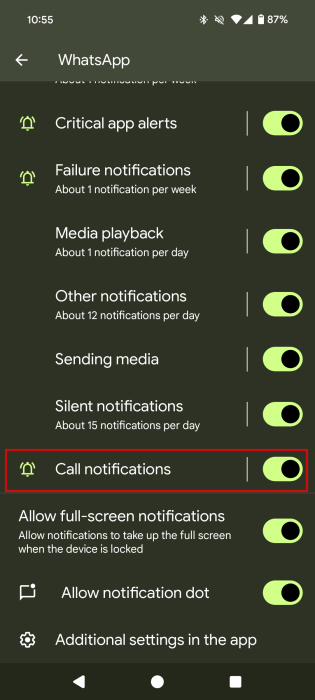
Ensure all notifications are turned on. Enable the toggle next to Show notifications and select Default instead of Silent. Also, enable the toggle next to Pop on screen.
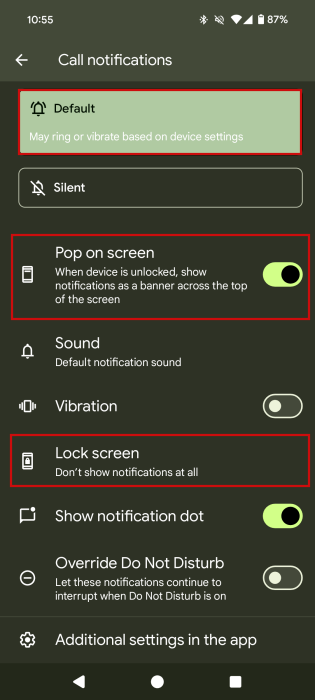
Tap on Lock screen and select Show all notification content. If you previously disabled notifications from showing on the lock screen, you’ll need to go to Settings -> Display & touch -> Lock screen -> Privacy. Switch to Show all notification content from there.
Tip: on Samsung Galaxy phones, follow the first steps above to get to Notifications. Then, select Allow sound and vibration under Alerts. Also, make sure that all items under Notification types are selected. Then, tap on Notification categories, followed by Call notification, and enable everything from there.
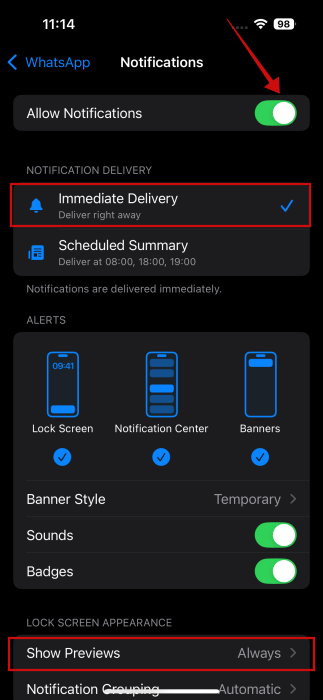
If you have a iPhone, open Settings -> Apps -> WhatsApp -> Notifications.
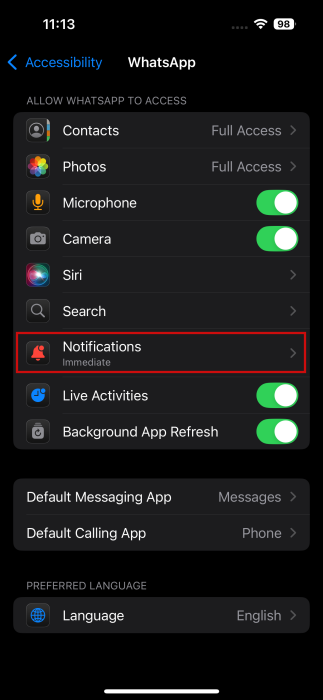
Enable the toggle next to Allow Notifications. Select the Immediate Delivery option below. Also, make sure that all alert types are selected under Alerts, and turn on the toggle for Sounds. Then, tap on Show Previews and select Always.
Tip: here’s how you can easily put your phone to sleep by using the double tap gesture on your Android’s display.
2. Turn Off Do Not Disturb
If Do Not Disturb is enabled on your phone, you will not see call or message notifications from WhatsApp or any other app. You must turn off Do Not Disturb on your phone as shown below.
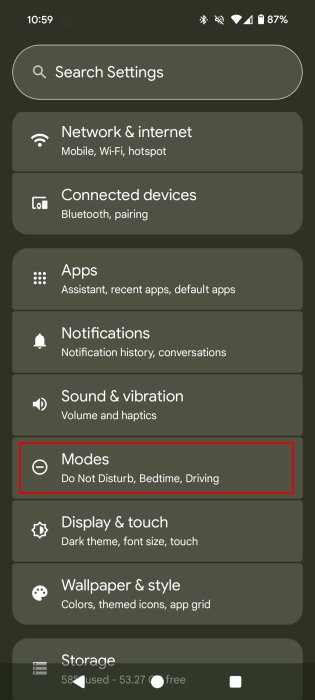
On Android, go to Settings -> Modes.
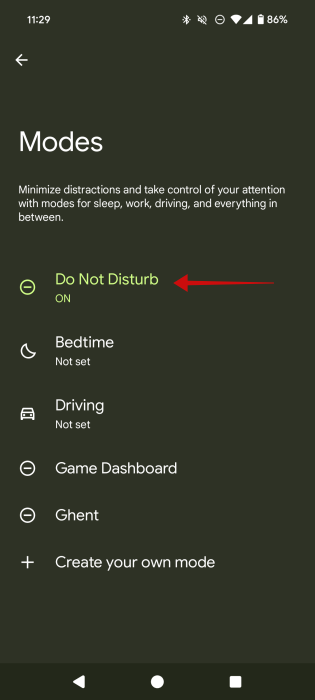
Select Do Not Disturb.
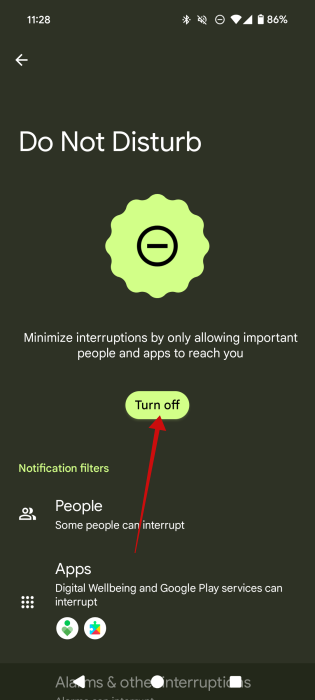
Tap on Turn off.
Tip: on Samsung Galaxy phones, go to Settings -> Notifications -> Do not disturb. Turn off the toggles next to Do not disturb and any schedule. You should also check whether any mode is enabled under Settings -> Modes and routines.
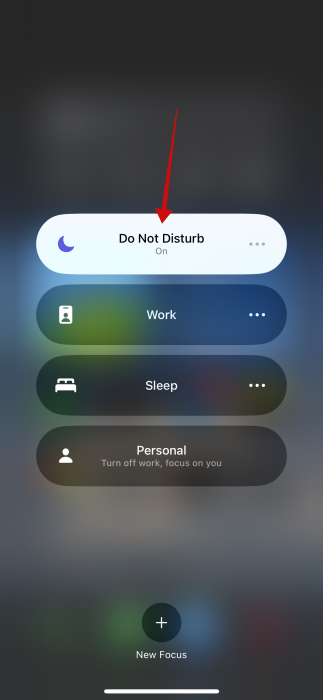
On iPhone, the Do Not Disturb mode is under Focus modes. You must turn off any active focus mode like Do Not Disturb, to fix the issue of WhatsApp calls showing a black screen.
Open Control Center on your iPhone by swiping from the upper right part of the screen.
Tap on the Focus or Do Not Disturb tile.
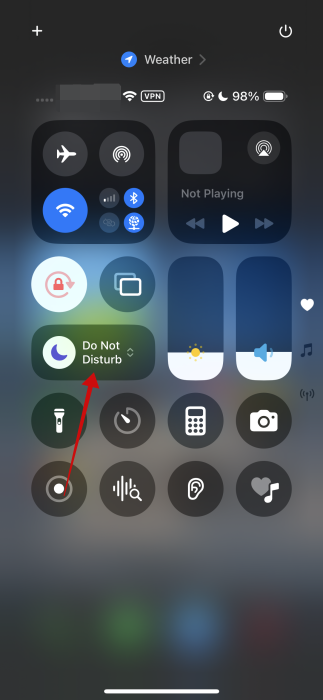
Tap on the active focus mode to turn it off.
3. Enable Background Data
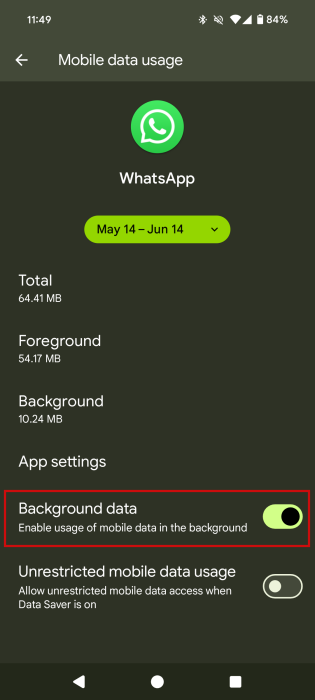
WhatsApp recommends keeping the background data turned on and not restricted for its notifications to work properly.
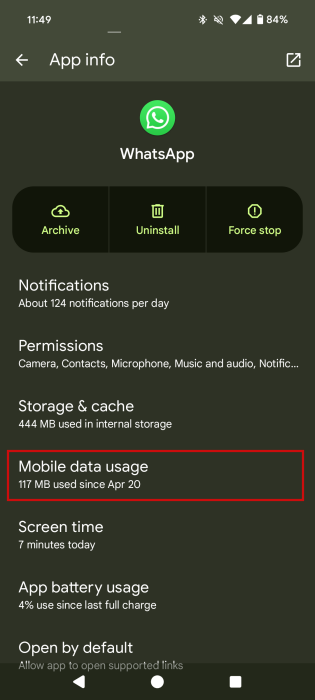
On your Android phone, go to Settings -> Apps -> WhatsApp.
Tap on Mobile data usage.
Enable the toggle next to Background data.
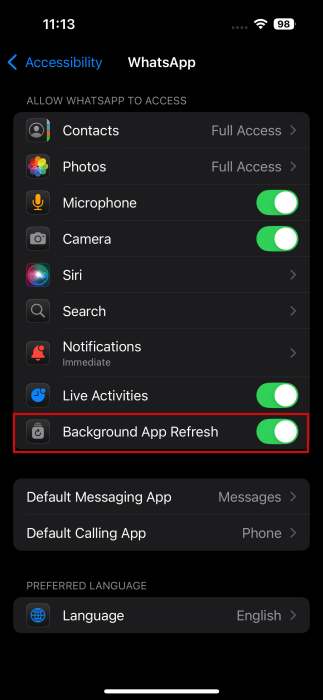
On your iPhone, open Settings -> Apps -> WhatsApp.
Enable the toggles next to Background App Refresh.
4. Clear Cache (Android)
On Android phones, try clearing the cache for the WhatsApp app.
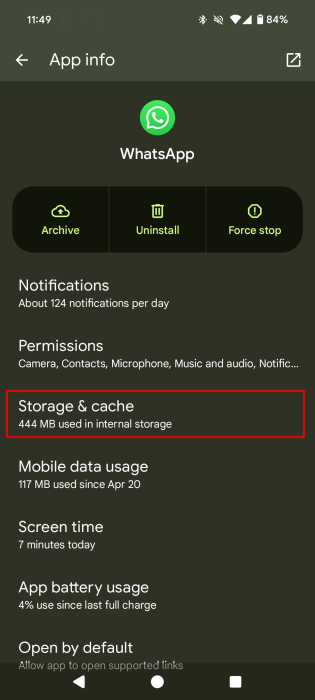
Go to Settings -> Apps -> WhatsApp on your device.
Tap on Storage & cache.
Follow that up with pressing the Clear cache button.
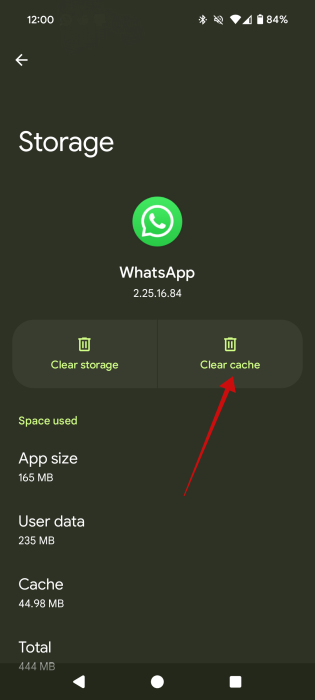
After clearing the cache, restart your phone.
Tip: check our best tips for extending your iPhone’s battery.
5. Turn off Battery Saver Mode
Battery Saver or Low Power mode could also be causing WhatsApp calls to show a black screen while ringing. To fix it, try turning off these modes on your phone.
On Android, navigate to Settings -> Battery -> Battery Saver.
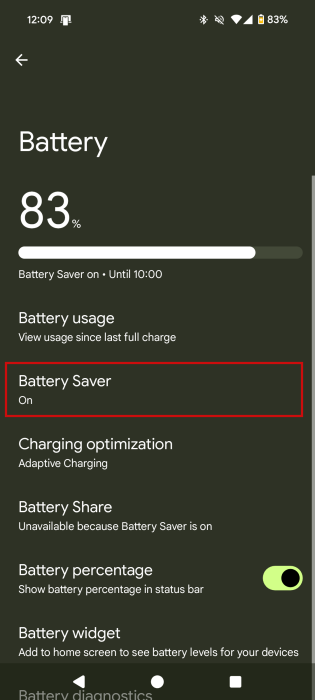
Turn off the toggle next to Use Battery Saver.
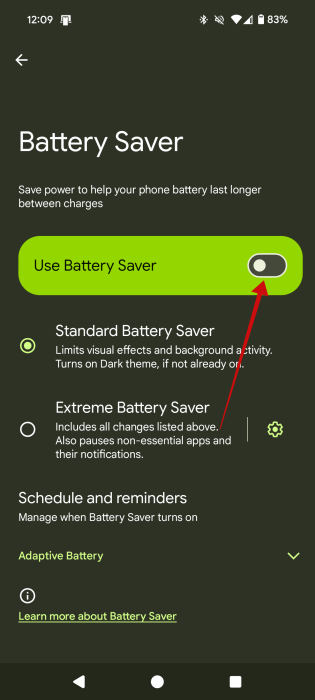
Tip: on Samsung Galaxy phones, go to Settings -> Battery and device care -> Battery. Turn off the toggle for Power Saving.
On an iPhone, go to Settings -> Battery.
Toggle off the Low Power Mode option.
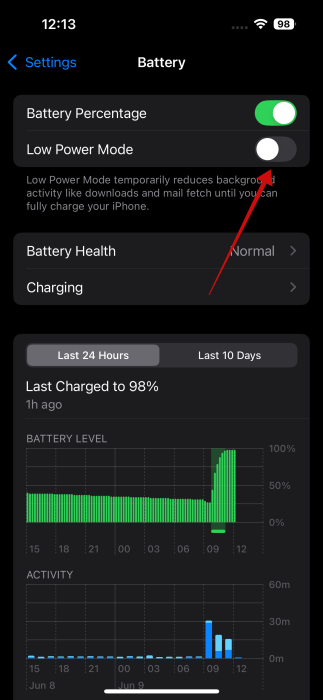
Note: when Low Power Mode is enabled on your iPhone, the battery icon will turn yellow.
6. Extend Screen Timeout
If you have a short screen timeout set on your device, and the WhatsApp call is ringing for some time, the screen might go black after a while. To avoid such a scenario, extend your screen timeout period.
On Android, go to Settings -> Display & touch -> Screen timeout.
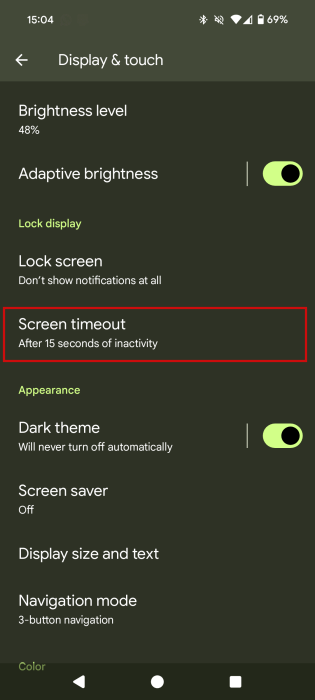
Select a longer timeout period. You might also want to enable the Screen attention option.
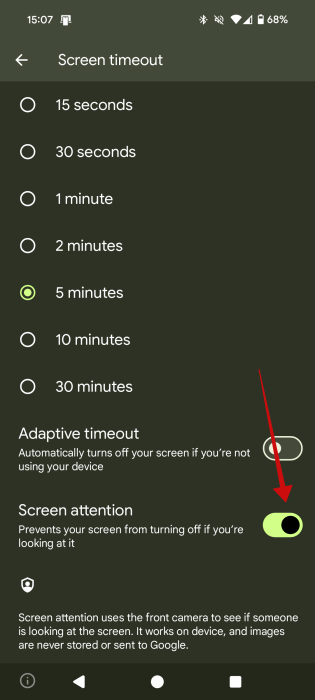
On iPhone, the feature is called Auto Lock. Find it under Settings -> Display & Brightness.
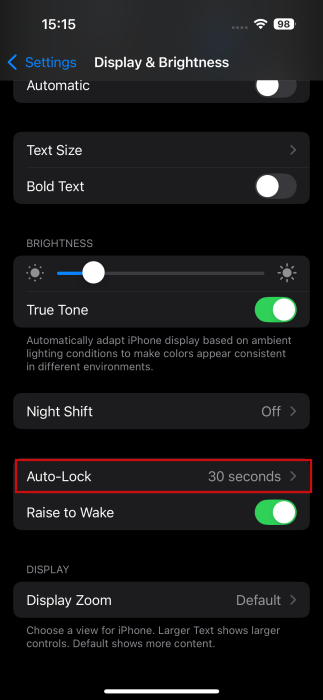
Change it to cover a longer period of time. You can also opt to set it to Never.

Tip: learn all about installing and using WhatsApp on your PC.
7. Log Out from Connected Devices
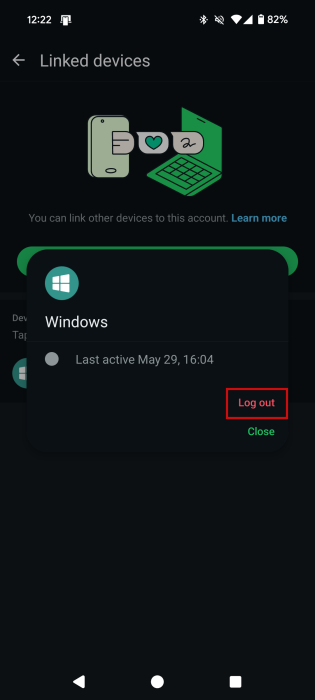
If you are also using WhatsApp on linked devices, like a computer, try logging out of WhatsApp from the other device.
Open WhatsApp on your Android or iPhone.
On Android, tap on the three-dot icon at the top and select Linked devices.
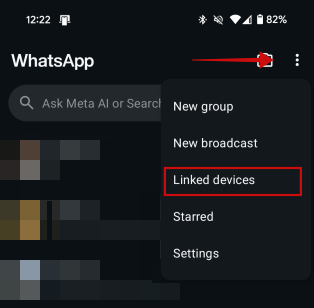
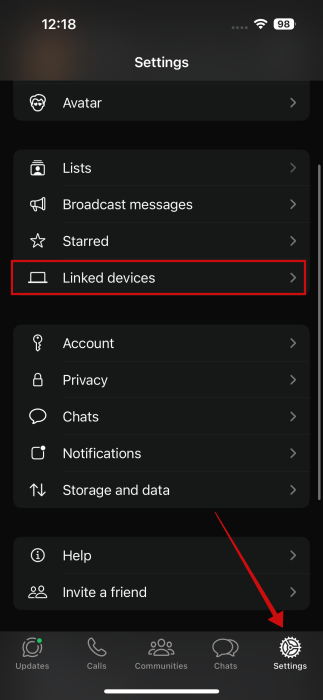
On iPhone, tap on Settings at the bottom and select Linked Devices.
Tap on the device from which you want to log out.
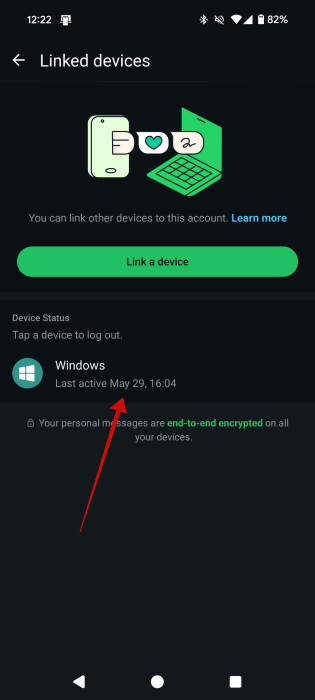
Select Log out in the popup.
8. Reset Settings
As a last resort, reset the settings on your phone to fix the WhatsApp calls not showing on the screen. Doing so will restore all the settings to their default values (i.e., Wi-Fi passwords will be deleted, permissions will be reset, and so on). However, nothing will happen to your personal data.
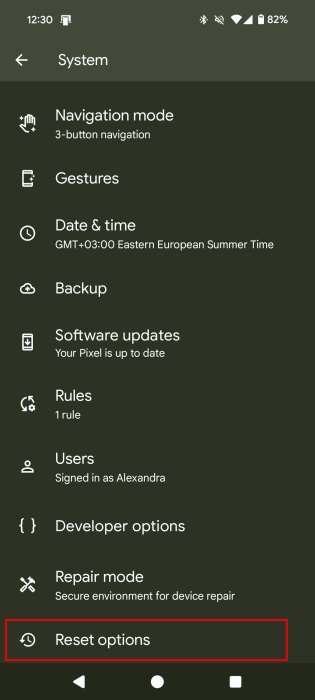
On Android, go to Settings -> System -> Reset options.
Tap on Reset app preferences.
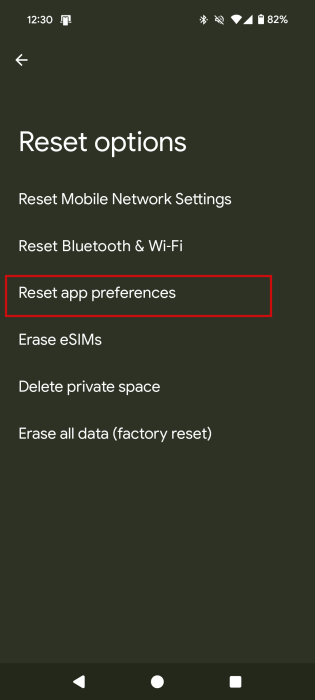
Hit Reset apps again in the popup.
Tip: on Samsung Galaxy phones, go to Settings -> General Management -> Reset -> Reset all settings.
On iPhone, navigate to Settings -> General -> Transfer or Reset iPhone.
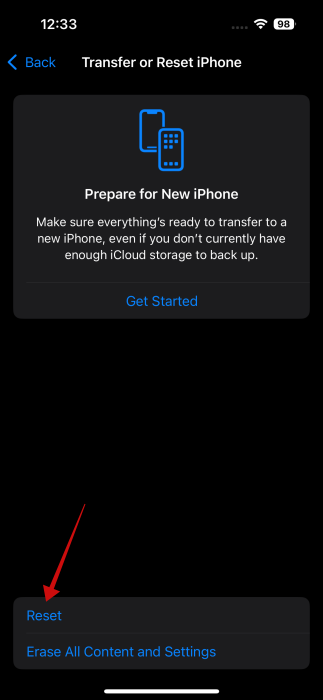
Tap on Reset.
Follow that up with Reset All Settings.
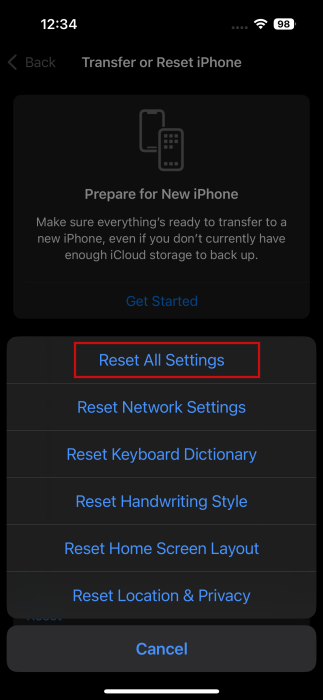
Tap on Reset All Settings in red at the bottom to finalize the operation.
9. Reinstall WhatsApp
If nothing fixes the issue, you must reinstall WhatsApp. For that, you must first uninstall WhatsApp from your phone, then reinstall it. Do create a backup of your WhatsApp chats before uninstalling the app, as you will lose your data.
Frequently Asked Questions
How can I stay on a WhatsApp video call while using other apps?
Minimize WhatsApp by pressing the Home button, or go to your home screen by using a gesture. That will automatically enable picture-in-picture mode on WhatsApp, letting you stay on your video call while using other apps.
Can you record WhatsApp calls?
Yes, you can. Read on to learn how to record WhatsApp audio and video calls.
Can WhatsApp calls be scheduled?
You can kind of schedule WhatsApp calls using the call link feature. Basically, you need to share the call link with the person and tell them to click on the link at the scheduled time. The call will automatically start at that time, without anyone actually calling the other person.








