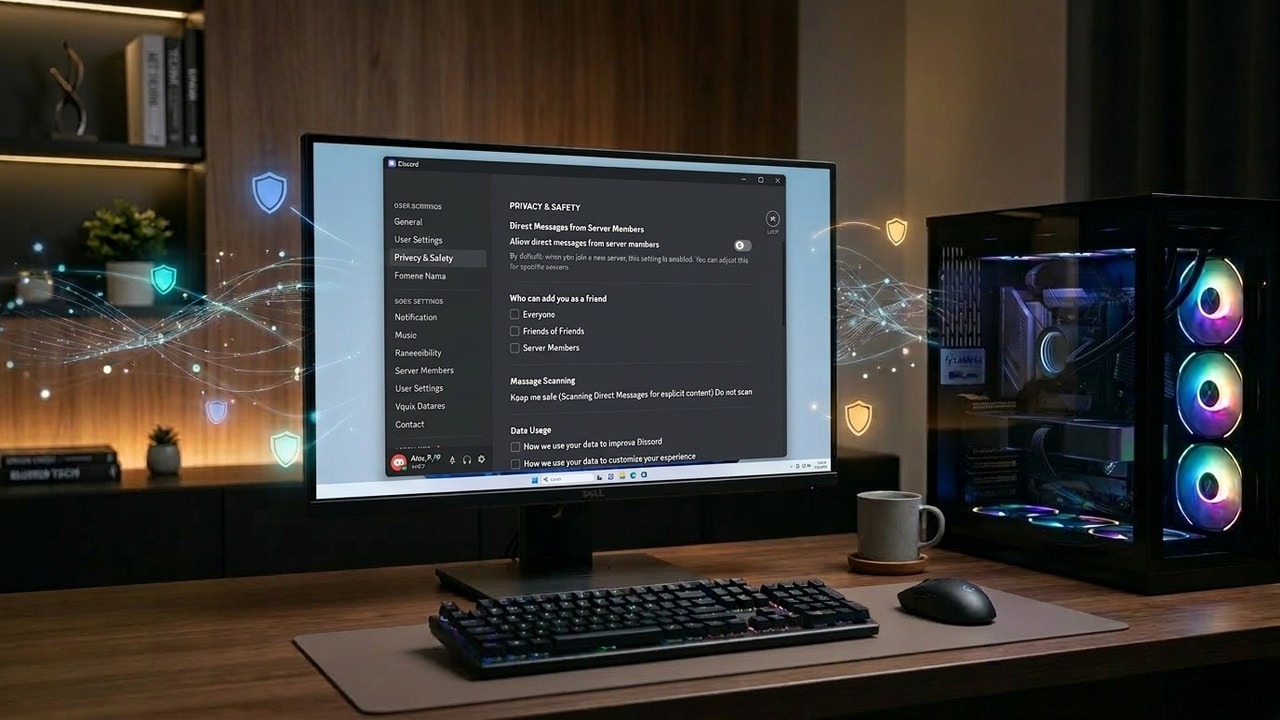
While Discord makes socializing easy, it often trades user privacy for that convenience. Like most other people, I mainly use the platform to coordinate with friends and guildmates during games, so many of these features felt like vulnerabilities rather than perks. To fix this, I adjusted a few key settings to boost my privacy without sacrificing the usability I rely on for my gaming sessions.
Stop Discord from Collecting my Data
Telemetry is the first thing I disable in every app. Not only do I find tracking my usage behavior creepy, but I also don’t trust companies with my data, as they get hacked all the time. So I keep data sharing limited to essential data required for the app function. Discord tracks your activity to improve its services and even shares it with third parties to improve its Quests recommendations. If you don’t heavily use Discord Quests, you can safely disable telemetry.
Click on the Gear icon at the bottom of Discord to access User Settings. Here, move to the Data & Privacy section to disable the following options:
- Use data to improve Discord
- Use my Discord activity to personalize Sponsored Content
- Use third-party data to personalize Sponsored Content
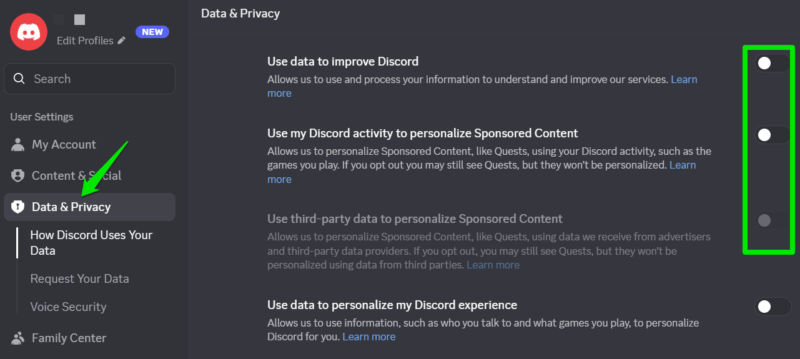
You can also disable the Use data to personalize my Discord Experience option if you want. This one does impact your experience directly, as you won’t see personalized suggestions in the Active Now and Discover tabs. I personally don’t mind this minor downside as I don’t actively depend on Discord suggestions.
Prevent Others from Recording my Voice
When on call, I definitely don’t want my voice recorded randomly when I am just having fun and may say stuff I don’t want publicized. While I can’t stop people from recording the coms using third-party tools, I can definitely disable it for the Clips feature in Discord that most Discord users use.
You can also disable it if you want to prevent others from recording your voice without consent. Go to the same Data & Privacy option again and disable the Avoid my voice to be recorded in Clips toggle.
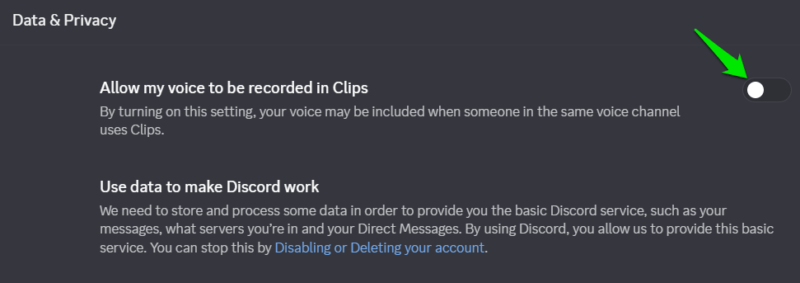
Afterward, your voice will be muted in all Clips recorded by others.
Stop Tracking via Connected Apps
Discord offers powerful third-party app integration, but they also reveal way too much information about you. Many of these connections make your personal accounts public, like Reddit, X, or Facebook. This can be a huge problem as it lets bots scrape your account and strangers targeting you personally.
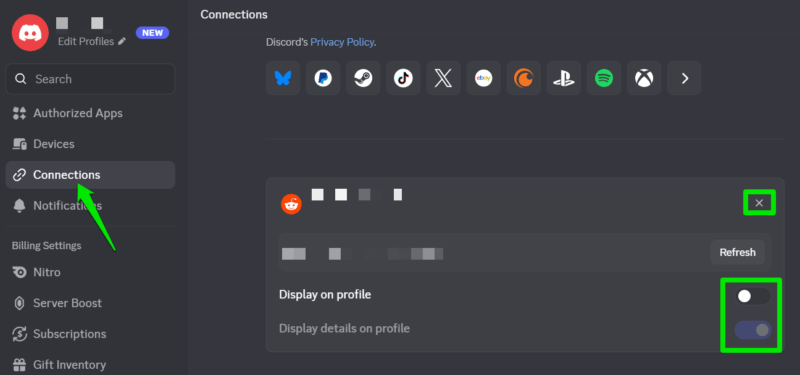
For example, I have connected my Reddit account for server verification, but I don’t want random people to know my Reddit username.
I recommend you to avoid connecting accounts if possible to avoid both Discord tracking you across platforms and strangers cross-platform stalking you. If you must connect accounts, disable their visibility on your profile instead. Unless it’s an app that must display information on the profile to function, like Spotify.
To do so, open User Settings and move to the Connections section. Here, either click the cross button to unlink accounts or disable the Display on profile and Display details on profile toggles on your accounts.
Hide My Activity From Other Users
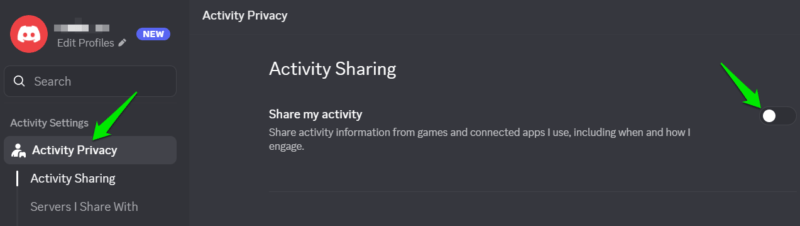
By default, Discord scans your PC processes to detect what game you are playing and shows it to everyone in your servers. While useful, I find it privacy invasive, as everyone can see exactly what games I play, which can possibly influence interactions. If you don’t depend on other users joining you in-game using your activity, you should disable it to improve privacy on Discord (and reduce its RAM usage as well).
Go to the Activity Privacy section in User Settings and disable the Share my activity toggle. If you don’t want to block your friends from seeing your activity, select Do not share under Server | Share With section. Now only your friends will see your status and the servers you individually allow to share with.
Stop Strangers from Sending Friend Requests
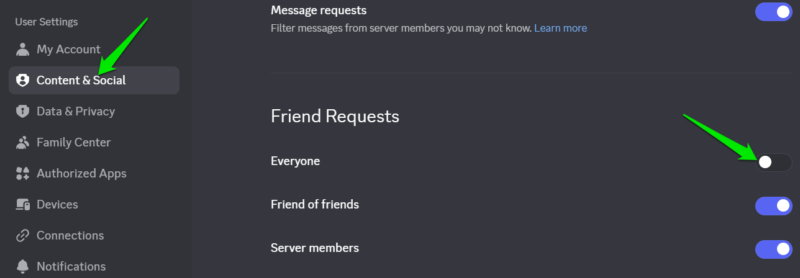
Discord is full of scams and information-scraping bots that scan large Discord servers and mass-send friend requests to find targets. If you want to minimize the risk of getting a bot that may steal your information and use it for nefarious purposes, you should disable friend requests from complete strangers.
In most cases, you’ll only receive friend requests from people on mutual servers. The only time I face an issue with this setting is when I find someone outside of Discord to add. However, you can circumvent this by adding them yourself instead of sharing your tag.
Move to Content & Social in User Settings. Scroll to the bottom and disable the Everyone toggle under Friend Requests.
I know many of these changes will seem rather selfish, but they are worth the privacy upgrade, especially considering how Discord botched age verification recently. On the flip side, if you have teens, make sure you take advantage of the Discord Family Center to keep a close eye on them.