

Images are one of the most important elements of a decent website. They grab visitors’ attention, make your content more shareable and compel your users to take action (such as buy your products).
However, adding high resolution images, or those with large file sizes, could render your website slow and deliver poor user experience for the end user. There’s really no excuse for delivering a poor user experience with the plethora of tools out there that can help you compress your images without a noticeable loss in quality and even automate the process for you.
In this article I will show you numerous ways of optimizing images for use on the web and more specifically on WordPress websites.
Pick the right file format
JPEG and PNG are two of the most popular image file formats on the Web. JPEG is a compressed format typically used for photos that contain many colors, while PNGs are a lot better for photos with text, illustrations, logos, screenshots and transparent images. Another common format is the GIF which is best suited to images with few colors or images with large areas of the same color. GIF is mostly used for animated images on the Web today.
Most image editing software allows you to save your file in many different formats. Picking the right format will ensure that you get the sharpest image possible which should enhance the user experience on your website.
Use the right size and resolution
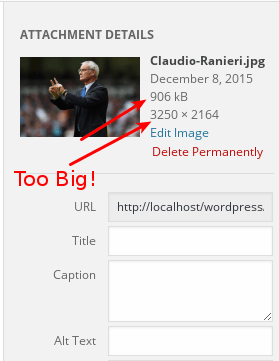
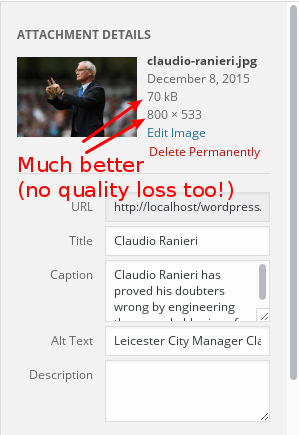
You need to be careful when adding images to your site. It is considered the best practice to save your images at the same width and height that it will appear on the website and at the smallest file size as possible without losing quality.
Compress your images before uploading
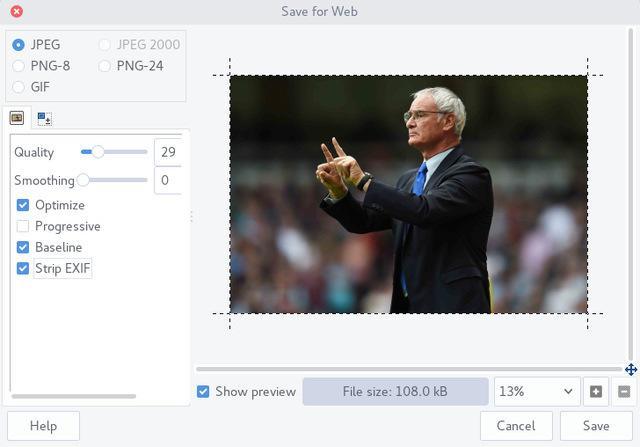
There are many tools out there that will help you compress your images before uploading them to your server. Photoshop for example has a handy “save for Web & devices” feature that will allow you choose the format and quality settings. You will also see the file size for your image when you apply a particular setting. Other image manipulation tools such as GIMP offer similar options.
Online compression tools also exist, such as Picresize, Kraken.io and TinyPNG, where you can upload your high resolution images, optimize them and download the compressed format for use on the Web.
Compress images after uploading
Several plugins exist for this purpose, and one of the more popular ones is WP Smush which helps to optimise JPEG, PNG or GIF formats individually or in bulk using dedicated servers. It simply strips out metadata and unused colors from the files to lower the file size. With the free version you are limited to images 1MB and below, but you can remove this limitation by upgrading to the Pro version which allows up to 5MB.
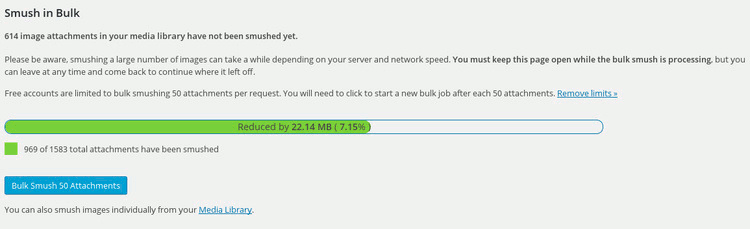
Another great plugin with similar functions is EWWW Image Optimizer which can help you convert your images to the format that produces the lowest possible file size.
There are other ones available on the WordPress repository, so feel free to explore. Those are the two I’ve used previously, and they both work fine, so they should be good enough for you, too.
Tag your images properly
Apart from resizing your images, a great way to provide a good experience on your website is by tagging your images properly. This means always using the “alt” attribute in case your image could not be loaded or for screen readers so that your visitors will get a text-based description of the image. It also helps search engines index images better on your website and may fetch you a significant amount of search traffic.
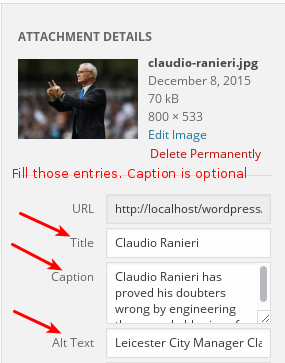
Adding captions where necessary is another great way to help your website visitors understand the image better. Serring proper descriptive title tags and image filenames helps in the same way. So instead of saving your images as “FXSCSUYE.jpg,” use a descriptive title and name with keywords relevant to your topic and website. This is also good from an SEO standpoint.
Lazy-Loading
Lazy Loading is a technique utilized by many websites to save bandwidth by only loading images when a user scrolls to the view-frame of the image. The first few images will load immediately, but others will wait until the user is in the vicinity of the image before loading. Adding this feature to your website will save bandwidth for you and your user and improve the speed of your webpages. BJ Lazy Load is a great plugin to add Lazy Loading to your WordPress website.
Use a Content Delivary Network
Using a Content Delivery Network (CDN) will reduce the load on your server considerably and increase the performance of your website. A CDN will simply serve resources from the server nearest to the location of the user who requests it. For example, if a visitor from Beijing requests an image, and the CDN you’re using has a server located in Seoul and Sydney, the image will be served from the server in Seoul.
Bottom Line
Optimizing images for use on the Web is one of the biggest ways to improve your website’s page load time and overall user experience. If you have any other optimization techniques you’d like to share, please do so in the comments below.