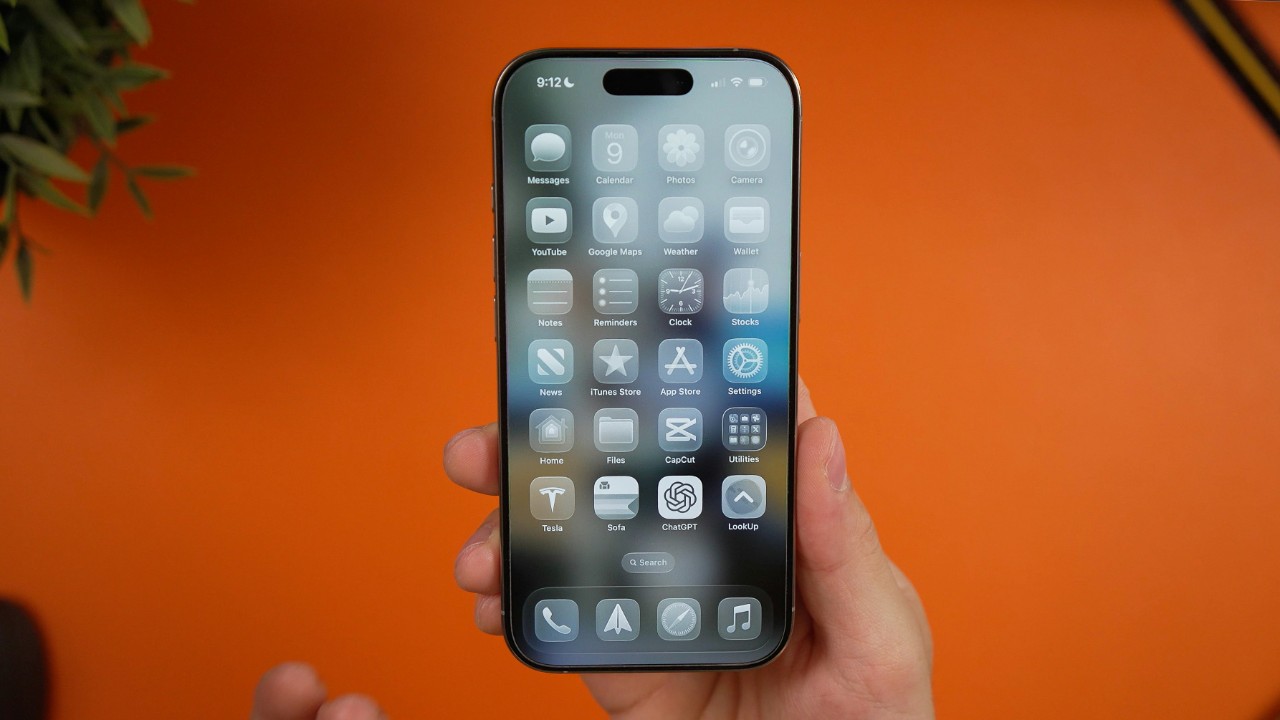
With iOS 26, Apple has allowed you to take charge of more app defaults, including apps you want to use to open files or documents. Learn which categories of default apps can be changed and the different methods required for doing so, giving you more control and flexibility over how your iPhone handles everyday tasks.
Which Default Apps Can You Change in iOS 26?
In iOS 26, you can change the browser app from Safari to apps like Chrome, Edge, Brave, and Firefox for web links and replace the Mail app with Gmail or Outlook.
The same can also be done for apps associated with calling, messaging, call filtering, keyboards, translation, and lastly, passwords and codes.
Passwords & Codes aren’t limited to password managers. They can also be set to be saved by default in web browsers, but setting up codes requires a password manager.
Worth knowing: Password managers are not always safe from attacks.
How to Change Your Default Browser or Email App in iOS
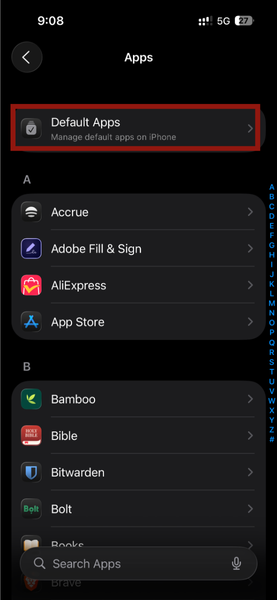
If you’d rather use a different browser or email app instead of Safari, iOS 26 makes that easy. Open Settings and head to Apps.
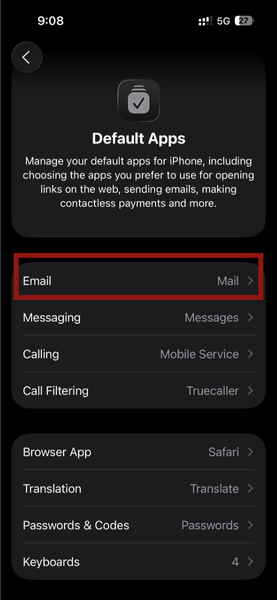
Tap Default Apps, which you’ll usually find near the top of the screen. You’ll see categories like Email, Messaging, Calling, Browser App, and more. Each one lets you set which app opens by default for that task.
To switch your default email app, tap Email to view the compatible apps installed on your phone.
Select the app you prefer, and it’ll automatically replace the default. A blue checkmark will appear next to it, confirming it’s the new default.
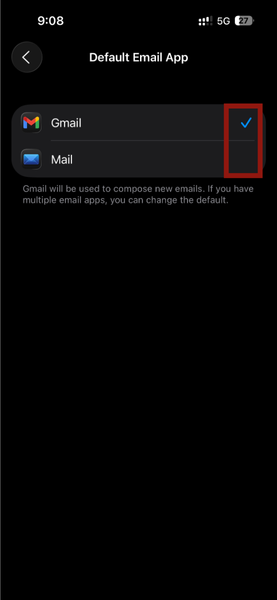
Note: The same steps apply to any other category you want to change. Also, if the app you want to use is not on the list, it most likely has not been updated by its developer to be compatible.
Change the Default App for Opening Files and Documents
If you’re running iOS 26, you can finally change the default app for opening specific file types (like PDFs or .txt), all thanks to the new Preview app.
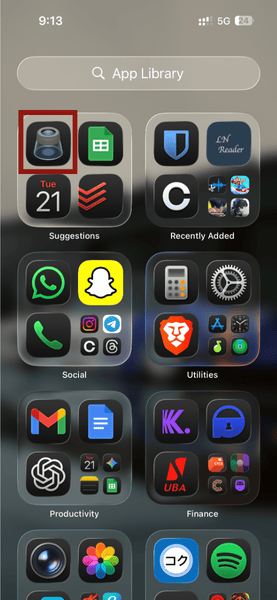
Open the Preview app by searching or opening your app library. This will instantly show you your recently downloaded documents, including those saved in the Files app. Next, find the file you want to change (e.g., a PDF) and long-press it, and a menu will pop up with options.
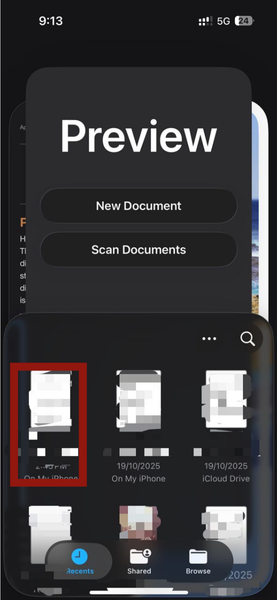
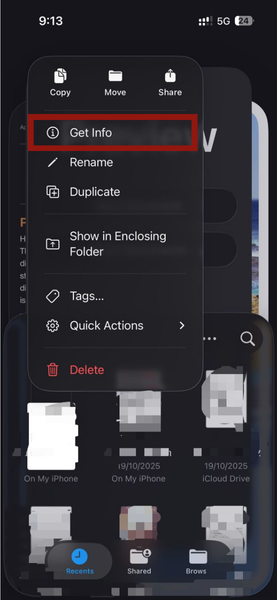
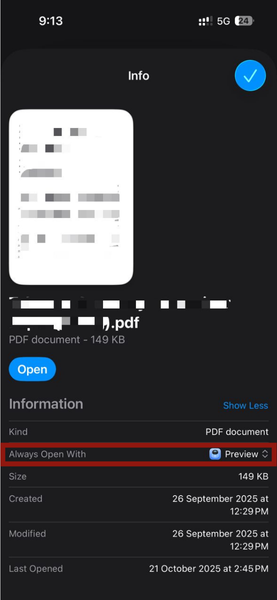
From this menu, tap Get Info. Here you will see details about the file, like its type, size, and when it was created.
Scroll down to the Information section, then select the slider labeled Always Open With. You’ll notice Preview is currently set as the default. Tap it, and a list of compatible apps will appear. Select the app you want to use.
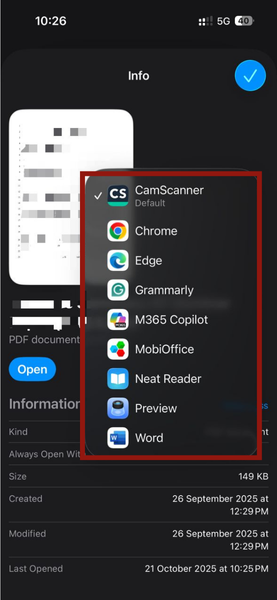
A pop-up will ask you to confirm if you’d like to, Always open PDF document files, Only open this file, or Cancel.
If you want every file of that type (say, all PDFs) to always open in your new app, choose Always open PDF document files. Once you do, your new app will appear next to Always Open With, confirming it’s now the default.
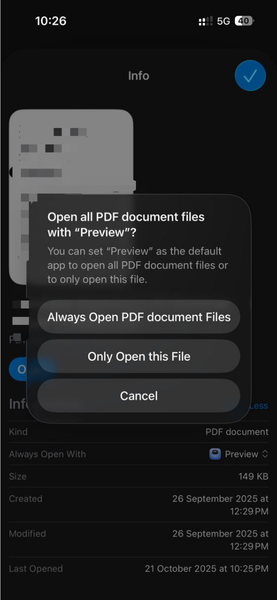
If you want to change this for just a single file, tap Only open this file.
Reset Your Apps Back to Apple’s Defaults
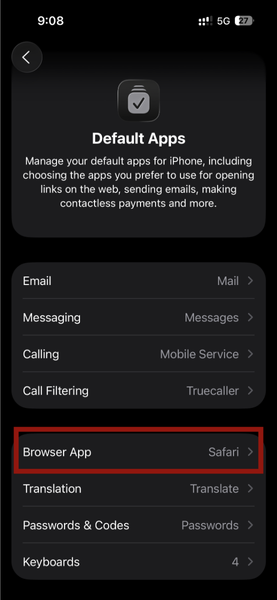
Restoring your default apps is the same process as changing them. For instance, to reset your browser app to Safari, open Settings, scroll down to Apps -> Default Apps.
Select Browser App, and tap on Safari. Ensure the blue check is next to it, confirming that Safari has been restored.
If you’ve changed your default file opener and want to revert to Preview in iOS 26, open the Preview app, find the file you want, and long-press it. Tap Get Info -> Always Open With.
Select the current app listed, choose Preview from the options, and confirm whether you want to Always open this file type or Only this file.
Once you do this, Preview will appear next to Always Open With, restoring it as your default app for opening files and documents.
Apple gives you more control over its phones with the latest iOS 26 update. While that’s not all iOS 26 comes with, as some users have a love-hate relationship with Apple’s latest visual design, Liquid Glass. Thankfully, for those who don’t like it, it can always be toned down.








