Did you know you can create and edit videos directly from your Google Drive? This is done using Google Vids, a free app integrated into Google Drive, much like Docs, Sheets, or Slides. Here’s a brief guide on what Google Vids is and how you can use it to create high-impact video storytelling or upload videos to YouTube.
What is Google Vids
Google Vids is an AI-powered video editing app in Google Drive, available as part of the Google Workspace suite (formerly G Suite). It primarily uses the Gemini AI assistant to perform basic video editing tasks, such as inserting scenes, trimming videos, fetching stock video footage, and more.
Until recently, Google Vids (or simply ‘Vids’) was available only to advanced Google Workspace users, such as those with Business, Education, or Nonprofit accounts. Since late 2025, it has been gradually rolling out to individual Google Drive web users. If you don’t see it right away, wait for the phased rollout to complete.
You can access the feature directly from your desktop on any web browser after signing in to your Drive homepage. On mobile devices, there are currently no standalone iOS or Android apps. However, you can view Vids using a mobile browser, though editing is not available on smartphones or tablets.
Create or Edit Videos With Google Vids
To create new videos with Google Vids, go to your signed-in Google Drive account on a desktop browser.
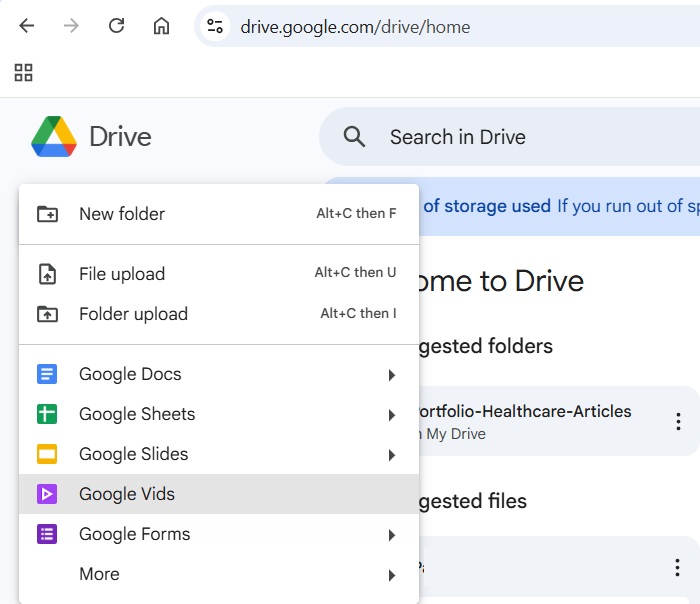
Click the plus New button, and select Google Vids.
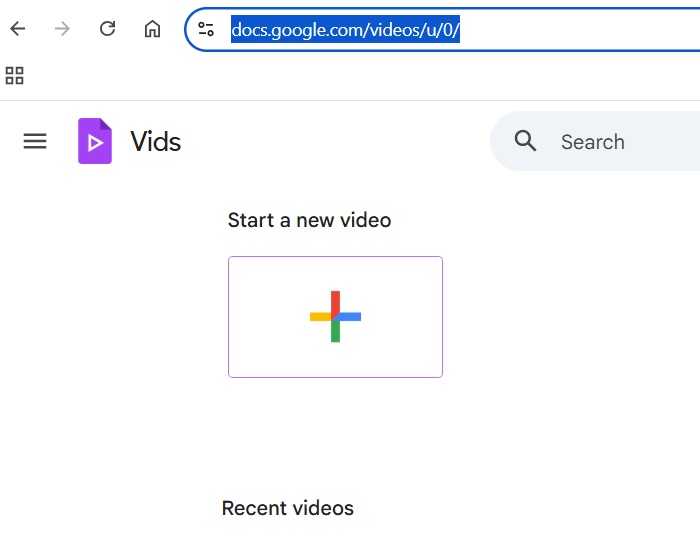
Alternatively, you can visit the direct web link, vids.google.com, and click Start a new video.
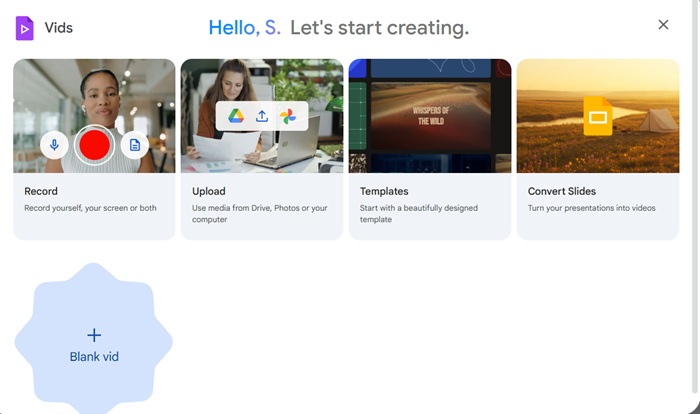
Of course, you can also access Vids from its section on your Google Workspace page. Using any of these methods, you’ll see a main dashboard. Here, you can create a blank video from scratch, record a video with a webcam, upload your own video, start with a template, or convert your PowerPoint slides into a video.
Let’s start with a blank video creation. For that, click Blank vid.
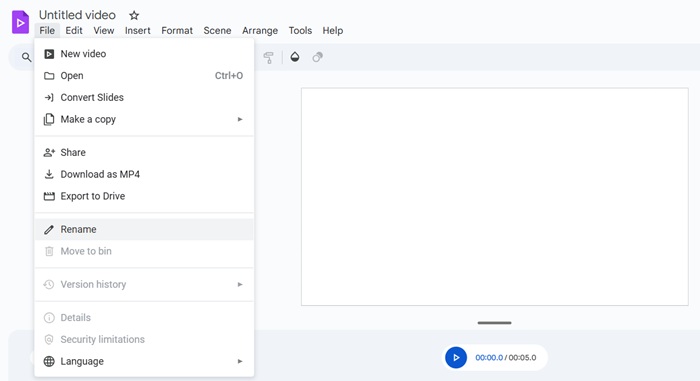
You will see a video editing workflow for Google Vids. It looks familiar to any other video editing software. Click File to access various options such as Rename.
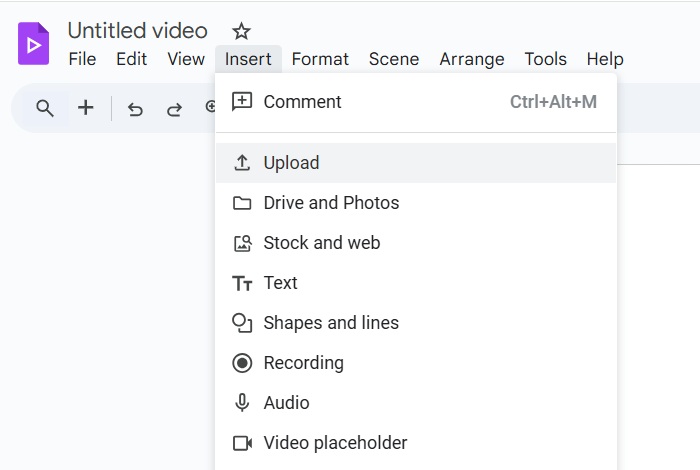
Go to the Insert tab where you can attach various elements to build a scene.
Click Upload to add your own photos, to say, create a collage, or to insert your own videos. If you click Drive and Photos, you can insert images from your Google Drive and Google Photos. Video Placeholder allows you to insert rectangle, oval, teardrop, and other placeholder elements.
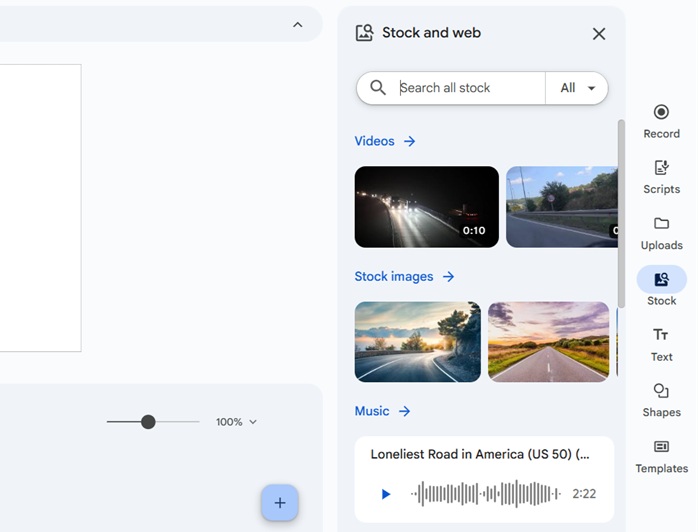
If you’re looking for stock footage, you’ve hit a goldmine. Just click Stock and web to access a ton of stock videos, photos, and music, all royalty-free.
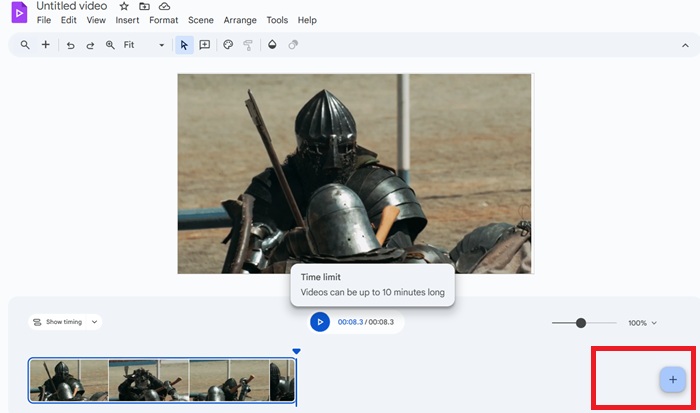
Whatever element you import is visible into the scrolling timeline below. You can adjust the time for each scene here. To jump into a new scene, just click the big plus button towards the right. Or, you can select it from Insert -> New Scene.
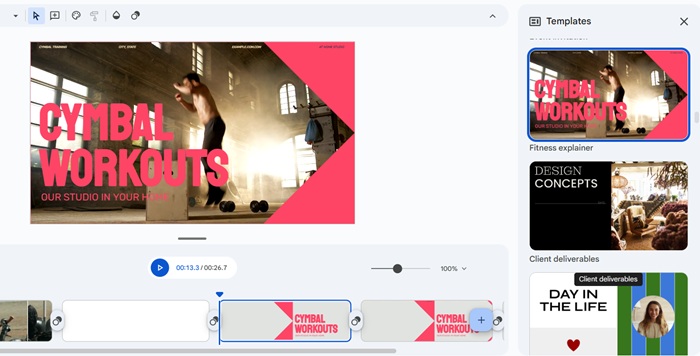
Also, from the Insert tab, go to Templates. Here, you can add some beautiful templates either as pausing elements or as a full-fledged scene.
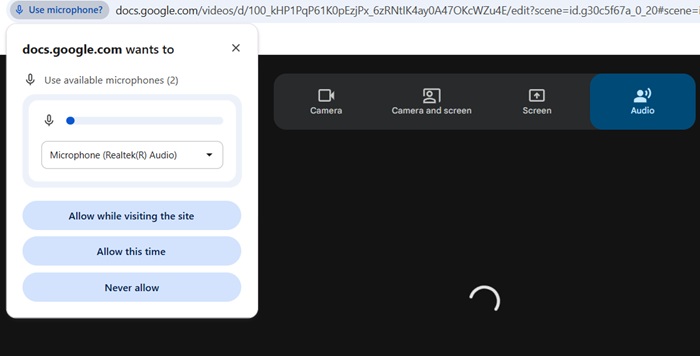
From Insert -> Recording, you can record your own video footage, either using a webcam or with audio alone. You will have to give the browser access to your camera and screen. If your laptop webcam is not up to scratch, you can also use your Android phone as a webcam for sharper recording quality.
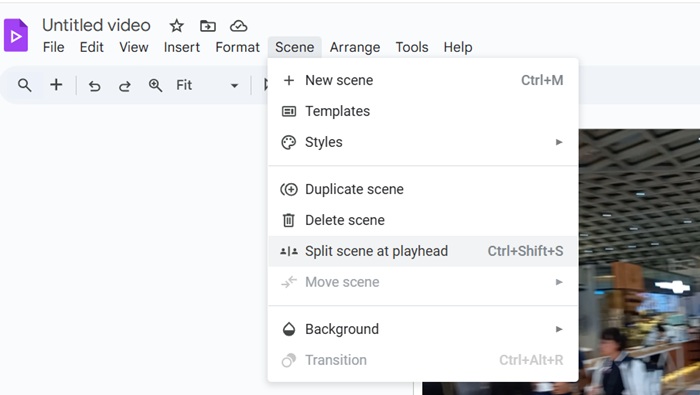
After you’ve created a sufficient number of scenes for a video, go to the Scene tab to have various effects. For example, clicking Split scenes at playhead divides a scene based on your chosen timestamp, similar to Windows Movie Maker.
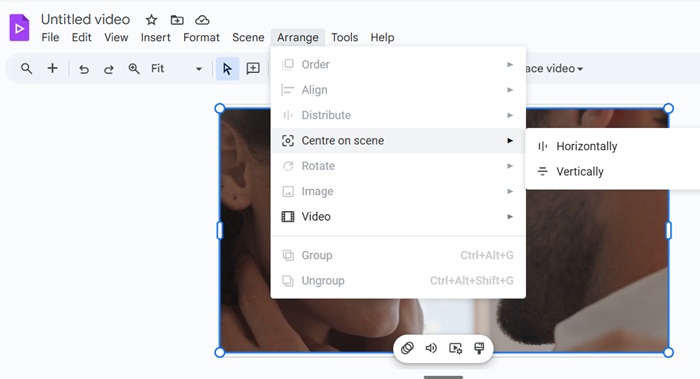
Next, go to the Arrange tab. Here you can set a stock video as a background, group/ungroup various elements, and a lot more.
Keep adding as many scenes as possible. The maximum length of any video you create with Google Vids is 10 minutes at the moment. But it can increase based on your Google Workspace tier, or any account considerations, such as a student.
Once you are done with all the scenes, go to File -> Download as MP4 to save it to your computer. You can also use File -> Export to Drive. Be mindful of your Google account storage limits, especially if you’re on a free tier, as any videos you create will count toward your Drive storage.
There is little doubt that Google Vids is one of the best free tools that comes bundled with your Google Drive account. While it may have a few limitations, such as not supporting advanced video editing capabilities that professionals require, it does a solid job at helping you create a YouTube-friendly video. You can also use it to create YouTube shorts like a Pro.








