With no shortage of language learning apps, it’s still hard to find completely free options. The new Google Translate practice feature could be exactly what you need to boost skills and confidence without paying a single cent.
What You Need to Know About Google Translate Practice
Google Translate Practice is part of the Google Translate app, so you don’t have to download anything else. Instead of just translating a phrase or conversation, it’s designed to help you learn a language based on custom scenarios and your own goals.
It’s backed by AI to help you study with conversations. Use hints if you get stuck.
What sets it apart from other popular free options is there aren’t any limits. You don’t get penalized for making a mistake. You don’t have to deal with numerous pesky ads to upgrade to a premium version. And, you don’t feel pressured to keep up with streaks or other forms of gamification. Practice on your own terms when you have time.
The practice feature is rolling out to both iOS and Android users in August 2025. It’s still in beta, so not everyone may see it just yet.
Practice Limitations
At the initial release, Google Translate practice is fairly limited. For English speakers, it only supports learning Spanish and/or French.
If you’re trying to learn English, it only supports French, Portuguese, and Spanish speakers learning English.
Google doesn’t have a public timeline for when other languages may be supported.
One more thing to keep in mind is since this is AI-supported, you may run into errors. If you’re ever in doubt, consider downloading a free dictionary app for the language you’re learning. This helps you verify words and phrases.
This is only available in the Google Translate app. Google does offer other language learning options for web users. Of course, you can always use Translate in Chrome to translate web pages and learn that way. If Chrome’s translate option isn’t working correctly, try these troubleshooting methods.
Setting Up Your Practice Session
Update your Google Translate app to the latest version. Even after updating, I had to completely close out of the app and go back in for the practice button to appear.
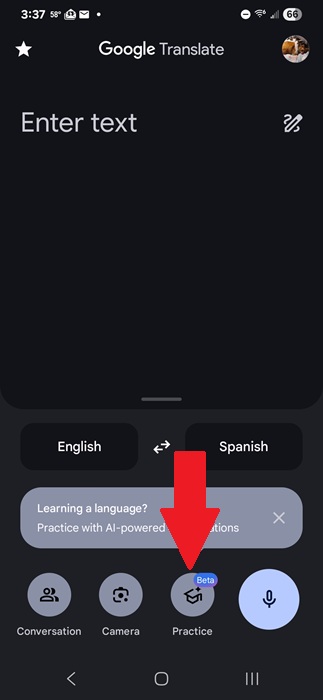
Open the app and tap the Practice button. Tap Get Started to agree to the Beta Experience.
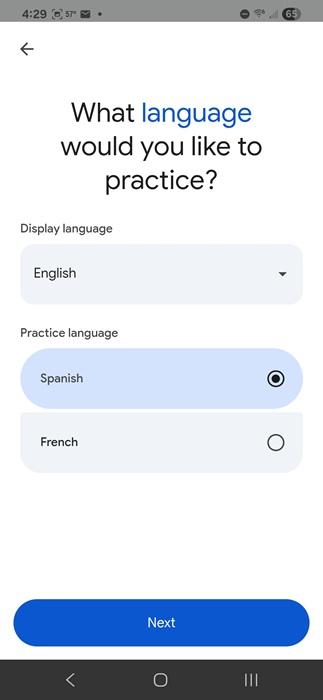
Choose your Display language and Practice language. Tap Next. The following screens help you set up your customized practices.
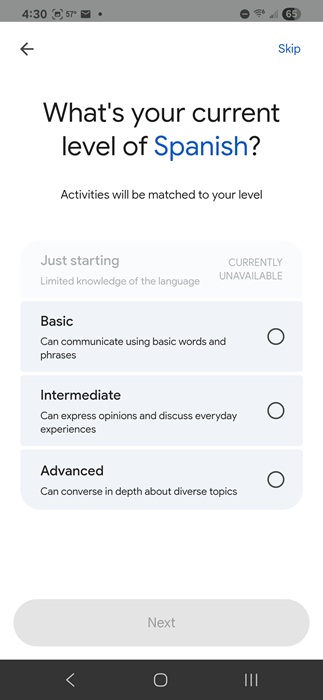
Choose your current skill level. During the beta phase, the Just starting option isn’t available. But, with available hints, even complete beginners should be okay starting with Basic.
Finally, select a goal. Select from any of the suggested options, describe something else, or tap Skip at the top right to skip this step. Tap Start practicing when you’re ready.
Exploring Your Language Learning Options
Everyone’s experience will be different. Google Translate customizes your practice options based on your goals and skill level. If you ever want to change your goal, tap the Goal box at the top of the practice screen. Change the goal or add more goals if you want.
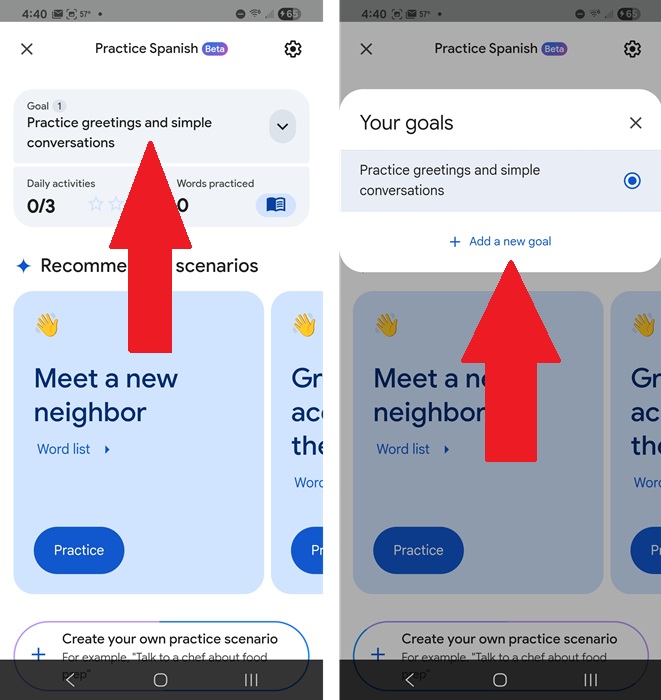
I chose everyday interactions as my original goal. So, to start me out, Google Translate practice gave me scenarios around greetings and basic conversations.
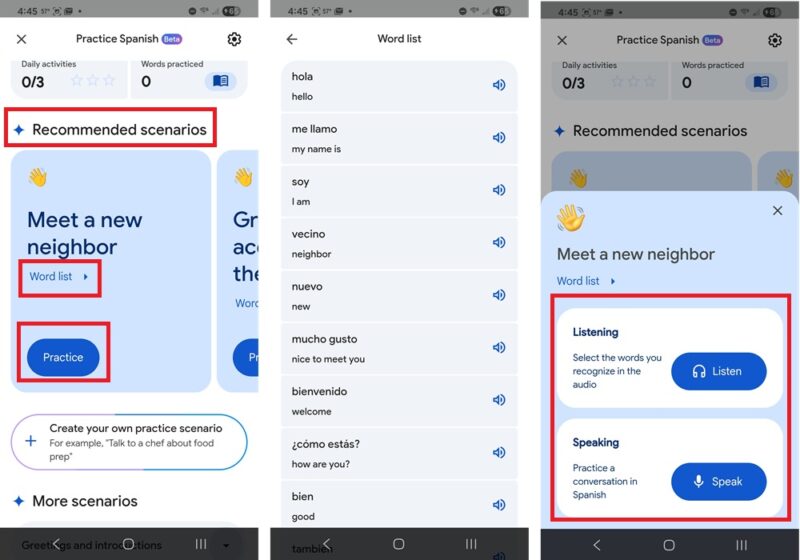
The Recommended scenarios section lists three scenarios to help you practice and learn a language. Tap Practice on any of them to get started. Or, tap Word list to view words you’ll learn and use within the practice. The word list lets you hear every word, which is ideal if you’re not sure how to pronounce something.
When you tap Practice, choose between Listen and Speak. Both let you practice your conversational skills. I recommend starting with Listen to better familiarize yourself with the words. Then, jump to Speak to practice your pronunciation.
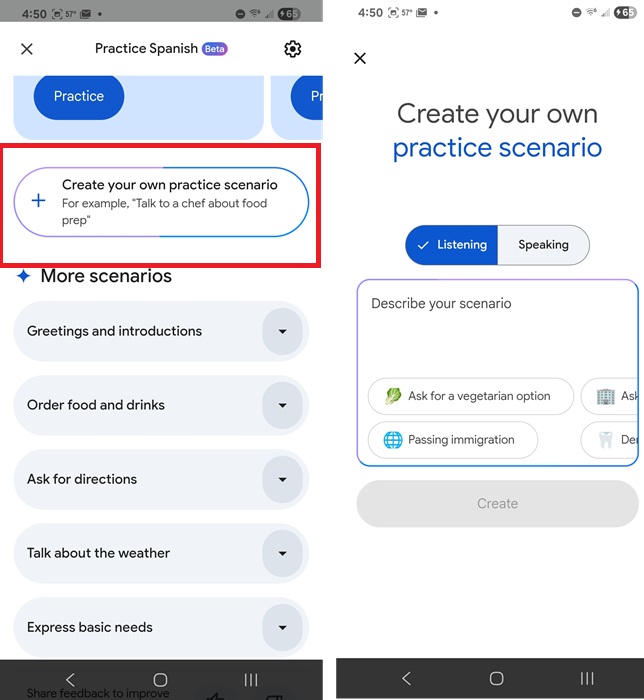
My favorite part is creating your own Google Translate practice scenarios. Just below the recommended section, tap Create your own practice scenarios. Describe the scenario or choose from a suggested prompt. You also get to choose between listening or speaking practice. Tap Create when you’re done.
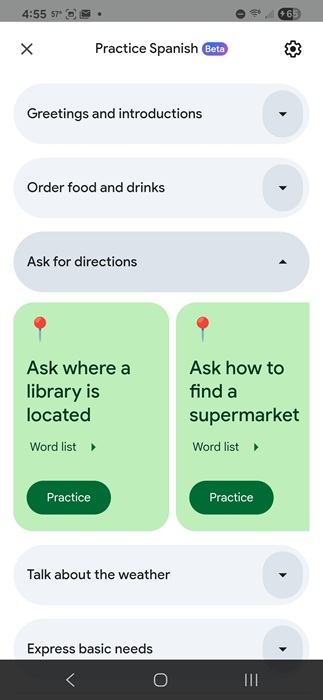
If you scroll down below this section, you’ll see even more scenarios to try out. Expand any option to view different scenarios to practice. Tap Practice to start any one you want. You don’t have to do them in any specific order.
All the words you learn are saved to your account to view at any time. Just tap Words practiced at the top of the Practice window.
Other Ways to Learn With Google Translate
This isn’t the only way to learn a language with Google Translate. Tap Conversation to translate conversations back and forth. You don’t need a native speaker to help you, though that’s beneficial.
Instead, find videos in the language you want to learn. Use Google Translate to translate the conversations. You’ll see them as they’re spoken along with the translation to your native language. This helps you learn various words and phrases.
Google Translate has also added Live Translate. It’s not available to all users just yet, but is rolling out. If it’s available, tap Live translate to get started. This works similar to conversation, but it’s faster, allowing you to have real-time conversations in different languages easier.
The best part of this feature is you can save the transcript to help you study the language later.
If you want to verify anything from Google Translate practice, try some other free online translators. Or, keep studying more with these language learning apps.








