Google is introducing a new ability for Gemini: the AI can now remember your past chats by default. On the surface, this sounds helpful since it makes responses feel smoother and more tailored. While this can be useful, it’s also unsettling if you value privacy. If you’re uncomfortable with your chats being stored, this guide will show you how to stop Gemini chat memory and manage your history.
Why Gemini Remembers Your Chats
The new memory feature is called Personal Context. It allows Gemini to draw from your past conversations to create more refined and relevant responses, rather than starting every conversation from scratch.
For example, if you’ve discussed workout plans before, it might weave that into your new health-related queries.
While that might sound convenient, not everyone wants an AI assistant to remember their past. Especially when Google’s privacy policy, as explored here in preventing AI data training, warns that chats may be stored for up to three years or used for AI training.
Also, there’s no clear way of knowing what Gemini stores, which can lead to irrelevant and uncomfortable responses. I found this lack of control concerning, and you might too.
This is just being rolled out to the 2.5 Pro model for now and will later be extended to 2.5 Flash. Notably, it isn’t available in places like the UK, where the privacy law is strict, or for users under 18, which adds to its inconsistency.
Turning Off Gemini’s Memory
Thankfully, Google does give you the option to stop Gemini’s chat memory. Here are the steps:
Open Gemini on the web or app and go to Settings. Select Personal Context and toggle off Your past chats with Gemini.
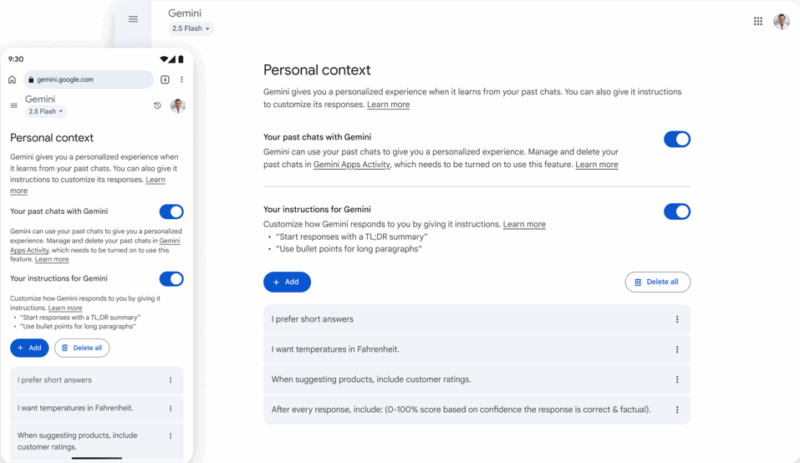
Once you disable this setting, Gemini will no longer log or use your old conversations. Hence, keeping it helpful in real time without building a long-term record. If you’ve disabled Gemini within Gmail or Google Workspace apps, the process will feel very similar.
FYI: Disabling this won’t affect chats already in use for AI training.
Use Temporary Chats for Privacy-First Conversations
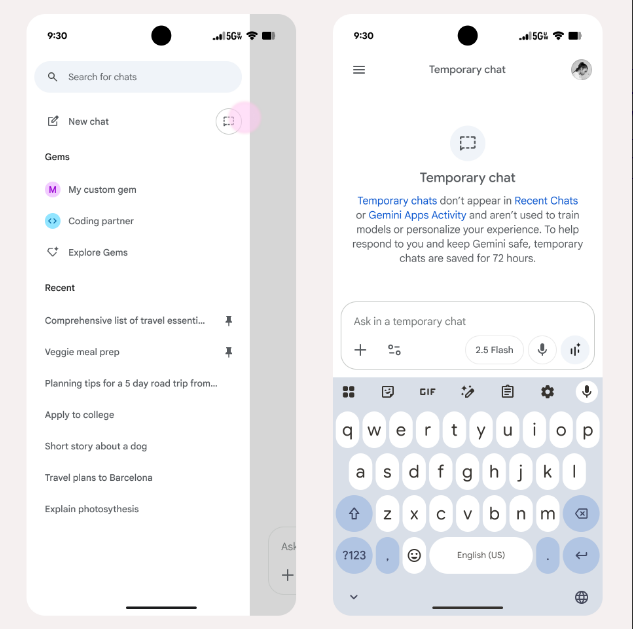
For one-off questions where you prefer Gemini not to store anything, use the Temporary Chat. It’s like an incognito mode for Gemini.
When enabled, your chats won’t be stored or used to train AI, and they auto-delete after 72 hours. This is perfect for quick queries, like asking about a quick tech tip without it being stored in my history.
To use this feature, open a new prompt and select the Temporary Chats icon beside New chat.
It’s also ideal for sensitive topics or just exploring how advanced Gemini’s reasoning skills have become.
Managing and Deleting Gemini Chat History
Even with the memory off, you might have old chats stored. Hence, you may need to review and delete specific past chats from your Gemini’s activity page rather than nuking the memory entirely.
Go to Profile -> Gemini Apps Activity on the app, or Settings -> Activity on the web.
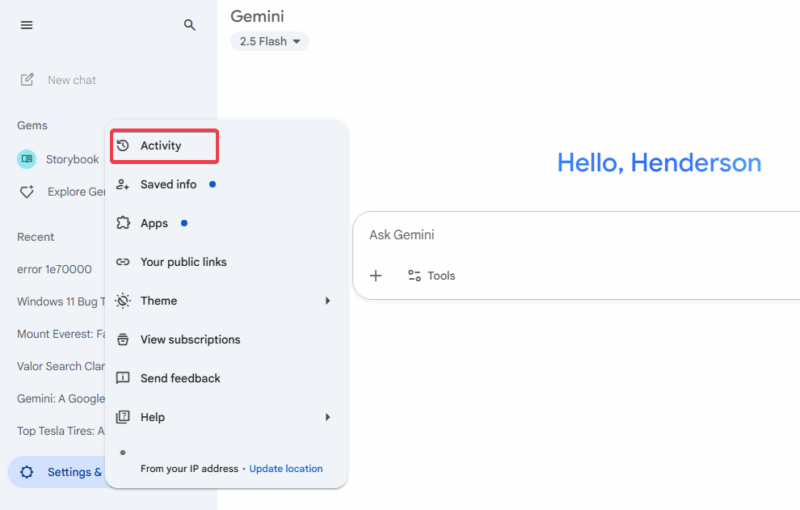
Find the specific chats and click X to delete them.
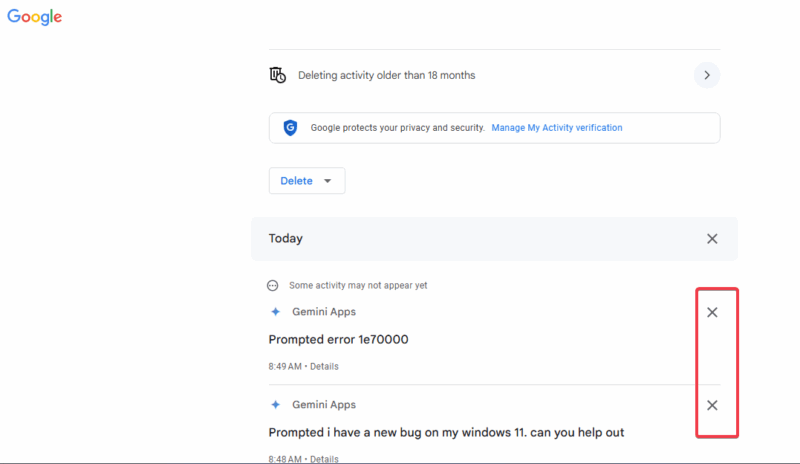
For a clean slate, Google is adding Keep Activity to replace Gemini Apps Activity, which controls whether your data is stored for service improvement. You don’t have to bother adjusting this if you already turned it off. It’s just a name change.
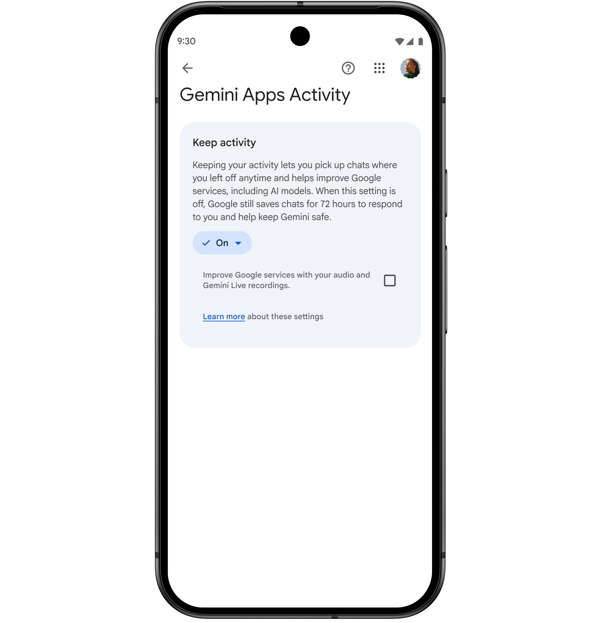
Besides, you can maintain your previous preference on auto-delete of old data between 3, 18, or 36 months. I set mine to 3 months to keep things tidy.
Extra: If you’re using Gemini on apps like WhatsApp, check out how to disable its access to your messages on Android.
Extra Tips to Manage Gemini Data
Apart from stopping Gemini’s chat memory, you can try these extra tips to protect your data.
- Always review your activity settings monthly. With most updates, Google returns settings to default. So, you have to change them back to your preferences.
- Try to delete old chats often, even if you trust Gemini. A clean slate is safer.
- Don’t share personal details with Gemini; it’s not your diary. And if you must, use the Temporary Chats feature.
Staying proactive keeps your data in check and your chats private. If you like experimenting with new features, check out how to use Gemini Advanced for free to test the premium features.
Gemini is getting smarter, but that doesn’t mean you have to accept every change. By turning off the personal context feature and managing your history, you can stop Gemini chat memory and be in control of your conversations. Gemini may be getting smarter, but your privacy should always come first.








