

Regardless of what adblocker you might be using, it’s always good to know how to work your way around these program’s better features. For the sake of this article I’ll be focusing on my adblocker of choice, uBlock Origin, but know that the other popular solution, AdBlock Plus, works just about the same for the features I’ll be telling you about. Let’s get into it.
Using Third-Party Filters
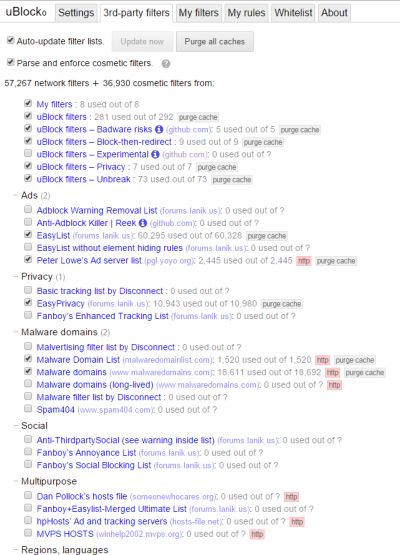
Heading to the Settings of your adblocker of choice should give you a list of the filters being used. A lot of these filters are maintained by third parties. A few are handled by the actual creator of your extension, but others are used as well.
These filters can be modified to block more than just ads – they can also block sites detecting adblockers, trackers, malware domains, social media plugins, and more. There are also whitelists for certain countries and languages.
You have the ability to add custom lists of your own by uploading the list to a server as a .txt file and linking to it.
Whitelisting and Blacklisting
Whitelisting deals with a list of websites that you disable your adblocker for, while Blacklisting deals with specific domains or page elements that you have explicitly blocked.
Your whitelist on your adblocker can be changed on a page-by-page basis. For instance, you may choose to use your adblocker on this very page to whitelist this domain if you’d like to support us. This functionality can also be found in Settings with a full list of the sites you have whitelisted.
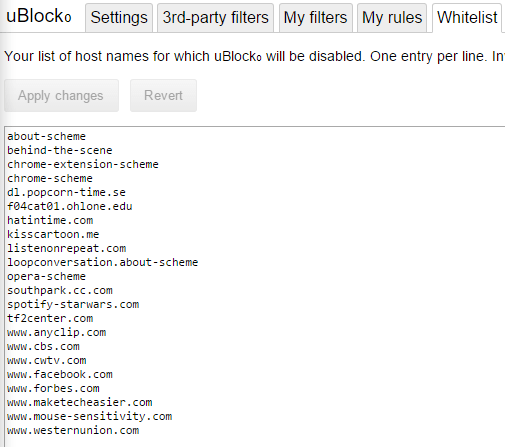
At times you may be forced to whitelist your adblocker on certain sites for them to work properly. Usage of third-party filters can help prevent this behavior, but if a site uses certain plugins (plugins that detect the adblockers), you likely won’t be able to use those plugins either.
A blacklist is usually already set for you by the custom filters enabled in your adblocker, but you can set your own by blocking your own domains and elements. You can also enable more third-party lists to block certain malware and advertising domains you don’t want tracking you.
Removing Elements (Advanced)
For sites that have popups that prevent you from using the site if you have an adblocker enabled, there is a way to prevent them from blocking you from using the site. Note that if the site’s plugins are also showing this behavior, however, you might not be able to use the site after following these instructions.
For most sites, though, this should work.
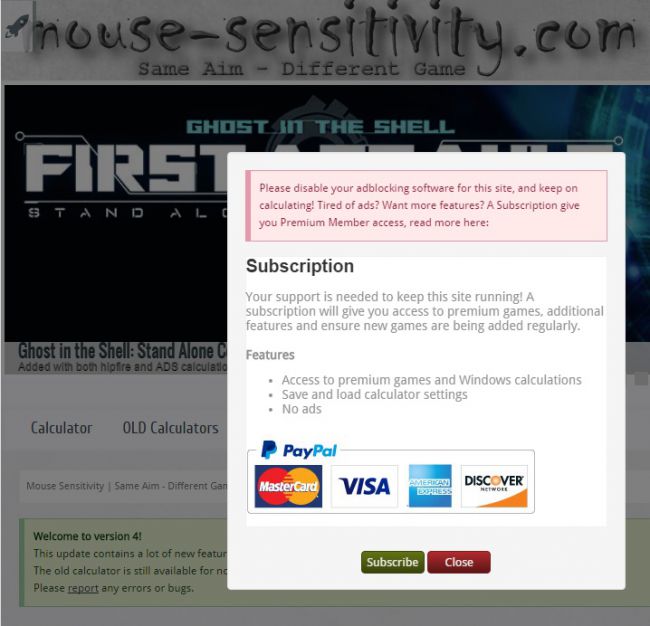
First, navigate to your site of choice with the popup. It should look something like the following image.
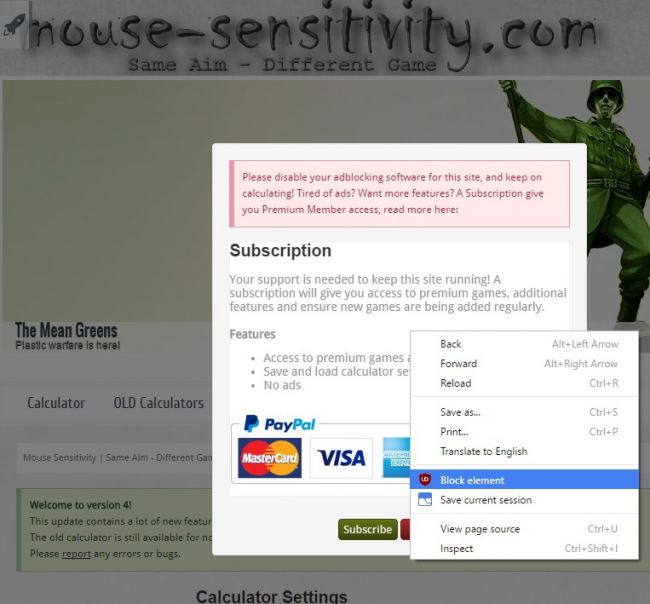
Next, right-click it and click “Block element.”
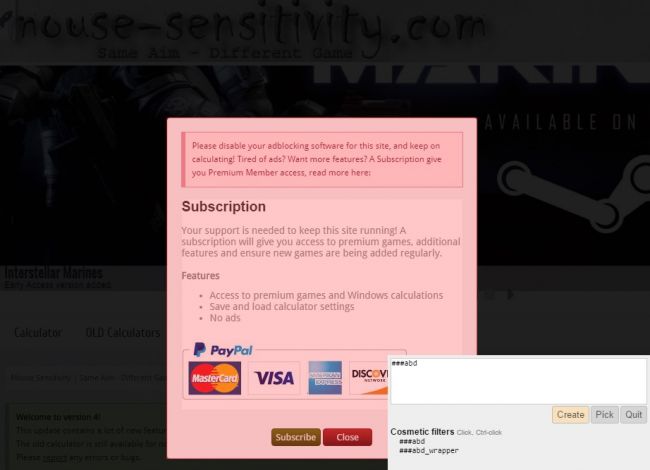
This is the tough part. This is when you click the elements on the screen that you want to block. After you’ve done this, creating a list of elements to block, click “Create” to see them disappear.
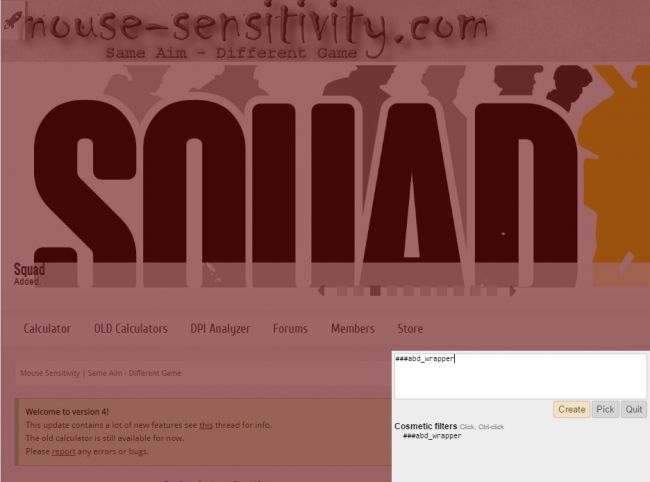
You’ll need to do this a few times, however. There’s often a few layers of this. Once you’ve done this enough times, all elements blocking the page should be gone!
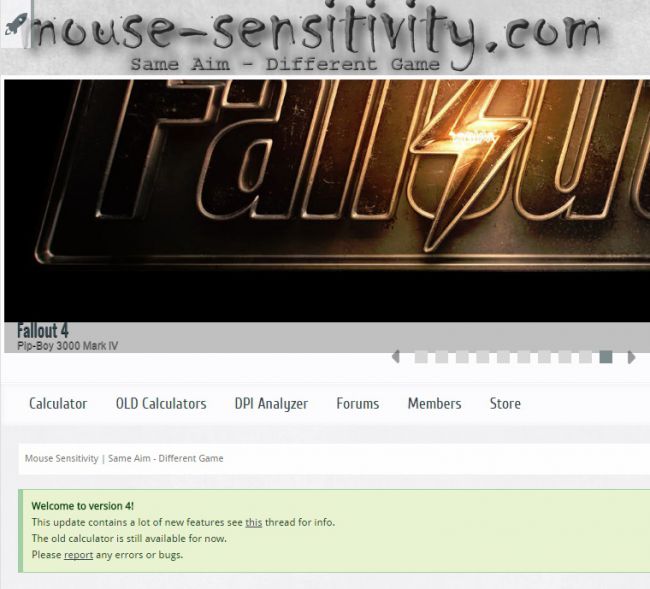
Unless, of course, the site uses plugins for its functions. Like that one. For most, though, this should work.
In a worst-case scenario, all you need to do is whitelist a few sites here and there.
Conclusion
All that being said, please remember that if you want to support a site, try and whitelist them in your adblocker or find another method of supporting them, like subscriptions or buying paid content. My whitelist isn’t too big, but for sites that I regularly visit and want to support, putting them in the whitelist is minor skin off my back while helping the people running the site just that little bit. Ultimately, the choice of whether or not to use an adblocker or whitelist certain sites is up to you.
Regardless of all of that, I hope this article helped you understand just a bit more about how your adblockers work and how you can use them. Let us know if you want to learn anything else.