While Gemini’s intelligence has evolved, its web interface feels stuck in the past. Navigating long conversations is difficult, chat management is nonexistent, and the layout wastes valuable screen space. Here is how I use the Gemini Voyager extension to overcome these UI limitations and unlock a more streamlined interface that keeps up with my pace.
Gemini Voyager: The All-in-One Gemini Enhancement Suite
Gemini Voyager is a free and open-source extension available for Chrome (and Chromium browsers) and Firefox. It acts like a UI/UX overlay and injects new features and modifications directly into the browser DOM to enhance the Gemini web experience. This allows it to add new features like folders, change panel layouts, introduce new buttons, etc.
The big reason why it became my must-have extension is that it works entirely within the browser. All the changes are done locally and saved in your browser; no data ever reaches an external server. The features that do require sync, you can use your Google Drive account for them, or use the manual import/export function.
Here’s how I use Gemini Voyager to fix all the Gemini web flaws:
Fix Endless Scrolling with Gemini Chat Folders
The main reason I installed Gemini Voyager was that I was tired of pinning/unpinning chats and scrolling endlessly in the Gemini chat list. This extension adds chat folders in Gemini to organize your chats into custom folders. You can create dedicated folders for work or personal chats and organize all related chats in them.
It will add a dedicated Folders section above the chats. Click on the Plus (+) icon to create a new folder and name it. You can populate the folder by either dragging and dropping a chat into the folder or clicking the dots menu next to a chat and selecting Move to folder to add it.
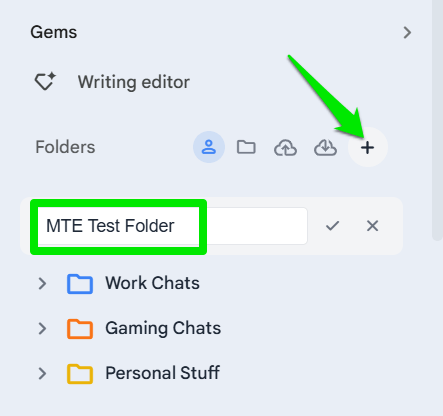
You can even create subfolders to further manage chats, and all can be color-coded to easily identify. While the folders are local, you can export them or sync with your Google Drive to easily move to other devices.
Customize the Gemini Layout Exactly as I Like
While I have many complaints with the Gemini layout, I particularly dislike that it leaves about 600px of empty space on both sides of chat. This space could be used for chat itself. Gemini Voyager solves many layout problems letting you manually adjust the size of panels and chat.
You can access all its controls from the extension’s button in the toolbar. Here, you’ll find a bunch of sliders to adjust chat width, sidebar width, input area width, etc. I prefer a bit wider chat, so I just set it to 70%. You can experiment with size and view results in real-time.
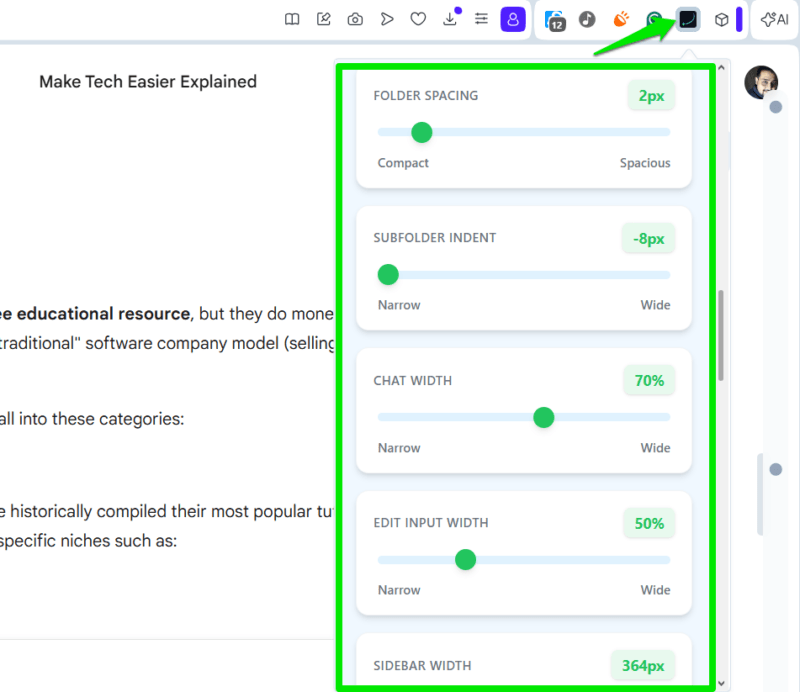
Apart from giving control over chat and side panel size, I also really like that it lets me auto-hide the sidebar. I can just focus on chat and reveal the sidebar by hovering the mouse cursor over it when needed.
Make Navigation a Snap in Long Conversations
I am sure I am not alone in hating the act of scrolling through dozens of messages in a long Gemini conversation to find specific information. Gemini Voyager offers multiple solutions to make navigation a snap. It shows all your messages in a conversation as visible dots on the scrollbar. You can view the contents of each message by hovering the cursor over these dots and clicking to jump to that message.
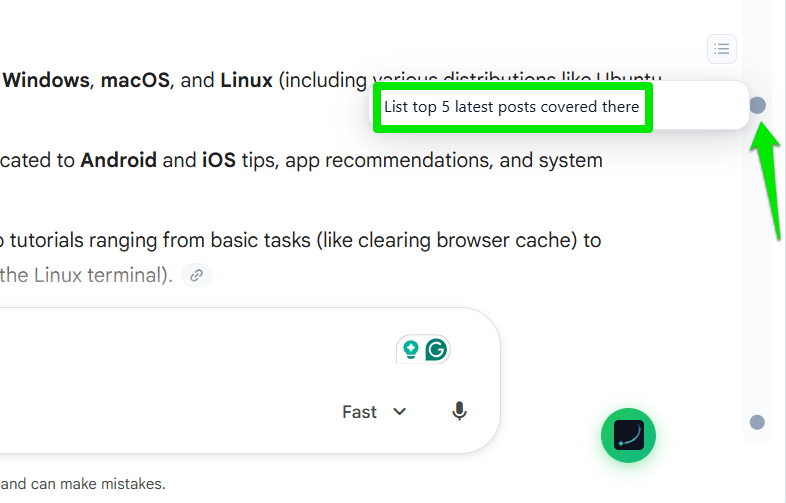
You can even use the K and J shortcut keys to quickly move forward or backward between messages. While I personally prefer Gemini auto-moving to its new response, there is also an option to prevent Gemini from auto-moving while you are reading the previous response.
Create and Manage Complete Gemini Prompt Library
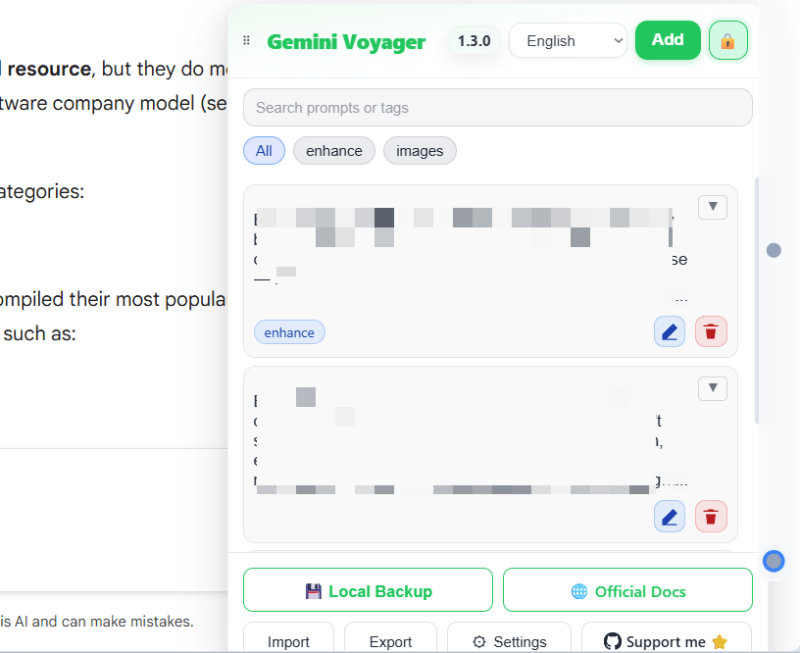
I always used Google Keep to save and manage my prompts, and honestly, I didn’t find it frustrating until I found the prompt manager in the Gemini Voyager extension. It lets me create a Gemini prompt library and easily use them in any chat. No more scrolling to find my prompts or the cumbersome copy/paste process.
This extension will add a floating button that you can click to open a Prompt Manager. Here, you can add your prompts and sort them by using tags. To use one, just click on it, and it will be copied to be used anywhere. The best part is that it can be enabled on all other popular AI chatbots as well from the settings.
These are some of the features of Gemini Voyage that greatly enhance my Google Gemini experience. There are many other features that are also worth checking out, like removing the Gemini watermark from photos. For even more enhancements, try adding extensions to Gemini to improve its capabilities.