
Minimizing clicks and unnecessary navigation is a great way to make the workflow smoother. One of the ways I accomplish this is by using apps that make day-to-day file management faster. If you want the same frictionless file flow, try the free apps I am listing below.
1. Quick Access Popup Gives You Quick Access to Your Files
While the taskbar offers the fastest way to access things, there is only so much it can hold. This is where Quick Access Popup comes in useful. It lets me access anything on my PC in two clicks. You can open a quick access menu with the middle mouse button (or a shortcut key) that lets you open preset files and folders for faster access to data.
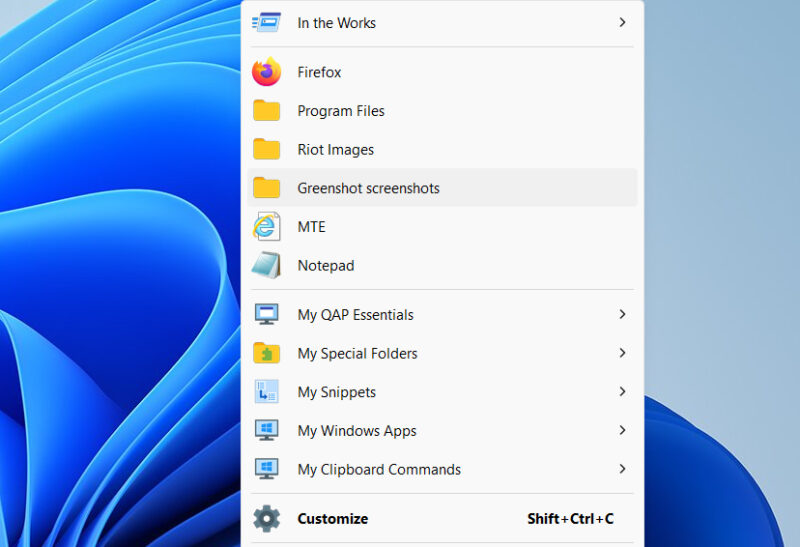
The menu shows favorites at the top and multiple categories below to open files/features from side menus. There is no limit on how many shortcuts you can add, but I don’t add more than 10 (maximum 15). Windows adds scroll buttons when shortcuts exceed display size, and it’s hard to scroll using them (the mouse wheel doesn’t work).
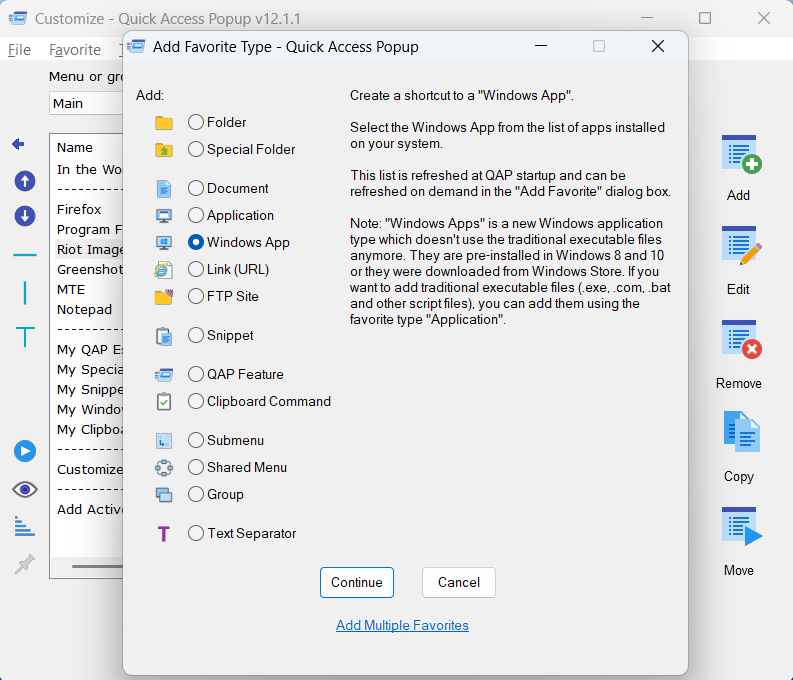
You can click the Customize button to fully edit the quick menu and app behavior. To add a favorite, select a section and click the Add button. The app has a dedicated editor for each shortcut type – just follow the instructions to create a new favorite.
2. QuickLook Allows You to Quickly Preview File Content
Similar to the Quick Look feature on Mac, QuickLook lets you quickly preview file contents by holding the Spacebar key. Normally, if you need to quickly view information, you’ll have to double-click to open the file in its default app and then close it as well. With QuickLook, you just hold the Spacebar to instantly view file contents, and upon release, it will automatically close. You can also quickly tap Spacebar once to open a file permanently and tap to close it again.
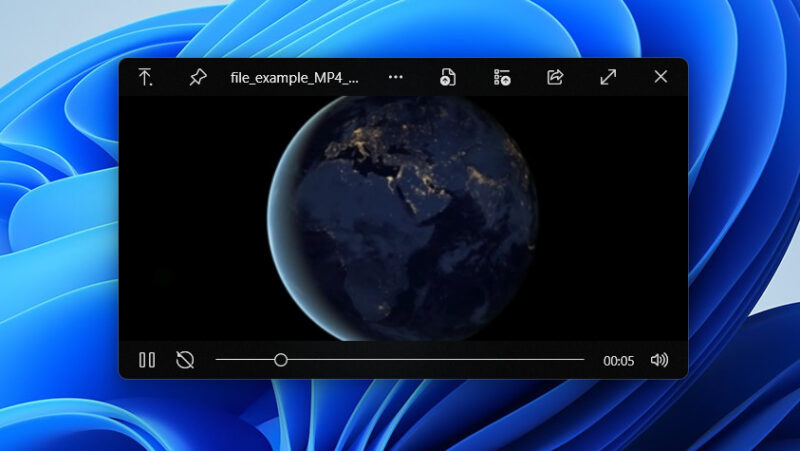
I find it most handy when previewing images, as I don’t have to open the image with a viewer app to view its content. This is especially useful when I have to randomly check images in a large folder. Other than images, the app can also preview text documents, archives, audio, and video files, with the most common formats supported.
3. LockHunter Finds the Locking Culprit
I juggle through many apps for work, and a common issue I face is a file getting locked by an app process, preventing deletion/editing. Normally, I would have to open the Task Manager to hunt for the process, or in the worst case, restart the PC. But with LockHunter, I can see the exact process and kill it.
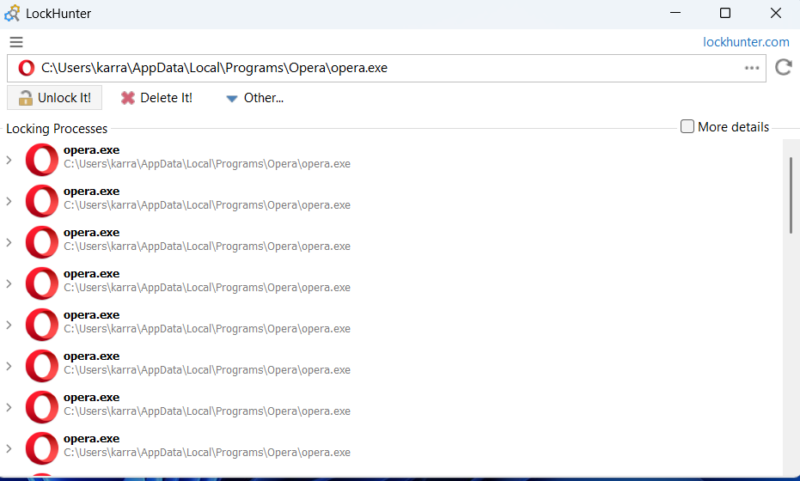
For a locked file, LockHunter shows all the processes currently locking it. You can either unlock it (close processes) or directly run commands on it from within the LockHunter interface. To scan a file, select LockHunter from the file context menu or search for it from LockHunter’s built-in file browser.
4. TeraCopy is the Most Efficient Tool to Copy/Paste Files
Copying and moving files is part of almost every workflow, but I don’t find the Windows copy function reliable, as it often requires manual intervention for errors. Instead, I use TeraCopy as it efficiently handles copy/paste jobs. Unlike Windows, it doesn’t need manual intervention when a file is corrupt or locked; it completes the job and reports errors afterward.
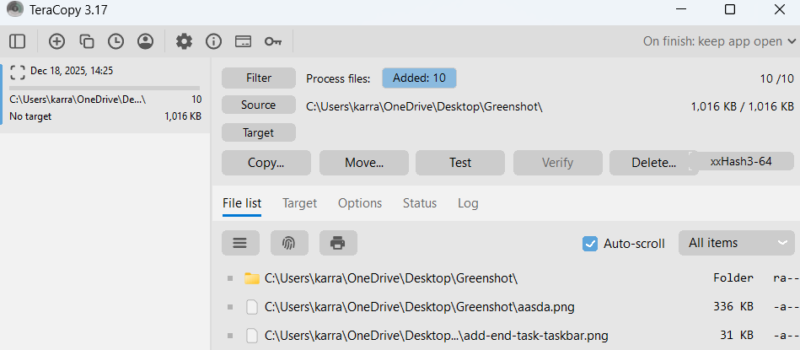
More importantly, it copies lots of smaller files faster thanks to asynchronous copying and dynamic buffering. Furthermore, it can automatically replace the default copy handler, so you can use the same Ctrl + C and Ctrl + V shortcuts to manage jobs. You can also use the TeraCopy app interface to view copy history and customize copy behavior.
TeraCopy does have a paid pro version, but it’s mainly for automation and file management. The free version is more than enough for daily file handling.
With these apps in my arsenal, not only do I work faster, but I also minimize distractions that break focus. If you are looking for more ways to speed up file access and Windows navigation, check out this ultimate Windows productivity tool.








