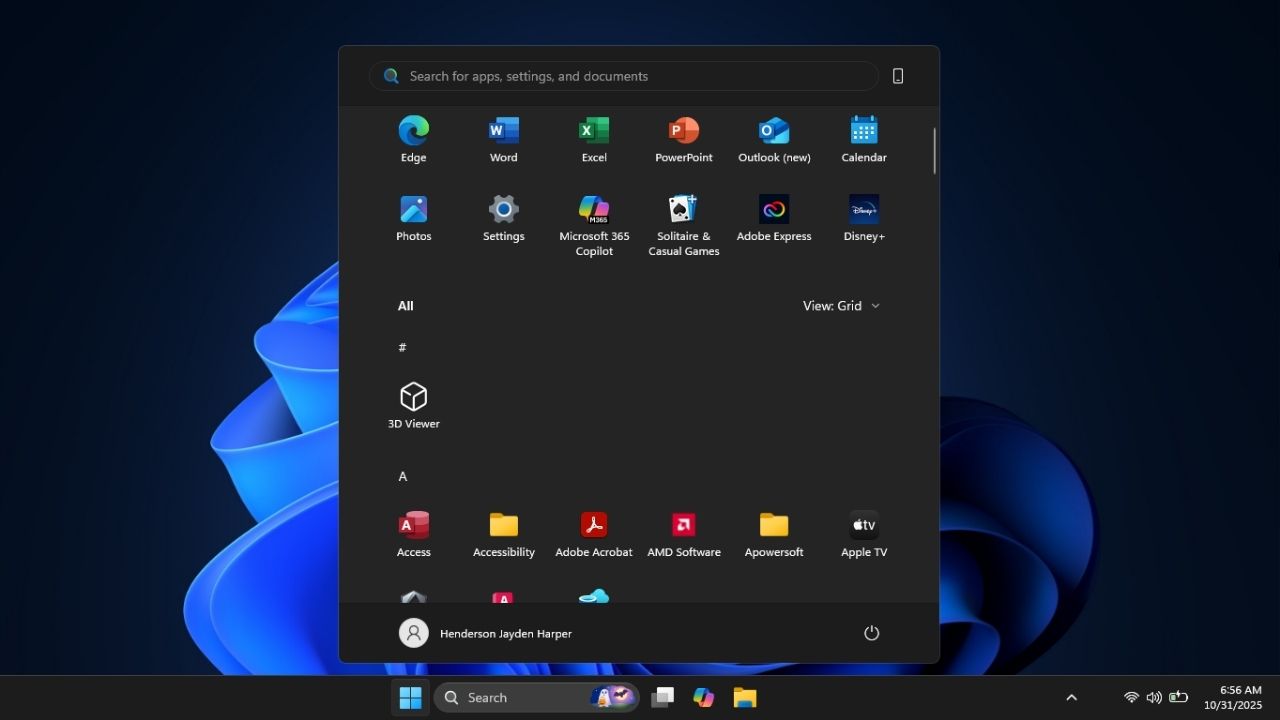
If you’re tired of the clunky Windows 11 Start menu, Microsoft is finally rolling out a sleeker redesign in the 24H2 and 25H2 updates. However, not everyone receives it immediately. Let’s dive into how to enable the new Windows 11 Start menu and decide if it’s really worth the hype.
New and Improved User Interface
Microsoft’s latest redesign of the Start menu feels more modern and user-focused. The biggest shift is dropping the old two-pane setup for a single, scrollable view. This layout packs pinned apps, recommendations, and the full All Apps list into a single, smooth column. So, no more extra clicks to find your apps.
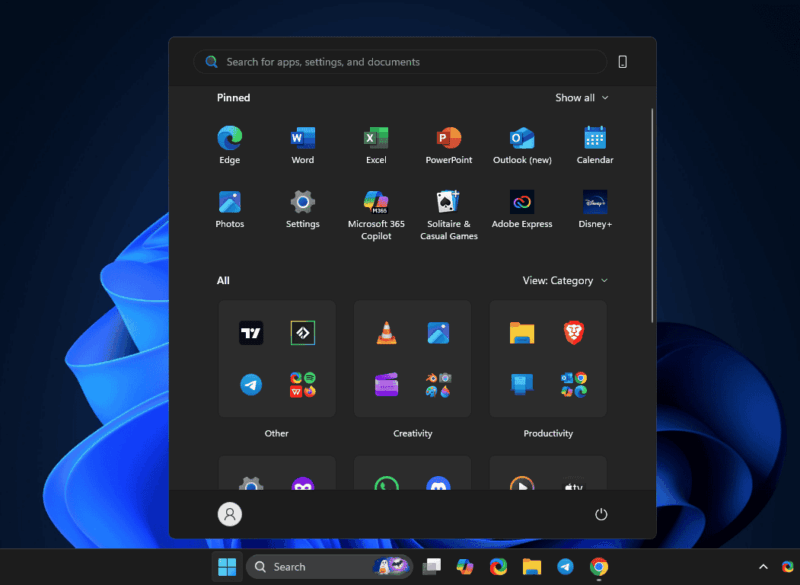
It’s a nod to Windows 10’s efficiency that I’ve always missed in my daily workflow. Now, apps group themselves into categories like Productivity or Entertainment, with choices for Grid or List views to fit your style. It’s smart, but the lack of manual category tweaks feels like a missed chance for power users who want full control.
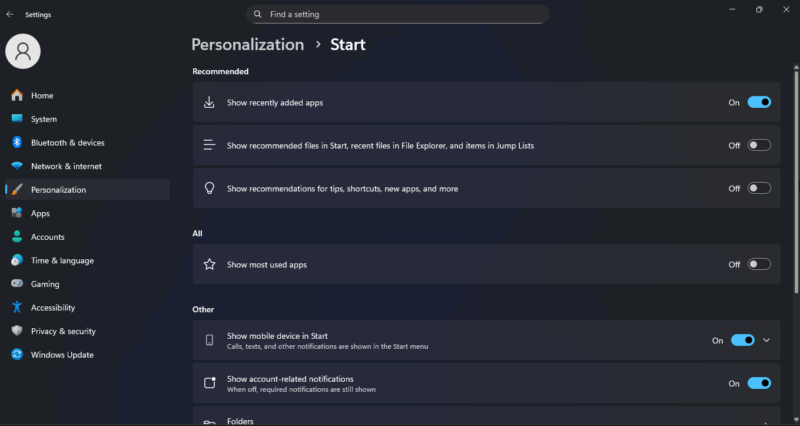
Customization gets a boost, too. You can fully hide the Recommended section, which often feels bloated with ads and suggestions. The interface also adjusts better to screen size, showing more pins on bigger displays, and making it feel more responsive on desktops.
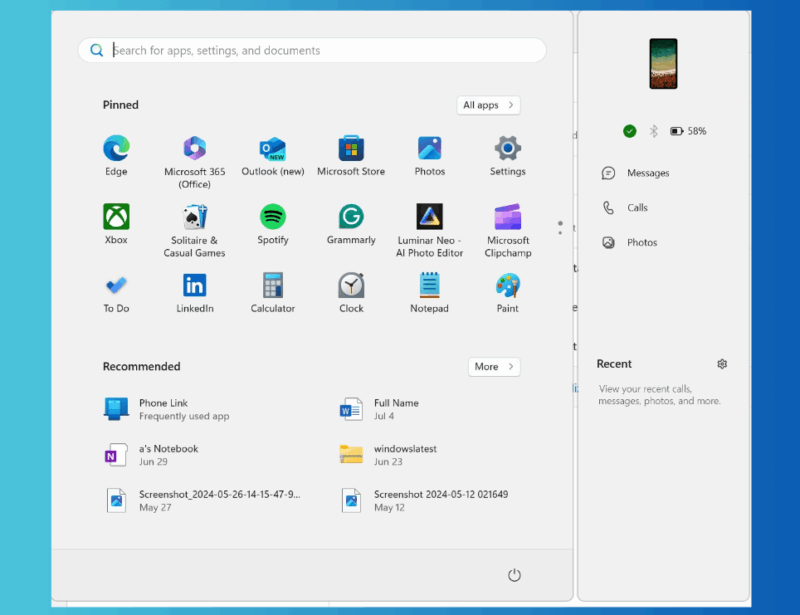
Also, the new Start menu integrates better with Phone Link, which brings notifications and calls right into the menu. If you love customizing how your Start menu looks or works, this version feels like a meaningful step forward. You can read more on customizing the Windows Start menu to further tweak your setup to fit your workflow.
However, not everyone will get the new Windows 11 Start menu automatically right now. Microsoft is releasing it gradually through the KB5067036 optional update, which means you might have to manually enable it.
Enable The Redesigned Start Menu
To enable the Windows 11 new Start menu, start by checking if it’s available for you. Head to Settings -> Windows Update -> Advanced options -> Optional updates, and install KB5067036 (it requires Build 26100.7019 or higher). Restart your PC, and it should appear.
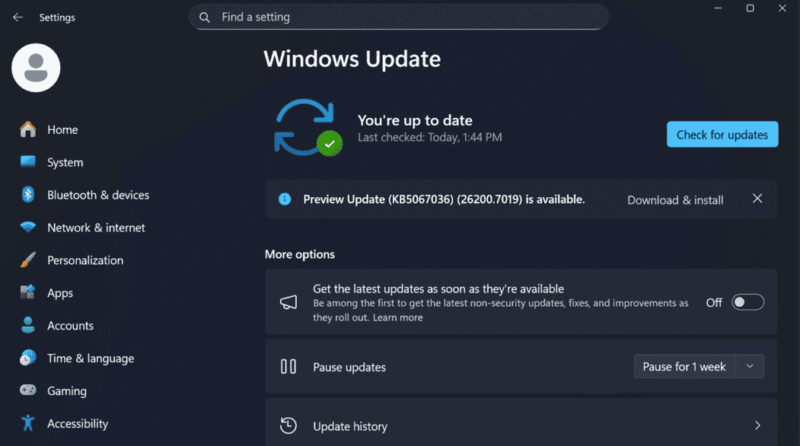
If it doesn’t appear, you have to force enable it with ViVeTool. Here’s how to do it safely: Download and install Windows 11 KB5067036 or newer. Make sure Build 26200.7019 or 26100.7019+ is installed. Verify it from Settings -> System -> About.
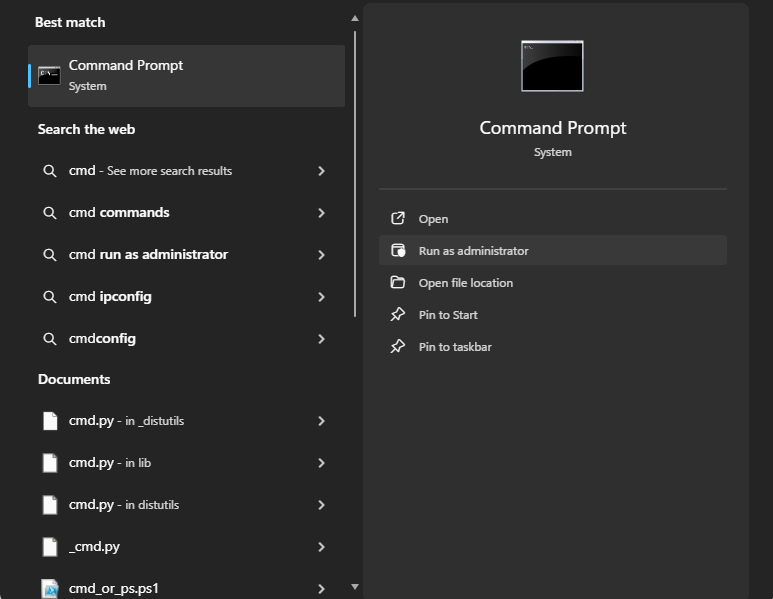
Download the latest ViVeTool package from its GitHub page and extract it. Open Command Prompt as an administrator and navigate to where you’ve extracted or saved ViVeTool. Copy the path from the address bar. Then, type cd before pasting the path location and press Enter.
Type vivetool and press Enter. If you’re in the correct location, you’ll see details about related tools. Finally, type and run this command:
vivetool /enable /id:47205210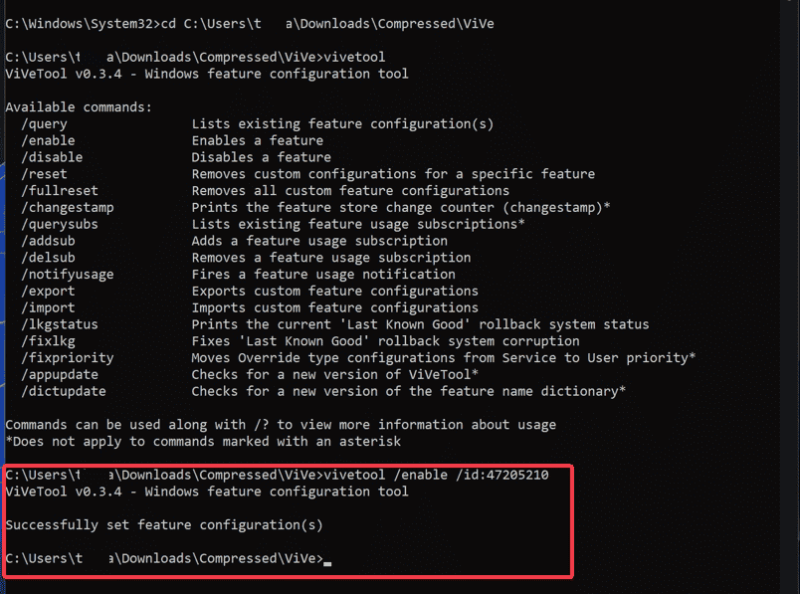
Restart your computer, and you should see the redesigned Start menu. In my tinkering, this worked flawlessly, but back up your system first.
The Wins and Things to Watch Out For
On the plus side, the Windows 11 new Start menu looks cleaner, feels snappier, and gives users more control to access apps. The extra customization options are a big win, especially if you use the Start menu frequently to manage apps or files.
Navigation is smoother, and the new layout feels less cluttered than before. Also, the phone integration pane can be adjusted as you see fit. If you’re yet to, you can check our tutorial on accessing your phone from the Windows Start menu.
However, this change isn’t a complete overhaul. Auto-grouping is hit-or-miss without custom options, and the grid lacks uniformity for neat freaks. Also, you may encounter occasional glitches like flickering or bugs, as some users have complained.
Although staged rollouts mean delays, it could be a way to limit glitches from mass adoption. If you encounter search-related glitches, use these tips to fix the Windows Start menu search.
The redesigned Start menu in Windows 11 is a solid improvement that gives a cleaner and more efficient experience. However, it’s progress, not perfection. If you don’t have it yet, enable it with the steps above and tell us how it goes.








