
With Microsoft ending support for Windows 10, you might want to install Windows 11, but your PC isn’t compatible. What can you do? For older Windows 10 PCs, Flyby11 could be the answer to upgrading even if you don’t meet all the requirements.
What is Flyby11?
There are many ways to bypass the upgrade restrictions to install Windows 11, but it’s a complicated process. Flyby11 is a small utility that does all the background work for you.
It works by tricking Microsoft into thinking your system is running the Windows Server edition. This edition bypasses the usual checks for the processor, TPM (trusted platform module), and Secure Boot. Don’t worry, you still get the correct version of Windows 11 for your PC. You just don’t have to pass the hardware compatibility checks first.
The tool is free to use. However, there are zero guarantees that you’ll have a perfect Windows 11 upgrade. You could still have issues when trying to use Windows 11 on a PC that’s not compatible.
Back Up Your PC Before Proceeding
Anytime you upgrade or make major changes to your PC, back everything up first. As we all know, even Windows updates go wrong sometimes.
Take time to create a full system backup or just back up your important files. Use Microsoft’s OneDrive backup tools if you have enough storage. Or, try Google Drive if you prefer. I personally prefer using an external hard drive or flash drive, especially for sensitive files.
If you want an easy way to revert if something goes wrong, consider cloning Windows 10 to an SSD. You’ll still want to back up your files first.
Using Flyby11 to Install Windows 11
Download and unzip the latest Flyby11 release. At the time of writing, the latest version added support for the Media Creation Tool. This is Microsoft’s official tool for creating installation media. There’s a tutorial built-in to Flyby11 to help you use the Media Creation Tool.
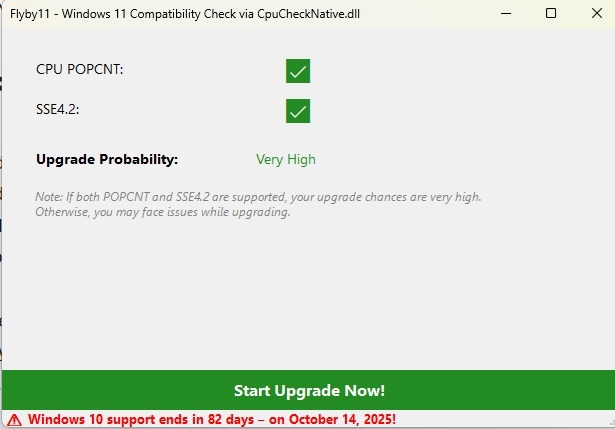
Open the folder you just unzipped and run Flyby11. It starts by checking compatibility with the utility. If you get two green checkmarks, you’ll probably have a smooth upgrade. If not, you may encounter issues. Click Start Upgrade to get started.
Next, drag and drop your Windows 11 ISO into the main window. If you don’t have an ISO handy, open the drop-down menu in the right pane and select a download source. The current options include:
- Microsoft site – Only use if you know exactly what file to download
- Download via Fido – Tries to automatically find the best option for your PC
- Media Creation Tool – Developer recommends using this option if Fido doesn’t work. If you choose this method, click Yes to view a YouTube tutorial.
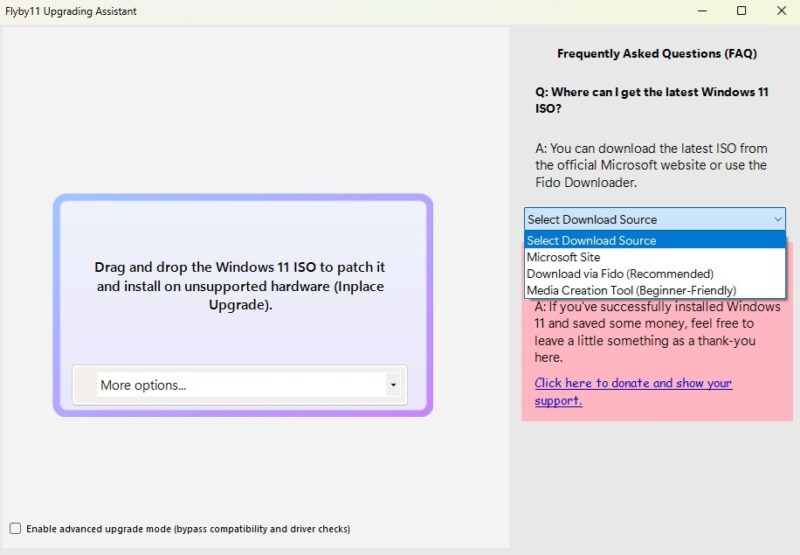
The utility still tries to ensure the best compatibility possible. If you run into any issues, try running Flyby11 and check Enable advanced upgrade mode at the bottom left corner when choosing your ISO.
Follow the remaining prompts and wait for Windows 11 to install. It may take a while, depending on your system.
In some cases, older hardware that’s barely compatible with Windows 10 still won’t allow Windows 11 to install. If this happens, you’ll just get an error message and the utility won’t complete the installation.
Possible Issues When Forcing the Upgrade
Forcing the installation doesn’t guarantee you’ll have a great experience. If you only have minor compatibility issues, you might not notice any problems.
For most users, you’ll likely run into at least one or two of the following issues after you install Windows 11 on an incompatible Windows 10 PC:
- Some hardware and apps may not function properly
- A watermark or nagging notification might appear on your desktop saying your device isn’t compatible
- If you hate Windows 11, you might not have the option to rollback since it’s not an official upgrade
- Microsoft doesn’t offer support if your device isn’t compatible
- Performance issues, including random shut downs or crashing
- May not get any feature or security updates
If things are working fairly well, the biggest issue is Windows Update might see that your PC isn’t compatible and won’t let you download and install any updates. You can manually download and install updates directly from the Microsoft Update Catalog. You just need to know what updates you need.
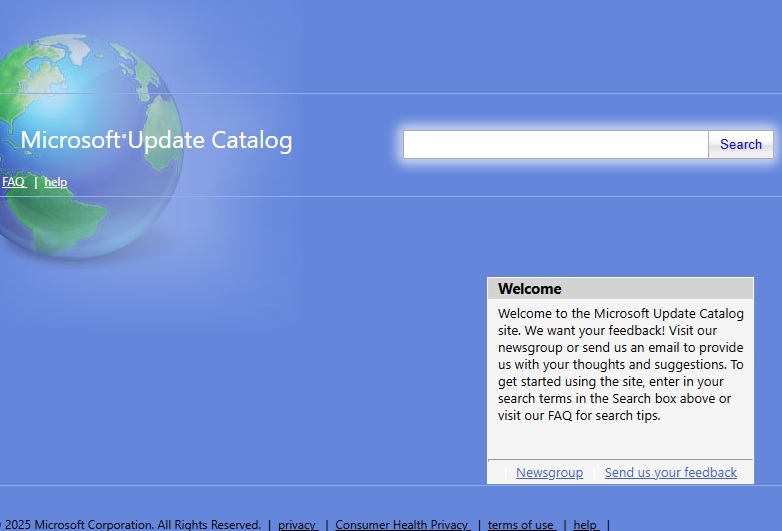
For some updates, you still won’t be able to manually install them. For instance, Windows 11 24H2 adds new compatibility requirements that many Windows 11 users no longer meet.
Alternatives to Upgrading to Windows 11
I’m not promising things will go perfectly with Flyby11 and neither does the developer. So, if trying things go horribly wrong, you still have some alternatives to upgrading to Windows 11.
The most obvious is to just buy a new PC. I’d recommend this if you’re noticing hard drive issues. Check your PC to monitor your hard drive health. If everything is still working fine, Microsoft is offering several ways to get additional Windows 10 updates for another year, including two free ways.
As a final option, skip Windows and use another operating system. Linux is the recommended option since it works so well even on older hardware. If you’re new to Linux, try these distros designed for Windows users. Then, check out these games to help you learn Linux.
If all does go well after you force install Windows 11, congratulations. While you’re getting used to Windows 11, take a few minutes to tackle these annoying features and issues.








