
Error code 0xc0000098 in Windows causes a blue screen crash at startup. The ACPI.sys driver is often to blame, especially on unsupported Windows 11 versions like 23H2 or 22H2, or Windows 10, which will soon stop receiving updates. Even on supported Windows 11 24H2, ACPI.sys file corruption can occur, and Microsoft’s fixes may not arrive in time. To prevent a 0xc0000098 boot failure and avoid a blue screen, act now using the simple backup plan shared here.
Why ACPI.sys Causes Windows Error Code 0xc0000098
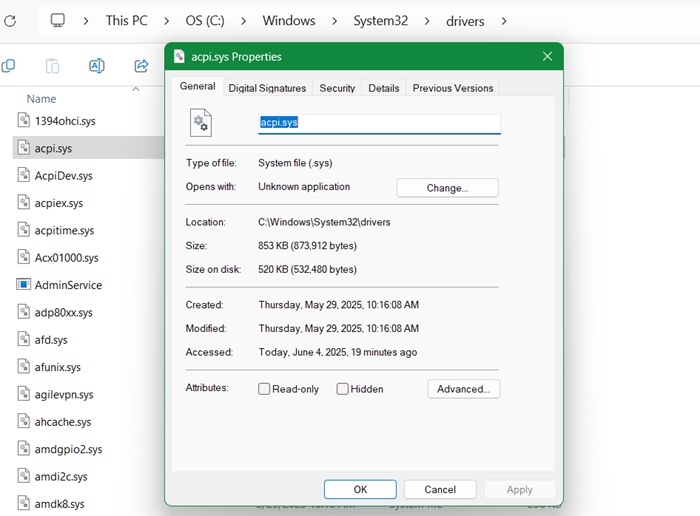
All Windows devices have an Advanced Configuration and Power Interface (ACPI), a vital system driver called ACPI.sys, located at “C:\Windows\System32\Drivers.” Corruption in the ACPI.sys file can make your PC unbootable, as it manages power functions and Plug and Play (PnP) device detection.
Primarily, this driver is a notable cause of Windows error 0xc0000098, often triggered by faulty updates that overwrite or damage the file. The file corruption can also be caused by malware, such as rootkits, and fileless Trojan attacks, which target vital system files on your PC.
A recent episode of ACPI.sys-0xc0000098 connection surfaced on May 31, 2025 after Windows 11 23H2 users installed update KB5058405. They could no longer boot, and received the following recovery error screen during startup:
Your PC/Device needs to be repaired. The operating system couldn’t be loaded because a required file is missing or contains errors.
File: ACPI.sys
Error code: 0xc0000098
The KB5058405 issue mainly affected virtual machines, but some physical devices were hit too. Microsoft released the KB5062170 hotfix for Windows 11 22H2 and 23H2 users, but the real problem lies in ACPI.sys file integrity. The safer approach is to back up ACPI.sys as shown here.
Warning: the solutions below are a preventive approach. Whatever you do, do not tinker with ACPI.sys file directly, as it controls Windows boot.
Validate ACPI.sys System Integrity in PowerShell
Open the PowerShell window in administrator mode. Now enter the following command to get the file hash for ACPI.sys.
Get-FileHash C:\Windows\System32\drivers\ACPI.sys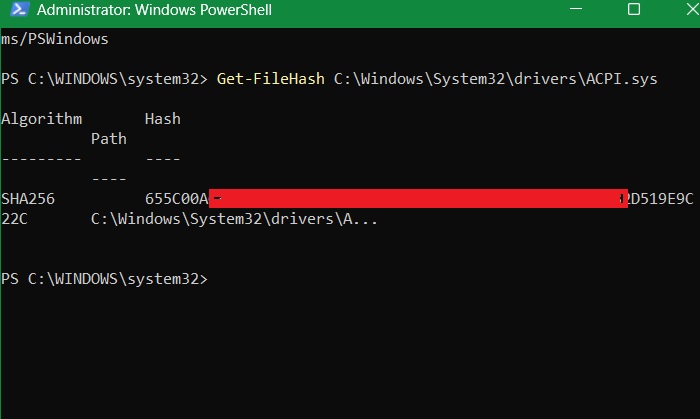
You will come across a 64-digit alphanumeric code which you can note down for future reference, or export it to your email. Validating ACPI.sys system integrity is a part of system upkeep and maintenance and to avoid Windows boot problems.
In the future, whenever you notice system slowdowns, crashes or instability, check whether your ACPI.sys file hash is the same.
Use ACPI.sys Registry Backup to Fix Error Code 0xc0000098
This is an actual solution that will help you regain access to your Windows login screen after you encounter the 0xc0000098 problem during boot.
First, open Registry Editor by typing regedit in search bar or the Run command. Navigate to the following path:
Computer\HKEY_LOCAL_MACHINE\SYSTEM\CurrentControlSet\Services\ACPI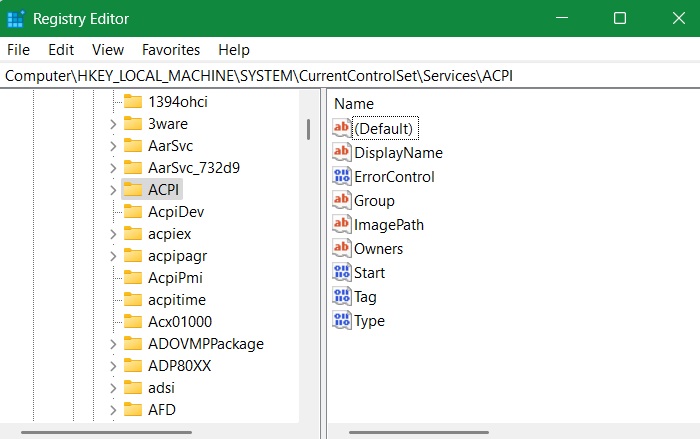
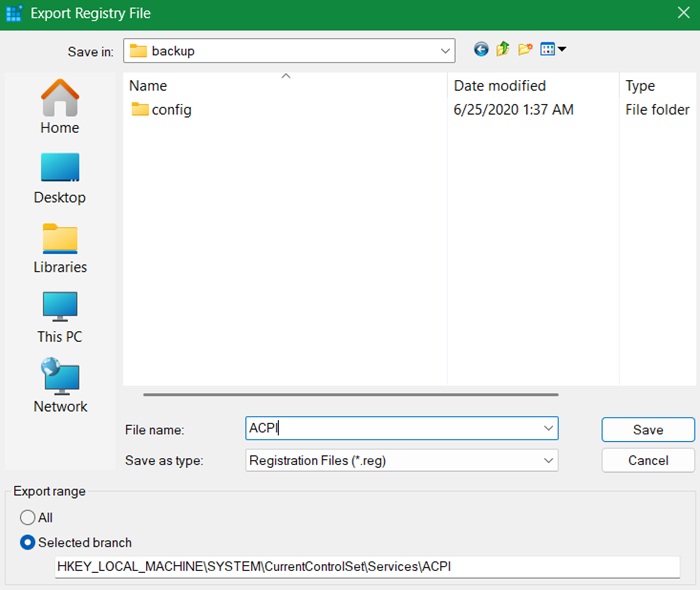
Next, click File -> Export. A .reg file is created, which you can name “ACPI” for quick reference. You can export it to any secure location such as a USB drive or even a cloud storage location. You can also save a backup to a local folder on your PC. I am saving it to a local folder called “backup” on my PC.
Whenever you face the 0xc0000098 error screen during a startup, all you have to do is launch the Windows recovery environment. There are many ways to do that, but while staring at a blue screen, the easiest way is to press the power button, and immediately press your PC’s Windows boot key such as F2, F6, or Esc, which varies by your PC brand.
Here, go to Troubleshoot -> Advanced Options -> Command Prompt. Enter regedit and it will open the Registry Editor in your Windows recovery environment. Click File -> Import to import the exact registry file.
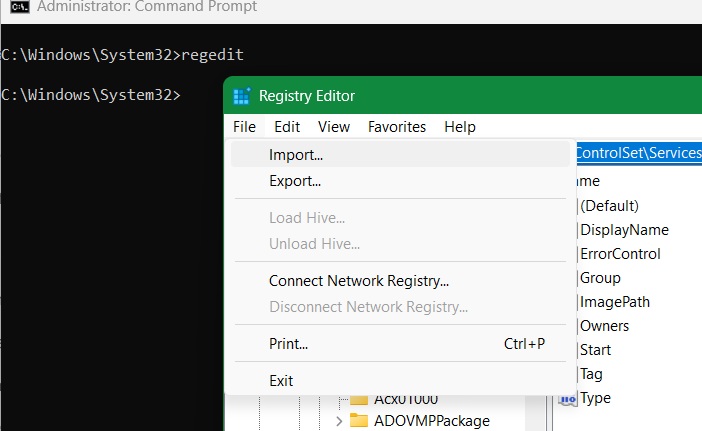
The values of your saved .reg file will be successfully added to the registry key around ACPI.sys. Now all you have to do is restart your device and the ACPI-related settings will be saved in its original format. You can prevent registry errors with these tips.
Other Solutions
Keeping secure boot on is a best practice to ensure the ACPI.sys files don’t get tampered with. You can enable it in Windows Security app, from Device Security -> Secure boot, where it should be displayed as On. You can also enable it in UEFI on older Windows 10 devices.
Although, taking a backup of ACPI.sys is the best way to prevent and deal with future occurrences of Windows error code 0xc0000098, there are many other boot issues causing a blue screen during Windows startup. The most common of these errors are the Ntoskernl.exe error, the BAD SYSTEM CONFIG INFO, and the CRITICAL PROCESS DIED
Running a DISM/SFC check ensures the file integrity of all System32 components, including ACPI.sys. These are simple command prompt fixes.








