Windows updates are supposed to help your PC, but as we all know, that’s not always the case. Not only has a recent update broken Windows shutdown, but the patch still didn’t fix the problem. I’ve tested several ways to fix the shutdown glitch until Microsoft finds a solution.
Windows Shutdown Problem Affects Windows 10 and 11
Originally, the Windows shutdown bug, as many users are calling it, only seemed to affect Windows 11 users. Now, it’s also frustrating Windows 10 users. The problem stems from Windows Update KB5073455, which hit PCs in mid-January 2026. If you don’t have extended Windows 10 updates enabled, this won’t affect you.
Many users immediately had trouble getting their computers to shut down. They’d click “shut down” as usual, only to have the PC reboot instead. I’ve had viruses cause this same problem, so my first thought wasn’t “a Windows update must be to blame.” Instead, I thought “oh great, I’ve got a virus.” I was relieved and annoyed to know it was just Microsoft’s incompetence.
Microsoft did issue an out-of-band update (KB5077797) to address the problem less than a week later. I appreciate the quick response, but it didn’t fix the issue for me and numerous others.
I do recommend installing the patch to see if it does work for you. If it does, that’s wonderful. If not, here are some solutions that worked for me.
Disable Virtual Secure Mode
The Windows shutdown issues mainly affected users who use Secure Launch. It’s a Virtualization-Based Security featured designed to protect your PC from firmware-level security risks during boot.
The patch Microsoft released did seem to help at least some Secure Launch users, but for those of us who also have Virtual Secure Mode enabled, no luck.
I know the entire point of using Virtual Secure Mode is to have a safer computer, but it does introduce some performance issues at times. Plus, I do enjoy being able to shut down my Windows PC with no issues. So, I tried disabling the feature to see if that fixed my problem.
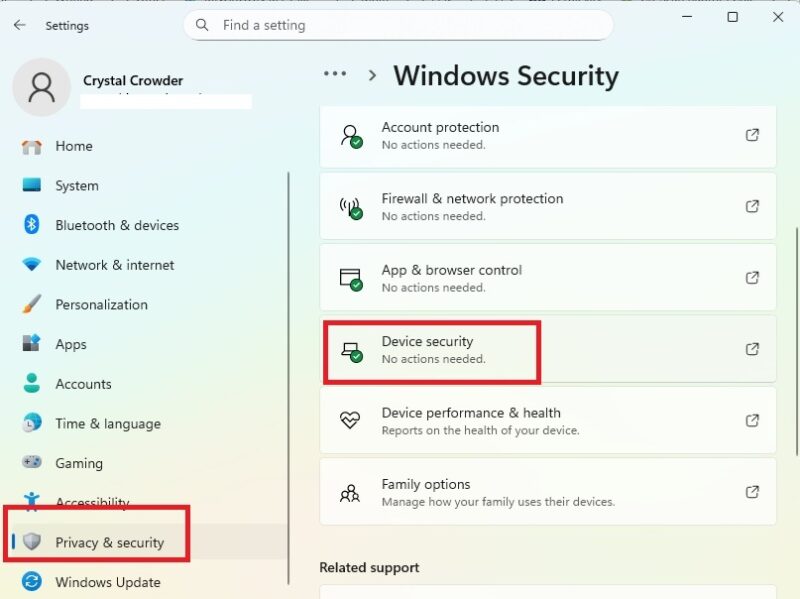
Press Win + I to open Windows Settings and go to Privacy & security → Windows Security → Device Security.
Click Core isolation details under Core Isolation. Toggle off Memory integrity. Restart your computer to apply the changes. If this isn’t enabled already, then you’re one of the chosen that the patch didn’t work for at all.
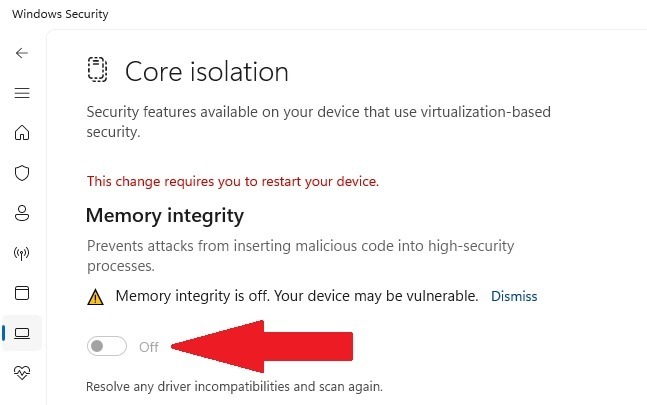
Try shutting down your computer to see if it works. For me, it shut down right away with no issues. No annoying restart.
Occasionally, this feature re-enables itself. If you disable Virtual Secure Mode and it works only to suddenly start rebooting again, check the setting again. It may have re-enabled itself.
I highly suggest turning this back on as soon as Microsoft issues a fix that actually works.
Roll Back Windows Updates
Windows lets you roll back an update within 10 days after installation. Since the initial troublesome update and patch installed beyond the 10-day period, you have to roll back by uninstalling the specific updates.
I tried re-enabling Virtual Secure Mode and made sure the Windows shutdown issue still occurred. When it did, I removed the original update and patch.
Press Win + I to open Settings and go to Windows Update → Update history → Uninstall Updates. You’ll have to scroll past listed updates for this option.
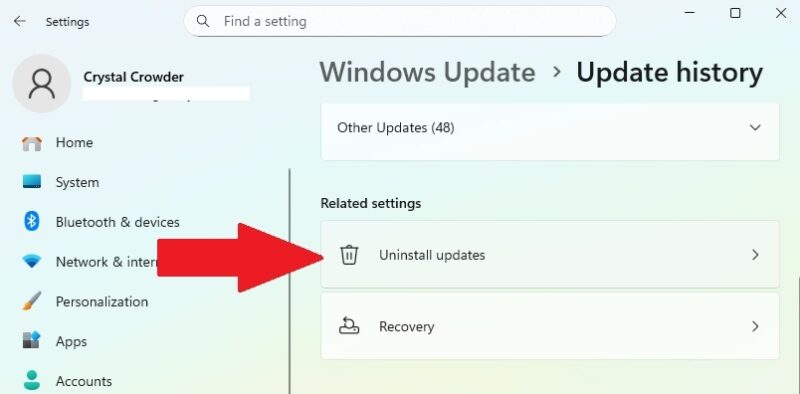
Look for KB5073455 and KB5077797. Click Uninstall beside each.
Before restarting, go back to Windows Update and turn off Get the latest updates as soon as they’re available. Otherwise, these will immediately reinstall. Also, set the Pause updates option to at least 2 weeks.
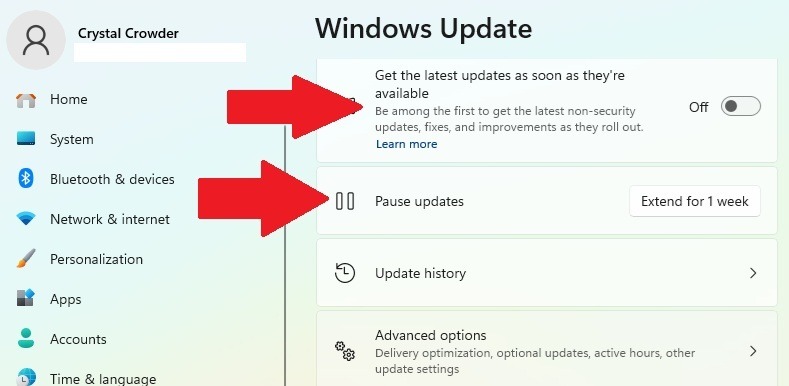
You can also use these Windows registry hacks to better control when Windows updates install and block ones you don’t want.
After restarting, I had no trouble shutting down normally. But, if you reinstall those updates, you will have shutdown issues again.
Use Alternative Shutdown Methods
I personally didn’t feel as safe disabling Virtual Secure Mode. And, if you’re afraid you’ll forget to install Windows updates in the future, I completely understand not wanting to uninstall the updates or pause updates.
Since Microsoft hasn’t given us a date for a fix, there is an alternative Windows shutdown method that does bypass the issue.
Open Command Prompt or PowerShell and use the following command:
shutdown /s /t 0This shuts your PC down immediately.
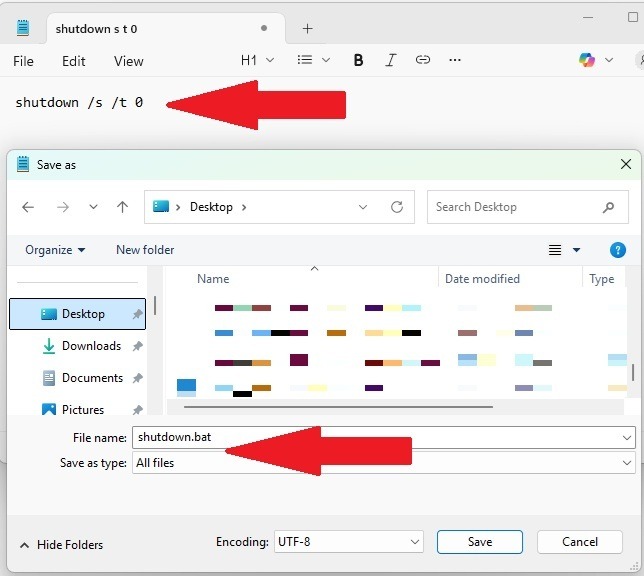
I created a desktop script, so I just click it to shut down versus having to type the command each time. To do this, open Notepad, enter the command in a new Notepad file, and go to File → Save as. From the Save as type drop-down box, choose All Files. Name the file “shutdown.bat”.
Fixing the Windows Hibernation Issue
The update also broke Windows hibernation. The patch didn’t fix the hibernation issue and currently, there’s no effective workaround. So, make sure you save any open work before walking away from your PC.
The only method I found is to completely disable hibernation in Windows. It’s also a good way to free up storage space.
Use Command Prompt or PowerShell in admin mode and run the following command:
powercfg.exe /hibernate offRestart your computer to apply the change. Re-enable it at any time by using the following command:
powercfg.exe /hibernate onWhile the update didn’t affect Windows sleep settings, there are various problems that cause an endless sleep cycle. Try these troubleshooting methods to prevent Windows from randomly sleeping.








