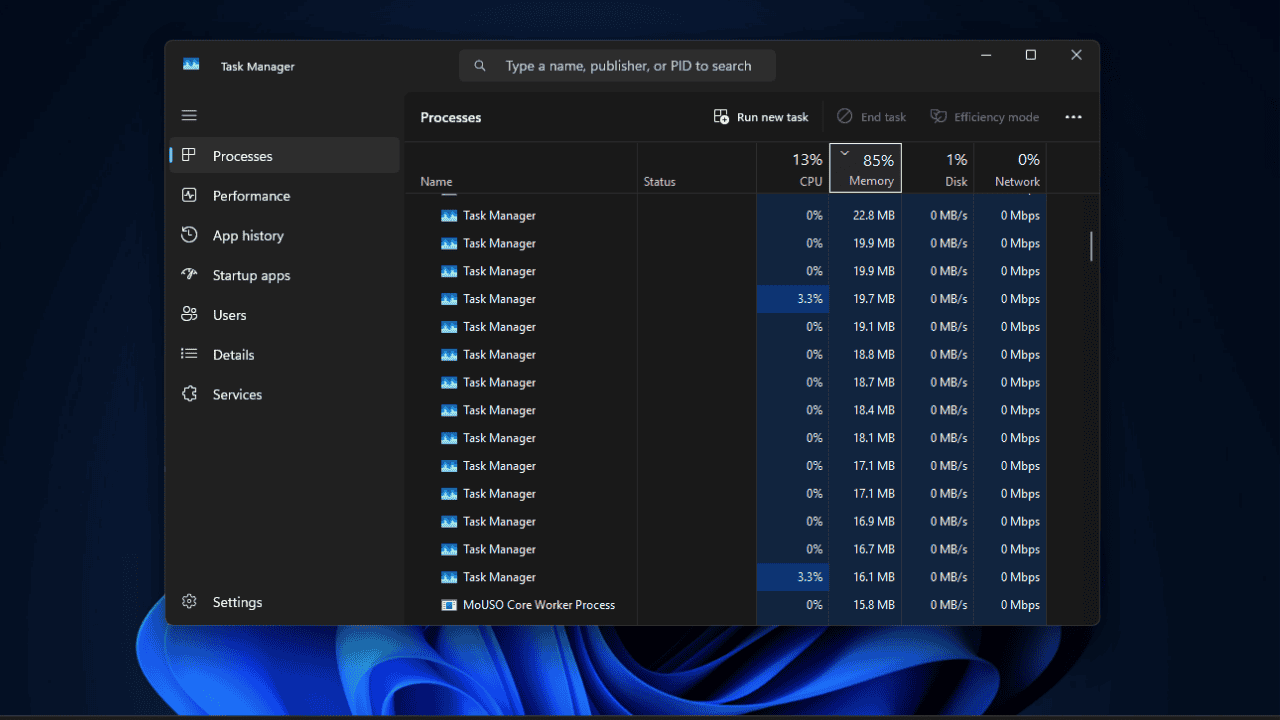
If you’ve installed the optional KB5067036 update on Windows 11 and now notice a duplicate Task Manager, you’re not alone. Multiple instances accumulate, consuming your RAM and CPU resources. Here, we’ll explore the workarounds to fix this glitch.
What The Task Manager Duplication Bug Is
The Windows 11 Task Manager duplication bug appeared after the October 2025 optional update (KB5067036), mainly affecting builds like 26100.7019 and 26200.7019.
It happens when you close the Task Manager using the “X” button. Instead of the process shutting down, it lingers in the background. Reopen it, and you’ll find duplicates appear as extra “taskmgr.exr” entries under the Details tab, each consuming about 20-25MB of RAM and a bit of CPU.
Thankfully, this is an optional update, not an automatic one. So, if you haven’t manually installed KB5067036, you can safely wait until Microsoft releases a fixed version. For broader troubleshooting, check out the Windows update problems guide.
How to Check If You’re Affected
Testing for the Windows 11 Task Manager duplication bug is simple: Hit Ctrl + Shift + Esc to open Task Manager, close it via the “X” button, then repeat 5-10 times. Switch to the Details tab and search taskmgr.exe.
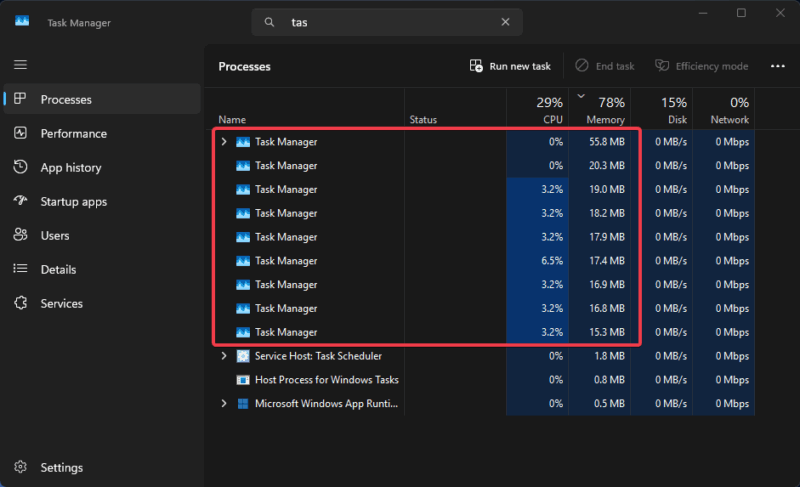
If you see multiple entries, you’re affected. You can also confirm under the Processes tab, where several Task Manager instances appear. If your device feels sluggish or memory spikes appear, our tips to fix high memory usage in Windows can help.
How to Fix or Mitigate the Issue
Here are a few ways to kill the duplicates and prevent them from piling up again.
1. End task manually
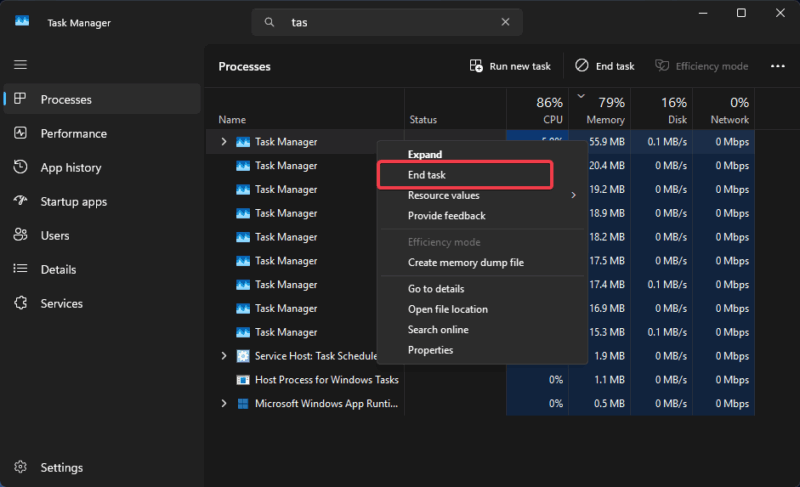
In Task Manager’s Processes tab, right-click each Task Manager entry and select End Task. Do it for all. This method is slow but effective. You can make it easier by adding End Task to your taskbar.
For a faster bulk fix, open Command Prompt as an administrator, type the following, and press Enter: taskkill /im taskmgr.exe /f
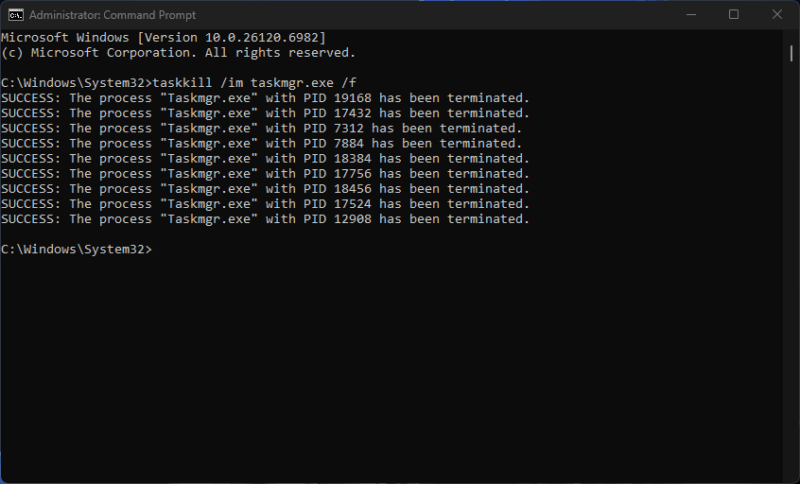
This instantly shuts down every running Task Manager. Or you can simply restart your PC to clear them temporarily.
2. Uninstall the KB5067036 update
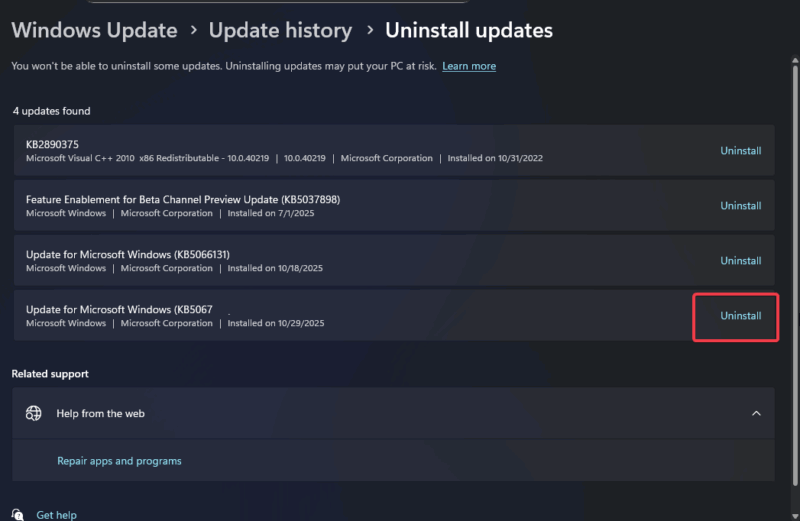
If the duplication bug keeps returning, go to Settings -> Windows Update -> Update history -> Uninstall updates. Then select KB5067036, and restart your PC.
3. Enable features safely using ViVeTool to prevent bugs
If you want the update’s perks without the bugs, use ViVeTool from GitHub. Run Command Prompt as an administrator and type: vivetool /enable /id:49407484,57048231
Restart afterward. You can read more about this process in our guide to force-enable the new Start Menu using this update.
Optionally, some users also share a .reg file for registry tweaks on GitHub under HKEY_LOCAL_MACHINE. However, if you go this route, ensure to back up your registry first and undo changes with this on the command prompt:
REG DELETE "HKEY_LOCAL_MACHINE\SYSTEM\ControlSet001\Control\FeatureManagement\Overrides\14" /fNote: From my testing, ViVeTool works best as a preventive measure.
Microsoft’s Response and What Next
Microsoft has acknowledged the Windows 11 Task Manager duplication bug as a known issue. The company recommends ending the process manually or using the command-line method, with warnings for heavy users about performance dips.
A proper fix is expected with the next cumulative update or patch. Until then, you can either uninstall the update or live with the workarounds above.
I would advise you to hold off for now if you haven’t installed yet, considering these recent quality control lapses across Windows builds. For more tweaks, see our Task Manager column guide.
The Windows 11 Task Manager duplication bug may not crash your system, but it can quietly waste memory and lower performance. Whether you prefer ending tasks manually, using Command Prompt, or rolling back KB5067036, these quick workarounds should keep your PC running smoothly.








