If your PC has a powerful CPU and GPU but still falls short of expected performance, the issue may lie with the memory RAM. You may have plenty of memory, but does it supply enough bandwidth for your workload? Here is a complete guide to detecting and fixing a RAM bandwidth bottleneck.
What is RAM Bandwidth Bottleneck
RAM has two main specs: capacity, measured in GBs (like 16GB or 32GB), and frequency, measured in MHz (like 3200MHz or 4000MHz). While capacity is the total amount of data the RAM can hold at a time, the frequency is the speed at which the data is transferred to and from the RAM to other components, like the CPU or GPU.
RAM bandwidth bottleneck occurs when the RAM frequency isn’t fast enough to handle the requirements of the workload. This forces the CPU or GPU to stall while waiting for the data, leading to slower processing or stutters in gaming.
While sufficient RAM capacity is necessary to prevent the PC from using the slower pagefile or crashing, RAM frequency is just as important to ensure the CPU or GPU can perform at its full potential without RAM bandwidth becoming a bottleneck.
How to Detect RAM Bandwidth Bottleneck
If your PC RAM is the bottleneck, then your CPU will not be able to work at its full potential, and this creates a bottleneck in the GPU too. Common signs of a RAM bottleneck are lower FPS, stutters, and FPS drops due to unstable frame time. If you are facing these issues, you can confirm this with a little experiment.
Similar to checking CPU and GPU bottlenecks, you’ll have to track CPU and GPU usage to confirm a RAM bottleneck. You’ll need a CPU-intensive game for this that doesn’t overwhelm your GPU; open-world games like GTA V or any game from the Total War series are good options. In the game, you’ll have to set graphics settings to the lowest and uncap the framerate (or set to the maximum limit).
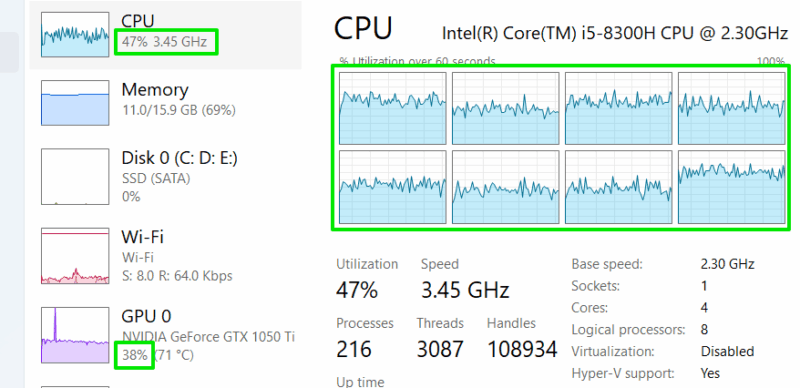
While the game is running, open the Task Manager and move to the Performance tab. Here, right-click on the graph and select Change graph to → Logical processors to view the load of all CPU cores.
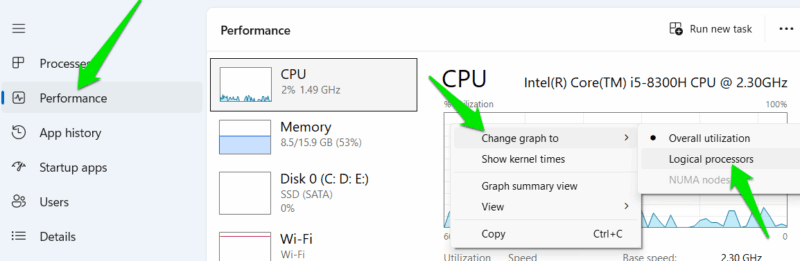
Now, go play the game for 60 seconds to record the graph and come back. If all CPU cores stay below 100% usage, like 85% and below, while GPU usage is low too, then it’s probably the RAM bandwidth holding back the CPU.
Ways to Fix RAM Bandwidth Bottleneck
Having the highest frequency RAM that your motherboard and CPU support in a dual-channel configuration is the best way to remove a RAM bandwidth bottleneck. However, if you aren’t ready to upgrade right now or face a RAM bandwidth bottleneck even with a perfect setup, follow the methods below:
- Make sure the RAM is running in dual-channel configuration. Download the CPU-Z tool and look at the Channel field in its Memory tab to confirm. If it’s not running in dual channel, follow the steps in this guide to enable dual-channel RAM.
- Many motherboards don’t run RAMs at their maximum frequency by default. Access BIOS and turn on XMP or EXPO profiles under the Memory section.
- In games, you can reduce/disable graphics settings that indirectly require extensive CPU calculations and are often streamed directly from RAM. This includes textures, object density, draw distance, ultra shadow quality, etc. You can also lower the game resolution to have a substantial impact on performance.
- When gaming or running a CPU-intensive app, close background apps and processes that may take away RAM bandwidth.
- If you are utilizing the iGPU, it can heavily burden the RAM bandwidth as it doesn’t have its own VRAM and uses the system RAM. Get a dedicated GPU to free up RAM bandwidth for the CPU.
You should also search for the maximum RAM frequency your motherboard and CPU support, and ensure your PC RAM matches that speed. It should also be installed in a dual-channel setup (common for consumer PCs).
Since RAM bandwidth affects both your maximum FPS and frame time stability, it’s crucial to ensure your RAM bandwidth isn’t the bottleneck. If your PC has slow performance even after ruling out a RAM bandwidth bottleneck, then try these PC optimization tips and apps.