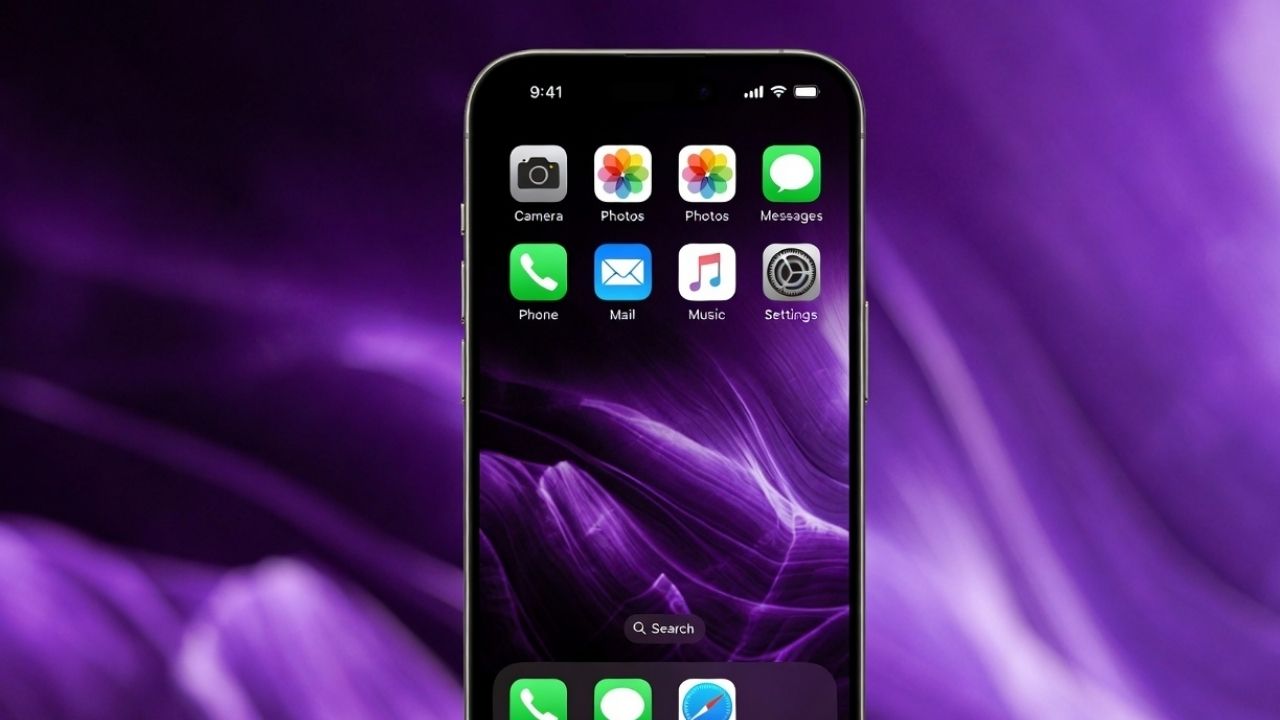
If you’ve updated to iOS 26.1 and noticed a quick purple flash when closing apps, you’re not alone. It’s not a screen defect but a minor software glitch affecting animations. Here’s how to fix the purple flash on iOS 26.1 and stop it for good.
What causes the iOS 26.1 Purple Flash?
At its core, this issue occurs because iOS 26.1 struggles to render transparency effects smoothly when switching between apps. When you swipe up to close an app, the wallpaper is supposed to blend in with a transparent layer. Instead, you see a quick purple tint for about half a second, which is more obvious in dark mode, especially on iPhone 16 models.
These kinds of small animation bugs appear right after big updates. The same thing happened with the purple fade glitch in iOS 17 or the liquid Glass animations that sometimes caused choppy motion.
This problem comes from the Reduce Transparency setting, which helps people who are sensitive to motion, but conflicts with the new Fluid Transitions feature.
Keep in mind, this is a software problem, not like the hardware-related “Purple Screen of Death” on previous iPhones. It’s also different from the low brightness flickers Apple already resolved or the occasional wallpaper errors.
Fixing the Purple Flash by Disabling Reduce Transparency
The most effective way to resolve the purple flash issue on iOS 26.1 is to disable Reduce Transparency, which resolves the issue for most users.
Go to Settings -> Accessibility, and select Display & Text Size. Toggle off Reduce Transparency. The screen may appear a little less vibrant, but the flash will disappear.
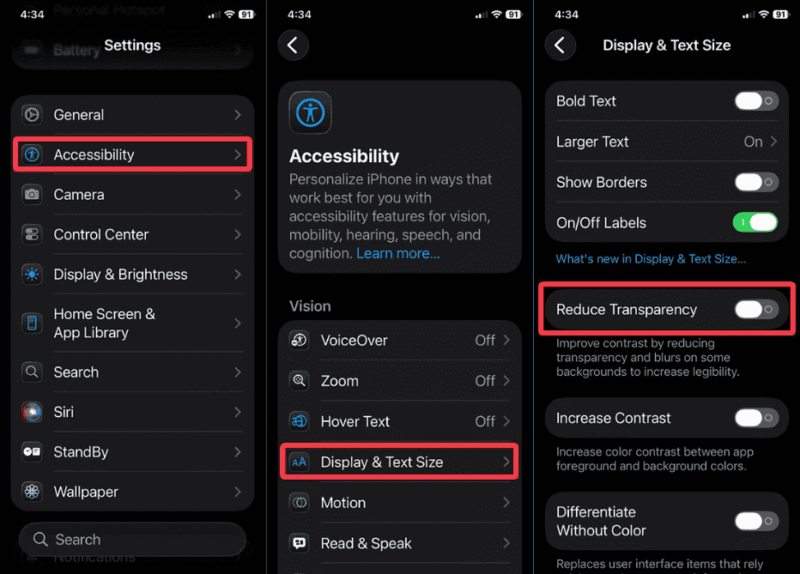
Then, do a force restart by pressing volume up + volume down, and hold the side button until the Apple logo appears. After restarting, open an app like Safari, swipe up to close it, and verify the transition is smooth without the glitch.
You can also check for updates in Settings -> General -> Software Update, much like your regular iOS maintenance routine.
Additional Troubleshooting Steps
If the purple flash on iOS 26.1 doesn’t fully go away, consider these additional steps.
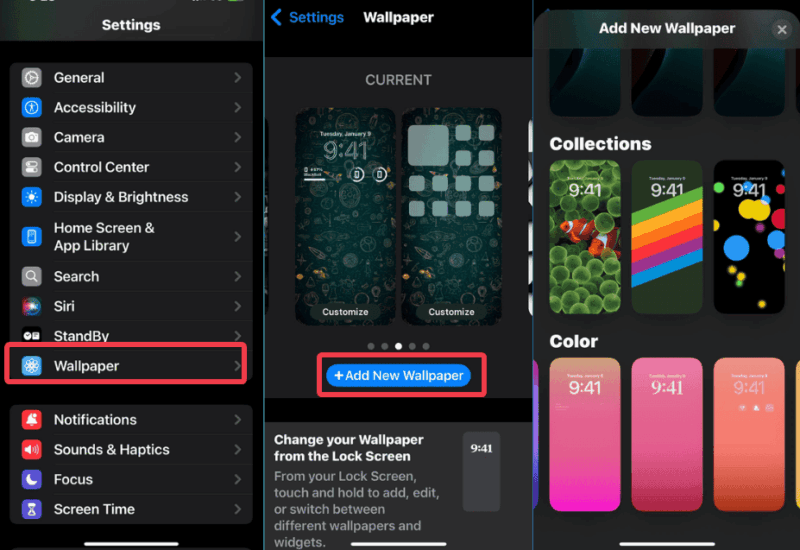
Begin by updating your wallpaper in Settings -> Wallpaper -> Add New. Choose a simple, solid color to prevent any color mismatches. This is particularly useful if you use live wallpapers or deal with backgrounds that keep changing unexpectedly.
You can also disable auto-brightness in the Accessibility -> Display & Rest Size section, alongside other iPhone accessibility options.
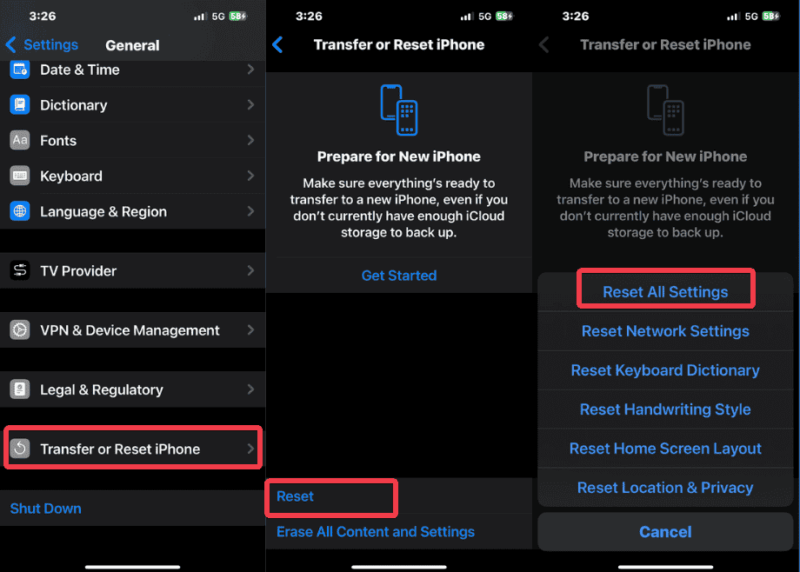
As a last resort, reset settings through General -> Transfer or Reset iPhone -> Reset -> Reset All Settings. This will not delete your data.
To help Apple fix it faster, submit a report using the Feedback Assistant or at apple.com/feedback/iphone.
To sum up, disabling Reduce Transparency is the primary workaround to fix purple flash on iOS 26.1. Ensure to force restart your device afterward, and the glitch should disappear.
Apple will likely release a small iOS 26.1.1 update soon to patch it permanently. Once it’s available, you can re-enable your settings to enjoy the complete iOS experience, including lock screen customizations. Until then, these steps should keep your iPhone running smoothly and flicker-free.








