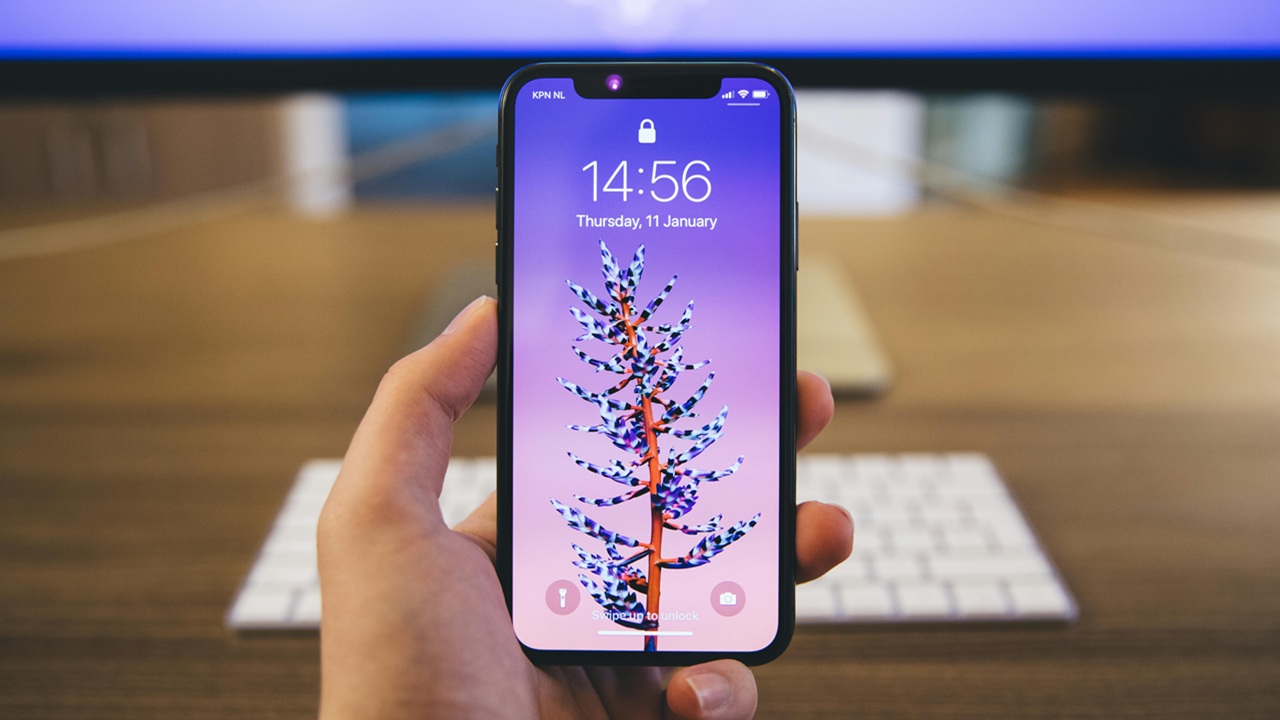
Noticed that your iPhone’s wallpaper is changing by itself? The main cause is often using the wrong wallpaper setting, or occasionally, a software glitch. If you’d rather stick with one wallpaper and stop the unexpected swaps, follow the steps in this post to lock in your chosen look.
Good to know: need a new look for your phone? Check these cool websites to find the perfect iPhone wallpapers.
1. Disable Photo Shuffle
If your iPhone is changing your wallpapers on its own, you might have accidentally enabled Photo Shuffle when setting your latest wallpaper.
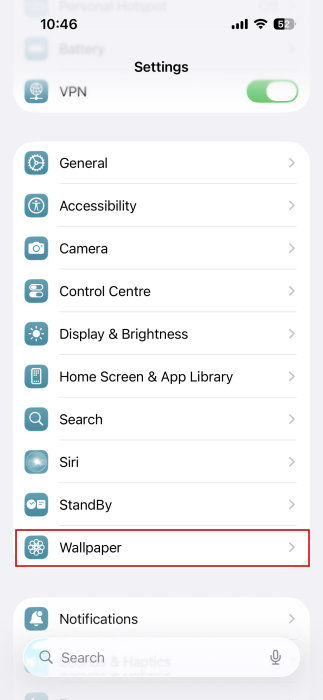
In this case, you’ll need to set a new wallpaper and ensure that you avoid using this option. Open the Settings app on your iPhone and navigate to Wallpaper.
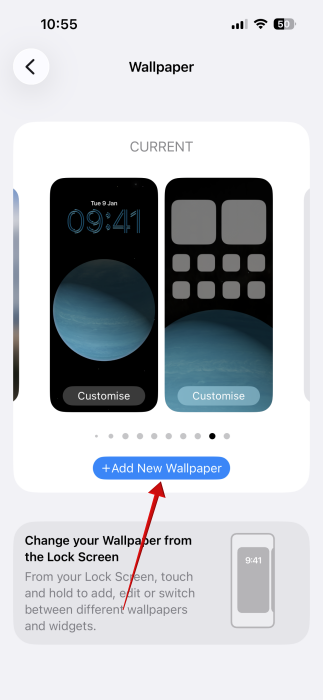
Tap on the Add New Wallpaper button.
The Photo Shuffle feature is at the top.
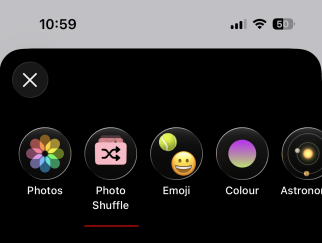
Pressing it will open up a window that lets you choose which photos you want to use for wallpaper shuffling. From here, you can also set the Shuffle Frequency.
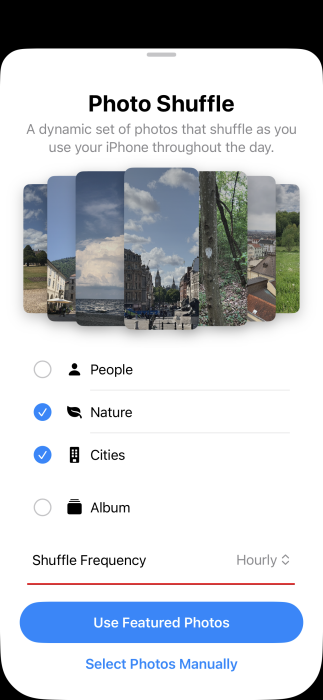
Make sure you’re not using this option when setting a new wallpaper. Instead, swipe through the other collections in the gallery and set your wallpaper from there.
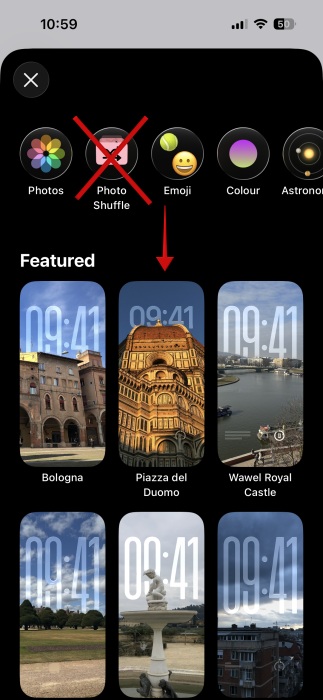
To avoid accidentally setting Photo Shuffle in motion, the next time you set your wallpaper, you might want to do it from your home or lock screen. Long-press on an empty space and select either Edit wallpaper on a home screen or Customize from the lock screen.
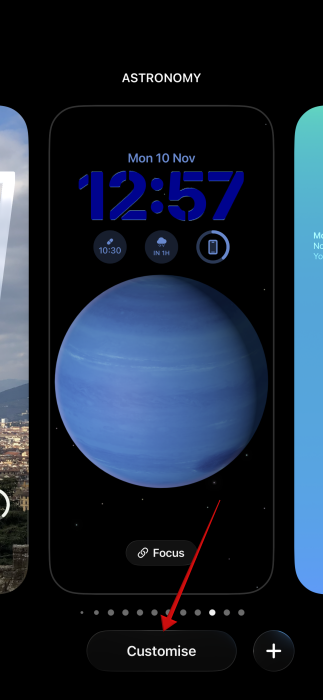
Alternatively, don’t tap Customize and swipe through your older wallpapers and instantly bring any of them back by tapping on them.
Tip: need some help with math? Your iPhone can help you with your homework or projects.
2. Make Sure You’re Not Using Dynamic Wallpapers
Your iPhone also gives you the option to set some dynamic wallpapers. These are wallpapers that change their appearance throughout the day.
You will find such options in the Weather & Astronomy section when you go to Settings -> Wallpapers. Check your wallpaper. If you’re using one from this category, go ahead and change it to another one.
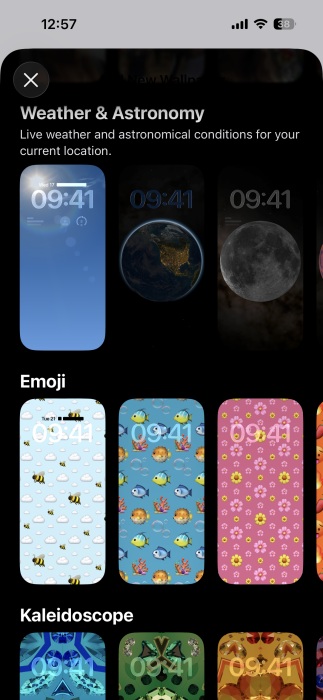
You might also have downloaded dynamic wallpapers from third-party websites. If that’s the case, you will also have to switch to a different wallpaper.
3. Disable Any Focus Mode Wallpapers
If you’re using a Focus mode on your iPhone, it might be the reason why your wallpaper keeps changing automatically. Focus modes allow you to set up a customized environment on your device. For instance, a Work mode can silence all your notifications and select apps. It can also automatically switch to less distracting wallpapers that you’ve previously set.
You will want to unlink these wallpapers from any Focus modes you’re using to prevent your phone from changing your wallpaper.
Navigate to Settings -> Focus.
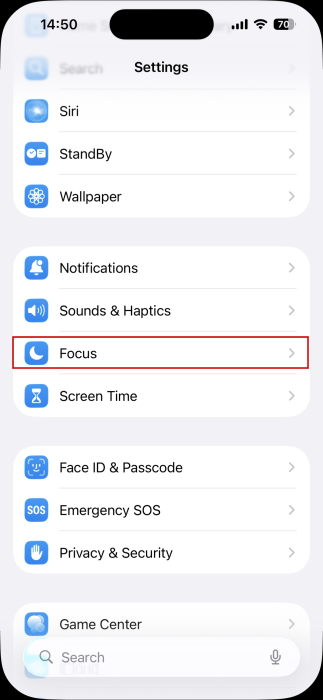
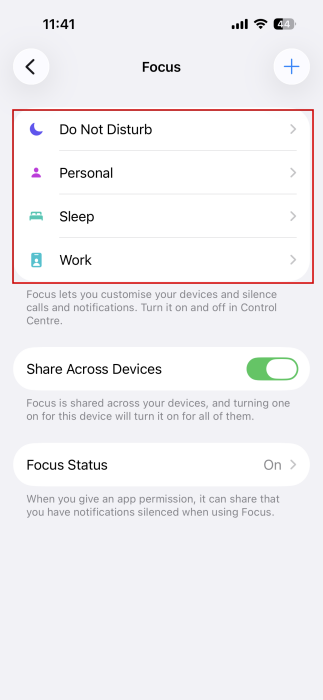
Go through all the Focus modes available in this section to see which one is active and whether they have any linked wallpapers.
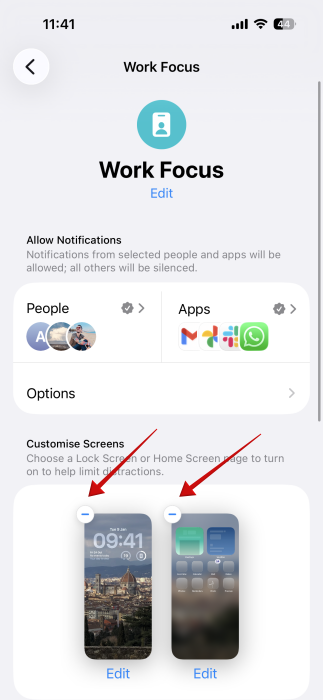
Check the Customize Screen section. If you’ve previously set some wallpapers for this mode, press the – icon on each to unlink them.
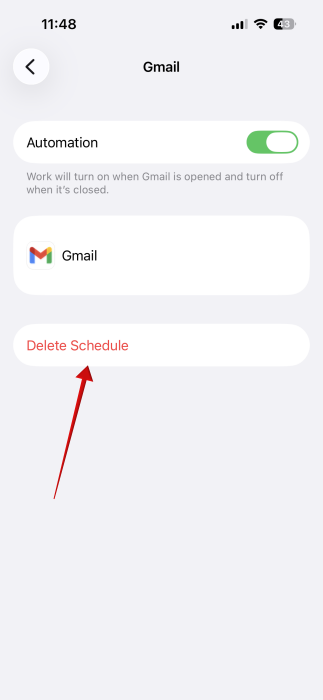
Alternatively, you can keep these wallpapers, but make sure you deactivate all schedules for a Focus mode. If you have a schedule set, it means your iPhone will automatically make the change to a different wallpaper once select conditions have been met. For instance, in this example, Work mode will activate every time you open the Gmail app or if it’s past 14:00 on a weekday.
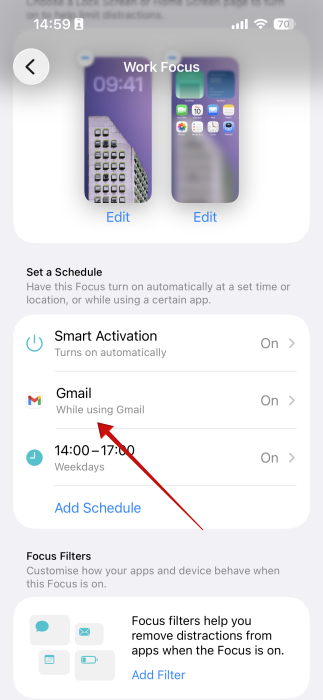
On the Focus mode page, tap on a schedule. Press Delete Schedule to eliminate it.
Also, make sure Smart Activation is off.
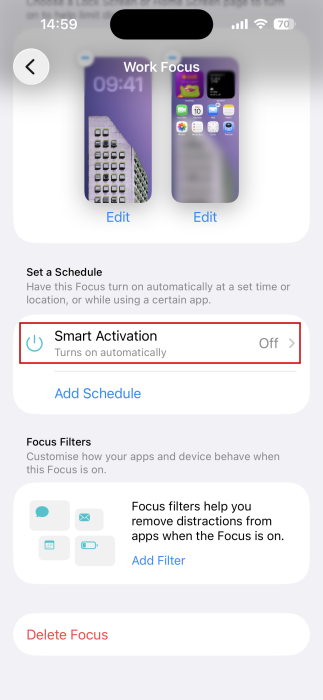
This way, the wallpaper will change only if you manually activate the Focus mode.
4. Delete All Older Wallpapers
If nothing has worked so far, and you’re still experiencing random wallpaper changes, try this. Remove all your older wallpapers and then re-add a new one.
On your lockscreen, long-press on an empty space. Swipe right to view older wallpapers.
Swipe up on a wallpaper until the trash can icon appears. Tap it to remove the wallpaper. Press Delete Wallpaper in the pop-up.
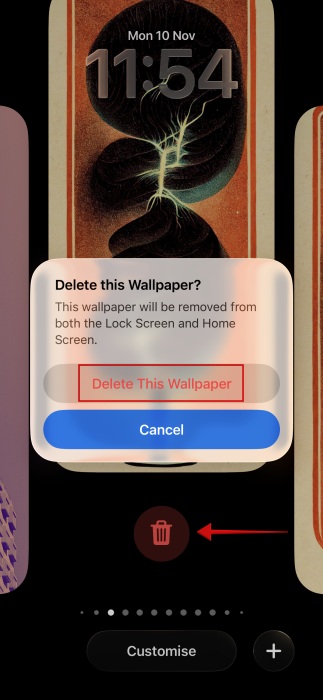
Go through all your older wallpapers and delete them all. This should eliminate any bugs related to your current wallpapers.
When you’re finally done, go ahead and re-add a new wallpaper.
After trying all these methods, if the issue still continues, check whether your iPhone is up-to-date with the latest software version.
At the same time, a quick restart might also help remove any bugs that might have been plaguing your system.
Finally, as a last resort, you can try restoring your iPhone to factory settings for a fresh start.
If you’ve just updated to the latest iOS 26 version, you might want to check our post on all the ways you can overhaul your iPhone’s lockscreen.








