Ever feel like even after setting your iPhone’s volume to a level, it randomly dips when you’re listening to a song or receiving calls? This common, frustrating issue is often caused by iOS features like Attention Aware or Reduce Loud Sounds. The good part is, you can always take control of your iPhone. In this article, we will guide you through different steps to restore stable audio and stop your volume from randomly dipping.
Why Does Your iPhone Lower the Volume Automatically?
More often than not, your iPhone is trying to help when it lowers the volume on its own. The issue could be an automated feature to control audio levels. Ironically, it could be a damaged button or accidentally pressing buttons. Common reasons, however, include the Attention-Aware feature lowering ringer volume once your phone catches your gaze, a Focus Mode like Sleep, or simply headphone safety reducing loud sounds around you to protect your hearing.
Related: if you are facing another issue like the iPhone not ringing for calls, we have the fixes here.
Turn Off Attention-Aware Features
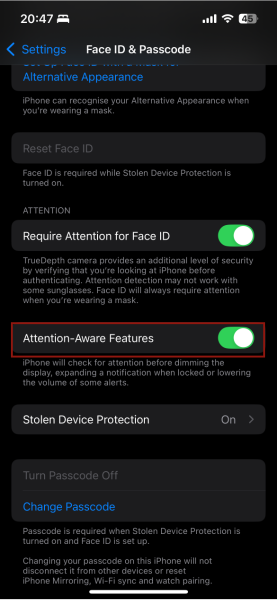
Attention-Aware detects your gaze, automatically lowering the ringer’s volume. These features use your iPhone’s TrueDepth camera to detect your attention. When you look at the screen, it lowers the volume for ringtones, notifications, and alert sounds. Also, when you enable Attention-Aware, it automatically dims the display to save battery.
To turn it off, simply open Settings on your iPhone. Tap Face ID & Passcode and enter your iPhone passcode. Scroll down to the Attention section and toggle off Attention-Aware Features.
Disable Reduce Loud Audio
The Reduce Loud Audio feature lowers the volume when you listen to loud audio through headphones. This feature protects your hearing once it gets to a certain decibel, but it makes your iPhone’s sound drop automatically, reducing the volume without notifying you.
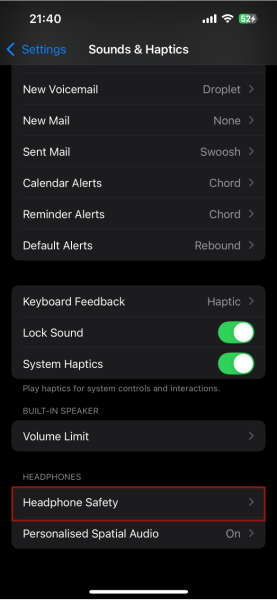
To turn it off, head to iPhone Settings -> Sounds & Haptics. Scroll down to the bottom and tap Headphone Safety.
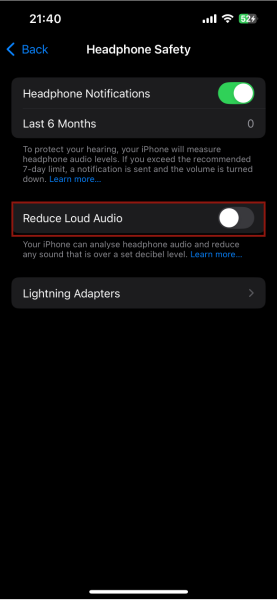
Toggle Reduce Loud Audio to off.
Disable Change With Buttons
Do you feel your ringer volume is often too low? You could be accidentally pressing the buttons while they are in your bag or pocket. Now, you can easily resolve this by locking the ringer volume.
The volume buttons of your iPhone only adjust media volume when the phone is unlocked. Also, if you enable Change With Buttons, the volume buttons adjust the ringer volume while your iPhone is locked.
To prevent random volume dips, disable this feature by opening Settings on your iPhone. Scroll down and select Sounds & Haptics.
Find the Change with Buttons option and turn it off.
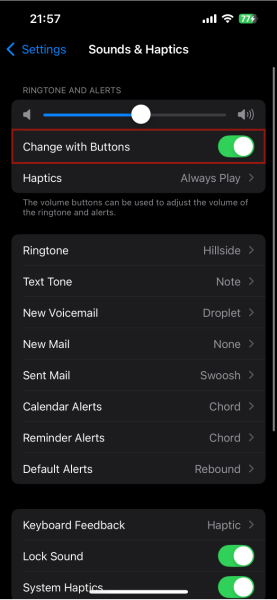
Now, the side buttons will only control your audio on music and videos, but not your alerts and ringer. The only way to adjust your ringer will be coming back to Sounds & Haptics and then controlling the slider on the screen.
Should you turn it back on? Truly, the only real benefit here is convenience. Only if you miss the convenience of using physical buttons to control your ringer should you turn it back on.
Check for any Interference With Your Bluetooth Device
You may be connected to your Bluetooth wireless speakers or headphones that have physical volume controls. These physical controls may override your iPhone settings and cause your volume to dip only when you are connected to these devices.
To test this out, while you are experiencing the volume issue, swipe down from the top-right corner to open Control Center. Tap the Bluetooth icon to turn it off.
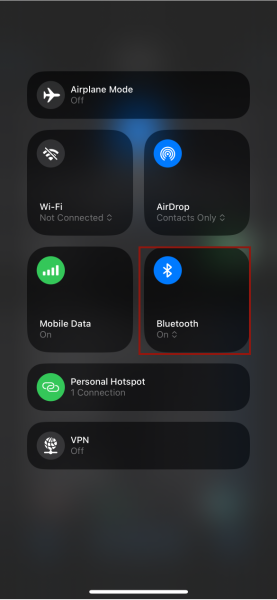
Try to play the audio directly from your iPhone’s speaker. If the volume issue is resolved, check the physical buttons on your connected device or the likelihood of accidental touches that could have been the problem.
To take it further, you could fix any possible Bluetooth connection issue by forcing your iPhone to forget and then re-pair. Simply open Settings -> Bluetooth, tap the i icon next to the faulty device, then select Forget This Device.
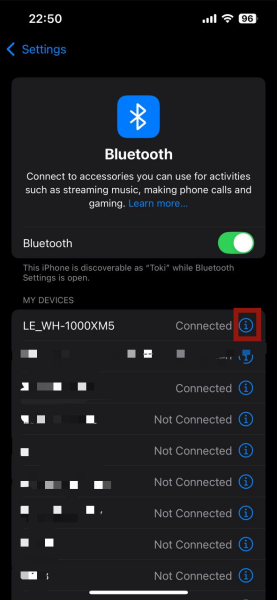
Try to pair it again and see if the bug is gone.
Turn Off Focus Modes
Focus Modes reduce distractions and help you concentrate by temporarily silencing notifications and alerts. If your iPhone stops ringing at specific times or locations, Focus Mode is likely the reason why. You might have accidentally enabled one, created a schedule, or turned on Smart Activation.
The fastest way to get your volume back is to disable the active Focus mode that may be on. Swipe down from the top-right corner of the screen to open Control Center. Tap on the Focus Mode that is active at the time, and it will disable it.
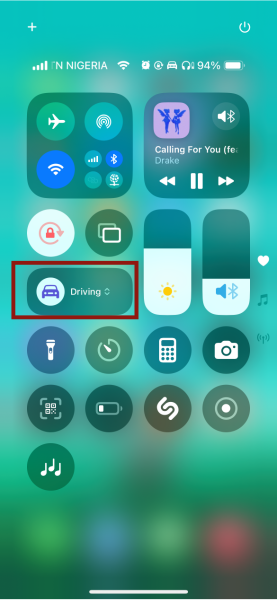
Also, your problem could be that the Focus Mode keeps turning itself on. Here, you need to find and disable its automation schedule.
Go to Settings -> Focus. Tap on the Focus Mode you suspect is causing the issue. It could be Do Not Disturb or Sleep.
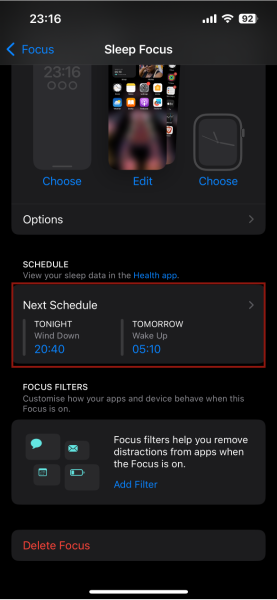
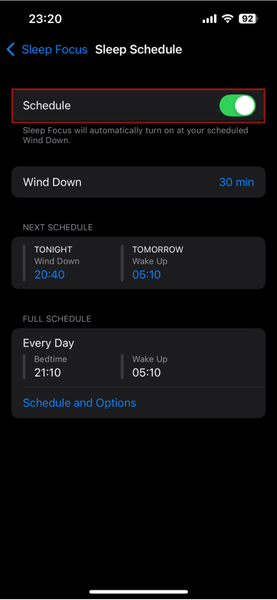
Scroll and tap on Next Schedule. If you see a schedule you do not want, toggle the Schedule button to turn it off.
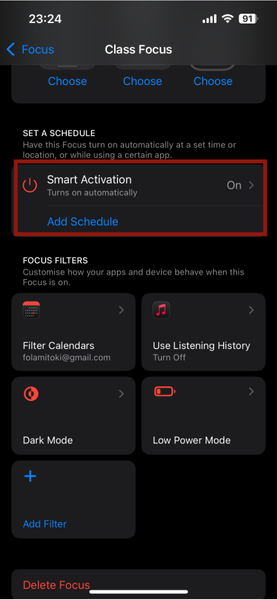
Also, check if Smart Activation is on in another Focus Mode by going in and out of all the Modes you use or may have created. If it is on, turn it off to stop the mode from turning on automatically based on your location or app usage.
Note: You may need to repeat these steps for each Focus Mode to be sure you do not leave possible culprits unchecked.
Tip: check out our guide on how to set up focus mode and find ways to increase your productivity.
Volume Reduces Randomly When Playing Music?
If your iPhone volume dips randomly for a second or two during music or video playback, app notifications most likely cause it. Your iPhone temporarily lowers the media volume so you can hear audible alerts for messages and apps. To stop these dips, you have two ways to handle this.
Firstly, you can use silent mode by swiping down from the top right corner into Control Center and tapping the Bell Icon to enable this mode. On iPhones with a physical switch above the volume buttons, simply flip the Ring/Silent Switch for interruption-free audio.
Secondly, if you feel one or two particular apps frequently interrupt you, turn off their notifications without having to silence your phone. Go to Settings -> Apps and select the app in question.
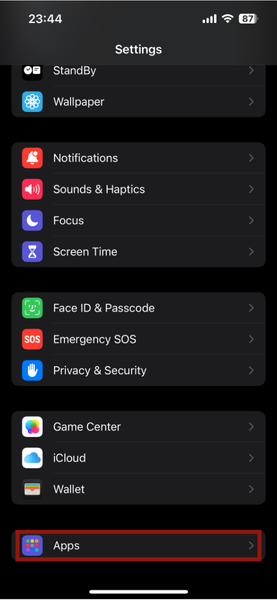
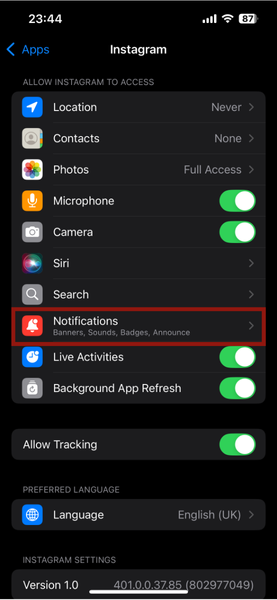
Tap Notifications and turn off the toggle for Sounds.
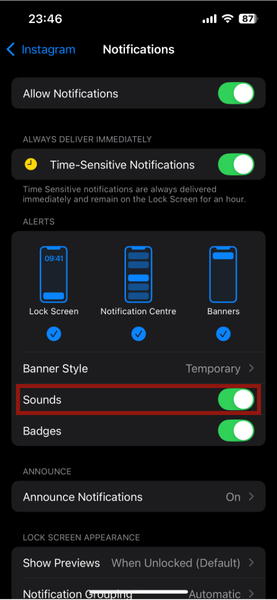
With this action, you keep visual notifications from the app, but it will no longer interrupt your audio, which turns off the accompanying audible alerts.
Restart Your iPhone
A simple restart of your iPhone often clears temporary bugs or glitches that iOS or third-party software may cause.
To manually restart your iPhone, if your iPhone has Face ID, press and hold the Power Button and any of the volume keys, then slide to power off.
If your iPhone has a Home button, press and hold the Sleep/Wake button and swipe the slider to switch off your phone.
Once the screen is black, long-press the Side or Sleep/Wake button again until you see the Apple logo.
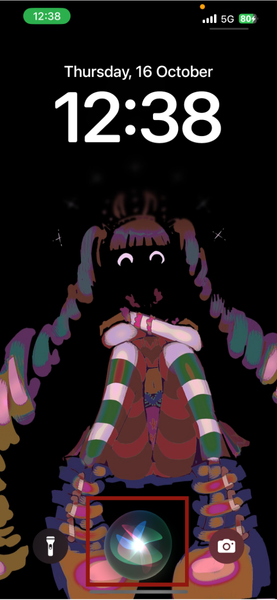
If you prefer a hands-free method, simply use Siri to assist. Activate Siri and say Restart my iPhone, and confirm the action when prompted.
Reset Settings
If you still cannot figure out what causes the volume changes on your iPhone, reset your iPhone settings.
Warning: You should see this as a last resort. This action only affects your iPhone settings, leaving all your files and apps intact. However, all customized settings you may have made will restore to default, including re-pairing your Bluetooth devices, Wi-Fi, privacy, and display.
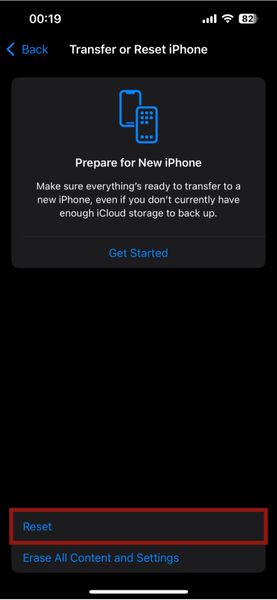
Open Settings on your iPhone, and scroll to General. Scroll to the bottom and tap Transfer or Reset iPhone.
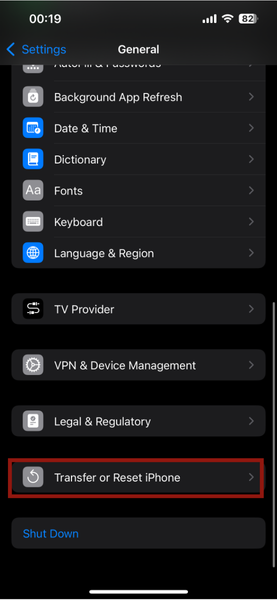
Tap Reset, then select Reset All Settings.
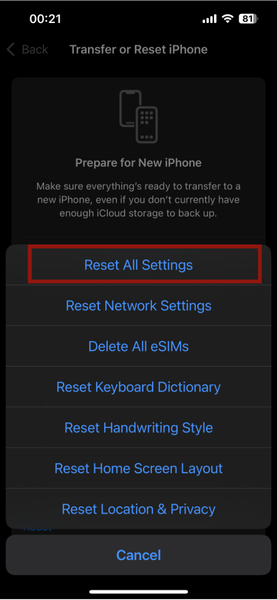
Enter your iPhone passcode to confirm.
With these solutions, you have some control over your iPhone’s volume. However, if your goal is not just to stabilize your volume but also to boost it, you may want to learn how to make your headphones louder from any device. While enjoying your iPhone is not just about volume, you can silence notifications to avoid distractions and boost your productivity.








