If you are seeing a gray screen after updating and relaunching Google Chrome, you are not alone. Many users are facing a gray screen in Chrome after the latest version 139 update due to a rendering bug. Thankfully, you can fix the issue with a little workaround that we’ll share below.
Why You Are Seeing a Gray Screen in Google Chrome
With Chrome 139, a rendering bug has been introduced that causes the browser’s GPU-backend graphics stack to fail to draw pages, causing a gray or sometimes white/black screen. While Chrome can use the CPU to draw pages, it uses hardware acceleration by default to take full advantage of the GPU for better Chrome performance.
Chrome uses a GPU compositor and ANGLE (Almost Native Graphics Layer Engine), which translates OpenGL ES calls to platform APIs so the browser can use hardware acceleration. If you have OpenGL selected as ANGLE, it can cause invalid output errors in the latest Chrome version and lead to a gray screen.
As of writing, there is no official fix for this issue, but you can use the following workaround.
Fix the Gray Screen in Google Chrome
The main fix for the problem is to use any other ANGLE than OpenGL in Chrome (OpenGL is not the default in Windows). However, since Chrome is showing a gray screen, you can’t access Chrome flags to change the ANGLE flag. You first need to disable hardware acceleration outside of Chrome to fix the gray screen issue. Here’s how.
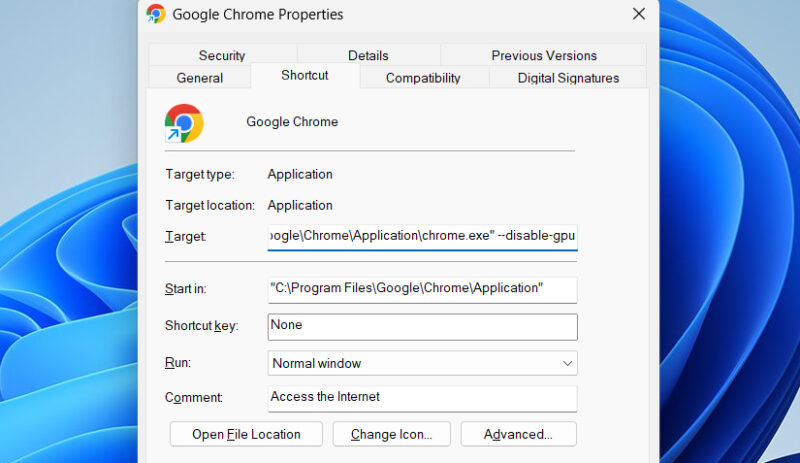
Close Chrome, right-click on its icon, and select Properties.
Here in the Target section, append --disable-gpu with a space. It should look like this:
"C:\Program Files\Google\Chrome\Application\chrome.exe" --disable-gpuClick OK and launch Chrome, and it should start working fine.
While this fixes the gray screen issue, Chrome will not be taking advantage of hardware acceleration, so you’ll face performance issues. It’s better to choose the default ANGLE and enable hardware acceleration for smooth performance.
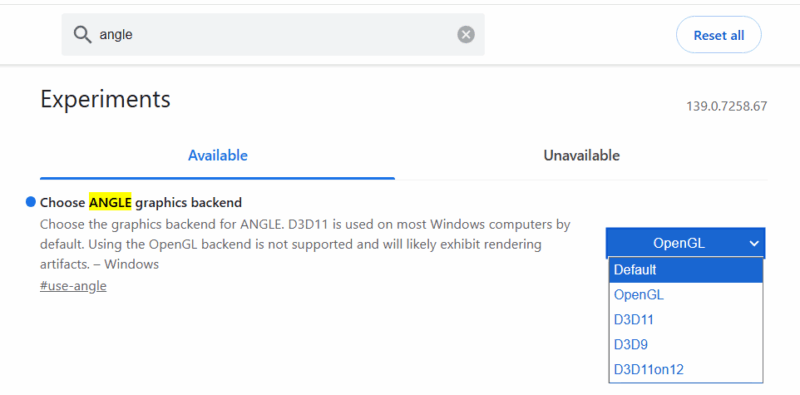
Type chrome://flags in Chrome’s address bar to open experimental features.
Afterward, search for “angle” in the top search bar and select Default (or D3D11) as the value for Choose ANGLE graphics backend flag. You’ll have to restart Chrome for changes to take effect.
You can now safely remove the --disable-gpu line we appended in Chrome properties to enable hardware acceleration.
If you must use OpenGL as an ANGLE backend for some reason, you’ll have to wait a bit until Google provides a fix. You might also face the same issue on other Chromium-based browsers, so you should check them too. If this doesn’t fix the problem, try these Chrome black screen fixes.








