Docker makes it easy to build, run, and manage containers. However, you may encounter the “Invalid Reference Format” error when attempting to run or build an image. In most cases, the issue is caused by a small formatting mistake in the image name or tag. For instance, it could be due to uppercase letters, special characters, or a missing value. In this guide, I’ll explain the common causes of this error and how to fix them to prevent it from happening again.
What Does the “Invalid Reference Format” Error Mean in Docker?
This error occurs when Docker can’t interpret the format of your image name. If the name is incorrectly structured, Docker fails to process the request and throws the “invalid reference format” error.
Docker requires image names to follow a specific structure to work correctly. The general syntax is:
[registry/][repository][:tag]To ensure your image name is valid, follow these rules:
- Use only lowercase letters. Docker does not allow capital letters in image names.
- You can include numbers, hyphens (-), dots (.), and underscores (_) to separate words or versions, such as my-app_v1.0.
- Avoid special characters like @, #, !, or $, as Docker will not accept them.
- Docker image names must also follow DNS naming rules, which means each section of the name (separated by slashes or dots) should be between 1 and 63 characters long, and hyphens can’t be placed at the beginning or end of a section.
- The full image name, including any registry and tag information, must be no more than 255 characters in total.
Fixing the “Invalid Reference Format” Error
Let’s explore the most common reasons for the “invalid reference format” error and how to fix them:
Capital Letters in the Image Name
Docker expects image names to be in all lowercase letters. Even a single capital letter can cause the format to break. For example, running the following command will cause an error:
docker pull NGINX
To avoid this error, always double-check that your image name is in lowercase before running the command.
docker pull nginx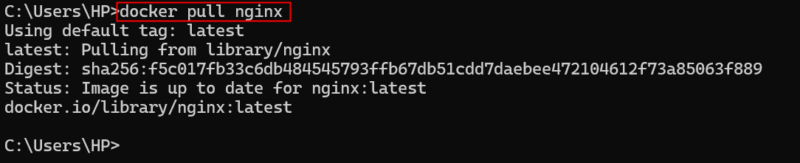
Special or Invalid Characters
Sometimes users accidentally include characters that Docker does not allow. These symbols include the @ sign, spaces, or characters copied from a website or document that look normal but are not.
For example, the following command contains a special character @, which will cause the stated error:
docker run ubuntu@:latest
To resolve this error, ensure that there are no extra characters or formatting issues in the command. You can use a plain text editor to check and clean the command (if needed):
docker run ubuntu:latest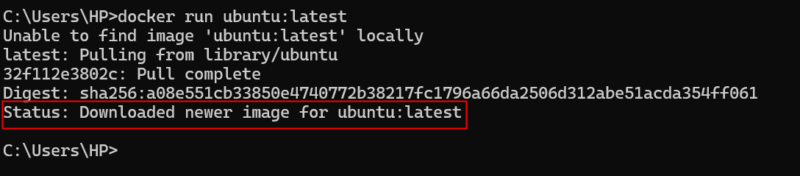
A Colon Without a Tag
One of the most common mistakes is placing a colon at the end of the image name but not including a tag. For example, we try the following command to pull Node:
docker pull node:Docker expects something after the colon, such as latest, 18-alpine, or any other valid tag. If nothing is provided, the image name is considered incomplete and will cause the “invalid reference format” error:

To fix this, add a proper tag after the colon to make the image name complete and valid:
docker pull node:latest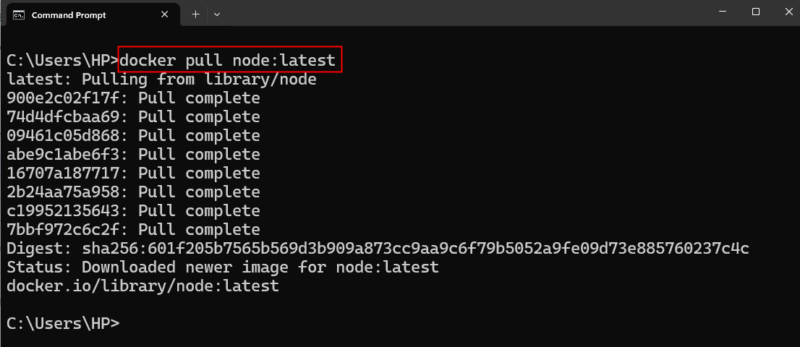
File Paths or Volume Mounts with Spaces
When you include a file path that contains spaces, especially with options like -v (volume mount), Docker may misinterpret parts of the path as separate arguments or even part of the image name. As a result, you may encounter unexpected results as shown below:
docker run -v /home/user/My Folder:/app ubuntu
To avoid this, always put file paths with spaces inside double quotes, as shown below:
docker run -v "/home/user/My Folder:/app" ubuntuReplace “/home/user/My Folder” with the actual path to the folder you want to mount into the container.
Inappropriate Use of Variable
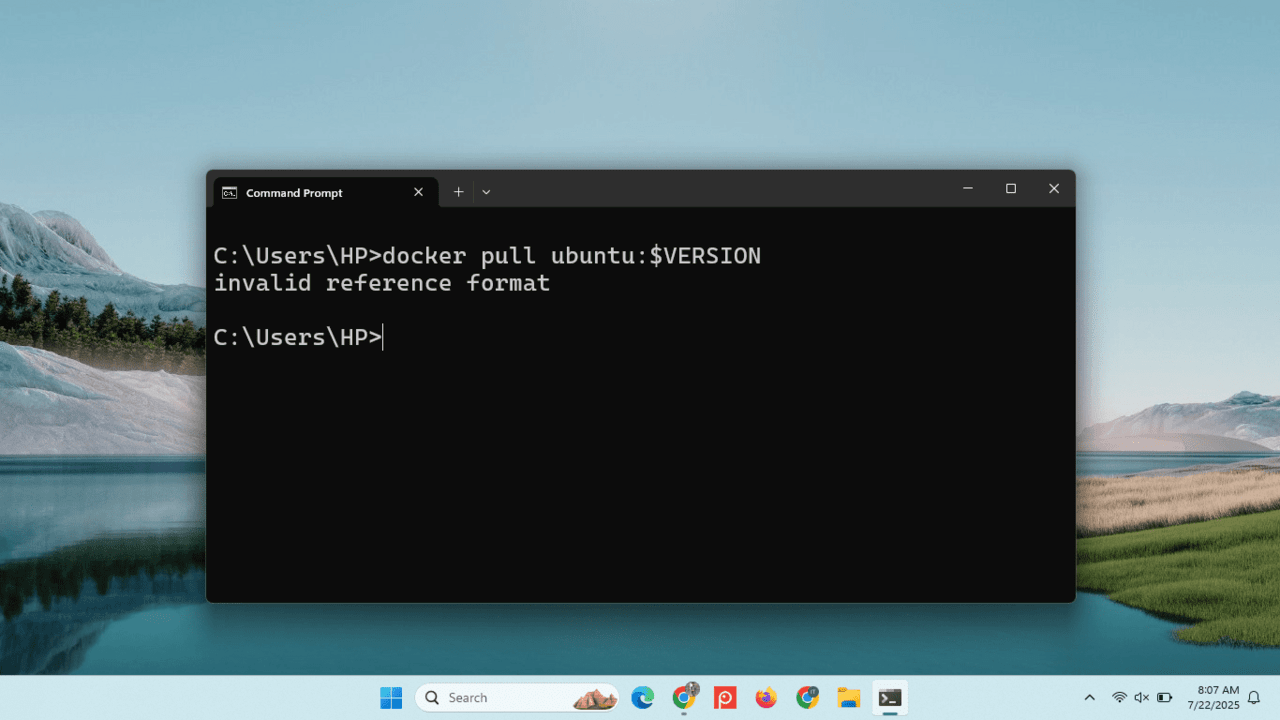
When working with Docker, it’s common to use variables in commands, especially when specifying image versions. However, if a variable like $VERSION isn’t set correctly, Docker may run into problems like the “invalid reference format” error.
For example, we run the following command to pull Ubuntu from the Docker Hub:
docker pull ubuntu:$VERSIONHere, the $VERSION is supposed to represent the version of the Ubuntu image you want to pull. But if you haven’t assigned any value to it, Docker interprets the command as “docker pull ubuntu:”. This results in an invalid image name because it ends with a colon and lacks the required version tag.

To avoid this, make sure all variables used in the command are properly defined. In Linux, you can set a variable using the following syntax.
$VERSION=latestThen, pull the specified version by executing the following command.
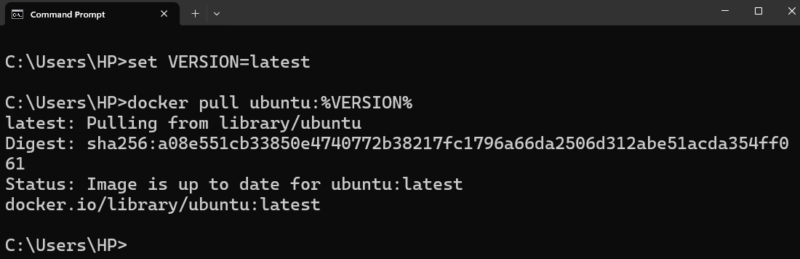
docker pull ubuntu:$VERSIONIn Windows CMD, you need to use the set keyword to define a variable (such as the version), and then use %VARIABLE% syntax to reference it in commands like docker pull.
set VERSION=latest
docker pull ubuntu:%VERSION%
Here, $VERSION holds the value latest, so Docker pulls the ubuntu:latest image without any issues. You can also assign a specific version, like 18.04, if needed.
Copy and Paste Issues
Sometimes, users copy commands from online tutorials or documents. These copied commands may contain hidden characters such as invisible spaces, non-English punctuation, or special quote marks. These characters can silently break your Docker command.
To avoid this, it is always better to type the command yourself when possible or paste it into a plain text editor first to remove unwanted formatting.
Wrapping Up
Now that you know the common causes of the “Invalid Reference Format” error in Docker and their respective fixes, you’re in a much better position to avoid this issue in the future. From checking for capital letters to making sure your variables are properly set, these simple tips can save you a lot of time and frustration. If you’re ready to explore more, you might also want to learn how to tag and push your own custom Docker images to a registry or how to clean up unused images to keep your system organized.