Have you ever opened your iPhone to find that, instead of contact names, you’re only seeing numbers? The iOS contact name not showing issue can be a real headache, making it seem like all your contacts have mysteriously disappeared. You’re left staring at phone numbers in your call logs and messages, with no names in sight. Fortunately, this common error can usually be fixed without much effort.
Good to know: learn how to change fonts in apps on your iPhone.
Things to Do First
The simplest solution to such an issue is to restart your iPhone. This usually fixes the missing contacts’ names. Do note that rebooting has the potential of possibly fixing other issues, too, such as Apple Pay problems.
- For iPhone X or later: press and hold either volume button and the side button until the power-off slider pops up. Slide it across, then wait about 30 seconds for your phone to turn off completely.
- For iPhone 6, 7, 8, or SE (2nd or 3rd generation): hold down the side button until you see the power-off slider. Drag it to turn off your iPhone, wait a bit, then press the side button again to turn it back on.
If that doesn’t solve things for you, try updating your phone’s software. Apple frequently releases iOS updates that fix various bugs and glitches, and these could include issues with the way contacts are displayed. To check for and install any available updates, open Settings -> General -> Software Update.
In case there’s an update available, download and install it. Keeping your iPhone up to date not only helps with contact issues but also ensures that you have the latest security patches and features.
1. Verify Contact Information & Data
If the error keeps persisting, it’s time to investigate the matter a little further. In the Phone or Contacts app, go to a contact with a missing name and tap on it. Tap Edit in the upper right corner (if there’s no Edit button, it means the number is not a contact, and so you might want to add it).
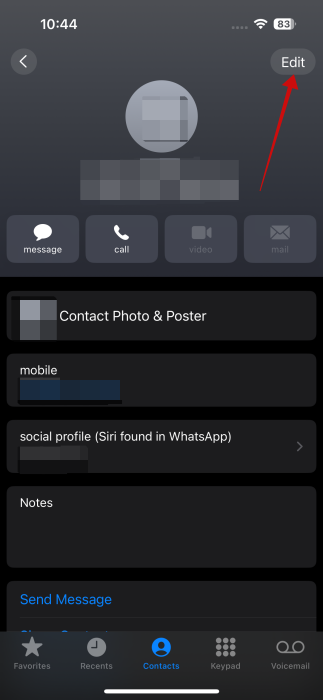
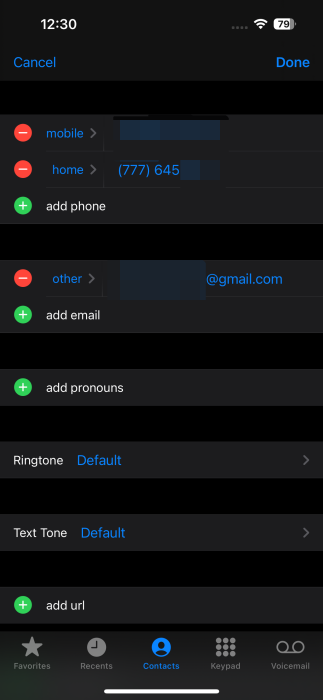
On the contact page, make sure all the information associated with the contact is correct. Verify the name, phone numbers, and email addresses you’ve added. Updating this info might be all you need to do to restore the contact’s name to your list.
2. Check iCloud Contacts Settings
Another possible reason for the contact names not appearing on your Phone and Messages apps is that iCloud Contacts in the iOS Settings is not enabled. This can happen if you accidentally disabled iCloud Contacts.
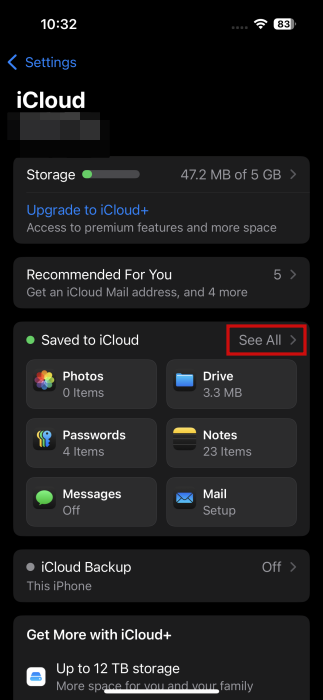
To fix it, head to Settings -> iCloud.
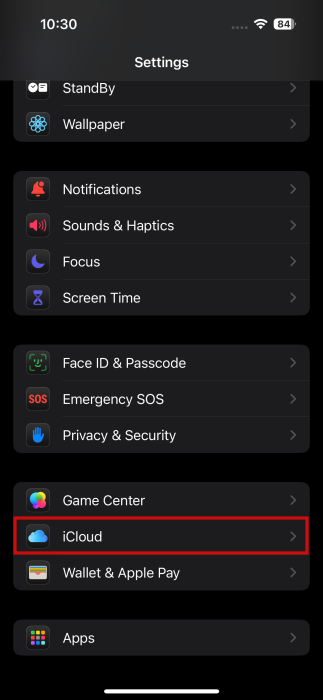
Check below the Saved to iCloud section. Press See All.
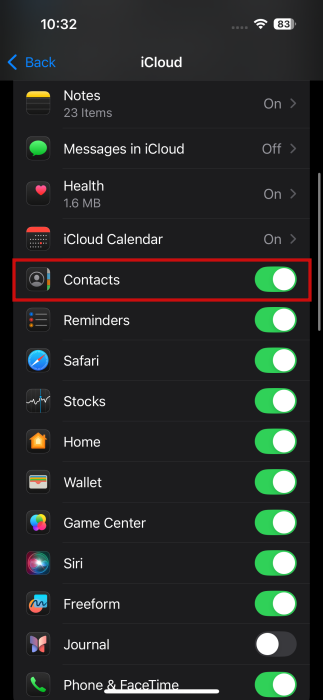
Make sure the Contacts toggle is switched to ON. If it’s already on, turn it off and back on.
3. Check for Duplicate Contact Numbers
Sometimes, when an iOS contact name is not showing, the problem might be due to a phone number being saved under two different contacts. When this happens, your iPhone gets confused and doesn’t display any name at all.
To fix this, open the Phone app, switch to Contacts, and use the search bar to type in the problematic phone number.
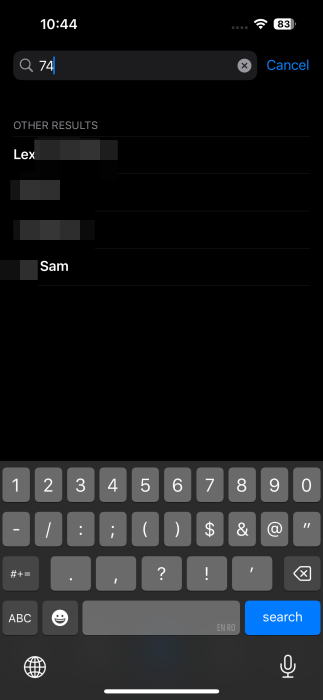
If the number pops up under more than one contact, that’s your cue. You have duplicates! Tap on one of the results to open up the contact page. Press Edit in the upper right corner.
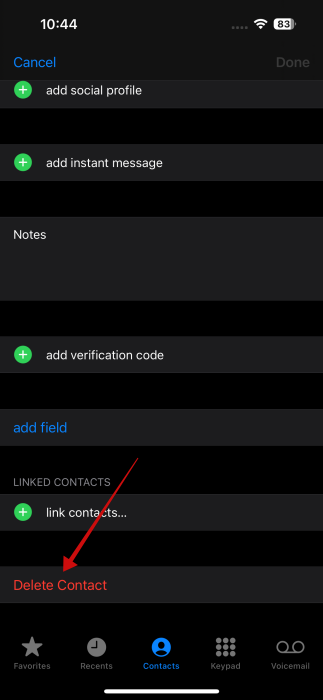
On the next screen, swipe down all the way to the bottom and tap Delete Contact.
4. Modify Your Contact Account Settings
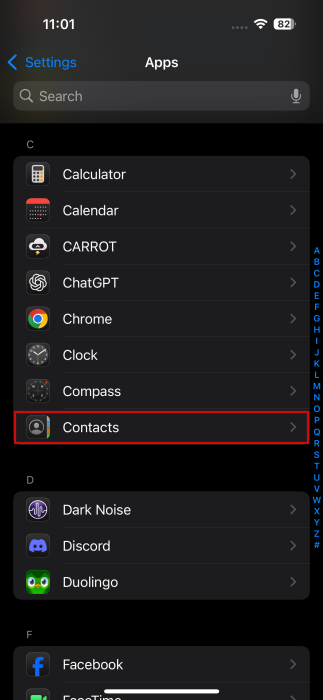
Your contact account settings can impact whether contact names show up correctly in iOS. To make sure all your connected accounts are syncing contacts, navigate to Settings -> Apps -> Contacts.
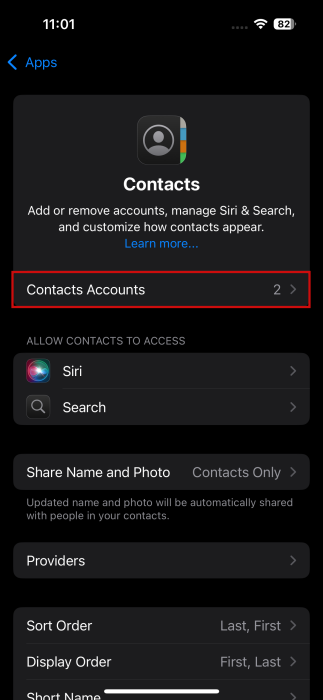
Select Contacts Accounts to find a list of all your connected accounts.
Tap on each account listed.

Check that Contacts is toggled on.
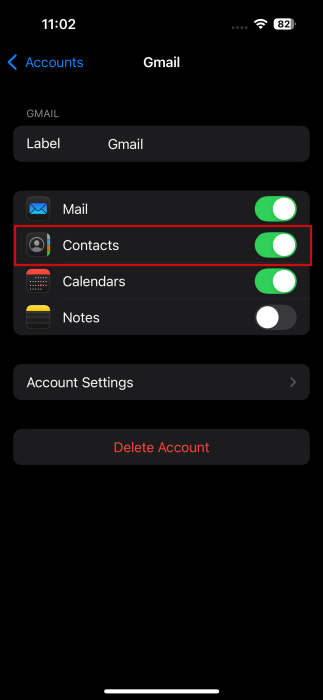
This step ensures that contacts from all your accounts are visible on your iPhone, helping to address the iOS contact name not showing issue.
In case you notice one of your accounts is missing, press the Add account button.

Add your account from there.

Tip: here’s how to master any language using your iPhone without installing any apps.
5. Disable Short Name
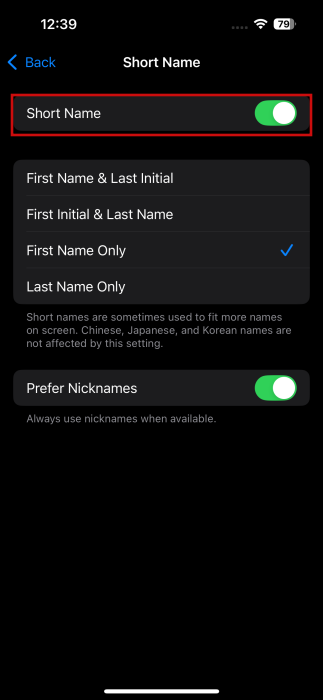
Since you’re in the Contacts app settings, you might also want to disable Short Name. This is usually a handy feature that enables a contact’s name to be always fully displayed on the screen, but it can cause problems, like names not displaying properly.
Under Contacts, tap on Short Name.
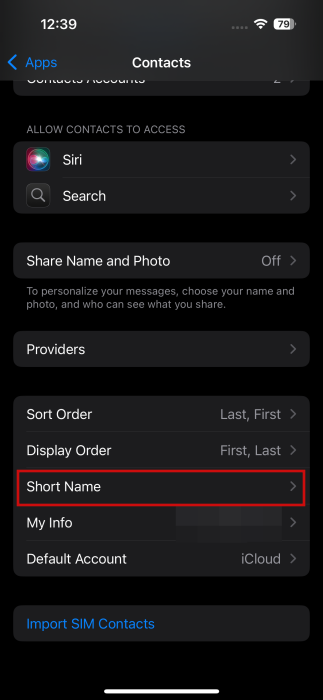
Turn off the Short Name toggle at the top.
6. Change Your Region
Sometimes your iPhone doesn’t recognize the selected region, and that’s why it might face issues while displaying contact names properly. A potentially effective solution to address the issue is to change your iPhone’s region settings.
Navigate to Settings -> General -> Language & Region.
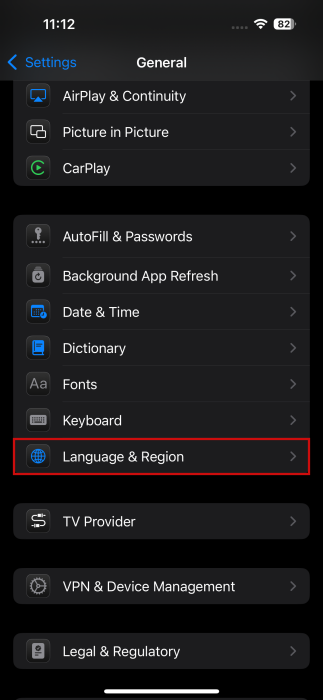
Tap on Region, and switch to a different one. Restart your iPhone to let the changes take effect.
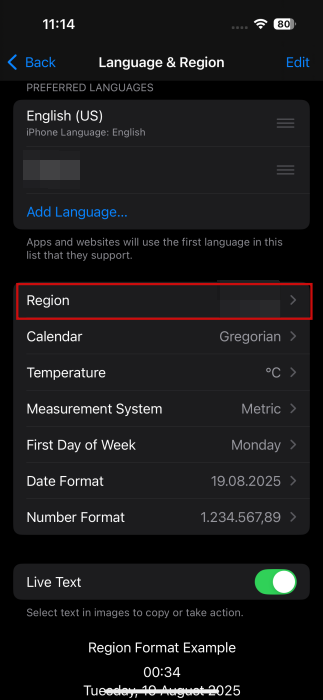
Once it has restarted, revisit Settings and change the region back to the original one. This workaround can surprisingly nudge your contact names back into view.
7. Check Visibility of All Contacts
Another reason you may be facing the iOS contact name not showing issue is that some contacts may be hidden.
To verify and fix this, open either the Phone or Contacts app on your iPhone.
Check whether the screen shows Contacts at the top. If not, tap Lists in the upper-left corner.
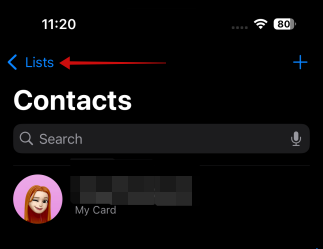
Finally, select All Contacts.
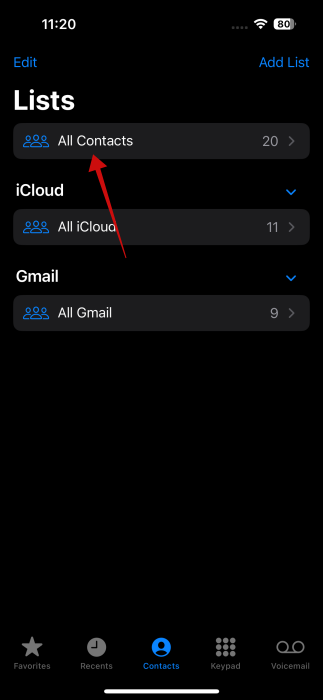
This action will display all your contacts, including any that were previously missing or hidden.
FYI: check how you can schedule messages in WhatsApp.
8. Reset Messages Settings
If you’re dealing with this issue in the Messages app, try resetting settings for the app.
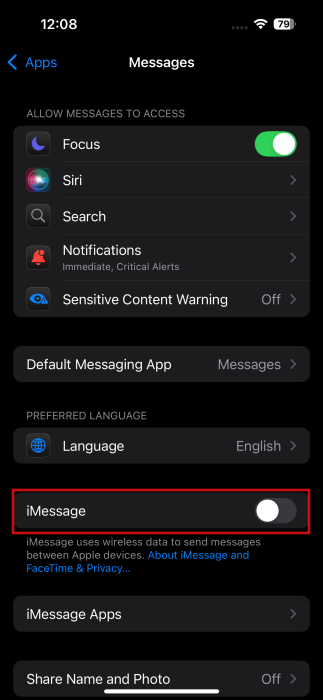
To do that, open Settings -> Apps -> Messages.
Here, find the iMessage option underneath Language. Toggle it off and then enable it again.
9. Restore Old Contacts List
If nothing has worked so far, you can try restoring an older copy of your contacts using iCloud. Note that you need to have previously created a copy of your contacts, if you haven’t, you won’t be able to restore them.
Open Safari or another browser on your iPhone. Go to icloud.com and log in with your Apple ID.
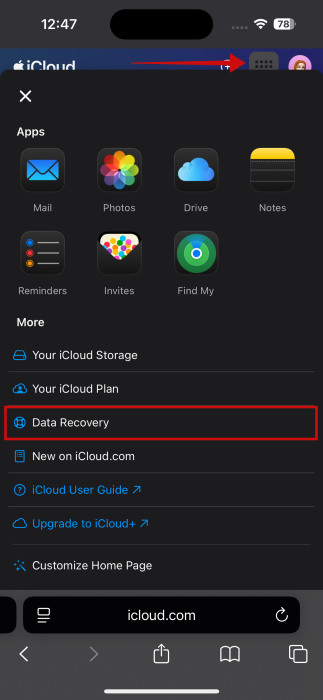
Tap on the menu button in the upper right corner and select Data Recovery.
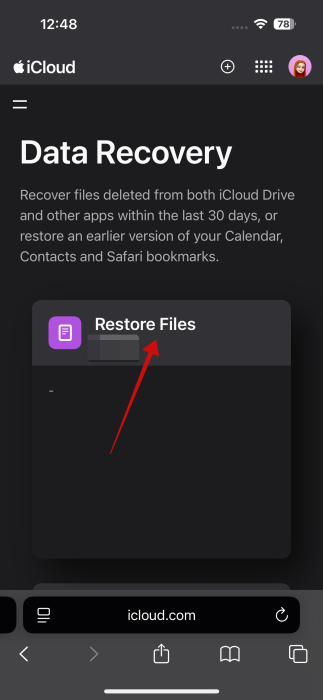
Allow your phone to search for backups that are available for your device. Restore your info from there.
Tip: learn how to create a backup on your iPhone by checking our dedicated tutorial.
10. Reset Network Settings
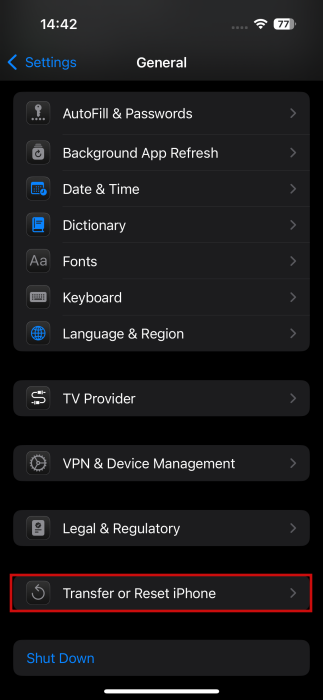
You can also reset your iPhone’s network settings as a last resort. Go to Settings -> General -> Transfer or Reset iPhone.
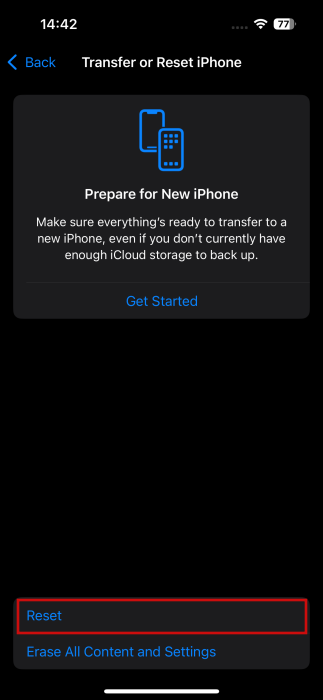
Press Reset.
Select Reset Network Settings.
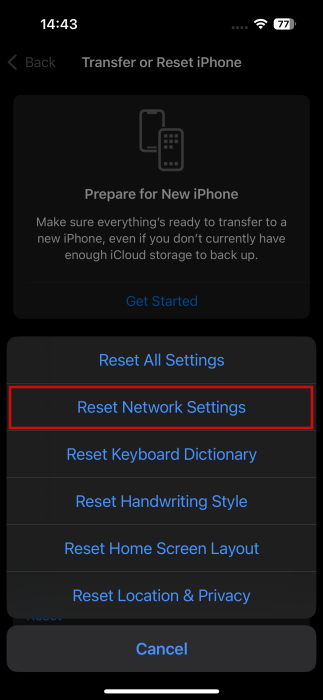
Note that resetting your network settings won’t wipe out your data. However, all your network settings including Wi-Fi-, cellular data and more will be reset, so you’ll need to add them again.
Making sure your contacts are current and working right is key to staying on top of things at work and at home. If you need more info on how to better manage your contacts, learn how to change the default account for contacts on your iPhone. Alternatively, if you need to transfer contacts from one for to another, here’s how to easily do so.








